00193872_Install_WinXP_manual.pdf - 第24页
Installation Manual for Windows XP (manual setup) Edition 04/2006 Fig. 2-26: Finishing Windows XP SP 2 → Leave the presetting as is ( NO check m ark at " Do no t restart now "). → Click the button Finish . The …
Installation Manual for Windows XP (manual setup) Edition 04/2006
→ Confirm the selection by pressing the Next> button.
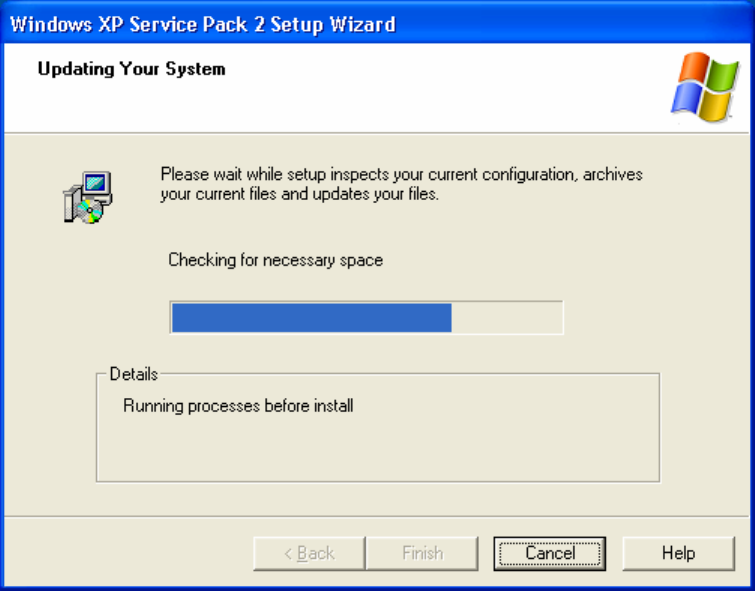
The available space is checked on the dialog then follows:
Fig. 2-25: Automatic test of the available space on the hard disk
→ 1 GB of space is needed for unpacking the temporary files.
If the available space is not sufficient, a message appears.
→ Otherwise the dialogs of the automatic installation appear (the following one, for example) in this
case no more activities are necessary on your part.
This automatic installation process takes approximately 45 minutes (according to test installation).
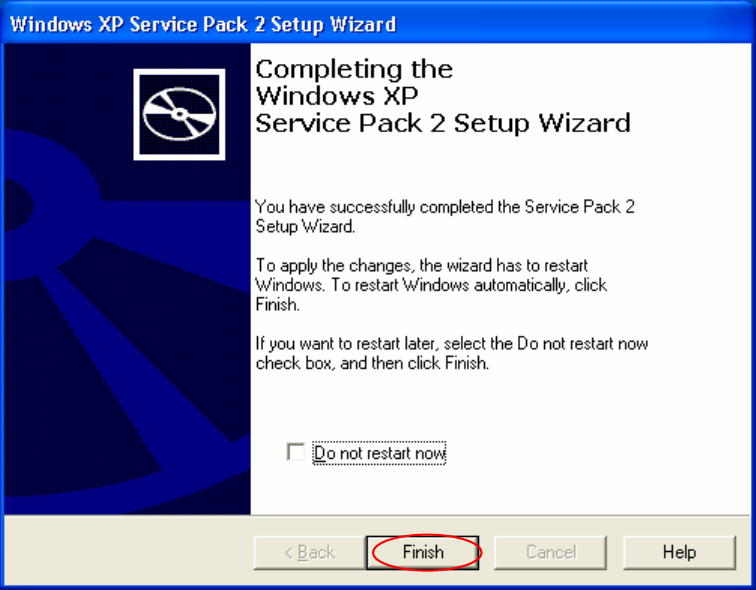
→ After the installation, the following dialog for the finish of the setup appears:
23 / 37
Installation Manual for Windows XP (manual setup) Edition 04/2006
Fig. 2-26: Finishing Windows XP SP 2
→ Leave the presetting as is (NO check mark at "Do not restart now").
→ Click the button Finish.
The computer will be restarted.
→ The screen "Protect the Computer" (not shown here) with the following options appears:
• Protect the computer by activating automatic updates now.
• No, not yet
→ Select: NO, not yet
(a check appears in the red security shield)
→ Automatic Updates should not be activated, as updates should be conducted in coordination with
the SIPLACE software that is used.
→ Press the Next> button (bottom, right) to close the screen "Protect the Computer“.
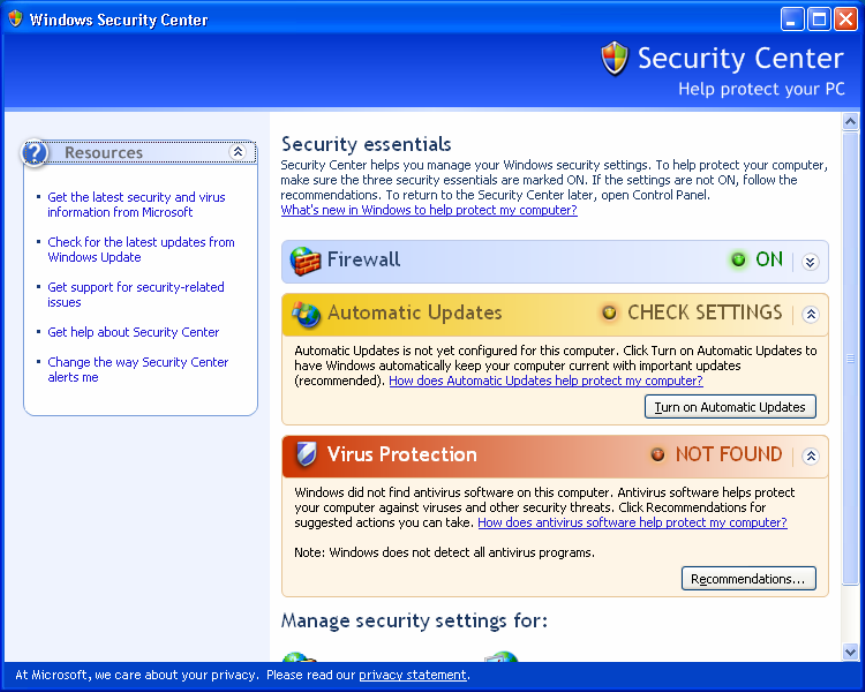
This is followed by the display of the security center:
24 / 37
Installation Manual for Windows XP (manual setup) Edition 04/2006
Fig. 2-27: Windows XP SP 2Security center
→ This screen is just for your information. Determine whether a virus scanner was found and then
close the “Security center“ via the cross.
→ In the event that the customer’s administrator wants a virus scanner, it will be necessary to ensure
that it is compatible with Service Pack 2 before it is installed.
→ If only the service pack 2 was retrofitted on the SIPLACE Pro computer at the customer’s facility,
i.e., the SIPLACE applications are already installed, conduct the settings now on the basis of the
document "Integration to the customer domain.", order number 00193761-xx
→ If the service pack 2 was installed in direct connection with Windows XP, continue the work with the
following sections and, after installing the SIPLACE applications, make the settings based on
the above-named document.
25 / 37