00193872_Install_WinXP_manual.pdf - 第21页
Installation Manual for Windows XP (manual setup) Edition 04/2006 2.2.6 Installation process for Service Pack 2 → Log yourself in as the administrator. → Download "Service Pack 2 for IT Profession als and Developers…

Installation Manual for Windows XP (manual setup) Edition 04/2006
2.2.4 Information regarding the installation process
• It is not necessary to install the SP 1 beforehand because it is already included in the SP 2.
• The pure installation of Service Pack 2 takes approximately 45 minutes per SIPLACE computer.
• The firewall is active once the SP 2 has been installed manually.
• After the installation the settings are to be made on the basis of the following current manual:
”Integration to the customer domain”, Item no. 00193761.xx
• The time required to make the settings (see above named document) may vary, depending on
the SIPLACE applications that are installed.
Note:
For information regarding compatibility of SIPLACE applications (DCOM
applications) consult the current Technical Information “Compatibility to Windows
XP SP2" that you can find in the SIPLACE Document Management System (DMS).
2.2.5 Preparatory steps
→ Make certain that all requirements (see Requirements for the installation) are kept.
→ Back up all the data (databases, user data) via the network to another computer (on which no
Service Pack 2 is being installed) or to a USB hard disk.
20 / 37
Installation Manual for Windows XP (manual setup) Edition 04/2006
2.2.6 Installation process for Service Pack 2
→ Log yourself in as the administrator.
→ Download "Service Pack 2 for IT Professionals and Developers" or insert a preparatory CD with the
download.
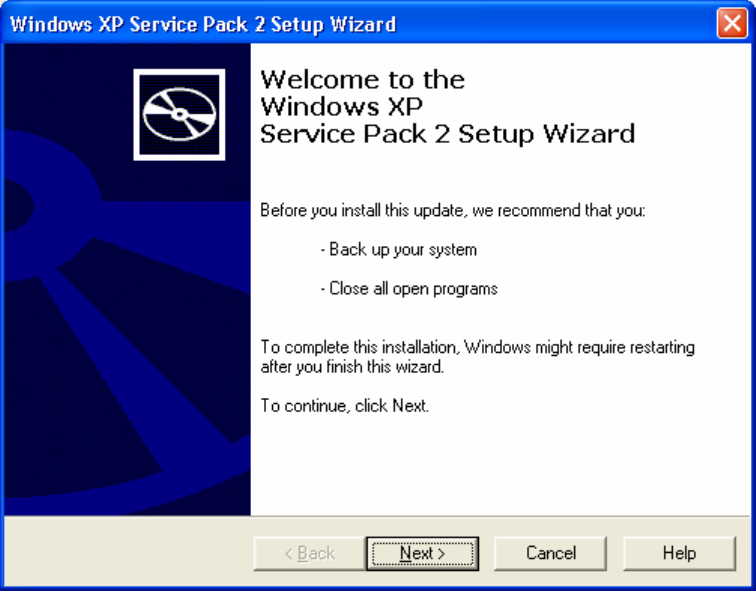
The “Welcome“ screen will appear.
Fig. 2-22: “Welcome” screen
→ Press the Next> button. The following dialog appears:
21 / 37
Installation Manual for Windows XP (manual setup) Edition 04/2006
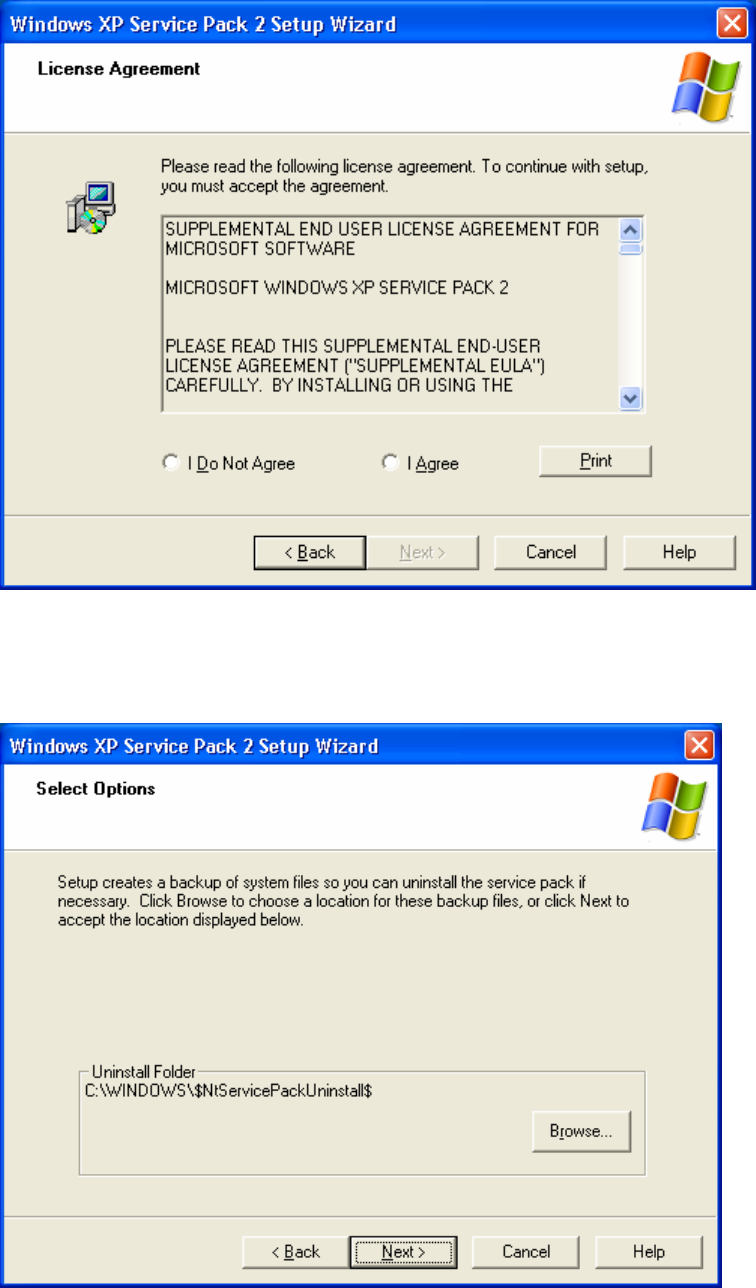
Fig. 2-23: License agreement
→ To accept the license agreement, activate the radio button I Agree and press Next>.
The following dialog appears:
Fig. 2-24: Creating a directory for backup of system files for uninstallation
→ Press the Browse button to select the path for the backup of system files.
22 / 37