00193872_Install_WinXP_manual.pdf - 第30页
Installation Manual for Windows XP (manual setup) Edition 04/2006 The following dialog shows the device properties: Fig. 2-33: Device Properties → Select the “Driver” tab. 30 / 37 In the next dialog, you can change softw…
Installation Manual for Windows XP (manual setup) Edition 04/2006
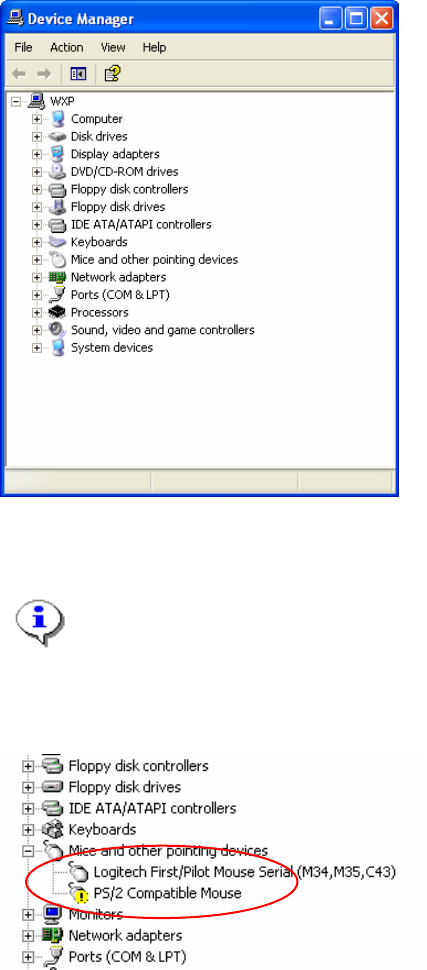
Fig. 2-32: Device Manager
Here you can see and find hardware devices, which have no appropriate driver software.
Note:
Windows will mark unknown hardware devices with a question mark icon. This means
Windows has detected a configuration error.
The following screenshot shows such a situation.
→ If you find such a device, double-click on it.
29 / 37
Installation Manual for Windows XP (manual setup) Edition 04/2006
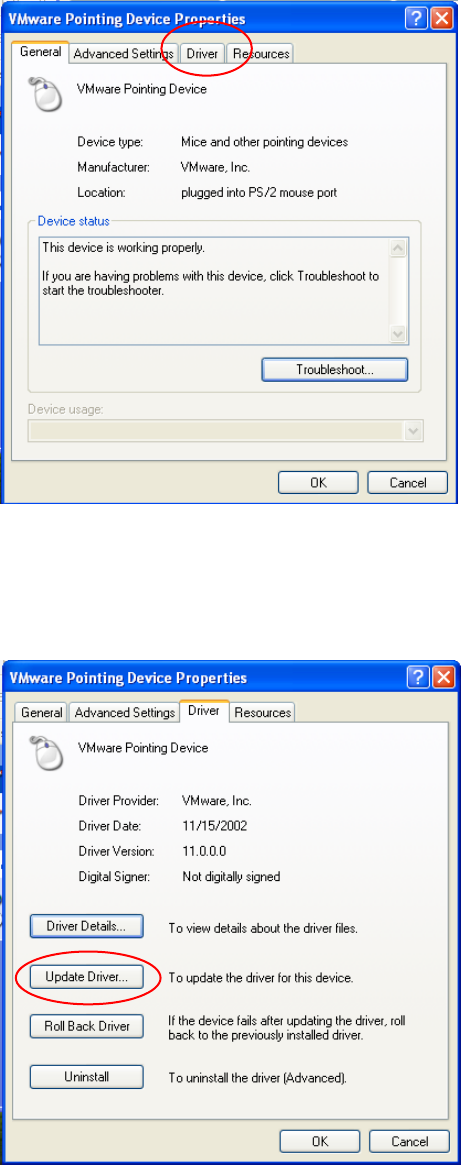
The following dialog shows the device properties:
Fig. 2-33: Device Properties
→ Select the “Driver” tab.
30 / 37
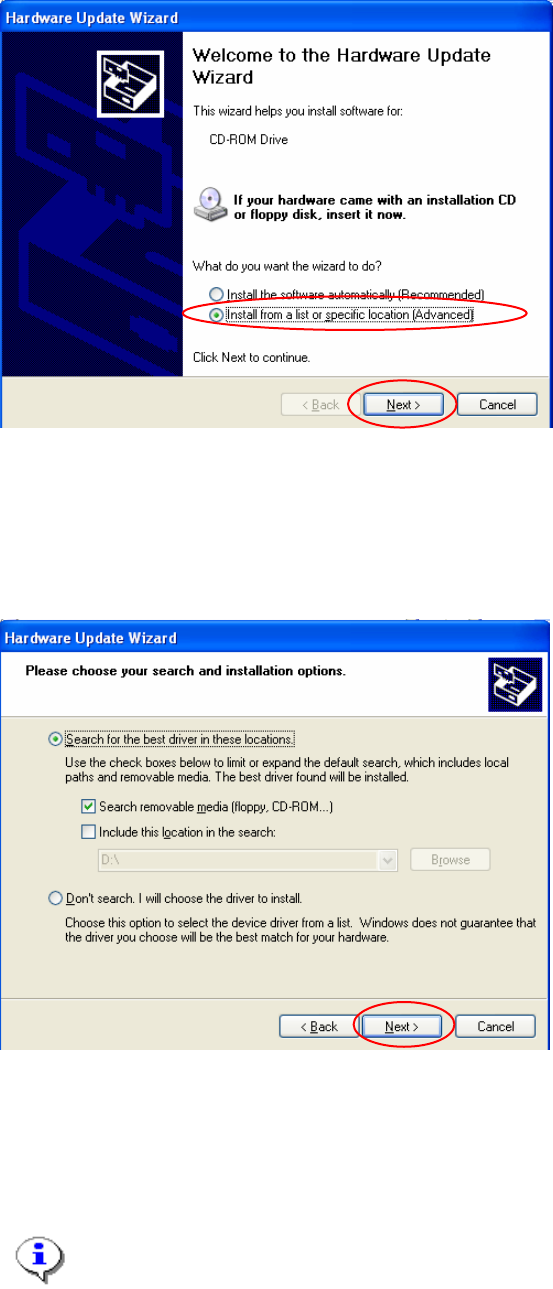
In the next dialog, you can change software configuration
Fig. 2-34: Driver settings
→ Select Update Driver…
Installation Manual for Windows XP (manual setup) Edition 04/2006
A wizard is started to help you through the process of installing a new driver software.
Fig. 2-35: Hardware update wizard
→ Select the option “Install from a list or specific location”.
→ Select the button Next>.
In the next dialog, you can define where new software should be searched for. Now you should use a
floppy or CD from you hardware vendor.
31 / 37
Fig. 2-36: Specify location for driver software
→ Insert floppy or CD with driver software
→ Select the button Next>.
→ Accept changes in the last dialog and finish procedure.
Note:
You will be informed if Windows could find new driver software or if it will use the previous
software versions.