00193872_Install_WinXP_manual.pdf - 第6页
Installation Manual for Windows XP (manual setup) Edition 04/2006 2 Inst allation of the W indows XP Operating System 2.1 Inst allation of the Windows XP Base sy stem → Insert the CD "Windows XP" into the CD-RO…

Installation Manual for Windows XP (manual setup) Edition 04/2006
1 Introduction
1.1 Scope
This document describes how to install the basic Windows XP operating system and then Service
Pack 2 on a SIPLACE Pro computer in a domain. The customer is responsible for the installation of
the Microsoft current service packs and the current hot fixes.
1.2 System requirements
There are recommended hardware configurations for SIPLACE Pro. Please see the current version
description of your application and version for details.
These requirements depend on software application, version and configuration you plan for.
For Service Pack 2 please take into account the information from Microsoft regarding hardware and
software compatibility.
Note:
The SIPLACE station computer must be installed with the “unattended setup”.
5 / 37
Installation Manual for Windows XP (manual setup) Edition 04/2006
2 Installation of the Windows XP Operating System
2.1 Installation of the Windows XP Base system
→ Insert the CD "Windows XP" into the CD-ROM.
The message "Press any key to reboot from CD" appears during the startup phase of the computer.
→ Press any key to boot from CD.
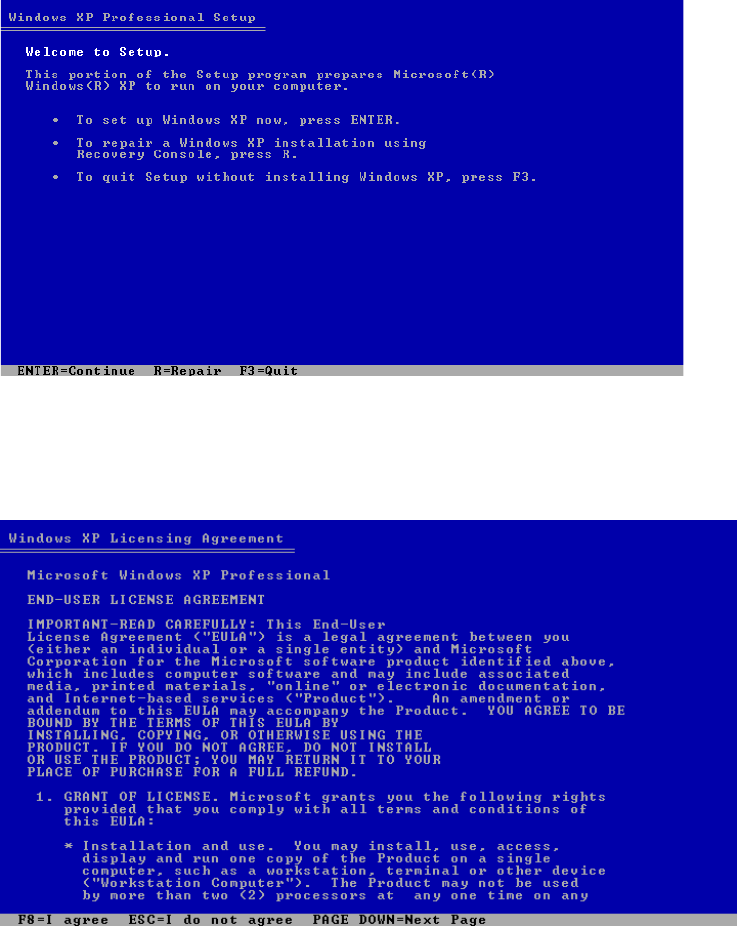
The following dialog appears:
Fig. 2-1: Windows XP Professional
→ Press Enter to continue.
The dialog "End-user License agreement" appears.
Fig. 2-2: Windows XP Licensing Agreement
6 / 37
Installation Manual for Windows XP (manual setup) Edition 04/2006
→ Read the License agreement.
→ Press F8 to agree.
Note:
If an operating system already exists on your computer the message "The following list
shows the existing partitions and unpartitioned space on this computer” appears. In that
case please delete all old partitions. The result is an unpartitioned space.
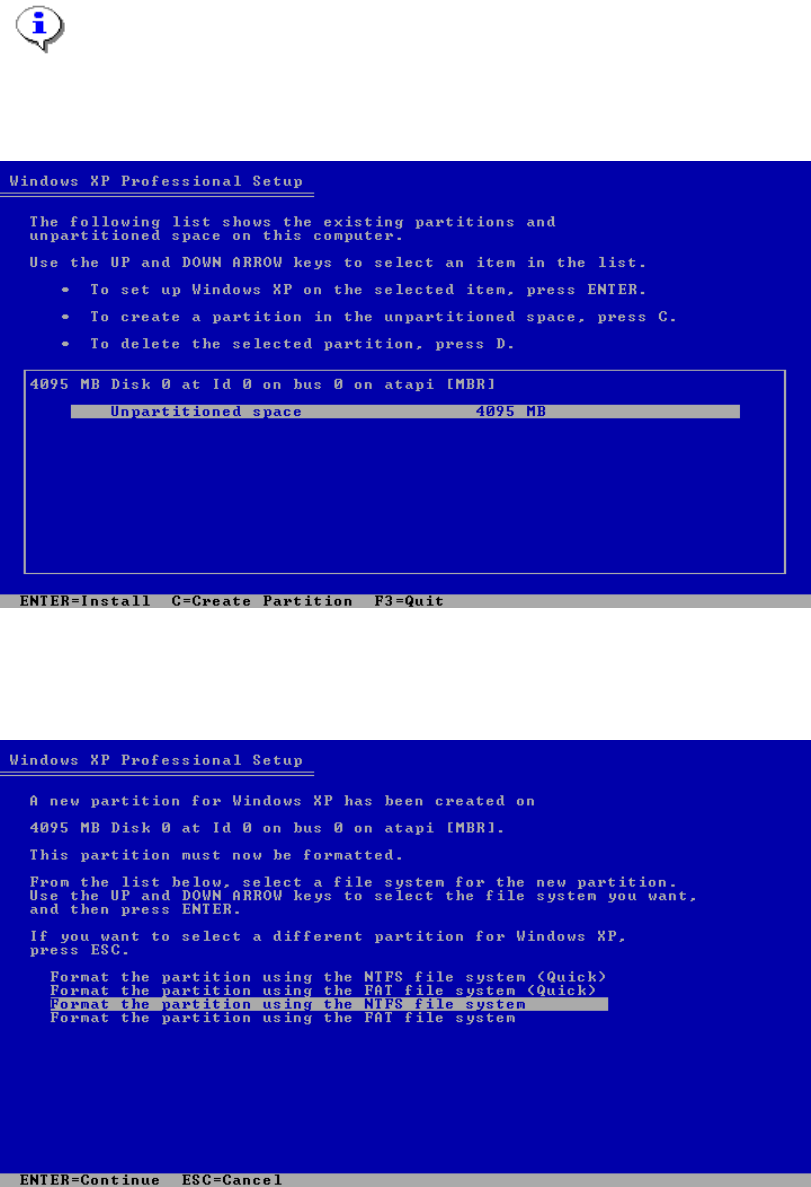
Normally if the disk is new it is not formatted and you see the following dialog.
Fig. 2-3: Windows XP partitions
→ Press Enter.
The following dialog appears:
Fig. 2-4: Windows XP partitions
→ Select "Format the partition using the NTFS file system".
→ Press Enter to continue.
7 / 37