00195397-01_Installation Manual Setup Center 2.3.pdf - 第19页
Installation Symbol MC70 2D barcode scanner Hardware Installation Installation Manual SIPLACE Setup Center 2.3 19 MC70 scann er integrat ed in WLAN-infra structur e and accessible with "ping" windows-command.…
Installation
Hardware Installation Dragon Scanner’s Cradle
18 Installation Manual SIPLACE Setup Center 2.3
5.2 Hardware Installation
We recommend performing the installation in the specified order:
1. Installation of hardware
2. Installation of software
This chapter describes the hardware installation procedure.
5.2.1 Dragon Scanner’s Cradle
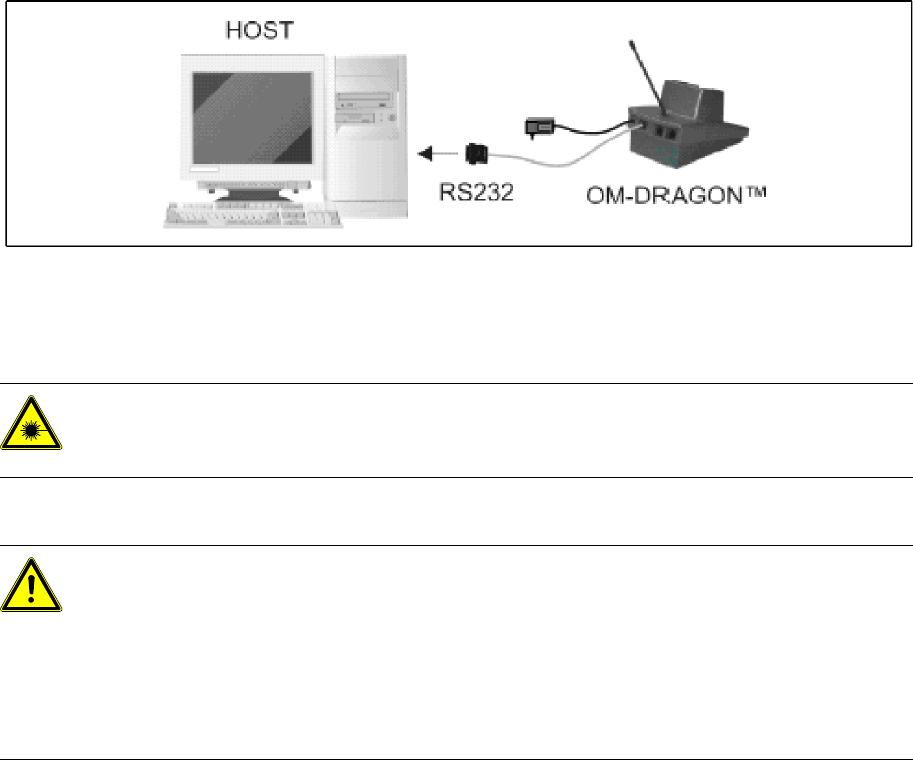
The Dragon scanner’s cradle needs to be connected to the Setup Center PC’s COM-port. The
default port is COM1.
If the COM1 port is already in use another COM port need to be configured
(Another port can be configured in the Setup Center after installation:
open Setup Center setting dialog – menu Options/Settings – dialog Scanner/Dragon Scanner/Serial
Port).
Connect the cradle to the Setup Center PC according to the following picture:
5-1: RS232 connection
5.2.2 Safety Instructions
The Dragon Scanner conforms to laser class 2.
Warning label W216 (shown above) is displayed on the Dragon scanner.
5.2.3 Symbol MC70 2D barcode scanner
5.2.3.1 System Requirements
The following components are required for the operation of the scanner:
WLAN-infrastructure (not included)
MC70 Scanner with firmware 01.21.0001
DANGER: LASER RADIATION!
Do not look into beam.
Laser class 2
WARNING: CAUTION:
Before using the Dragon scanner, inform all operating personnel about the laser regulations.
While operating the Dragon scanner, observe the respective regulations in line with VDE 0837
"Protection from radiation emitted by laser devices" and the "Laser radiation" accident
prevention regulations (VBG93), applicable in Germany.
Also observe the accident prevention regulations applicable in your country.
Despite the low laser power, avoid looking directly at the laser beam. The natural closure reflex
of your eyelids will protect your eyes from the visible beam.
Installation
Symbol MC70 2D barcode scanner Hardware Installation
Installation Manual SIPLACE Setup Center 2.3
19
MC70 scanner integrated in WLAN-infrastructure and accessible with "ping" windows-command.
SIPLACE Setup Center 2.3
5.2.3.2 Configurate WLAN on Scanner
Please. configurate the barcode scanner for the operation within WLAN network - as described in
document Installation Manual WLAN Infrastructure for SIPLACE (item no. 00195607-xx).
5.2.3.3 Setup Center Client Installation
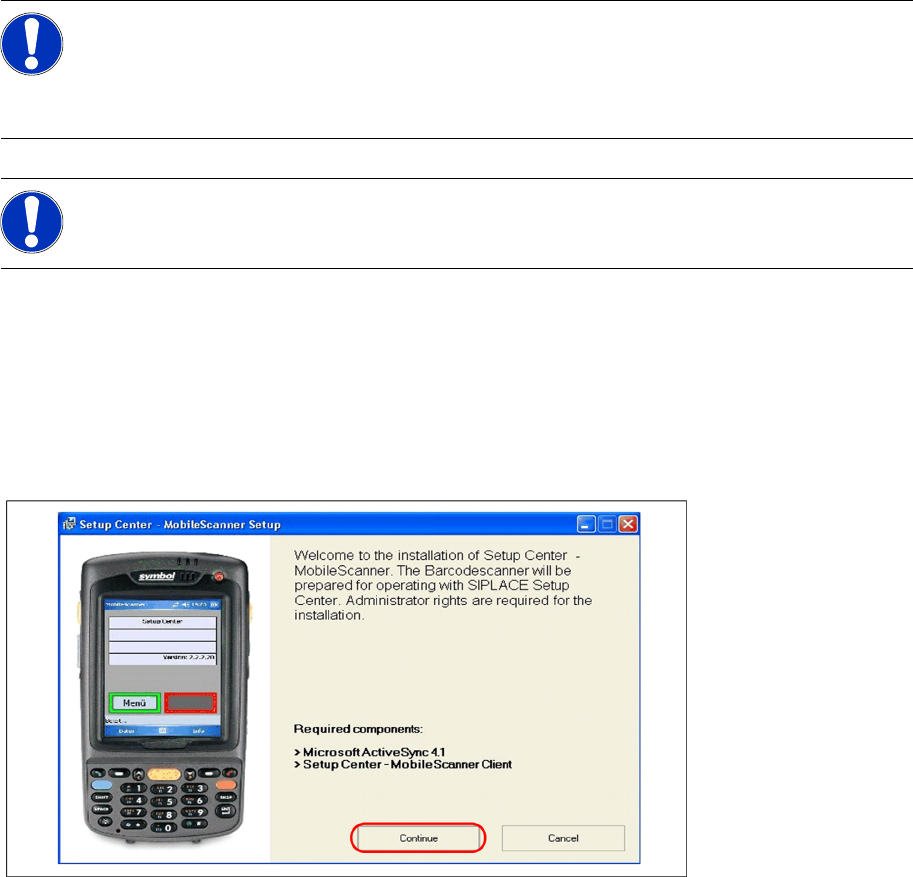
The installation for Setup Center – MobileScanner is located in the root directory of the CD
"\MobileScanner\MC70\". Execute the file "Setup.exe" to start the installation.
X Select "Continue" to proceed with the installation.
Step 1: Install ActiveSync
If ActiveSync is not installed on the system, the installation of Microsoft ActiveSync will be executed.
Make sure that the scanner is not yet connected to the basic station.
NOTE:
The MC70 might be delivered with a newer firmware version. Pls. install the firmware version
listed above if problems with the newer version occur. It is located on the Setup Center CD in
directory "\3rdparty installer\Symbol MC70\". Pls. observe by all means the enclosed
documentation.
NOTE:
You'll find more informationen regarding WLAN-configuration of the MC70 Scanner within the
enclosed Symbol-documentation.
Installation
Hardware Installation Symbol MC70 2D barcode scanner
20 Installation Manual SIPLACE Setup Center 2.3
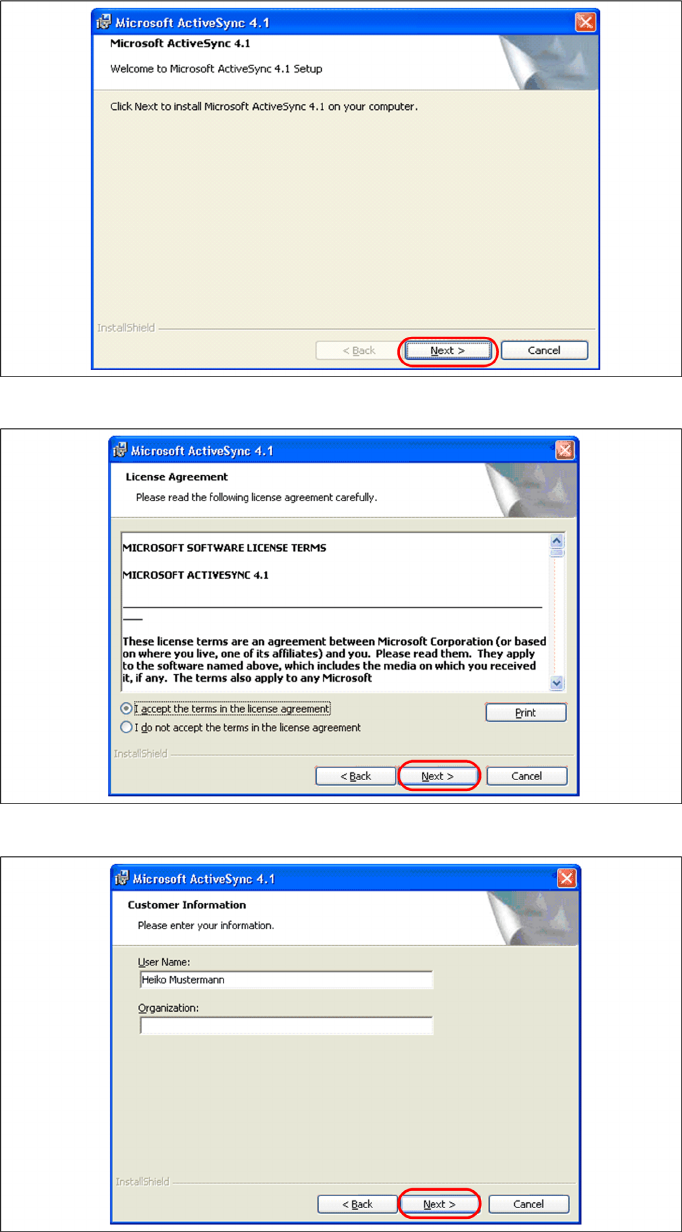
X Click on "Next" to proceed.
X Accept the licensing agreements and select "Next".
X Pls. enter your user information and select "Next".