00195397-01_Installation Manual Setup Center 2.3.pdf - 第62页
Installation Software Installation Setup Center 62 Installation Manual SIPLACE Setup Center 2.3 Inst alling "Mobilink Patch" When installing the Forced Setup Veri fication for placement stations which are suppo…
Installation
Setup Center Software Installation
Installation Manual SIPLACE Setup Center 2.3
61
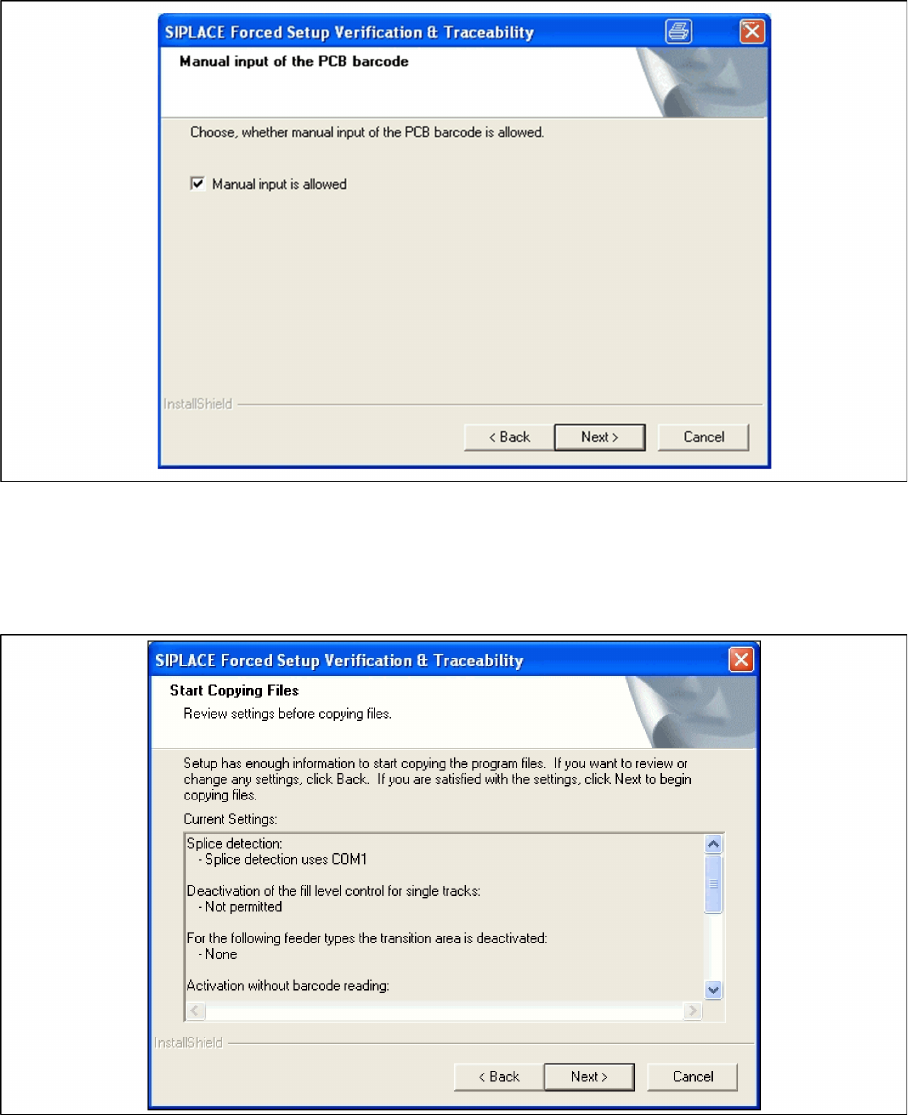
X If this checkbox is selected, the PCB barcode can be entered manually, in case that it was not
accepted from a barcode reader.
X Click Next to continue.
Step 8 Overview of the settings
X Here you will see the overview of the settings.
X Click Back to review or change the settings.
X Click Next to continue the installation.
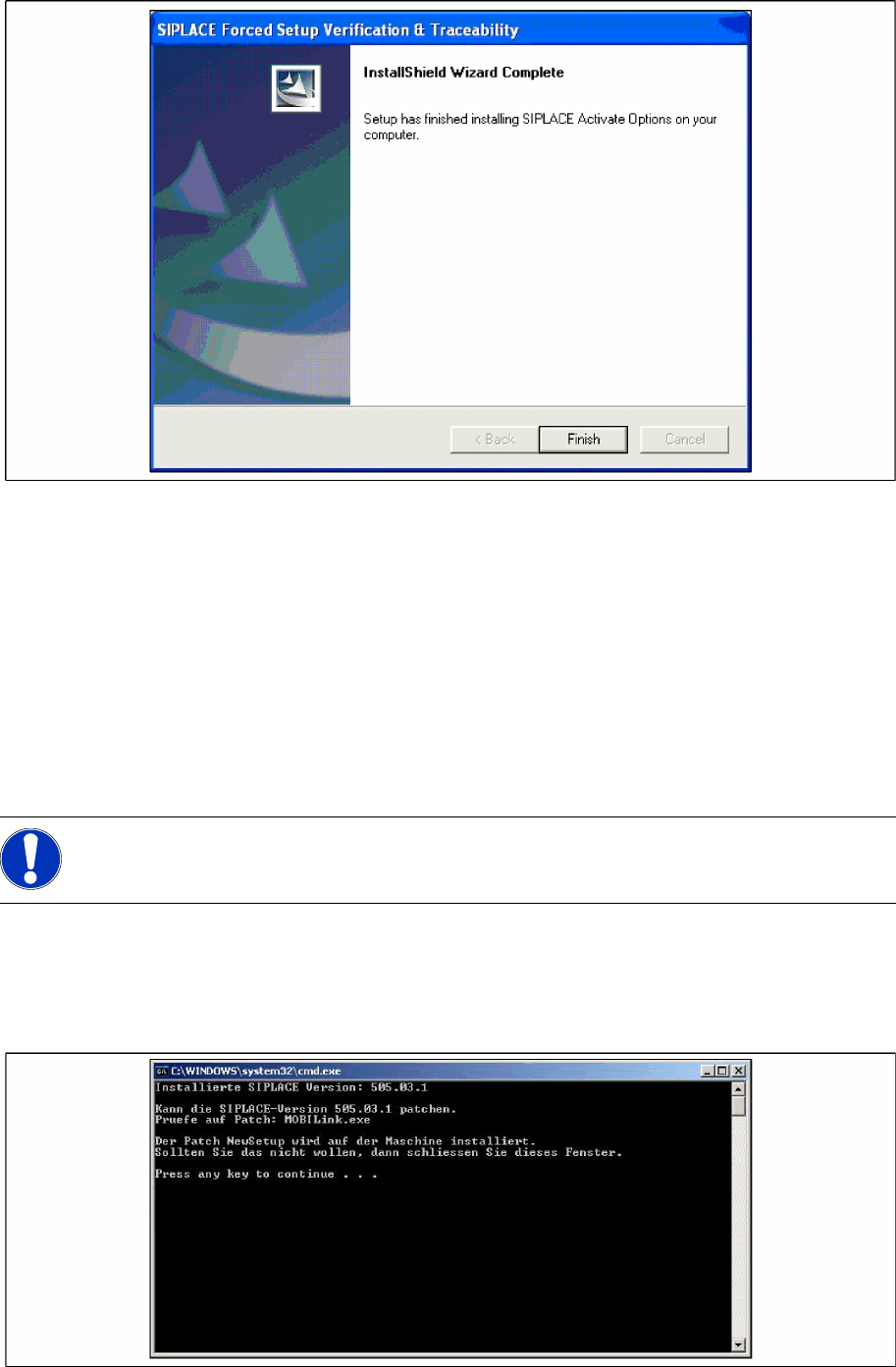
Step 9 Finishing the installation
X Click Finish to end the installation.
Installation
Software Installation Setup Center
62 Installation Manual SIPLACE Setup Center 2.3
Installing "Mobilink Patch"
When installing the Forced Setup Verification for placement stations which are supported via the SMV
interface, it is necessary to install a patch for the
mobilink.exe
.
To install the SMV interface version 1.3 (Mobilink Patch SMV 1.3) you need the following station software
versions:
407.04 SP2 or higher
505.04 or higher
Insert the CD "Mobi Patch SMV 1.3". The installation starts automatically.
The dialog boxes shown below will be displayed during the installation procedure.
Start Installation
X Log on as administrator to the station PC.
X Place the Patch CD in your CD-ROM drive.
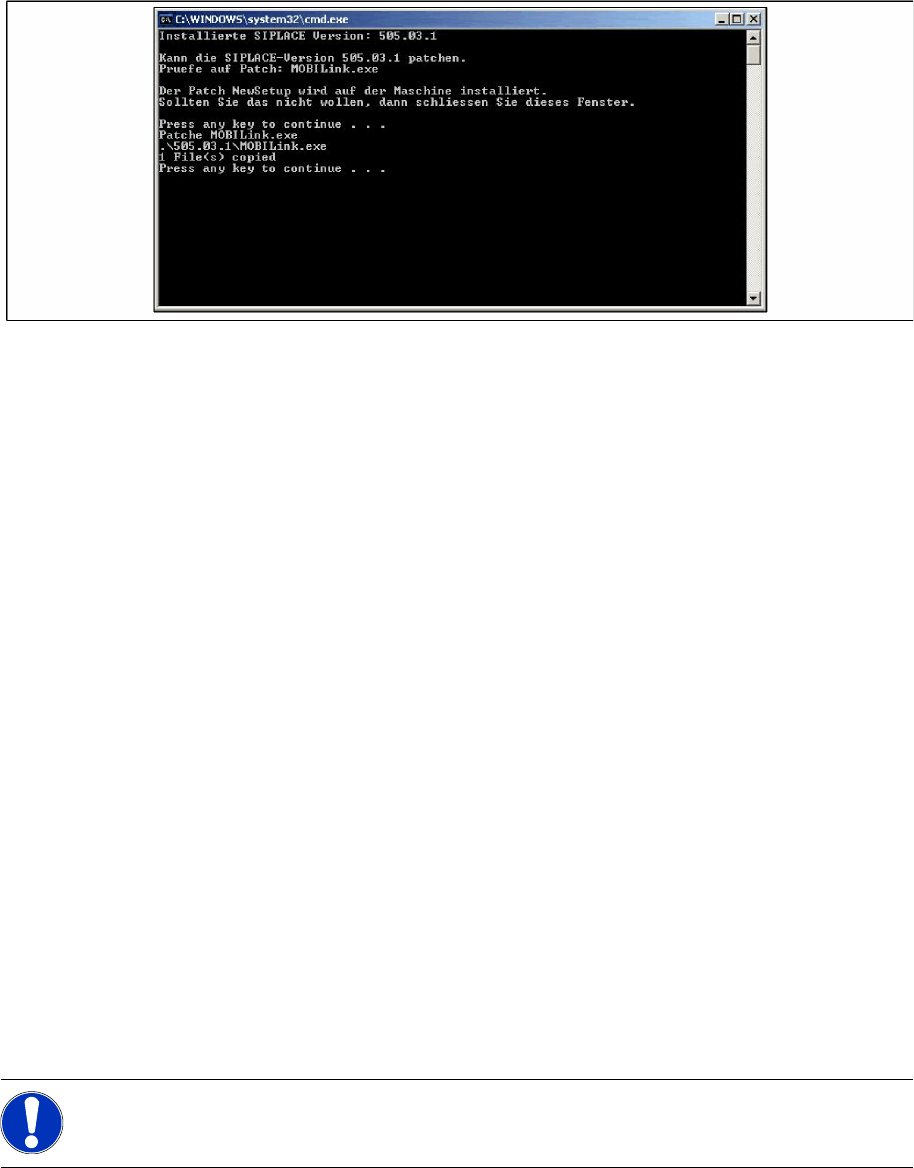
X The following command window will appear.
X Press any key to start the installation or close the window if you don’t want that.
NOTE:
You are required to have administrator rights for the installation procedure!
Installation
SIPLACE Setup Center Database and Windows XP SP2 Steps to perform after Installation
Installation Manual SIPLACE Setup Center 2.3
63
X When installation is finished the command window looks like this:
X Press any key to finish the setup.
5.4 Steps to perform after Installation
5.4.1 SIPLACE Setup Center Database and Windows XP SP2
When installing Windows XP Service Pack 2 (SP2), the Windows Firewall, formerly ICF (Internet
Connection Firewall), is enabled by default. The default configuration in SP2 blocks incoming traffic for
the most TCP ports.
If you are running the SIPLACE Setup Center GUI on a Windows XP SP2 host and the SIPLACE Setup
Center database on another host, you have to open the port 1433 and 1434 for the database connection.
Furthermore, you have to open the port 445, because blocking will cause errors when using mans MMC
snap-ins like Event Viewer, Local Users & Groups, Services, Computer Management, Disk
Management, Device Manager, Group Policy, and others.
Please refer to Windows help to get further information how to open TCP ports.
5.4.2 Settings in the station software
In order to use Setup Center you should make settings in the station software. For detailed information,
please refer to SIPLACE Setup Center 2.3 User Guide (item no. 00195402-xx).
5.4.3 Scanner Configuration
5.4.3.1 Dragon Scanner
New scanners and scanner base stations require the set-up once before the first use.
This doesn’t necessarily need to happen after the Installation of SIPLACE Setup Center, but it is
recommended. The Scanner configuration is independent from the software installation.
You can setup up one or more scanner by Setup Center. To configure scanner, ensure that the Datalogic
OM-Cradle is connected with the Setup Center computer.
NOTE:
The scanner powers off after a period of inactivity. Pulling the trigger will power the scanner on.