00195397-01_Installation Manual Setup Center 2.3.pdf - 第78页
Uninstalling Optional: Uninstalling the C167API338W2K.exe of CAN D rivers Uninstalling “Mobilink Patch” 78 Installation Manual SIPLACE Setup Center 2.3 X Confirm the deletion of the driver. 7.6 Optional: Uninst alling th…
Uninstalling
Uninstalling “Mobilink Patch” Optional: Uninstalling the CAN Drivers
Installation Manual SIPLACE Setup Center 2.3
77
7.4.1 Uninstalling “Mobilink Patch”
X Log on as administrator to the station PC
X Place the Patch CD in your CD-ROM drive.
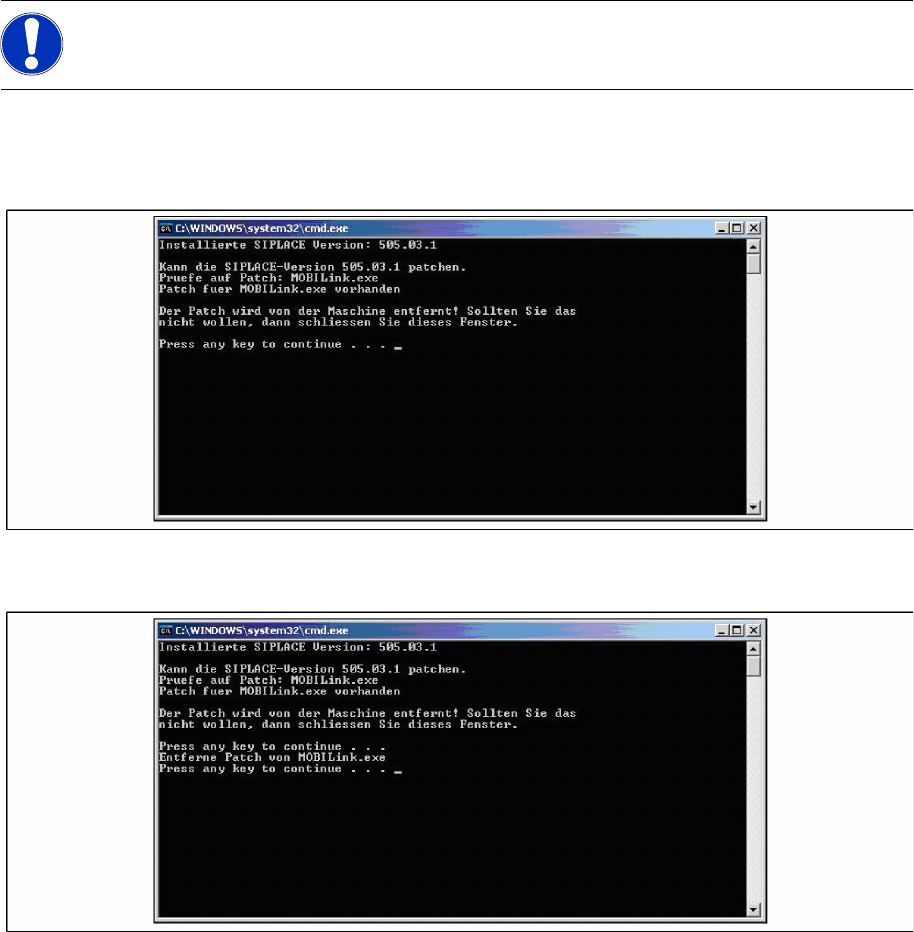
X The following command window appears.
X Press any key to remove the installation or close the window if you don’t want that.
X When uninstalling is finished the command window looks like this:
X Press any key to finish the setup.
7.5 Optional: Uninstalling the CAN Drivers
The CAN drivers can be uninstalled with the Microsoft Device Manager within the Computer
Management.
X Click Start in the Windows start menu.
X Click Settings.
X Click Control Panel.
X Click Administrative Tools.
X Click Computer Management.
X Expand the node Device Manager at the left side
X Expand the node CAN Hardware at the right side
X Right Click to pen the context menu for C167D00N
X Choose Uninstall…
NOTE:
You require administrator rights for the installation procedure!
Uninstalling
Optional: Uninstalling the C167API338W2K.exe of CAN Drivers Uninstalling “Mobilink Patch”
78 Installation Manual SIPLACE Setup Center 2.3
X Confirm the deletion of the driver.
7.6 Optional: Uninstalling the C167API338W2K.exe of CAN
Drivers
X Click Start in the Windows start menu.
X Click Settings.
X Click Control Panel.
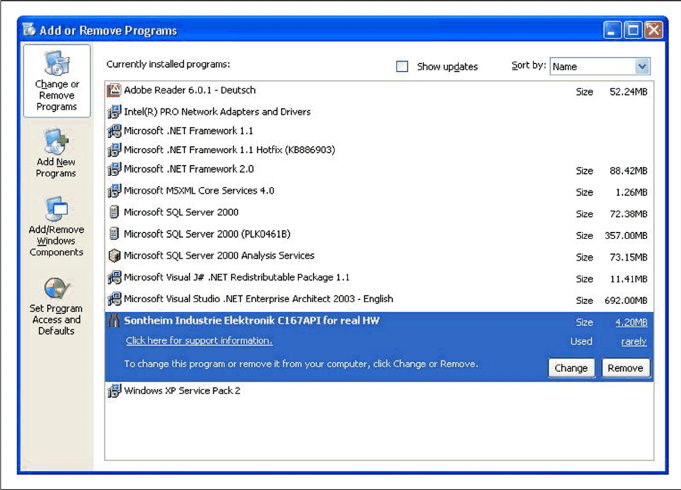
X Double-click Add / Remove Programs.
A list appears with the names of the software packages installed on the computer.
X Select Sontheim Industrie Elektronik C167API for real HW.
X Click the Remove button.
X Confirm the deletion of the application.