00195397-01_Installation Manual Setup Center 2.3.pdf - 第77页
Uninstalling Uninstalling “Mobilink Patch” Optional: Uninstalling the CAN Driver s Installation Manual SIPLACE Setup Center 2.3 77 7.4.1 Uninst a lling “Mobilink Patch” X Log on as administr ator to the station PC X Plac…
Uninstalling
Uninstalling Forced Setup Verification Uninstalling MSDE installations
76 Installation Manual SIPLACE Setup Center 2.3
X Expand the node Databases
X Right click the node SIPLACESetupCenter and select Delete.
X Confirm the deletion of the database.
X Go back to the node of the database server instance.
X Expand the node Management
X Expand the node SQL Server Agent
X Expand the node Jobs
X Mark all entries starting with SIPLACESetupCenter and delete them.
X Confirm the deletion of the maintenance jobs.
X Go back to the node of the database server instance.
X Expand the node Security
X Expand the node Logins
X Mark all entries starting with SIPLACESetupCenter and delete them.
X Confirm the deletion of the logins.
The database is completely deleted now.
The ServerManager is an unsupported tool that is able to create, empty and delete the SIPLACE Setup
Center database. The password for the user "sa" is required.
It is recommended to use the ServerManager for the deletion of the database as it executes the steps
mentioned above automatically.
7.3.1 Uninstalling MSDE installations
X Uninstall the MSDE instance used for Setup Center.
X Remove the database files manually.
7.4 Uninstalling Forced Setup Verification
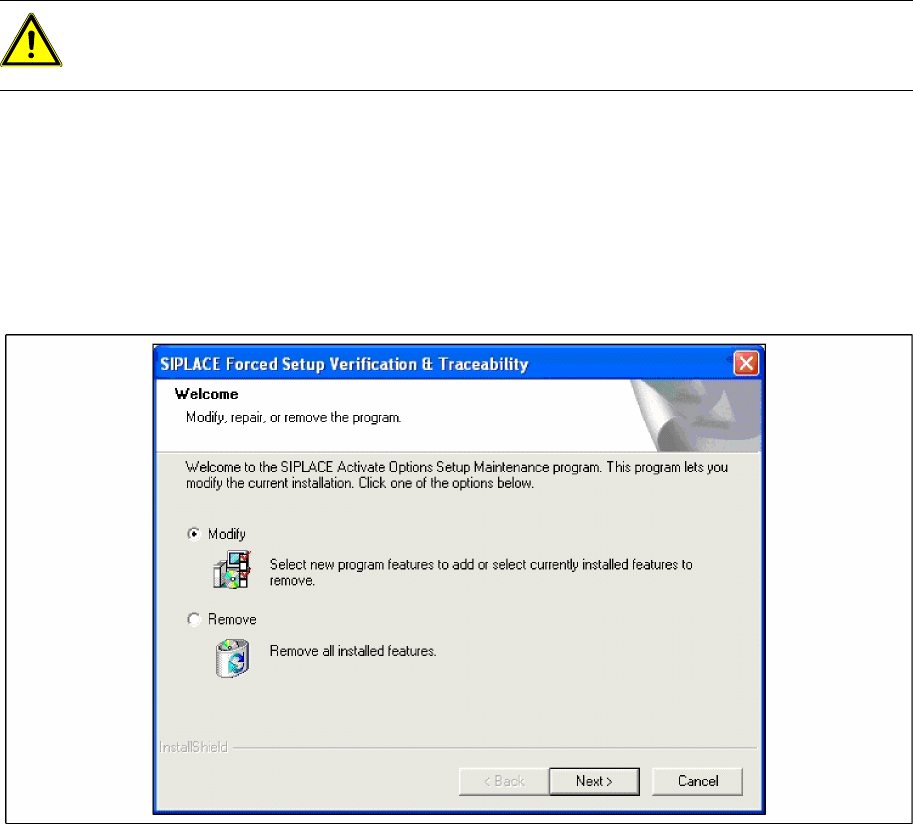
If the Setup at the Activation-CD is called up again, the following dialog appears.
X If Remove is selected, the option Forced Setup Verification and Traceability will be deleted.
WARNING:
All data will be lost when erasing or dropping the database with the ServerManager. Use with
caution.
Uninstalling
Uninstalling “Mobilink Patch” Optional: Uninstalling the CAN Drivers
Installation Manual SIPLACE Setup Center 2.3
77
7.4.1 Uninstalling “Mobilink Patch”
X Log on as administrator to the station PC
X Place the Patch CD in your CD-ROM drive.
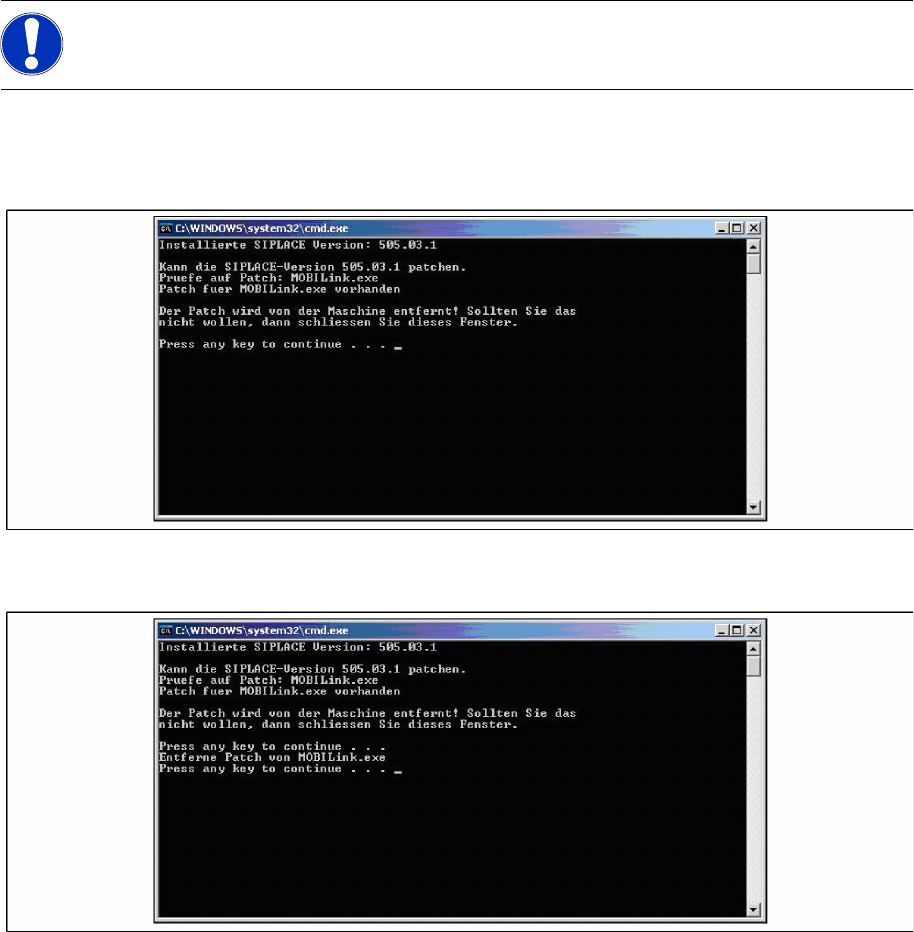
X The following command window appears.
X Press any key to remove the installation or close the window if you don’t want that.
X When uninstalling is finished the command window looks like this:
X Press any key to finish the setup.
7.5 Optional: Uninstalling the CAN Drivers
The CAN drivers can be uninstalled with the Microsoft Device Manager within the Computer
Management.
X Click Start in the Windows start menu.
X Click Settings.
X Click Control Panel.
X Click Administrative Tools.
X Click Computer Management.
X Expand the node Device Manager at the left side
X Expand the node CAN Hardware at the right side
X Right Click to pen the context menu for C167D00N
X Choose Uninstall…
NOTE:
You require administrator rights for the installation procedure!
Uninstalling
Optional: Uninstalling the C167API338W2K.exe of CAN Drivers Uninstalling “Mobilink Patch”
78 Installation Manual SIPLACE Setup Center 2.3
X Confirm the deletion of the driver.
7.6 Optional: Uninstalling the C167API338W2K.exe of CAN
Drivers
X Click Start in the Windows start menu.
X Click Settings.
X Click Control Panel.
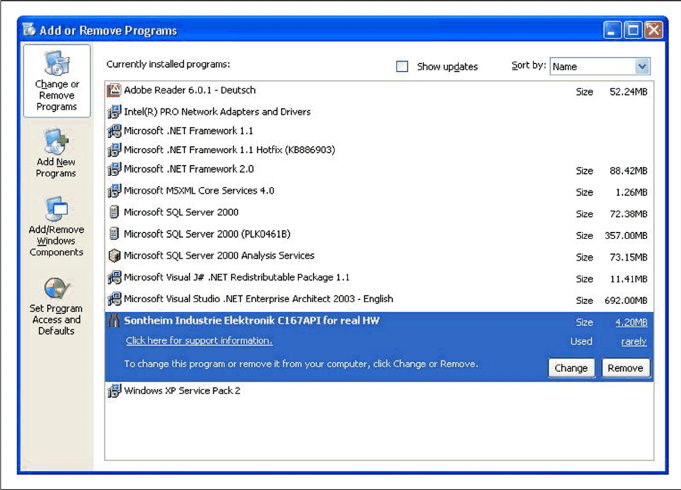
X Double-click Add / Remove Programs.
A list appears with the names of the software packages installed on the computer.
X Select Sontheim Industrie Elektronik C167API for real HW.
X Click the Remove button.
X Confirm the deletion of the application.