00195397-01_Installation Manual Setup Center 2.3.pdf - 第70页
Installation Testing the Installation Barcode Label Wizard 70 Installation Manual SIPLACE Setup Center 2.3 5.4.6 Barcode Label Wizard The Barcode Labe l Wizard enables you to pr int out barcodes n eeded for the op eratio…
Installation
SIPLACE Setup Center Configuration Steps to perform after Installation
Installation Manual SIPLACE Setup Center 2.3
69
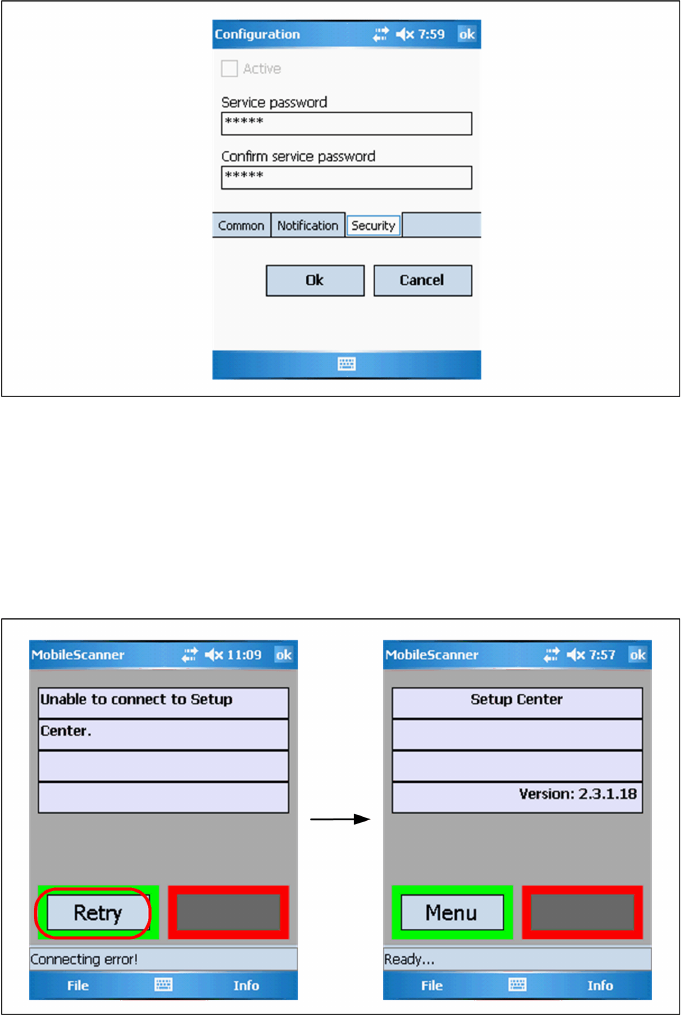
X Here you can set a password to prevent modification on the scanner configuration.
For the first editing of the configuration the password is empty. In this case safety is deactivated. You
can set a password now. By confirmation with "OK" all settings were saved.
Establishing Connection
X Start Setup Center.
X Click on "Connect" to establish a connection to Setup Center.
In case the connection fails check the network settings again.
The software is now successfully configured.
5.4.4 SIPLACE Setup Center Configuration
Setup Center GUI requires to be configured before it can be used. The configuration can be found via
the main menu Options Æ Settings. For detailed information, please refer to User Guide SIPLACE
Setup Center 2.3 (item no. 00195402-xx).
5.4.5 Settings on the SIPLACE Pro
In order to use Setup Center you should make settings on the programming system SIPLACE Pro. For
detailed information, please refer to User Guide SIPLACE Setup Center 2.3 (item no. 00195402-xx).
Installation
Testing the Installation Barcode Label Wizard
70 Installation Manual SIPLACE Setup Center 2.3
5.4.6 Barcode Label Wizard
The Barcode Label Wizard enables you to print out barcodes needed for the operation of the SIPLACE
Setup Center. For detailed information, please refer to User Guide SIPLACE Setup Center 2.3 (item no.
00195402-xx).
5.5 Testing the Installation
Connect the RF station to the Setup Center PC to the COM interface.
Make sure, the RF station is on (yellow LED is active).
If Setup Center is already running open the configuration dialog, otherwise start Setup Center.
Select the COM port in the configuration dialog of SIPLACE Setup Center and apply settings.
Press the Enter button twice on the scanner.
Now the main menu text "SIPLACE Setup Center" is displayed on the scanner.
5.6 Troubleshooting
If it is not possible to solve a problem during installation of SIPLACE Setup Center, please send the file
SIPLACESetupCenterSetupLog.html
and all similar "log" named files to the SIEMENS Service.
5.6.1 Relevant files to analyze setup problems
Error description
Whenever problems arise during setup, please inspect the file
SIPLACESetupCenterSetupLog.html
,
which is written during each installation.
Cause
Setup problems.
Solution
The log file is found either in
C:\
(prior to the "move data phase") or in the selected program folder.
Old versions of the log file are located in the program folder. A timestamp is added to the filename. Dialog
boxes appear during the file copying phase of installation which only contain
X Yes and No options.
Hint
X If you need Siemens support regarding installation problems, please provide all installation log files.
5.6.2 How to run setup with verbose logging?
Error description
Whenever an installation runs into problems, it is useful to have as much information at hand as possible
in order to analyze the problem.
Solution
Create a log file that records the progress of a Install Script MSI (formerly Standard) based installation,
you can either execute the
setup.exe
at the command line using the
/Verbose
switch, or you can set a
specific registry entry. The log file can be used to diagnose the cause of failure or unexpected behavior
in an installation.
There are two ways to log an Install Script MSI project (as SIPLACE Setup Center setup is).

Installation
Error code 1316 and 1603 Troubleshooting
Installation Manual SIPLACE Setup Center 2.3
71
Log a single setup
An Install Script MSI installation can be logged using the following command line: (replace the path
definition as applicable)
Setup.exe /v"/L*v d:\placeforlog\package.log"
Running this command line logs everything verbosely.
Log all MSI-based setups
To log all MSI-based setups launched through
setup.exe
, follow these steps:
X Launch the Registry Editor (
regedit.exe
) in Windows.
X Create the following registry key:
HKEY_CURRENT_USER\Software\InstallShield\ISWI\3.0\SetupExeLog
X Create a string value entitled
VerboseLogFileName
in this key.
X Enter the full path to where the log file will be created as the value for this string.
X Run the setup again.
Example string value:
C:\Test Folder\MyFile.log
For more details please refer to
http://support.installshield.com/kb/view.asp?articleid=q105237
.
Document ID:
Q105237
5.6.3 Error code 1316 and 1603
"Error 1316. A network error occurred while attempting to read from the file
C:\WINDOWS\Installer\SIPLACE Setup Center.msi
"
Error description:
The error messages 1316 and 1603 from the Microsoft Installer Service could appear under different
conditions.
Cause:
X See Install Shield knowledgebase articles
Q107390
and
Q107182
.
Workaround:
X Copy the files "
SIPLACE Setup Center.msi
" and "
Data1.cab
" from the setup CD in the directory
mentioned in the error message e.g.
C:/Windows/Installer/SIPLACE Setup Center.msi
X Retry the setup:
The error message offers to cancel the setup or
Confirm the error message with OK. The setup is cancelled. Then restart the setup.
X After a successful setup, remove the copied files.
If the copied files are not removed, the installer could access these outdated files during the next
setup, which might cause further problems.
5.6.4 Conflicting old SIPLACE Setup Center installations
Error Description:
InstallShield reports a conflicting old installation of SIPLACE Setup Center.
NOTE:
You could always use CD:
Verbose_Setup.cmd
. This will invoke verbose logging with the first
of the methods described above.
NOTE:
It has not been proven if this workaround helps in all possible situations. In case of any further
problems please contact your SIPLACE service technician.