00191017-01.pdf - 第108页
4 Data Management User’s Manual Line Computer UNIX 4.3 User Interface of t he Data Manager Software Version 403.xx Edition 06/97 4 - 16 Command Area In the c ommand area the so rting sequen ce c an be s elect ed acco rdi…
User’s Manual Line Computer UNIX 4 Data Management
Software Version 403.xx Edition 06/97 4.3 User Interface of the Data Manager
4 - 15
Menu Bar
The menu bar contains the menus "FILE", "SERVICES", "DISPLAY" and "HELP".
The menus are described in the section 4.3.4.1 to section 4.3.4.3.
NOTE
Since the functions and operation of the "HELP" menu are identical to those in other application programs
of the line computer, they are described comprehensively in chapt. 2 of this manual.
Display Area
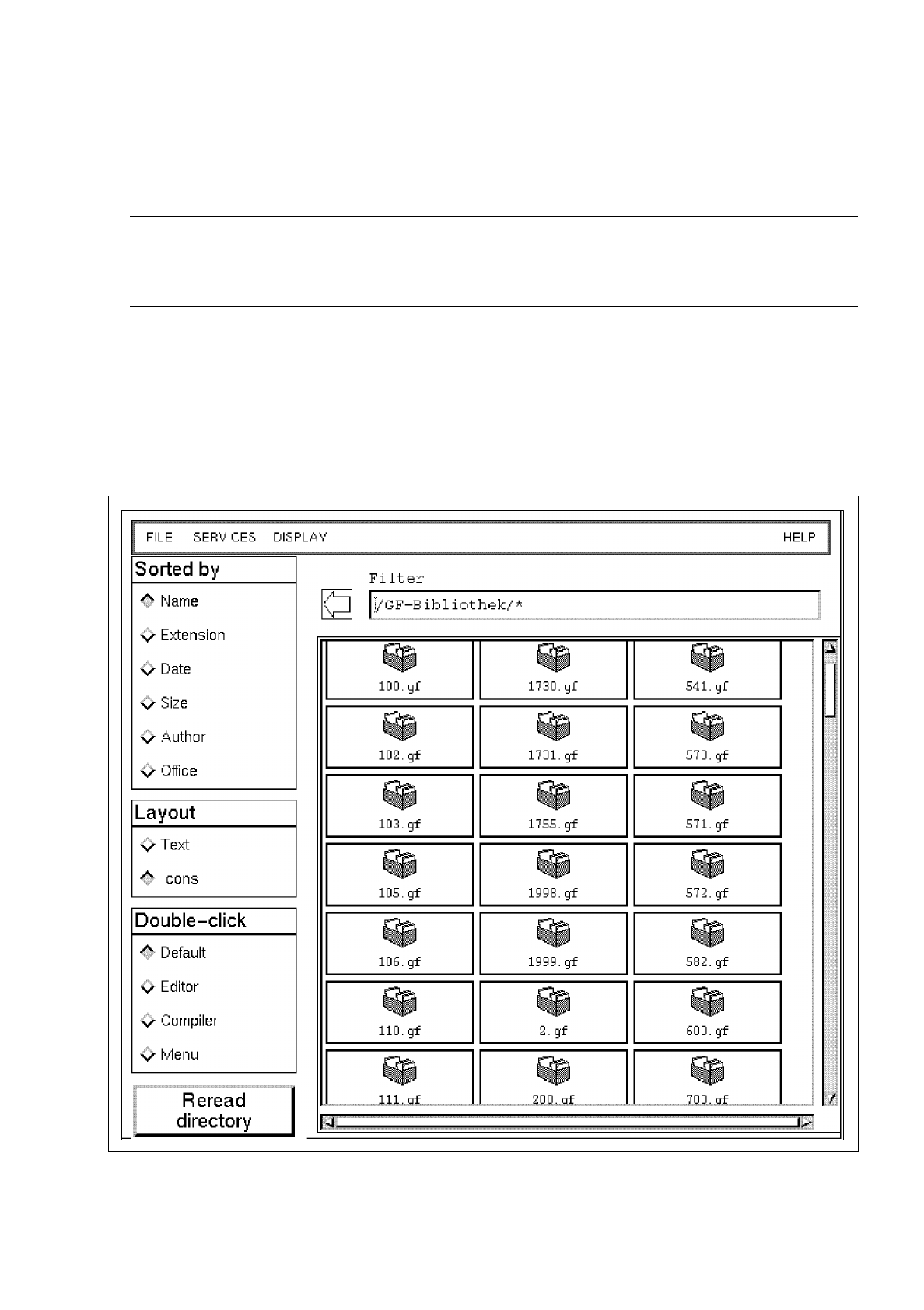
In the display area the directories and files of a data partner are represented that can be edited in the Data
Manager. The directories can be opened either by double-clicking (if
Double click
-->
Default
has been set)
or via the menu. When a directory is opened, the display area is newly set up containing the contents of the
directory (see example below).
The display area contains scroll bars by means of which the section of the display area viewed can be moved.

4 Data Management User’s Manual Line Computer UNIX
4.3 User Interface of the Data Manager Software Version 403.xx Edition 06/97
4 - 16
Command Area
In the command area the sorting sequence can be selected according to certain criteria as well as the display
mode of the files and directories in the main window. The uses for the mouse action
double-click
can be defined
for
Default
,
Editor
,
Compiler
or
Menu
. In addition, the function
Reread directory
is available.
Arrow button
Each click of the arrow button causes the directory structure to go back in the
hierarchy
by one level (e.g.
subdirectory --> directory --> main directory).
4.3.4.1 FILE menu
The Data Manager enables files and directories to be edited using the menu functions described in the following.
-
Opening
directories
A selected directory is opened and its contents are shown in the current file window.
●
Select directory by clicking one time.
●
Select menu option
FILE
-->
Open...
.
Or else, if
Double click
-->
Default
is set in the command area:
●
Open directory by double-clicking.
-
Copying
files and directories within a data partner or from one data partner to another
Files or directories can be copied. Source and target of the copying operation can be located in diffe-
rent data partners.
●
Select file/directory (source) by clicking one time.
●
Select menu option
FILE
-->
Copy
.
The mouse cursor has the shape of a double cross.
●
Click on target.
NOTE
Only if
Actions
-->
Confirm
is set in the main window of the Data Manager will a dialog box be
displayed in which the selected action (e.g. copy, move, delete etc.) has to be confirmed before it is
executed.
If
Actions
-->
Immediately
is set, the selected action is executed immediately
without any prior
confirmation. An exception is the "Delete" action. It is always executed after
the verification query has
been confirmed.
User’s Manual Line Computer UNIX 4 Data Management
Software Version 403.xx Edition 06/97 4.3 User Interface of the Data Manager
4 - 17
●
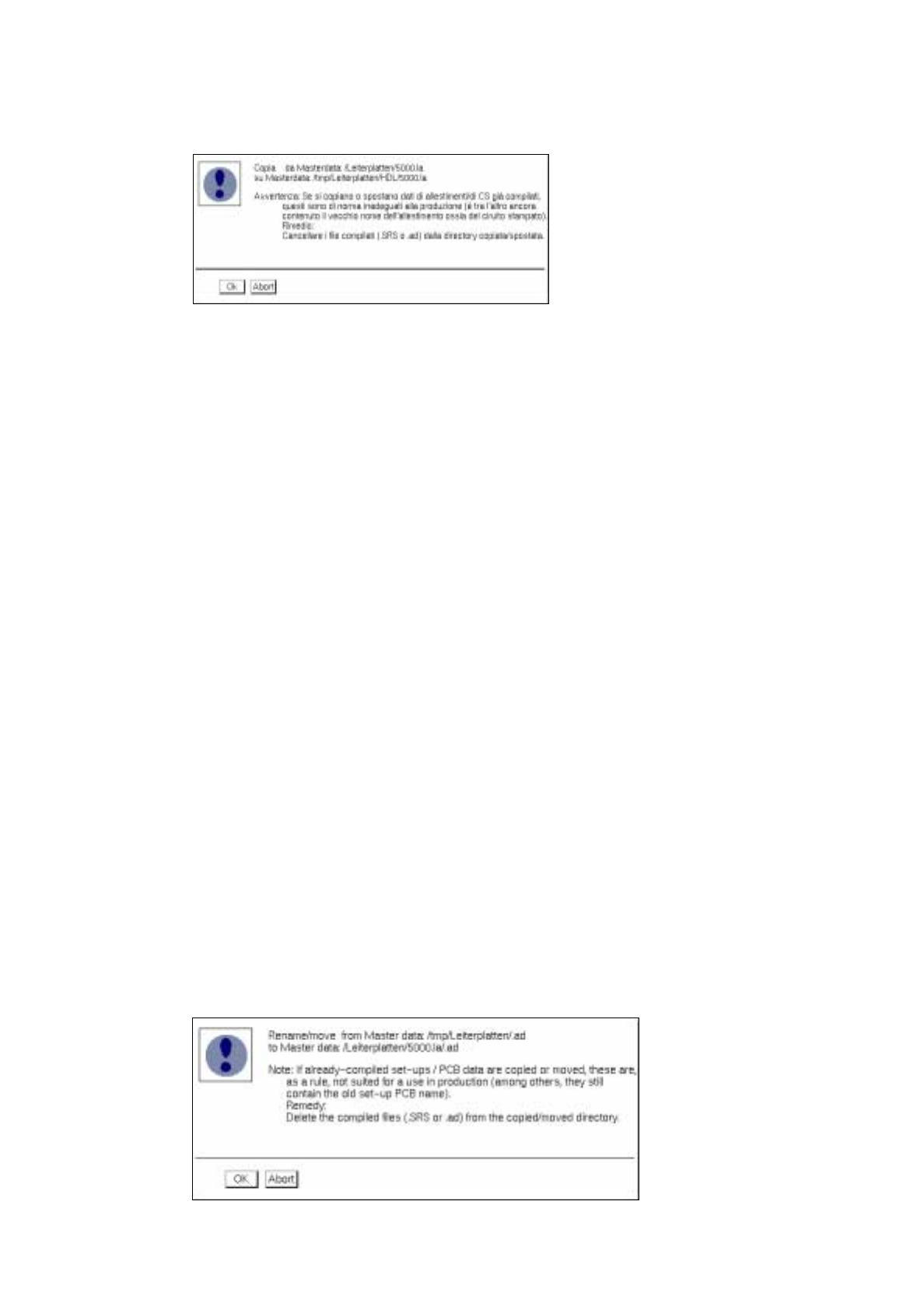
Confirm dialog box "Copy from..." with
OK
when the copying procedure is to be carried out.
Or else, if
Mouse function
-->
Copy
has been set in the main window:
●
Click on file/directory (source) one time.
The icon or the name of the source are now displayed in reverse video.
●
Click on file/directory (source) again.
Where icons are displayed the icon changes color and where the text mode has been selected, the
name of the selected source is preceded by "
!
". The mouse cursor has the shape of a double cross.
●
Click on target.
●
Confirm dialog box "Copy from ..." with
OK
.
-
Printing
of files and directories
The contents of a directory or the complete tree structure of a directory can be printed out.
●
Select file/directory by clicking one time.
●
Select menu option
FILE
-->
Print
.
●
On the submenu select
Tree
or
Directory
.
Where icons are displayed the icon changes color and where the text mode has been selected, the
name of the selected source is preceded by "
!
". The mouse cursor has the shape of a double cross.
●
Click on target (e.g. printer plotter) in the main window of the Data Manager.
-
Moving / Renaming
files and directories within a data partner or from one data partner to another
Files or directories can be moved or renamed. Source and target of the operation can be located in
different data partners.
Moving:
●
Select file/directory (source) by clicking one time.
●
Select menu option
FILE
-->
Move
.
●
Click on target.
●
Confirm dialog box "Rename/move from ..." with
OK
.