00191017-01.pdf - 第248页
8 Product / PCB User’s Manual Line Computer UNIX 8.1 PCB Editor Software Version 403.xx Edition 06/97 8 - 36 8.1.6 Window of Placement P osition Editor A Place ment Pos ition Edi tor can be o pened f or every PCB type g …

User’s Manual Line Computer UNIX 8 Product / PCB
Software Version 403.xx Edition 06/97 8.1 PCB Editor
8 - 35
NOTE
If a fiducial within a fiducial set has already been defined as an ink spot for the recognition of a faulty PCB
type (see command "Ink spot fiducials"), an "
I
" is automatically displayed next to the name of the fiducial
set concerned. If the command "Ink spot fiducial set" is active and the fiducial set marked by an "
I
" is clik-
ked on, the ink spot definition for the respective fiducial within the fiducial set is cancelled.
-
PCB Position Recognition
With this command it is possible to define a fiducial set for PCB position recognition of the PCB type
loaded.
●
Activate
PCB position recognition
.
●
Click on fiducial set in the display area.
The name of the fiducial set selected is now preceded by "
L
".
Clicking on the fiducial set once more causes the action to be reversed again.
NOTE
To be able to perform the following actions involving fiducials, it is necessary to first select the
appropriate fiducial set.
-
Deleting
Fiducials
●
Activate
Delete fiducials
.
●
Click on fiducial.
Thereafter, the fiducial will be deleted (without confirmation!).
CAUTION!
"Delete fiducial" is to be deactivated by selecting another command, as otherwise any other fiducial
that may subsequently be clicked on in the display area will also be deleted.
-
Blocking
selected
Fiducials
With this command it is possible to block a fiducial of the selected fiducial set and thus to ignore it
when assembling the PCB.
●
Activate
Block fiducials
.
●
Click on fiducial.
The name displayed is now preceded by "
S
".
Clicking on the fiducial once more causes the action to be reversed again.
-
Defining
Ink spot as Fiducial
This command is used to define a fiducial from a fiducial set as an ink spot to identify the PCB type
loaded as one to be rejected.
●
Activate
Ink spot fiducials
.
●
Click on fiducial.
The name displayed is now preceded by "
I
".
Clicking on the fiducial once more causes the action to be reversed again.
8 Product / PCB User’s Manual Line Computer UNIX
8.1 PCB Editor Software Version 403.xx Edition 06/97
8 - 36
8.1.6 Window of Placement Position Editor
A Placement Position Editor can be opened for every PCB type generated (see description on page 8 - 9).
In the following, the areas of the Placement Position Editor window and their functions are explained.
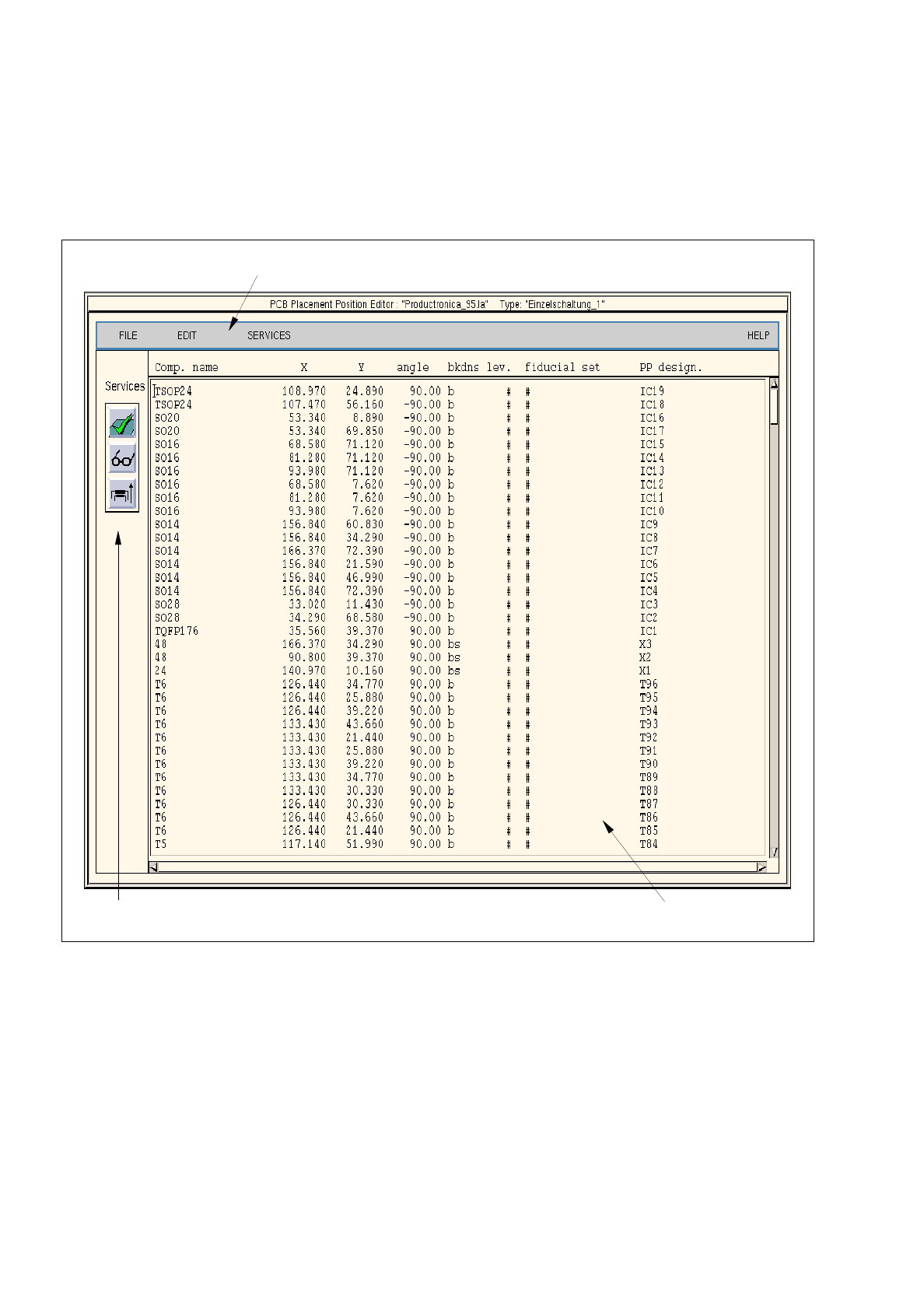
Fig. 8.1.11 Window "Placement Position Editor"
The window of the Placement Position Editor is subdivided as follows:
-
Menu bar
-
Display area
-
Editing area
-
Command area
menu bar
editing area
command area

User’s Manual Line Computer UNIX 8 Product / PCB
Software Version 403.xx Edition 06/97 8.1 PCB Editor
8 - 37
Menu Bar
The menu bar contains the menus "FILE", "EDIT", "SERVICES" and "HELP".
The "EDIT" menu is described in detail in section 8.1.6.1 and the "SERVICES" menu is described in section
8.1.6.2.
NOTE
Since the functions and operation of the "FILE" and "HELP" menus are similar to those in other application
programs of the line computer, they are described comprehensively in chapt. 2.
Editing area
(see section 8.1.6.3)
For each PCB type selected in the Structure Editor a placement program can be created in the editing area of
the Placement Position Editor window (see Fig. 8.1.11). Such a program contains the positions of the
components to be placed (with reference to the PCB zero point, see Fig. 8.1.3) as well as the fiducial sets that
may be required for component position recognition.
A completed placement program can also be adopted by another PCB type or modified, if required. Moreover,
it is possible to copy only those parts of a placement program that are required for a different PCB type.
Command area
(see section 8.1.6.4)
In this area the icons "Check placement position data", "Search/Replace" and "Sort" are located. By means of
these icons the entered placement position data can be reviewed, searched and replaced, or e.g. sorted by the
level numbers, if required.