00191017-01.pdf - 第555页
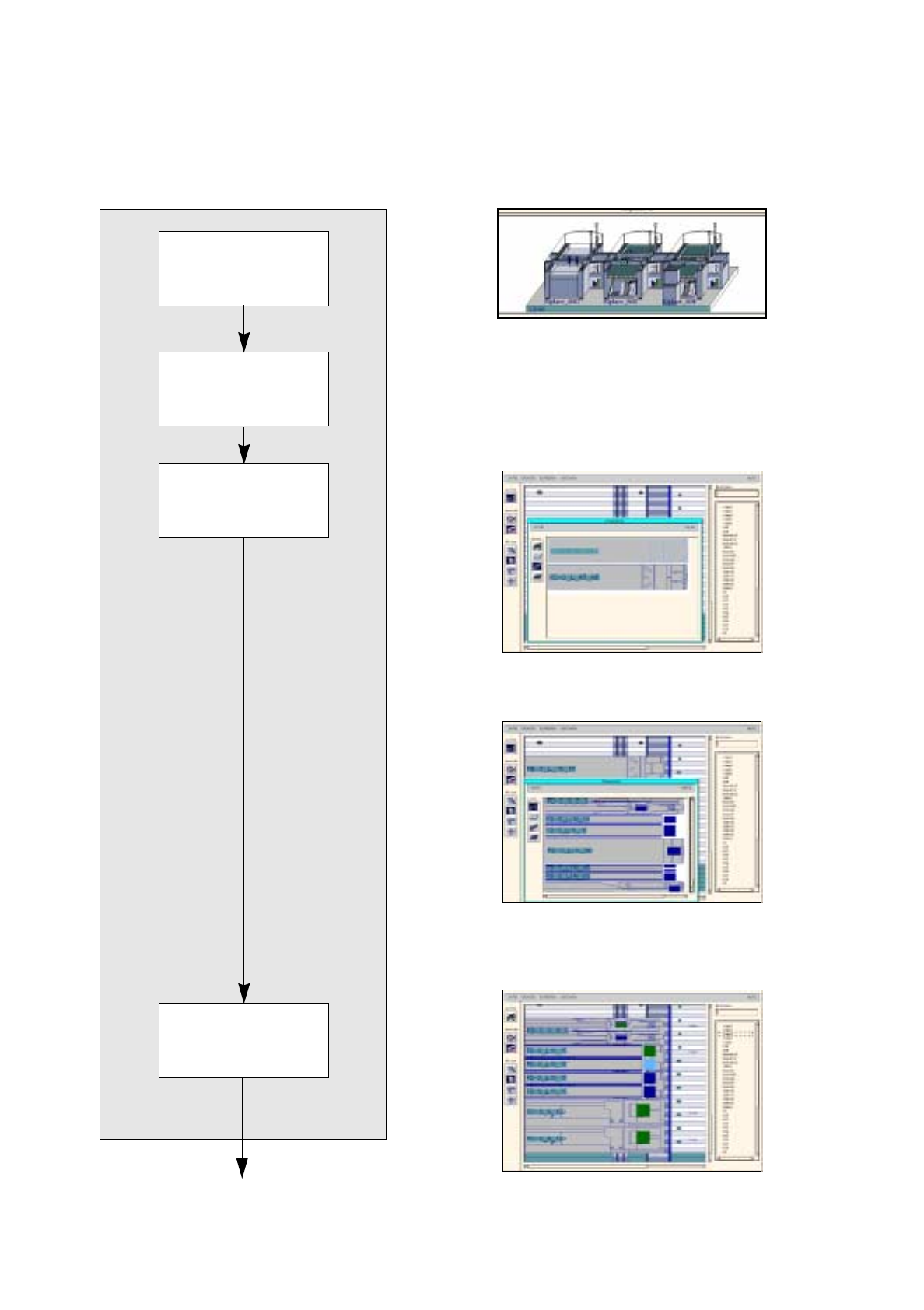
User ’s Manual Line Computer UNIX 17.4 Set-Up Generation Software V ers ion 403.xx Edition 06/97 17.4.3 Manual Set-Up Adjustment 17 - 5 7 To open the Set- Up Editor/Feeder Part Editor, proceed as follo ws: 1. On the d es…
17.4 Set-Up Generation User’s Manual Line Computer UNIX
17.4.3 Manual Set-Up Adjustment Software Version 403.xx Edition 06/97
17 - 56
17.4.3 Manual Set-Up Adjustment
The packaging form for component Comp6 is to be changed: it is supplied in stick magazines. Comp5 is addi-
tionally supplied in waffle-pack trays. The set up is adapted manually.
Opening Set-up Edi-
tor/Feeder Part Editor
continued on page 17-58
Deleting feeders
Allocating feeder to a
track
Setting up feeders
Allocating component
to a feeder
User’s Manual Line Computer UNIX 17.4 Set-Up Generation
Software Version 403.xx Edition 06/97 17.4.3 Manual Set-Up Adjustment
17 - 57
To open the Set-Up Editor/Feeder Part Editor, proceed as follows:
1. On the desktop click on the feeder part of the respective station, here:
right feeder part of Siplace_80S
.
The file selection window for set-up selection is opened.
2. Click on the set-up, here:
Examples01.ar
and click on the
OK
button.
The Set-Up Editor/Feeder Part Editor for this feeder part is opened.
To delete a feeder, proceed as follows:
3. Activate the Delete icon .
4. Click on the feeder that is to be deleted, here:
FD~S_G_12
on track
97
.
A dialog box appears.
5. In the dialog box click on the
OK
button.
The feeder is deleted, the dialog box is closed.
6. If required, delete other feeders analogously, here:
FD~S_G_12
on track 103
.
To allocate a feeder to a track, (here: linear feeders with module), proceed as follows:
7. Activate the Create icon .
8. Click on the
°Feeder list
option on the
SERVICES
menu.
The feeder list is opened.
9. Activate the Module icon .
A listing of all modules is displayed.
10. Click on a module, here:
MD~S_L_10_15
.
11. Click on a track, here:
track
97.
The module is set up on the track.
12. Set up the same module on track 103 analogously.
13. Click on the
°Feeder list
option on the
SERVICES
menu.
The feeder list is opened.
14. On the Feeder list activate the Feeder icon .
A listing of all feeders is displayed.
15. Click on a feeder, here:
FD~S_LIN_15
.
16. Click on an area of one of the modules.
The feeder is set up in this area.
17. Click on the
°Feeder list
option on the
SERVICES
menu.
The feeder list is opened.
18. Click on a feeder, here:
FD~S_LIN_15
.
19. Click on the other area on the module.
The feeder is set up in this area, the feeder list is closed.
20. Set up the second module analogously.
To allocate a component to a feeder, proceed as follows:
21. Click on the component in the component list, here:
Comp6
.
22. Click on the compartment (division) of a feeder.
The component Comp6 is allocated to the compartment and the component name is displayed on the
right hand side.
23. Allocate components to the other compartments of the feeder analogously.
17.4 Set-Up Generation User’s Manual Line Computer UNIX
17.4.3 Manual Set-Up Adjustment Software Version 403.xx Edition 06/97
17 - 58
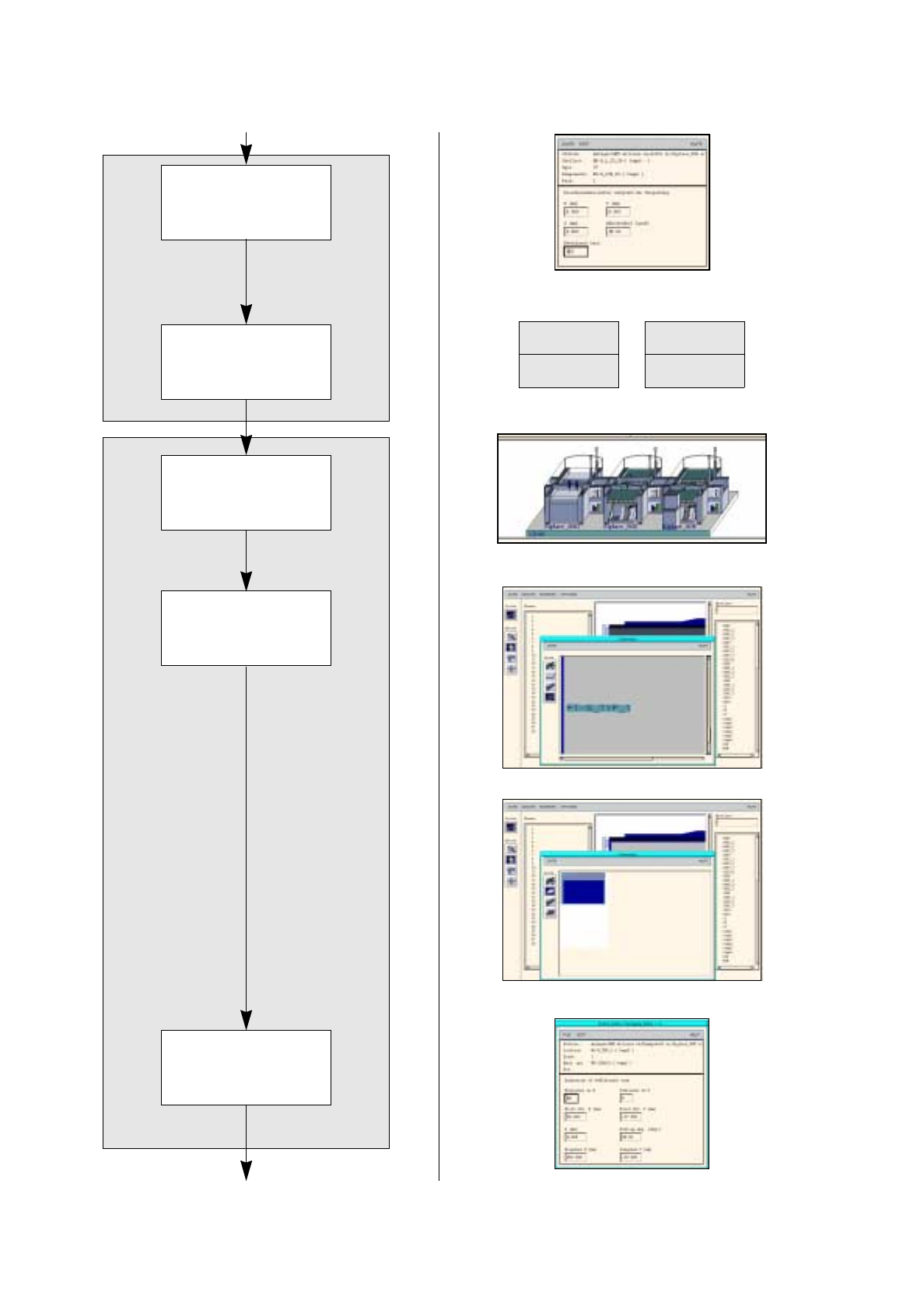
FILE
Save
FILE
Quit
continued from page 17-56
Allocating waffle-pack
tray to Waffle-Pack
Changer
Saving set-up
Opening Set-Up Editor/
WPC Editor
Adjusting vibration time
and pick-up angle
continued on page 17-60
Setting up feeders
Setting up waffle-pack trays
Defining waffle-pack
tray