Horizon UserManualV6.pdf - 第191页
PRINT CARRIAGE Selecting this diagnostics module opens the following window: The menu bar changes to the following: Run Diagnost Adjust Next Previous Exit Next / Previous keys move the highlight bar up and down the list …
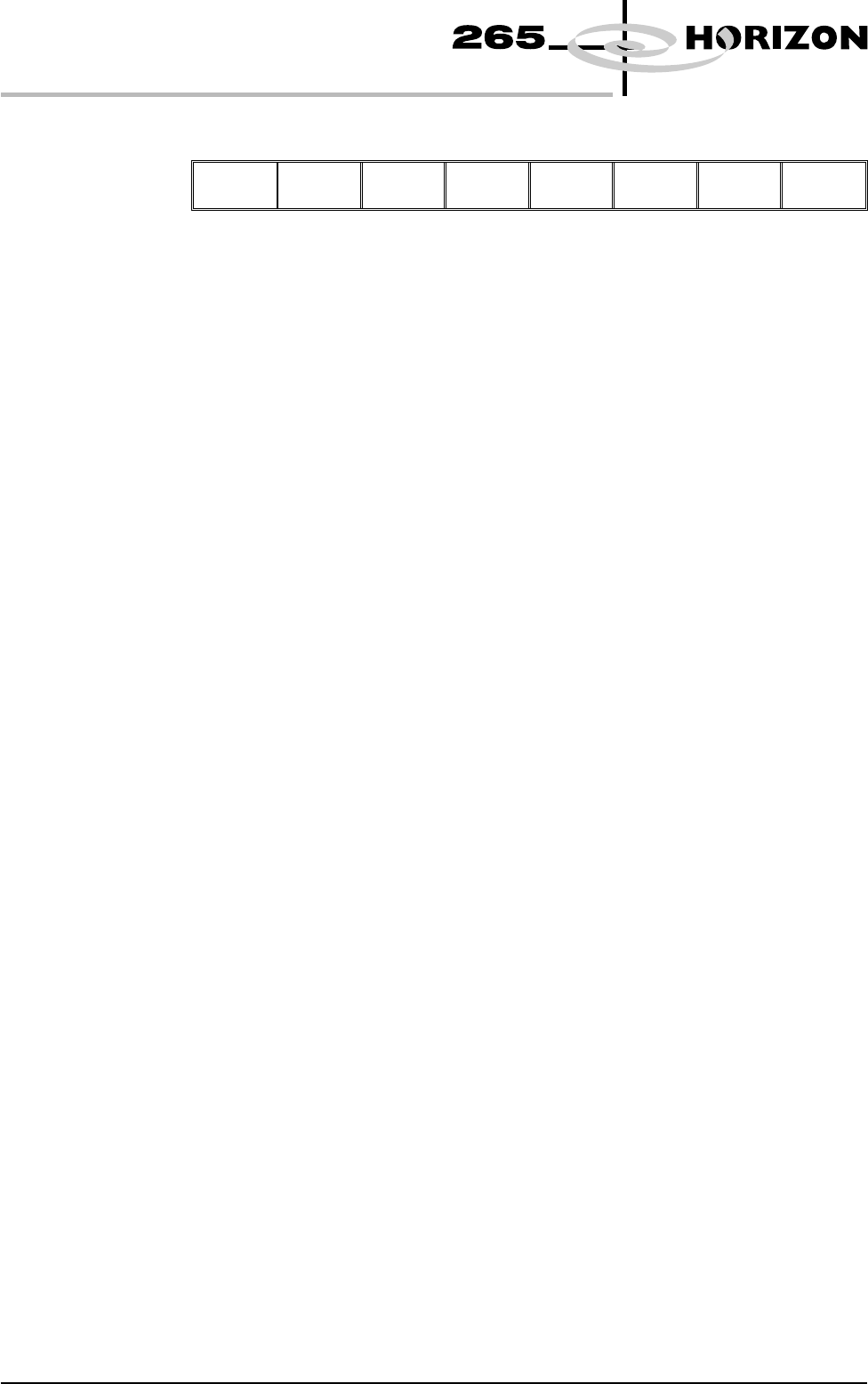
The menu bar changes to the following:
Exit
Exit returns operation to the system diagnostics page.
Toggle Beacon Selecting any one of the three toggle beacon diagnostic functions, alternately
switches them between on and off.
Toggle Lid Bolt Selecting this function alternately extends and retracts the lid bolt.
Data Logging Selecting this diagnostic function alternately enables and disables data logging
during diagnostic operations.
Change Edit
Password
Selection of this option prompts the user to enter a new password.
Change Diagnostic
Password
Selecting this diagnostic function either allows a password to be entered or
changes an existing password. This password protection inhibits unauthorized
entry into diagnostics.
Change Terminate
Password
Selecting this diagnostic function either allows a password to be entered or
changes an existing password. This password protection inhibits unauthorized
operation of the terminate control program.
Change Adjust
Password
Selecting this diagnostic function allows a password to be entered or changes an
existing password. This password protection inhibits unauthorized adjustments.
Change Fiducial
Set-Up Password
Selecting this diagnostic function allows a password to be entered or changes an
existing password. This password protection inhibits unauthorized entry into the
fiducial setup.
Change
Maintenance
Password
Selecting this diagnostic function allows a password to be entered or changes an
existing password. This password protection inhibits unauthorized entry into the
maintenance functions.
Terminate Control
Program
Selecting this diagnostic function terminates the Horizon control program and
returns to Windows NT.
5.8 User Manual Software Version 6
DIAGNOSTICS
SYSTEM
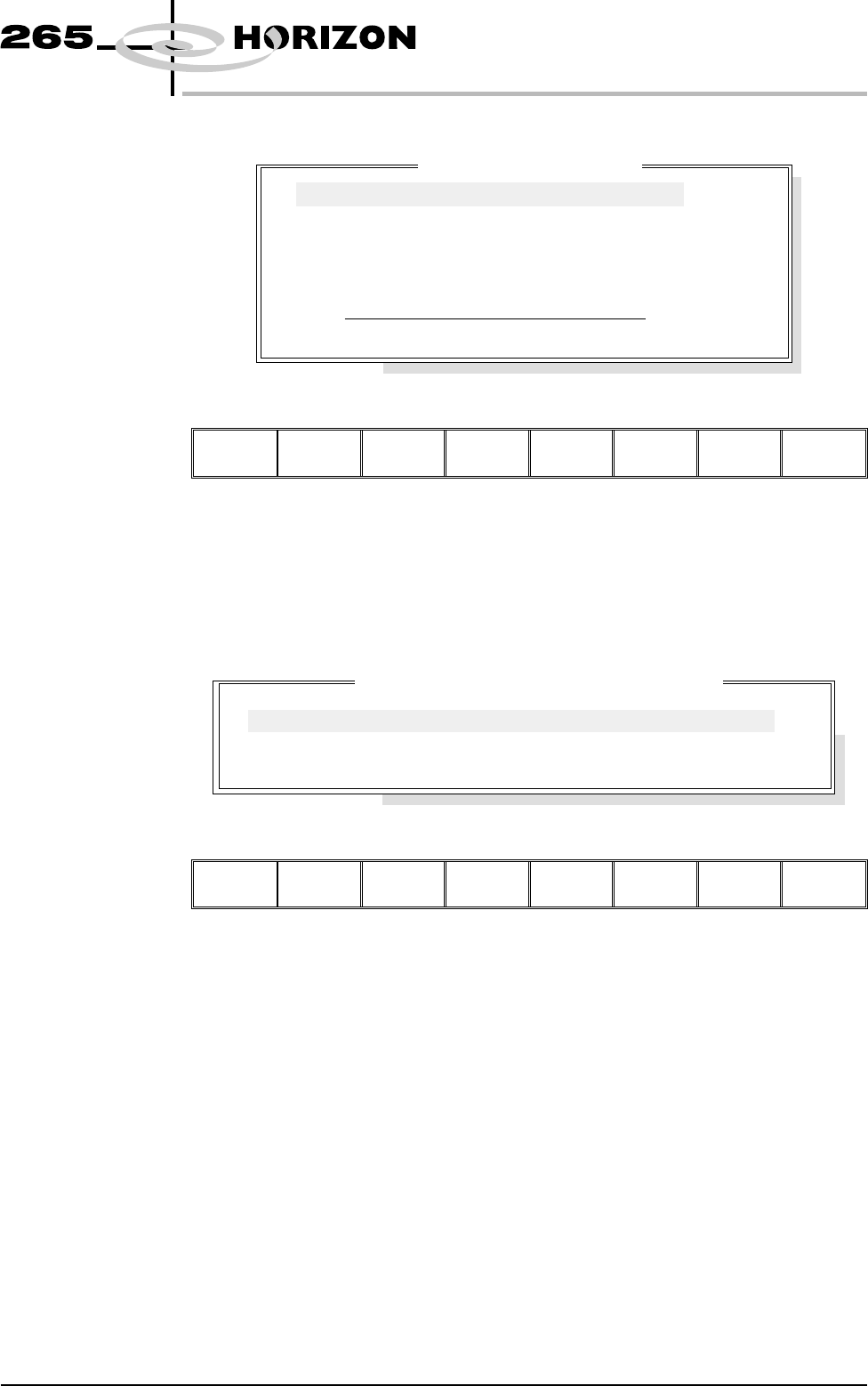
PRINT CARRIAGE Selecting this diagnostics module opens the following window:
The menu bar changes to the following:
Run
Diagnost
Adjust Next Previous Exit
Next / Previous keys move the highlight bar up and down the list of selectable
diagnostic functions.
Run Diagnost activates the diagnostic function, as selected by the highlight bar.
Exit returns operation to the module diagnostics page.
Adjust opens the following window:
The menu bar changes displaying the following:
Next Previous Incr. Decr. Exit
Next / Previous keys move the highlight bar up and down the list of diagnostic
parameters.
Incr. / Decr. keys change the value of the selected diagnostic parameter.
Exit returns operation to the print carriage diagnostics page.
NOTE
These parameters are used in diagnostics only and have no affect on the product
board file.
Home Print
Carriage
Selecting this diagnostic function homes the print carriage, as set by its home
sensor. ‘Homing Print Carriage’ is displayed in the prompt box. It is always
advisable to home the print carriage before attempting to position it.
Software Version 6 User Manual 5.9
DIAGNOSTICS
PRINT CARRIAGE
Pr
i
nt Carr
i
age D
i
agnost
i
cs
Cycle Count
Done :-
0, To go :-
50
Home Print Carriage
Drive Carriage To Front Position
Drive Carriage To Paste Position
Drive Carriage To Rear Position
Drive Carriage Using Jog Buttons
Cycle Print Carriage
Print Carriage Diagnostic Parameters
FRONT PRINT SPEED
REAR PRINT SPEED
CYCLE COUNT
25
25
50.0
mm/s
mm/s
Cycles

Drive Carriage to
Front Position
Selecting this diagnostic function moves the print carriage to the front start
position of the print stroke. ‘Driving Print Carriage to Front Limit’ is
displayed in the prompt box.
Drive Carriage to
Paste Position
Selecting this diagnostic function moves the print carriage to a position that
clears the paste dispense unit if operated. ‘Driving Print Carriage to Paste
Position’ is displayed in the prompt box.
Drive Carriage to
Rear Position
Selecting this diagnostic function moves the print carriage to the end of the print
stroke. ‘Driving Print Carriage to Rear Limit’ is displayed in the prompt box.
Drive Carriage
Using Jog Buttons
Selecting this diagnostic function allows the user to position the print carriage
anywhere between the front and rear position using the two jog buttons. ‘Use
the Left Jog Button to move Print Carriage towards front and the Right Jog
Button to move it towards the rear’ is displayed in the prompt box.
Cycle Print
Carriage
Selecting this diagnostic function starts a continuous cycle of driving the print
carriage between its front and rear limits, pausing at each end for 2 seconds.
‘Print Carriage Cycling’ is displayed in the prompt box. The cycle is
terminated if the Stop key is used or the set cycle count is reached.
Cycle Count This diagnostic function displays the amount of cycles done and the amount of
cycles to go to complete the cycle count.
5.10 User Manual Software Version 6
DIAGNOSTICS
PRINT CARRIAGE