Horizon UserManualV6.pdf - 第95页
The co-ordinates of the fiducial in the field of view are now displayed on the screen. Position the fiducial in the centre of the box graphic. 11. Use the Next and Previous keys (F4 - F5), to highlight each co-ordinate. …
7. Select Step (F1).
Step Open
Cover
Inspect
Setup
Single Exit
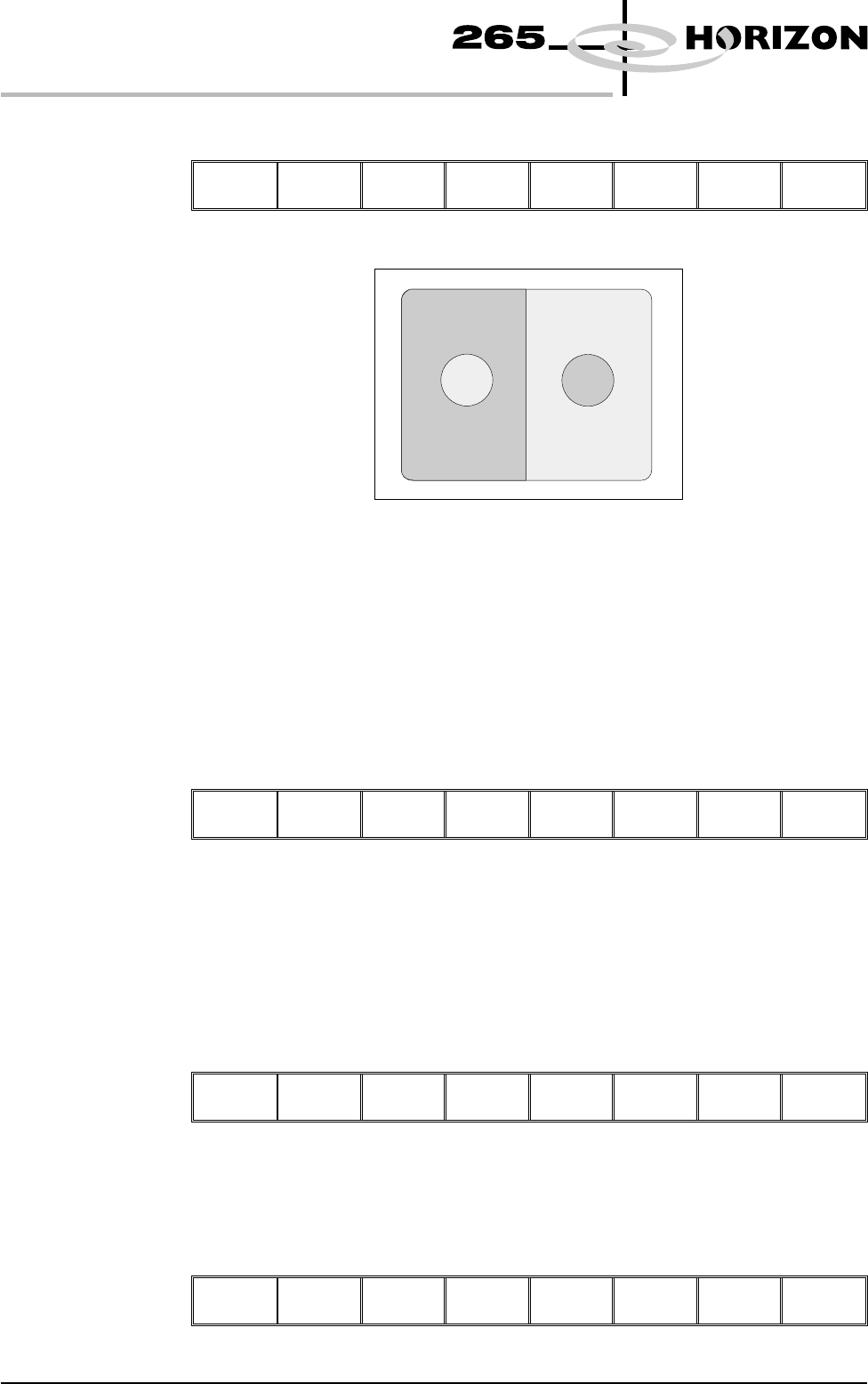
The board fiducial/select mark should now be visible on the vision data window.
If selective print/pass through is enabled, the image on the left hand side of the
monitor is the board select mark. The right hand side of the monitor shows the
corresponding position on the screen, which is a mirror image of the board
without the select mark. While the select mark is being setup and the menu bar is
as Step 8, the message ‘The form of this fiducial will select Print / Pass
through.’ is displayed.
If the fiducial is in the field of view go to Step 10. If the fiducial is not in the field
of view, continue with Step 8.
8. Select Search Step (F5).
Step Open
Cover
Fiducial
Setup
Adjust
Search
Step
Search
Reset
Single Exit
For each press of Search Step the camera conducts an increasing spiral search to
enable the operator to locate the fiducial. If this search is not sucessful the
camera can be returned to its origin. Recheck the fiducial co-ordinates set in the
product file.
9. Select Search Reset (F6).
Step Open
Cover
Fiducial
Setup
Adjust Search
Step
Search
Reset
Single Exit
When the fiducial is located move it to the centre of the screen.
10. Select Adjust (F4).
Step Open
Cover
Fiducial
Setup
Adjust
Search
Step
Search
Reset
Single Exit
1.78 User Manual Software Version 6
MACHINE PROGRAMMING
STAGE 6
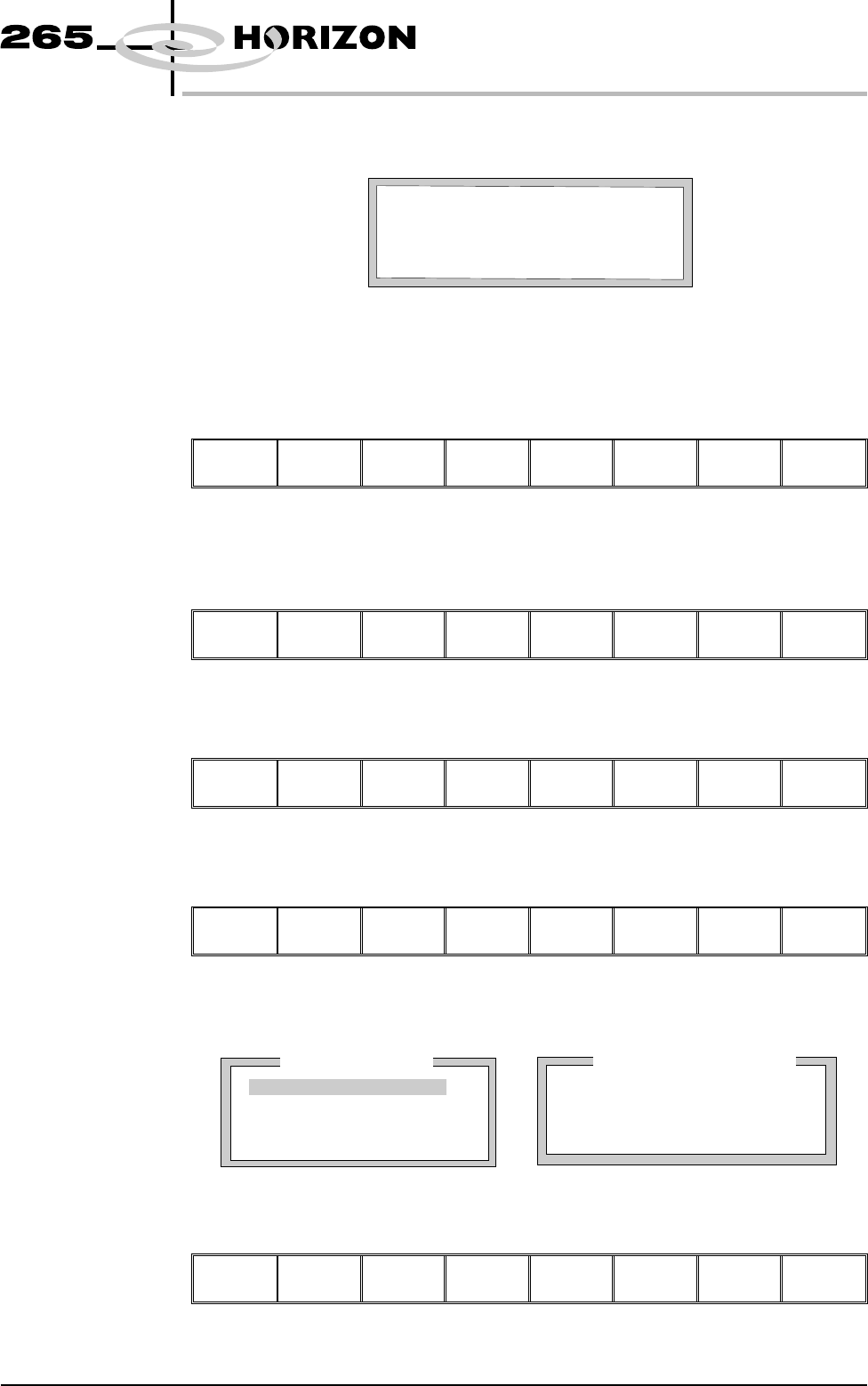
The co-ordinates of the fiducial in the field of view are now displayed on the
screen.
Position the fiducial in the centre of the box graphic.
11. Use the Next and Previous keys (F4 - F5), to highlight each co-ordinate.
Next Previous
Incr. Decr. Exit
12. Use the Incr. And Decr. Keys (F6 - F7), to change the parameter value and
move the fiducial in the field of view.
Next Previous
Incr. Decr.
Exit
13. Select Exit (F8).
Next Previous Incr. Decr.
Exit
14. Select Fiducial Setup (F3).
Step Open
Cover
Fiducial
Setup
Adjust Search
Step
Search
Reset
Single Exit
The monitor displays the following:
15. Select Set Light (F3).
Learn
Fiducial
Locate
Fiducial
Set
Light
Next Previous Incr. Decr. Exit
Software Version 6 User Manual 1.79
MACHINE PROGRAMMING
STAGE 6
Printer Status
Process Parameters
Background
Dark
Accept Score
700
Circle Parameters
Board Fiducial 1
mm
mm
mm
Diameter
Inner Contour
Outer Contour
1.80
0.40
0.40
FiducialType
Circle
BOARDFIDUCIAL1CO-ORDINATES
xxx mm
FIDUCIAL1Y
FIDUCIAL1X
xxx mm
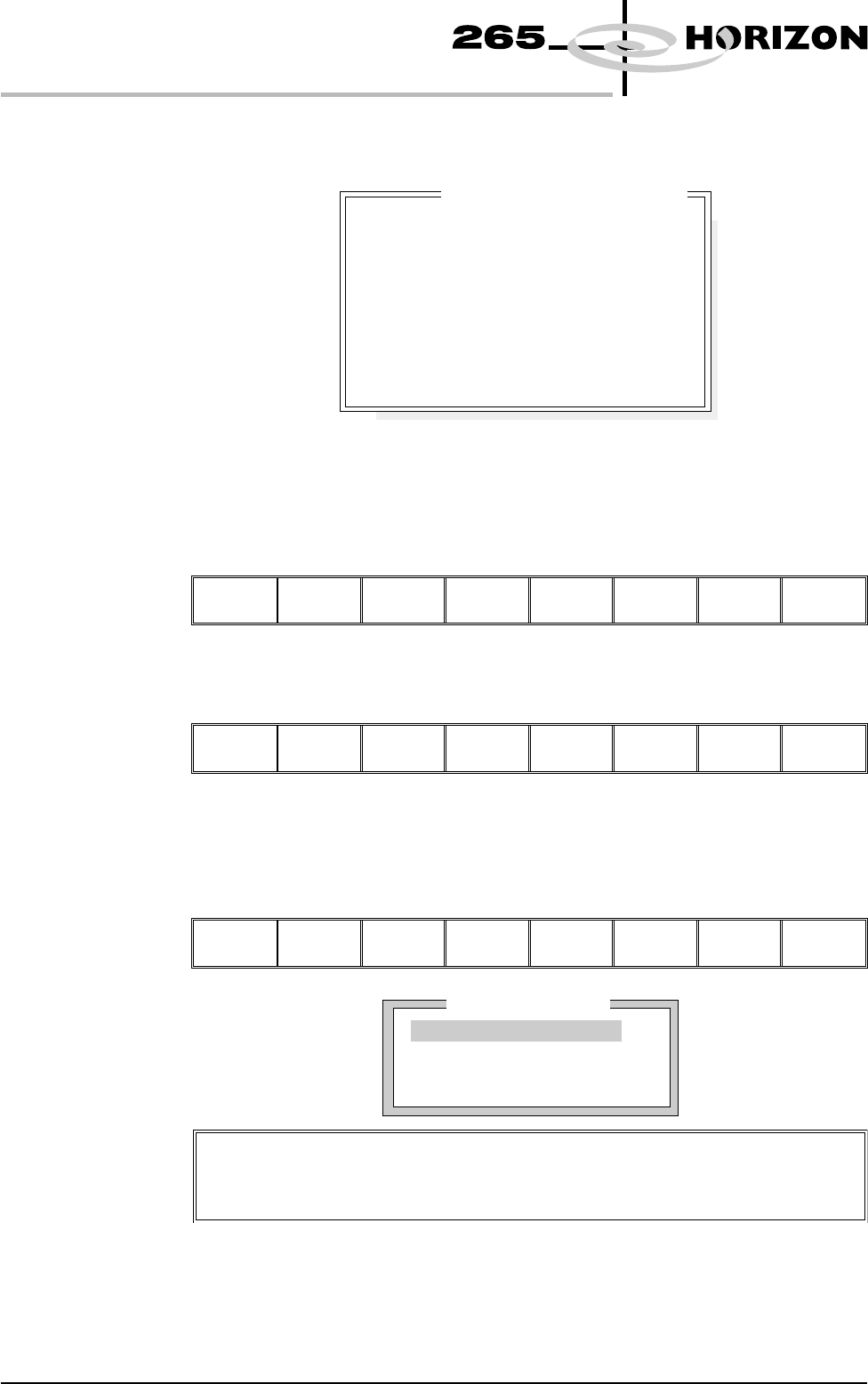
A histogram is displayed on the monitor and the Fiducial Lighting Parameters
window is displayed on the status page.
16. Use the Next, Previous, Incr. and Decr. keys (F4 - F7), to highlight and
adjust the lighting parameters to a level whereby the fiducials are just
whiting out, without blooming, default level 8 is usually adequate for the
majority of setups.
Next Previous Incr. Decr.
Exit
17. Select Exit (F8).
Next Previous Incr. Decr.
Exit
18. Use the Next, Previous, Incr. and Decr. keys (F4 - F7), to highlight and
adjust each of the board fiducial parameters in the left hand box on the
monitor.
Learn
Fiducial
Locate
Fiducial
Set
Light
Next Previous Incr. Decr.
Exit
1.80 User Manual Software Version 6
MACHINE PROGRAMMING
STAGE 6
14
14
14
14
-1.0
-1.5
2.0
2.0
Fiducial Lighting Parameters
Screen On Axis
Screen Off Axis
Board On Axis
Board Off Axis
Window Left
Window Top
Window Width
Window Height
Printer Status
Boar
d
F
id
uc
i
a
l
1
Background
Dark
Accept Score
700
FiducialType
Circle
Video Model
To setup a video model, choose Video Model from the Fiducial Type
Parameter.