Horizon UserManualV6.pdf - 第70页
5. Using the grid co-ordinates marked on the template, position pins which coincide with gaps between the underside board components. 6. Select Change Screen (F5). Mode Load Data Edit Data Setup Squeegee Change Screen Ch…
STAGE 5D
Tooling Setup -
MultiFlex
CAUTION
BOARD CLAMPS. Care must be taken to ensure that the board clamps
are not damaged when removing or replacing tooling.
NOTE
Setting up the MultiFlex tooling is to be performed off the machine.
1. Create a box the same size as the board using the side plates.
2. Use the board width and board length dimensions to position the box
correctly.
3. Place the PCB on a flat surface, component side up.
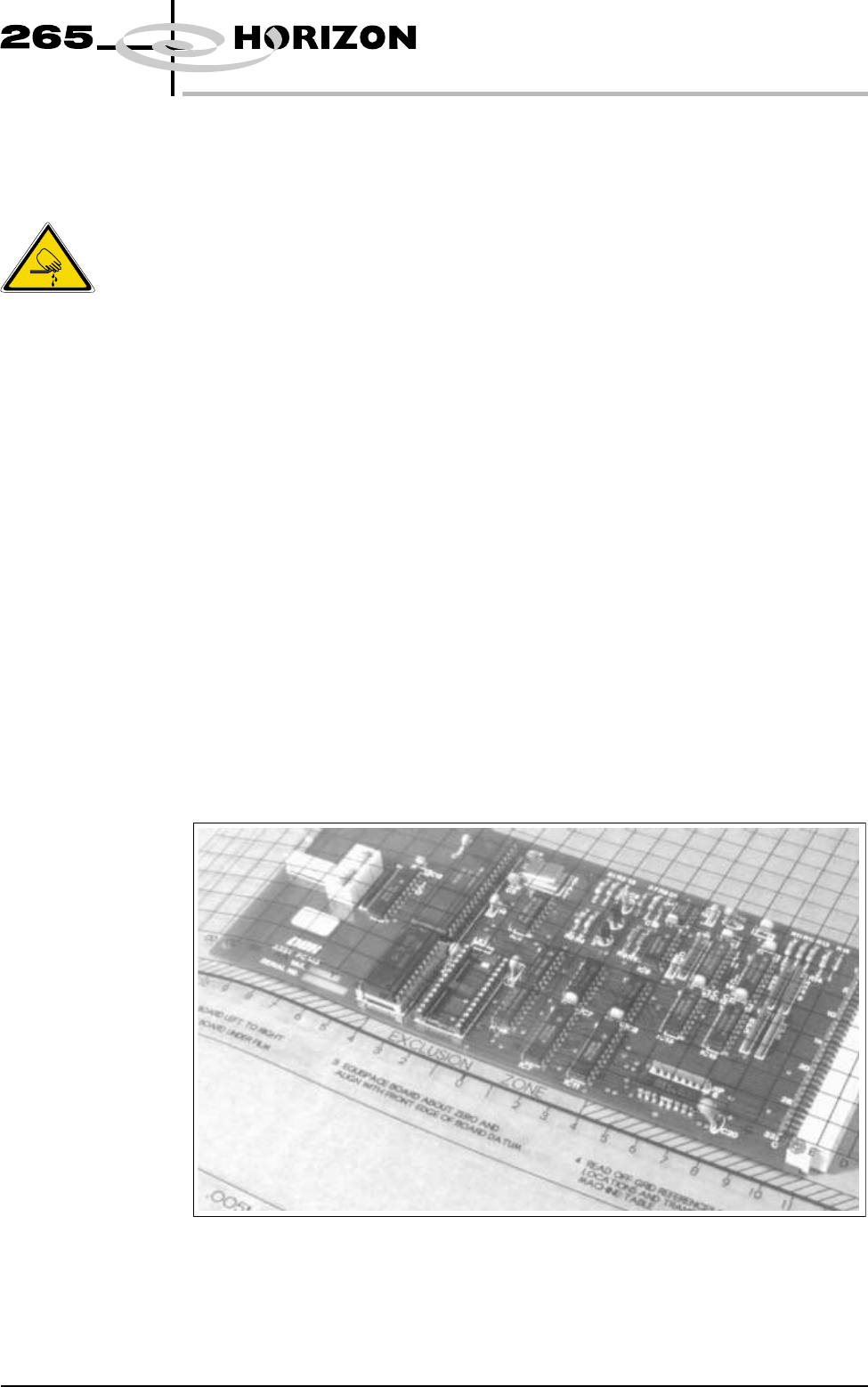
4. Position the acetate template, supplied with the tooling, over the PCB such
that the front edge of the board is aligned with the arrow indicators on the
template. Ensure that the centreline of the board is aligned with the template
zero.
Software Version 6 User Manual 1.53
MACHINE PROGRAMMING
STAGE 5D
WARNING
BOARD CLAMPS. EXTREME CARE MUST BE EXERCISED WHEN
WORKING IN THE TOOLING AREA OF THE MACHINE TO AVOID
INJURY. THE FOILS ON THE FRONT AND REAR BOARD CLAMPS
ARE VERY SHARP.
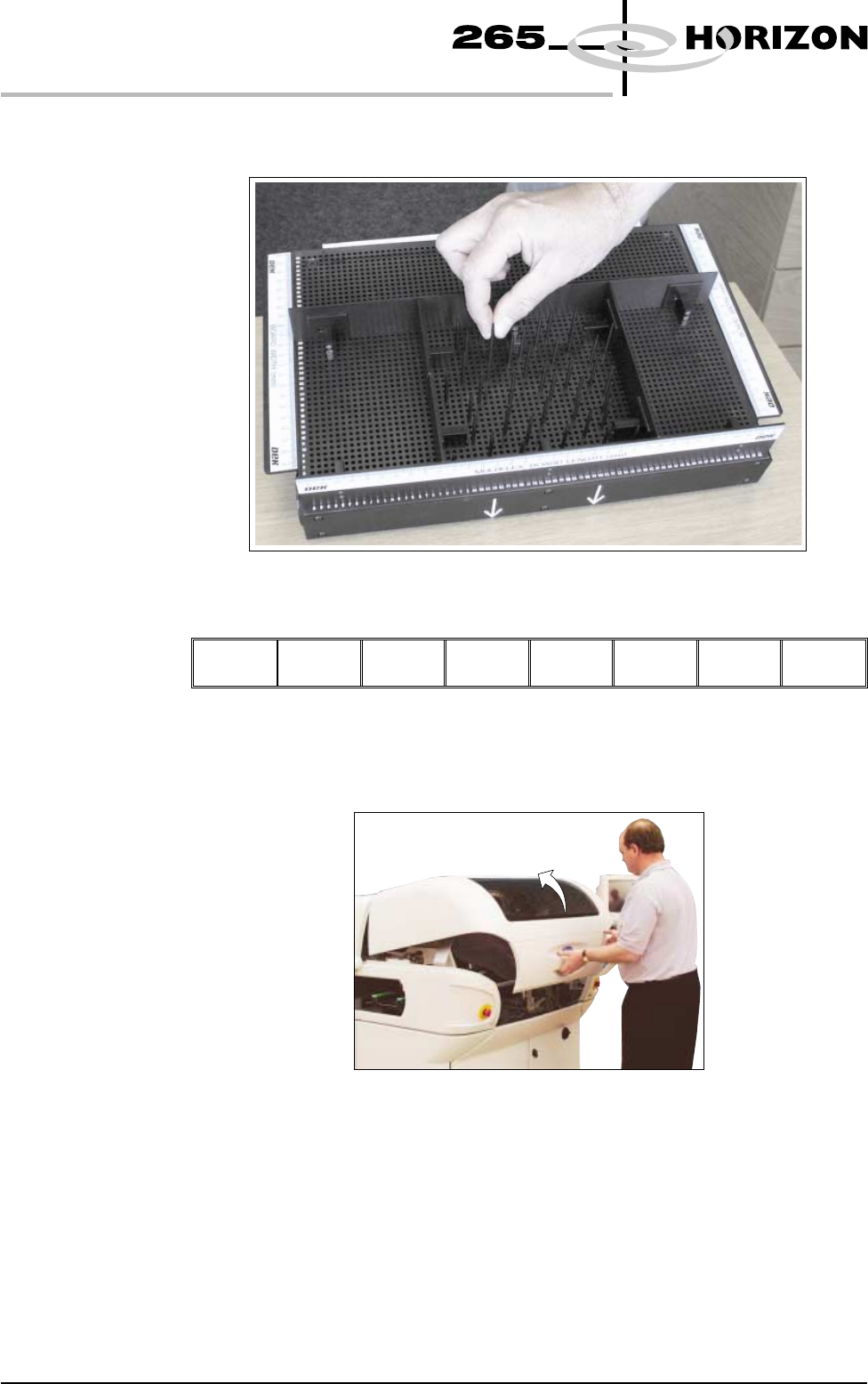
5. Using the grid co-ordinates marked on the template, position pins which
coincide with gaps between the underside board components.
6. Select Change Screen (F5).
Mode Load
Data
Edit
Data
Setup
Squeegee
Change
Screen
Change
Tooling
Change
Language
Exit
The message ‘Open Front Cover and Remove Screen’ is displayed.
7. Open the front printhead cover.
1.54 User Manual Software Version 6
MACHINE PROGRAMMING
STAGE 5D
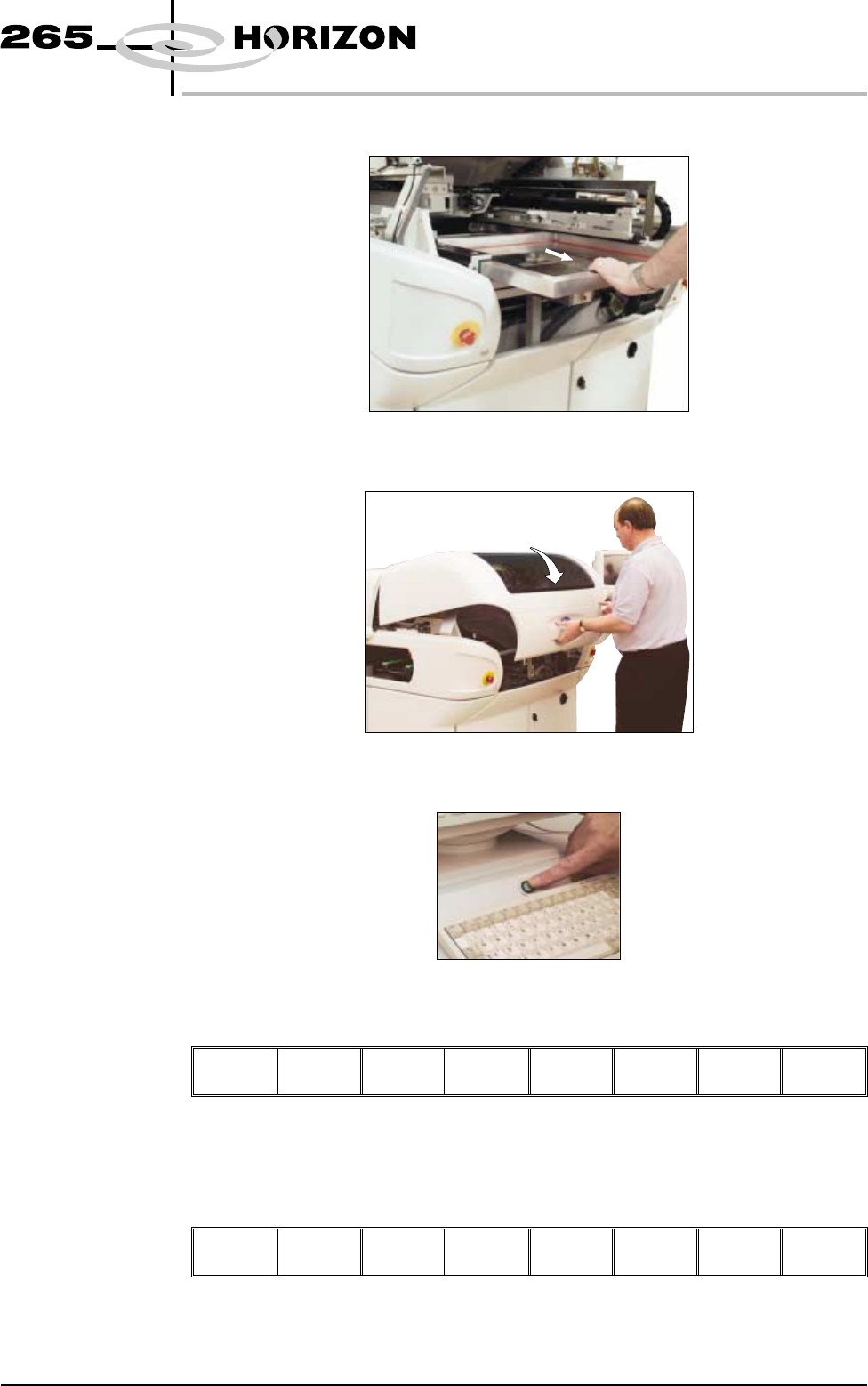
8. Remove the stencil from the printer.
9. Close the front printhead cover.
10. Press the System button.
11. Select Change Tooling (F6).
Mode Load
Data
Edit
Data
Setup
Squeegee
Change
Screen
Change
Tooling
Change
Language
Exit
The print carriage and the under screen cleaner are moved to the rear.
12. Select Full Width (F5).
Adjust Open
Cover
Home
Cleaner
Board
Stop
Full
Width
Load
Width
Print
Height
Exit
The message ‘Checking for a board on the belts’ is displayed. Whilst the rear
rail is moving the following message ‘Rail moving...’ is displayed.
Software Version 6 User Manual 1.55
MACHINE PROGRAMMING
STAGE 5D