Workcell-Installation-Guidelines-Troubleshooting-Maintenance-REV-F.pdf - 第40页
Workcell Installation and General Guidelines Revision F / Janu ary 2021 Page 40 of 59 Switch Position Description MRST OFF Master Reset Switch XON/XOFF OFF Software Handshaking Switch HSHK ON Hardware Handshaki ng Switch…
Workcell Installation and General Guidelines
Revision F / January 2021
Page 39 of 59
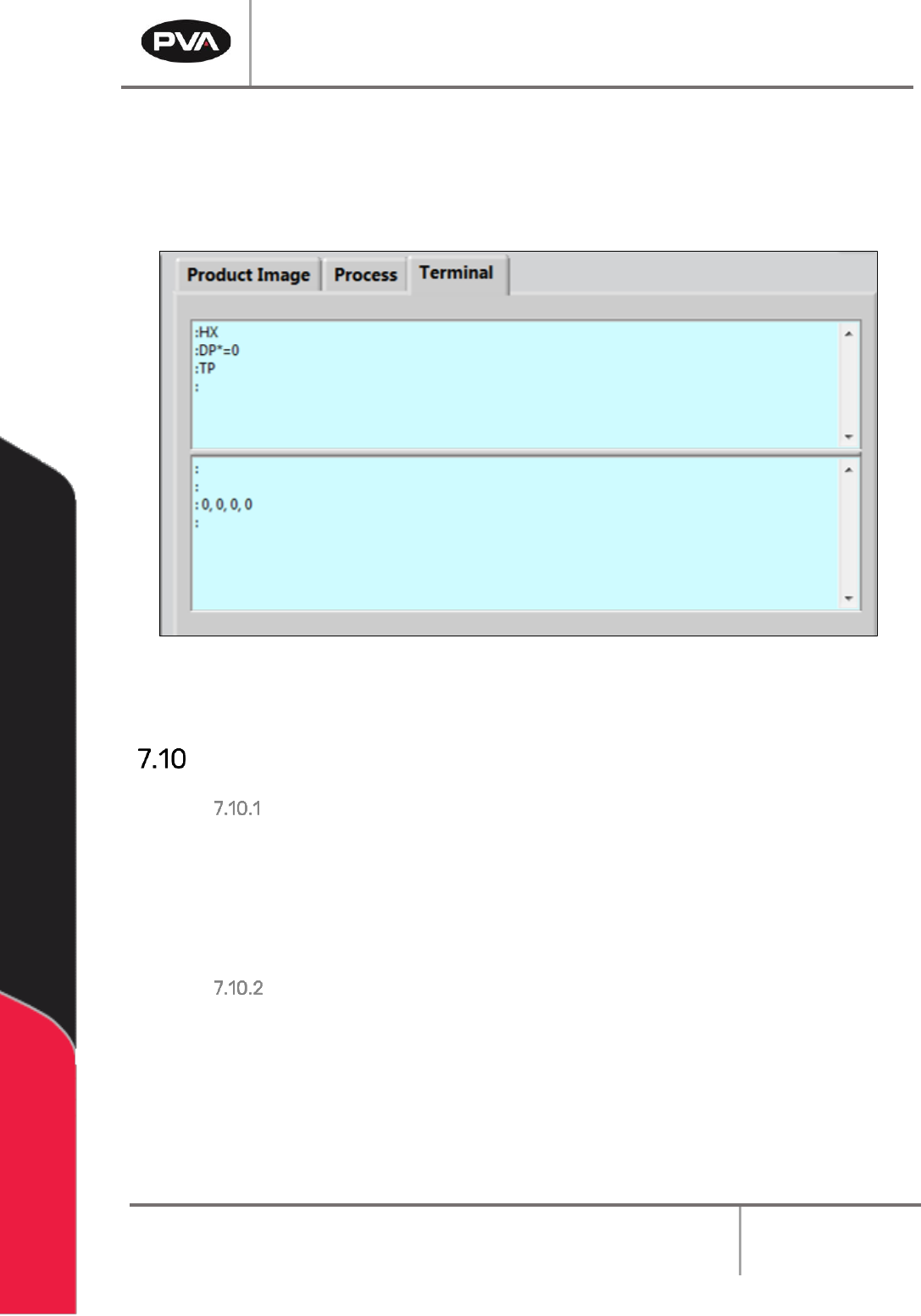
17. Turn the workcell “OFF”.
18. Connect the motor power cables.
19. Turn the workcell “ON”.
Figure 22: Encoder Feedback Test
Computer and Workcell Communication
RS-232 Communication
A RS-232 connection will use a straight through connection. The Rx and Tx lines are
crossed internally on the controller so a null modem is not necessary. The controller baud
rate and handshaking are set with dip switches on the Galil controller inside the workcell
enclosure. Hardware handshaking must be enabled to communicate with PathMaster®
over RS-232.
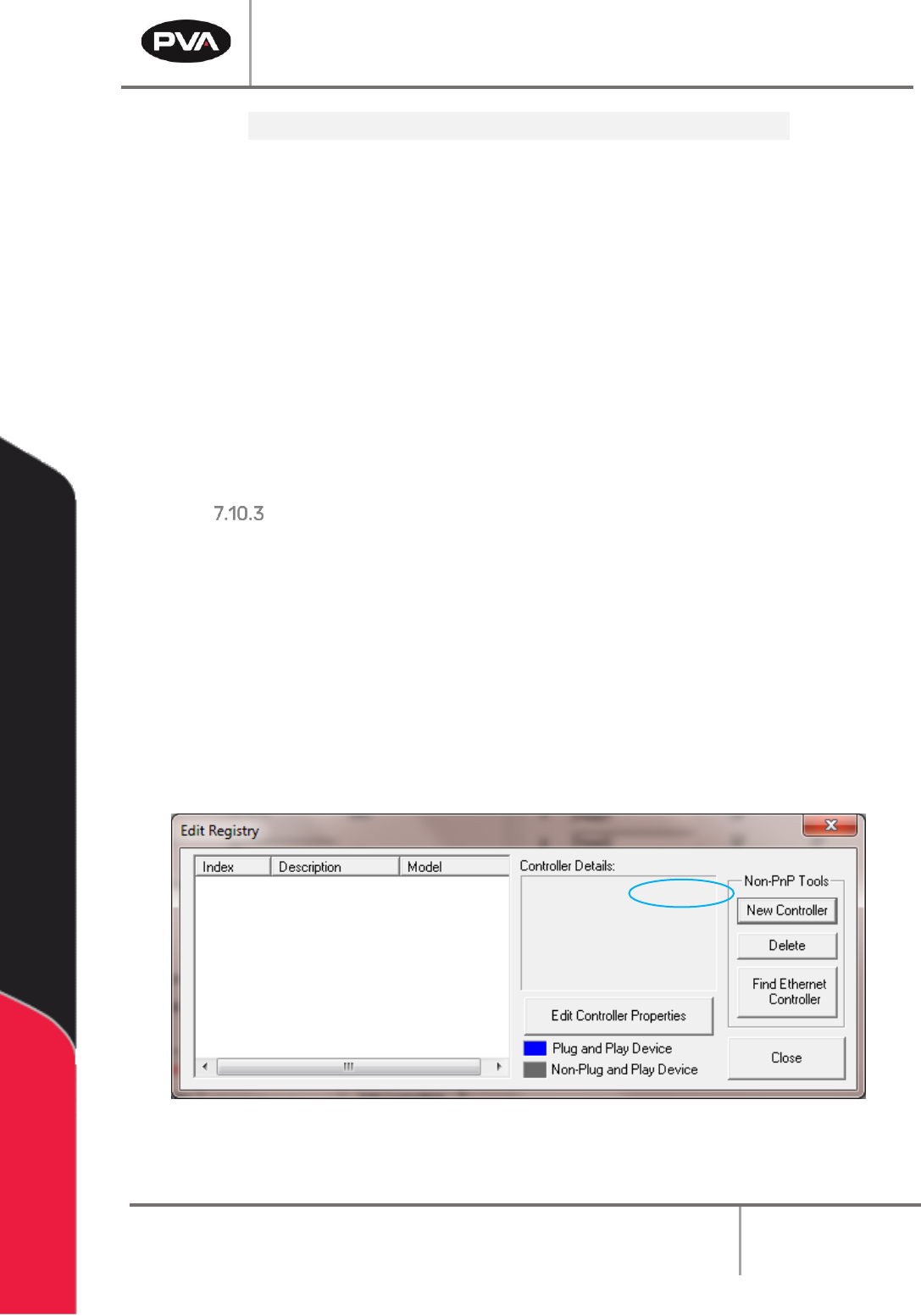
DMC-2200 Dip Switch Settings
The main RS-232 port on the DMC-2200 controller must be configured as shown to
communicate with the PathMaster® software. Baud rate can be adjusted, but handshaking
must be “On”.
See Figure 23 on next page.
Workcell Installation and General Guidelines
Revision F / January 2021
Page 40 of 59
Switch
Position
Description
MRST
OFF
Master Reset Switch
XON/XOFF
OFF
Software Handshaking Switch
HSHK
ON
Hardware Handshaking Switch
9600
OFF
Baud rate
19.2K
ON
Baud rate
38.4K
OFF
Baud rate
Figure 23
Note: If hardware handshaking is enabled and a computer is not attached to the Main
RS-232 port, when the program uses the message command the controller eventually
halts. A computer must be attached to the controller when handshaking is enabled
and message commands are used.
Serial Communications
To configure serial connections do the steps below.
1. Select Setup
→
Machine Parameters from the Main menu in PathMaster to open the
Machine Parameters window.
2. Select the “Edit Controllers” button in the Machine Parameters window.
3. Select “OK” if a message shows that PathMaster® could not find any controllers in
the Windows® registry. This means that no control handles have been configured yet.
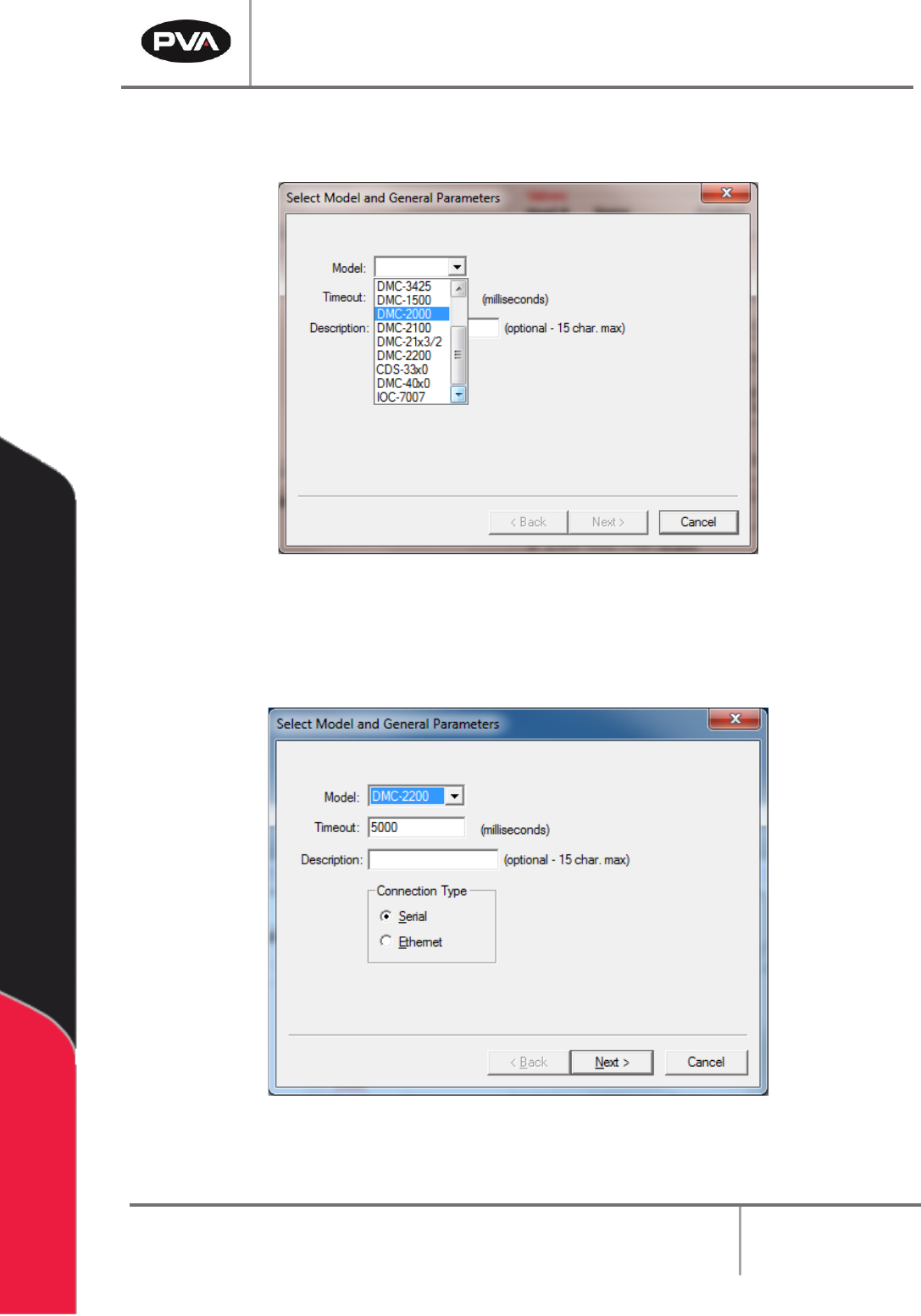
4. Select “New Controller” in the Edit Registry window.
Figure 24: Setup New Controller
Workcell Installation and General Guidelines
Revision F / January 2021
Page 41 of 59
5. Select the controller model installed in the workcell from the Model dropdown box.
Select DMC4000 for Delta class systems and DMC2000 for all other systems.
Figure 25: Controller Models
6. Use the default Timeout for all controllers.
7. Select “Serial” for Connection Type.
Figure 26: Connection Type