Workcell-Installation-Guidelines-Troubleshooting-Maintenance-REV-F.pdf - 第54页
Workcell Installation and General Guidelines Revision F / Janu ary 2021 Page 54 of 59 Technical Supp ort PVA uses an automated ticketi ng system called Team Support. The fastest way to conta ct PVA for any t echnical s u…
Workcell Installation and General Guidelines
Revision F / January 2021
Page 53 of 59
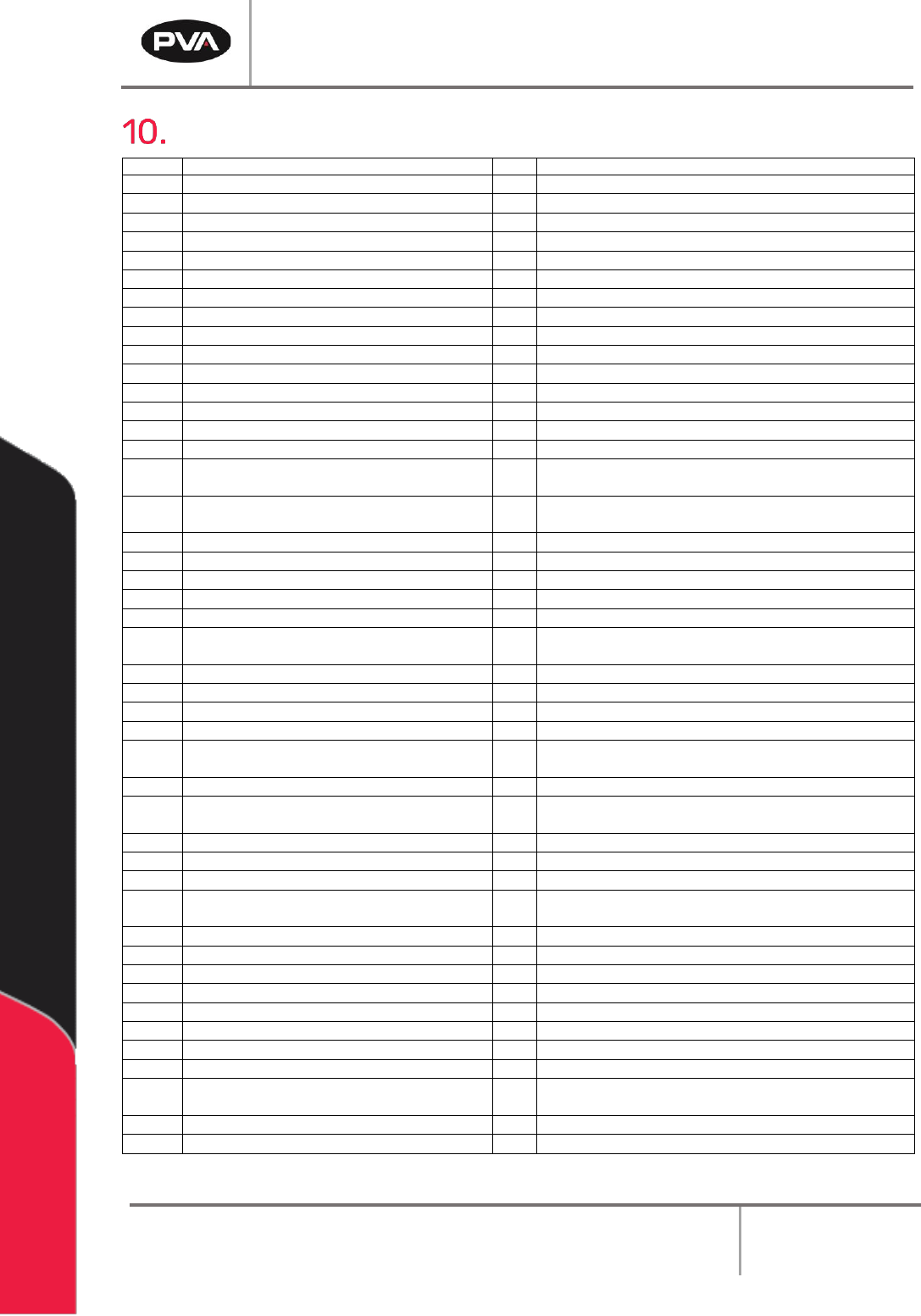
DMC Error Codes
ID
Description
ID
Description
1
Unrecognized command
60
Download error - line too long or too many lines
2
Command only valid from program
61
Duplicate or bad label
3
Command not valid in program
62
Too many labels
4
Operand error
63
If statement without ENDIF
5
Input buffer full
65
IN command must have a comma
6
Number out of range
66
Array space full
7
Command not valid while running
67
Too many arrays or variables
8
Command not valid while not running
68
Not valid from USB port
9
Variable error
71
IN only valid in task #0
10
Empty program line or undefined label
80
Record mode already running
11
Invalid label or line number
81
No array or source specified
12
Subroutine more than 16 deep
82
Undefined array
13
JG only valid when running in jog mode
83
Not a valid number
14
EEPROM check sum error
84
Too many elements
15
EEPROM write error
90
Only X Y Z W valid operand
16
IP incorrect sign during position move or
IP given during forced deceleration
95
TM too large for stepper pulse
17
ED, BN and DL not valid while program
running
96
SM jumper needs to be installed for stepper motor
operation
18
Command not valid when contouring
97
Bad binary code format
19
Application strand already executing
98
Binary commands not valid in application program
20
Begin not valid with motor off
99
Bad binary command number
21
Begin not valid while running
100
Not valid when running ECAM
22
Begin not possible due to Limit Switch
101
Improper index into ET (must be 0-256)
24
Begin not valid because no sequence
defined
102
No master axis defined for ECAM
25
Variable not given in “IN” command
103
Master axis modulus greater than 256*EP value
28
S operand not valid
104
Not valid when axis performing ECAM
29
Not valid during coordinated move
105
EB1 command must be given first
30
Sequence segment too short
110
No hall effect sensors detected
31
Total move distance in a sequence > 2
billion
111
Must be made brushless by BA command
32
More than 511 segments in a sequence
112
BZ command timeout
33
VP or CR commands cannot be mixed
with LI commands
113
No movement in BZ command
41
Contouring record range error
114
BZ command runaway
42
Contour data being sent too slowly
118
Controller has GL1600 not GL1800
46
Gear axis both master and follower
120
Bad Ethernet transmit
47
Gearing and coordinated moves cannot
run simultaneously
121
Bad Ethernet packet received
50
Not enough fields
122
Ethernet input buffer overrun
51
Question mark not valid
123
TCP lost sync
52
Missing " or string too long
124
Ethernet handle already in use
53
Error in {}
125
No ARP response from IP address
54
Question mark part of string
126
Colsed Ethernet handle
55
Missing [ or []
127
Illegal Modbus function code
56
Array index invalid or out of range
128
IP address not valid
57
Bad function or array
130
Illegal IOC command
58
Bad or unrecognized command in a
command response (i.e. _GNX)
131
Timeout on serial port
59
Mismatched parentheses
132
Analog inputs not present
133
Handle must be UDP
Figure 37: DMC Error Codes
Workcell Installation and General Guidelines
Revision F / January 2021
Page 54 of 59
Technical Support
PVA uses an automated ticketing system called Team Support. The fastest way to contact
PVA for any technical support is to create a ticket. The ticketing system alerts the service
department of your region and assigns a service engineer. All service engineers can see
the information for each ticket for collaborate responses to more difficult problems from
our global team. Each problem and response can be tracked from creation to resolution.
The Support Portal also has information on common issues and possible solutions. If
immediate support is necessary, call your regional office (https://pva.net/contact).
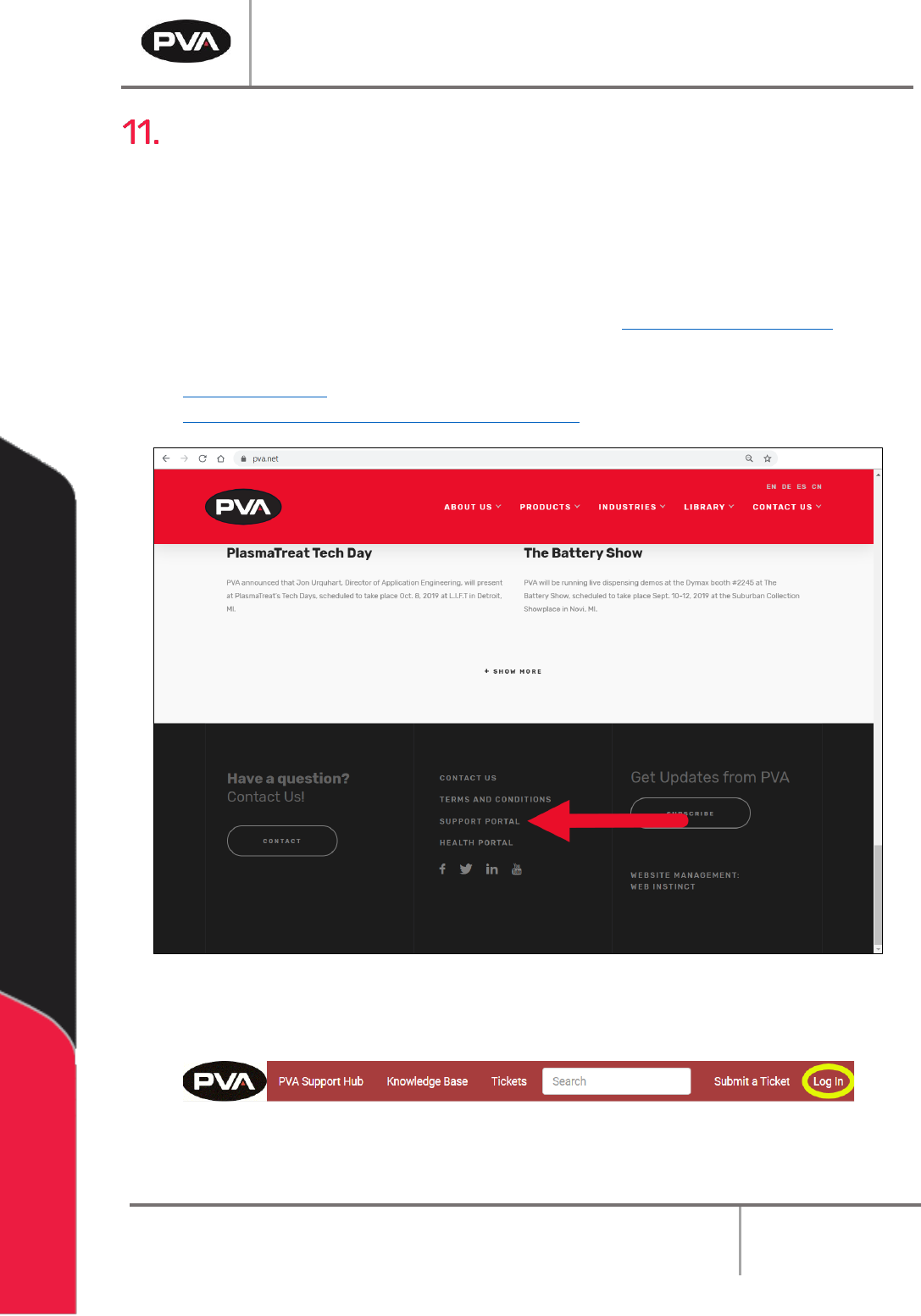
1. To access the ticketing system, click Support Portal located at the bottom of
https://pva.net/ homepage. You can also access the Support Portal from the link
https://pva.na1.teamsupport.com/dashboard.
Figure 38: Support Portal
2. Select “Log In” to log in to your account or create a new one.
Figure 39: Log In
Workcell Installation and General Guidelines
Revision F / January 2021
Page 55 of 59
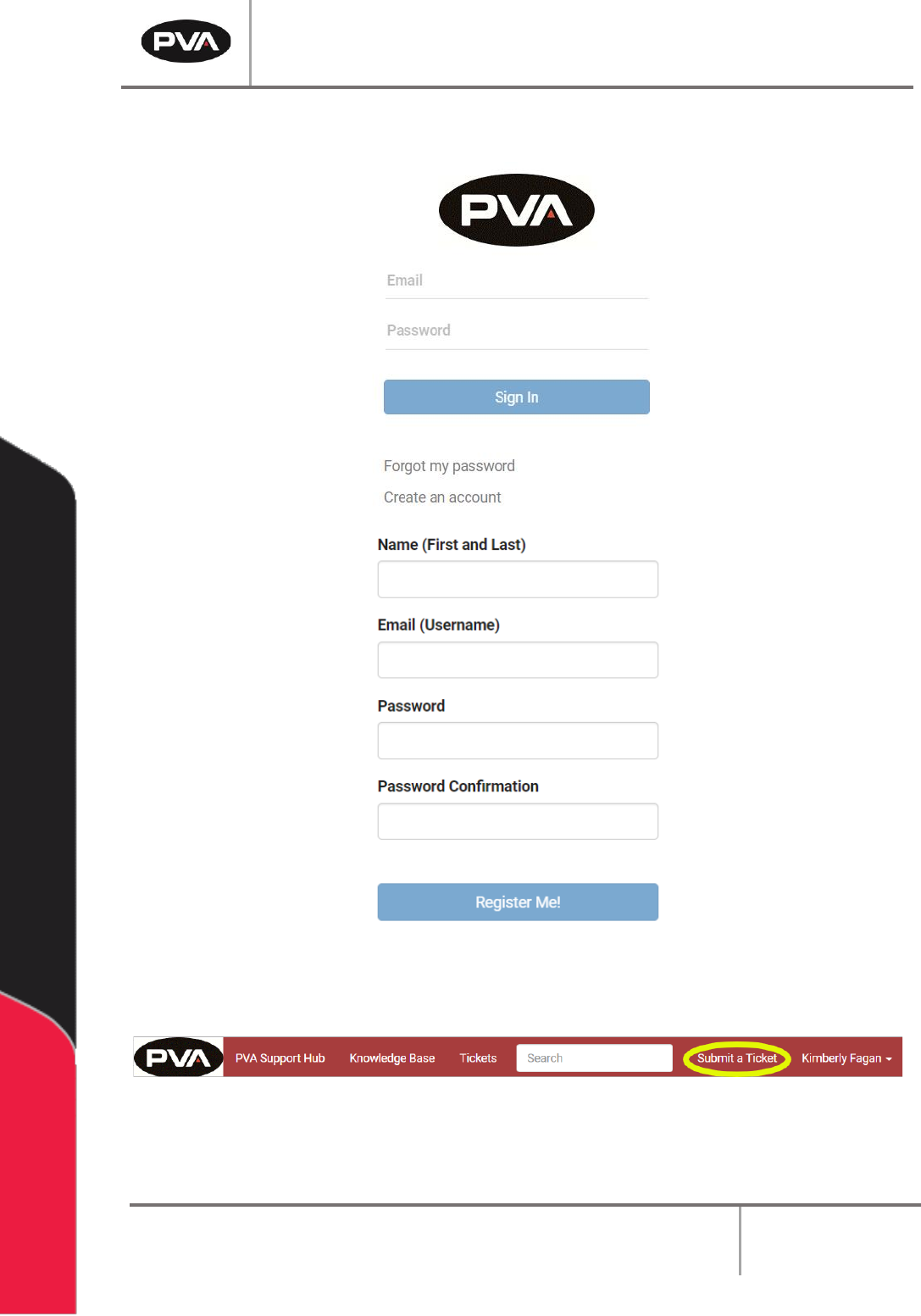
3. The Sign In screen will be shown. Fill in the information and select “Sign In” or,
select “Create an account” fill in the information and select “Register Me!”.
Figure 40: Sign In or Register
4. When you are signed in, select “Submit a Ticket” from the header.
Figure 41: Submit a Ticket