SOM-1617-001.pdf - 第14页
7. Handling of Bar Code Reader 7.1 Startup (1) Press the power switch (PW). The “** MAIN MENU **” window (Fig. 4) appears on the screen. (a) When the message “No execution program selected. Con- tact your administrator .…
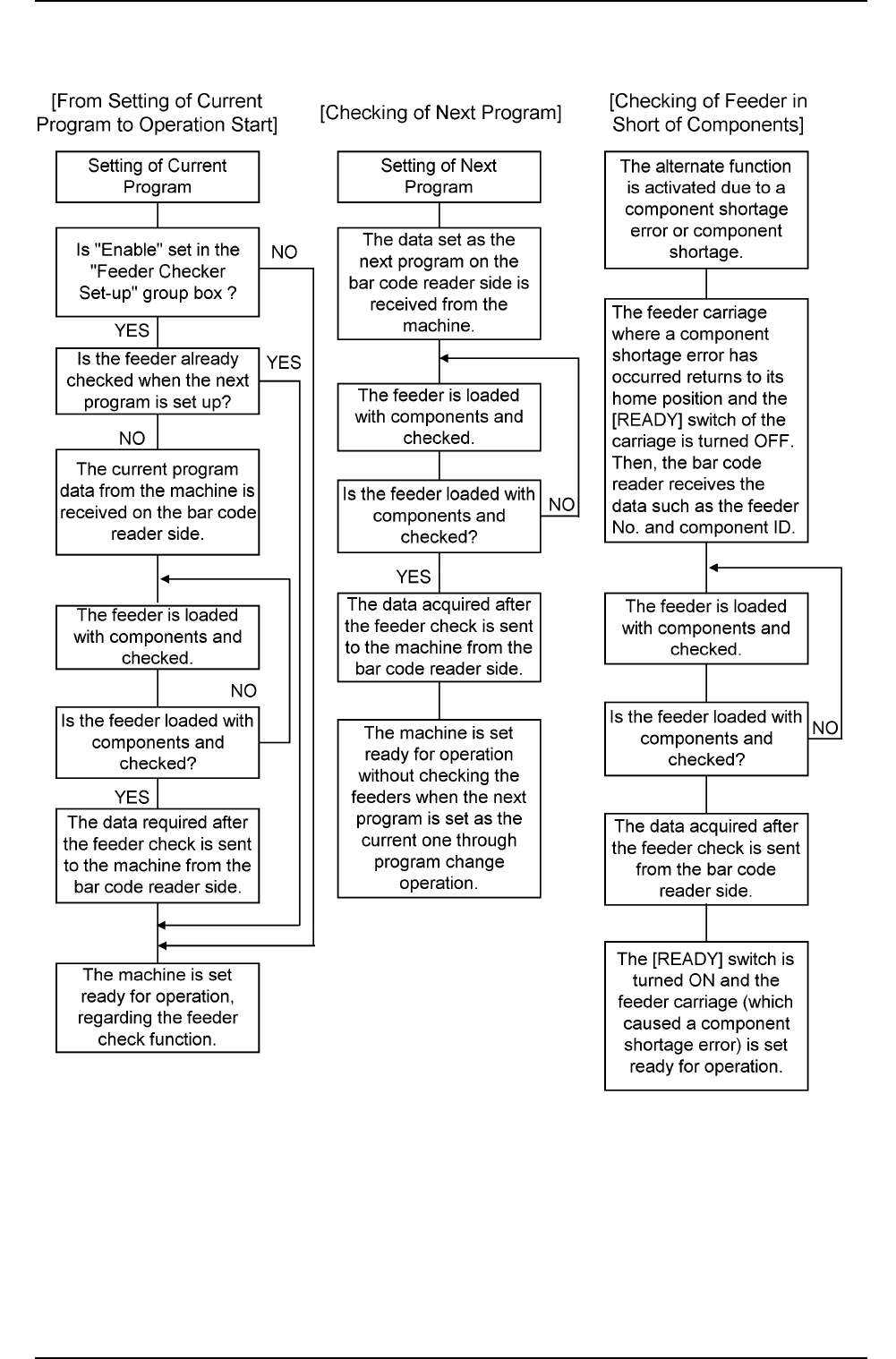
6. Operation Flow
Fig. 3
021 1-001 1 2
AIH01EGP
6. Operation Flow
7. Handling of Bar Code Reader
7.1 Startup
(1) Press the power switch (PW).
The “** MAIN MENU **” window (Fig. 4) appears on the screen.
(a) When the message “No execution program selected. Con-
tact your administrator.” is issued, perform the operation
described in “11. Program Setup” to load the program to
be executed.
(b) Refer to the instruction manual of the bar code reader for
the basic functions and operations of the bar code reader.
7.2 “** MAIN MENU **” Window
Fig. 4
[Displayed Contents]
1. PRODUCT : The components for the current program are
checked.
2. SETUP : The components for the next program are checked.
3. OPERATE : The data can be changed or cleared.
4. BC DATA : The bar code data can be set.
5. MASK : The masking operation can be set for the bar code
data.
“V. 03” on the top right represents the version No. of this program.
The version No. is subject to change.
(a) When the “** MAIN MENU **” window is active, the bar
code reader issues an inquiry command to the machine to
check whether or not component shortage is caused ev-
ery 10 seconds. Therefore, be sure to keep the bar code
reader connected to the communication adapter while this
window is active.
021 1-001 1 3 AIH01EGP
7. Handling of Bar Code Reader
** MAIN MENU ** V.03
1.PRODUCT 2.SETUP
3.OPERATE 4.BC DATA
5.MASK
SELECT NO

(b) While the bar code reader is issuing an inquiry command,
“. . . . .” appears on the bottom left side of the window (Fig.
5).
When “. . . . .” is on the display, any item in the main menu
cannot be selected (no function key is accepted).
(c) When a component shortage error occurs, the system is
shifted to the “7.3.7 Checking the name (ID) of the compo-
nents that caused a shortage error” session.
(d) To select “1. PRODUCT” or “2. SETUP” and implement
the function at the “** MAIN MENU **” window, select the
corresponding key with the bar code reader connected to
the communication adapter.
(e) When the bar code reader is not connected to the com-
munication adapter, it cannot communicate with the ma-
chine.
As a result, the selected function cannot be implemented
(the corresponding display will not appear on the screen)
after a component shortage error has occurred even
though “1. PRODUCT” or “2. SETUP” is selected.
The corresponding window will not open when no response
is made from the machine side or the responsive data con-
tains no details.
Fig. 5
021 1-001 1 4
AIH01EGP
7.2 “** MAIN MENU **” Display
** MAIN MENU ** V.03
1.PRODUCT 2.SETUP
3.OPERATE 4.BC DATA
5.MASK
..... SELECT NO