00196589-02 - IM Traceability 3.1_en.pdf - 第11页
Installation Traceability Installation Installation Manual SIPLACE Traceability 3.1 11 4 Inst allation T raceability 4.1 Inst allation You must log in as admi nistrator at the st ation co mputer to install the traceabili…
Scope of Delivery
Software Requirements
10 Installation Manual SIPLACE Traceability 3.1
3.1 Software Requirements
To run the Traceability 3.1 system the following installations have to be performed:
SIPLACE Pro 8.0, 7.1
Setup Center 3.2, 3.3
SIS 8.0, 7.1
Trace Service 3.1
Trace Host 3.1
Station software:
– 407.05 (SIPLACE 80 F4, F4-6, S20; F5, F5 HM, S23)
– 505.05 SP1 (SIPLACE S25 HM, S27 HM, HS50, HS 50+, HS60, HF, HF3)
– 605.02 (SIPLACE X2, X3, X4; D1, D2, D3, D4)
– 704.01, 703.02 (SIPLACE X2, X3, X4, X4I, SX1, SX2, SX4)
Installation Traceability
Installation
Installation Manual SIPLACE Traceability 3.1
11
4 Installation Traceability
4.1 Installation
You must log in as administrator at the station computer to install the traceability options.
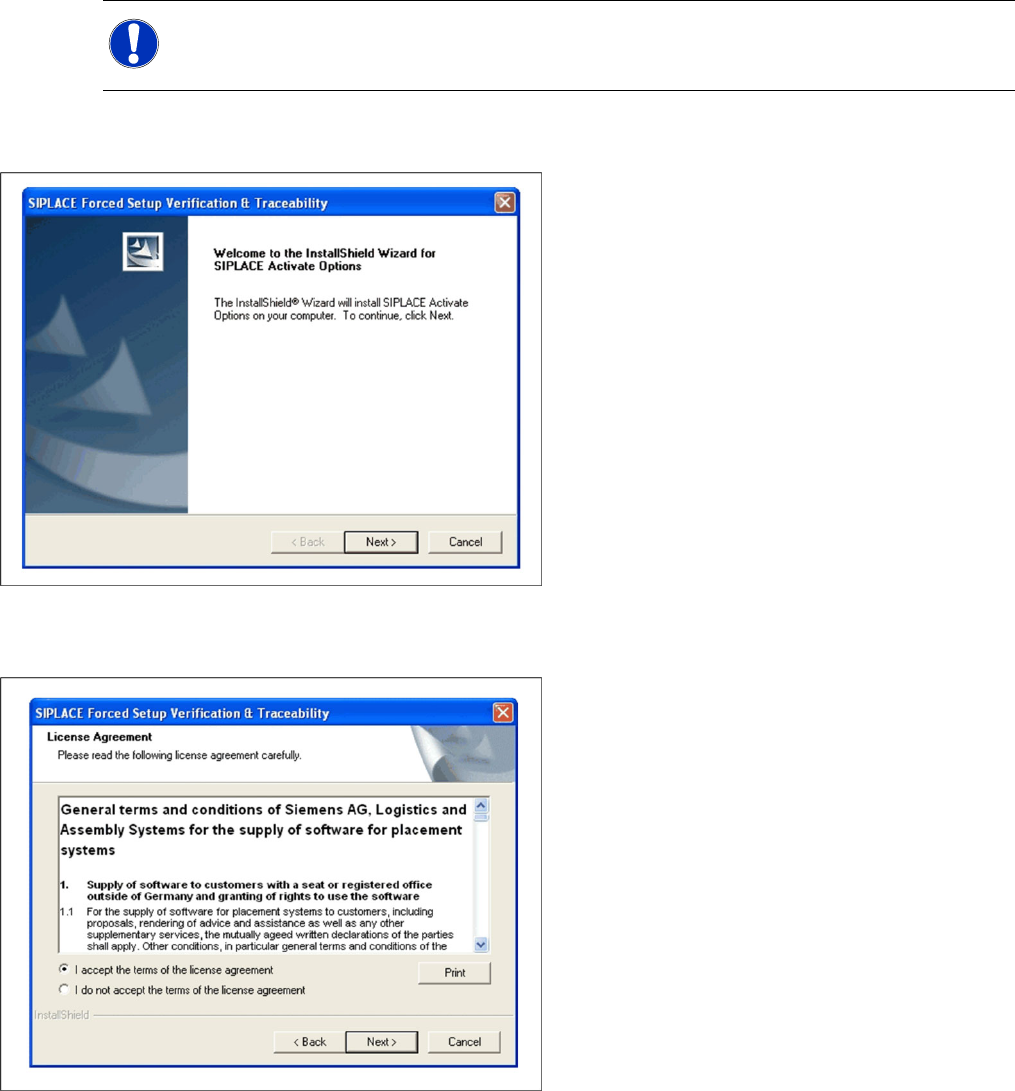
Welcome Dialog
License Dialog
NOTE:
The installation on the station computer (activation of Traceability) is only required on station
SW 40x, 50x and 60x.
X Place the SIPLACE Traceability CD into your
CD-ROM drive. The installation starts
automatically.
X The Start screen appears.
X Read the license agreement. If you agree with
the conditions, click on I accept ..., otherwise
click on I do not accept.... If you select I do not
accept ..., the installation procedure will be
terminated.
X Click on Next to continue the installation
procedure.
Installation Traceability
Installation
12 Installation Manual SIPLACE Traceability 3.1
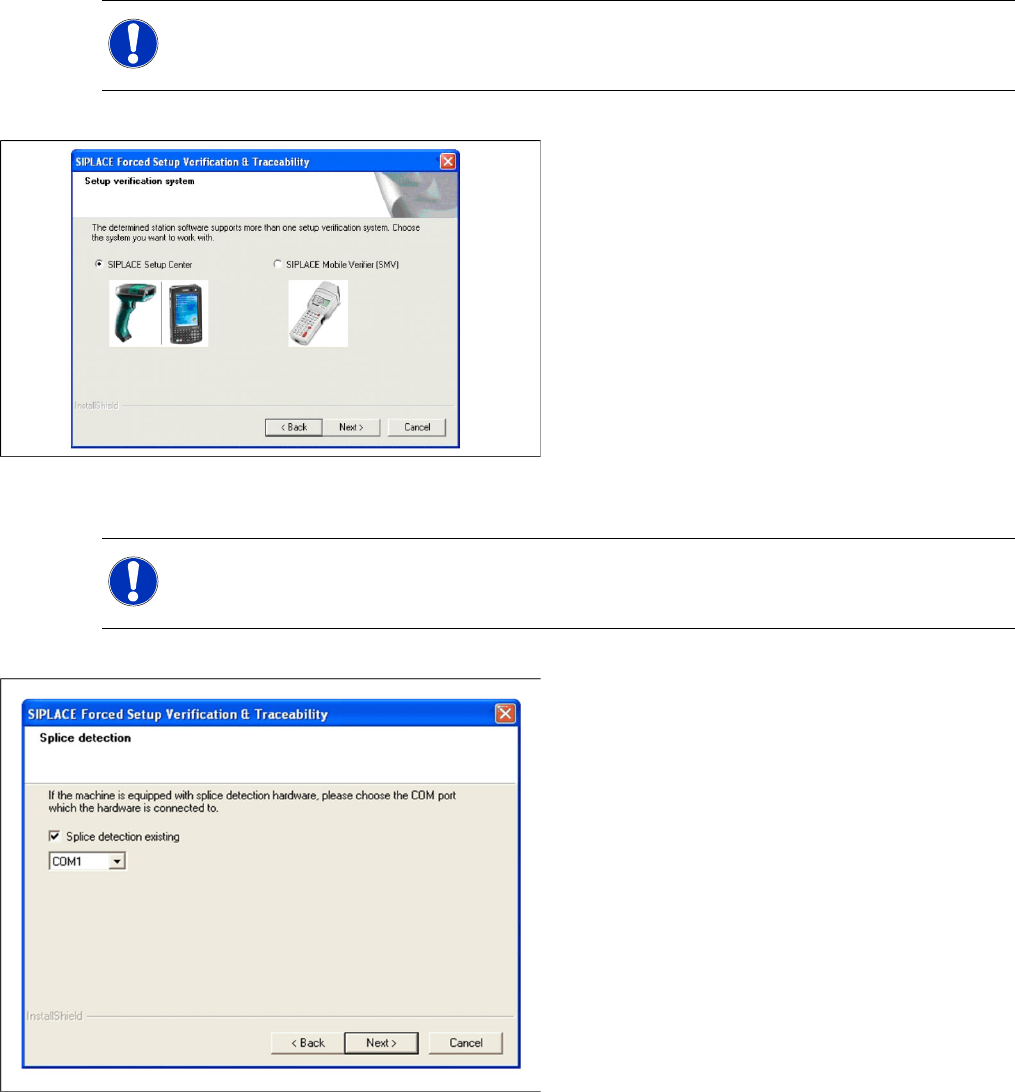
Setup Verification System
Configuration of the Splice Detection
NOTE:
This Dialog will only appear for the machine with the station-software version 407.05 and
505.05!
X The station software version 407.05 and
505.05 offers two different interfaces to the
Setup verification system. By choosing the
corresponding Setup verification system the
interface will be configured in the station-
software accordingly.
X Click Next to continue.
NOTE:
This dialog will not appear for X series machines since the splice interface is always integrated
into the X feeders and is not available for S feeders at these machines!
X Select the checkbox Splice detection
existing, if a splice detection is available.
X Enter the COM Port where Splice detection is
plugged in.
X Click Next to continue.