00196589-02 - IM Traceability 3.1_en.pdf - 第43页
Installation Trace Host and Trace Service Upgrade of Trace Host Trace Host Installation Manual SIPLACE Traceability 3.1 43 5.4.4.1 Upgrade Wizard The Trace database Upgrade Wizard is a to ol with which you can upgrade ol…

Installation Trace Host and Trace Service
Trace Host Upgrade of Trace Host
42 Installation Manual SIPLACE Traceability 3.1
5.4.3.3 Generating a WebSite is Denied
If you start Trace Host Manager to generate the Trace Host Web site you may get an “access denied
error”.
This is only true for Windows Vista. You need administrator rights to generate the Web site. In Windows
Vista you don’t have administrator rights in Trace Host even if you are member of a user group with
administrator rights.
Workaround 1
X Change the rights of the Trace Host installation folder (e.g. “C:\Program Files\Siemens
SIPLACE\Trace Host”) manually to “Full control”.
Workaround 2
Start Trace Host Manager with administrator rights:
X Navigate the mouse pointer to the Trace Host Manager Icon
X Press “Shift” and the right mouse button
X Select “Run as”
X Windows Vista will ask for the required rights. Select “Administrator”
5.4.4 Upgrade of Trace Host
X Install the current version of Trace Host.
X Start the Upgrade Wizard to convert the Trace Host database to the new format.
X Start Trace Host Manager and check the configuration. For detailed information about the database
configuration, please see the section "SIPLACE Trace Host Manager" of the User Manual SIPLACE
Traceability 3.1, item no. 00196587-xx (English) or 00196586-xx (German).
See also:
J
5.4.1 Installation [
J
33]
J
5.4.4.1 Upgrade Wizard [
J
43]
ATTENTION:
This chapter only describes the upgrade procedure of the Trace Host. Before you start to
upgrade Trace Host please read chapter 6 carefully to understand the upgrade procedure of the
overall system
ATTENTION:
Before you upgrade the Trace Host please uninstall the old Traceability-Software (Trace Host
database is not affected by uninstall).
Installation Trace Host and Trace Service
Upgrade of Trace Host Trace Host
Installation Manual SIPLACE Traceability 3.1
43
5.4.4.1 Upgrade Wizard
The Trace database Upgrade Wizard is a tool with which you can upgrade older versions of the Trace
database to the current version of Trace Host.
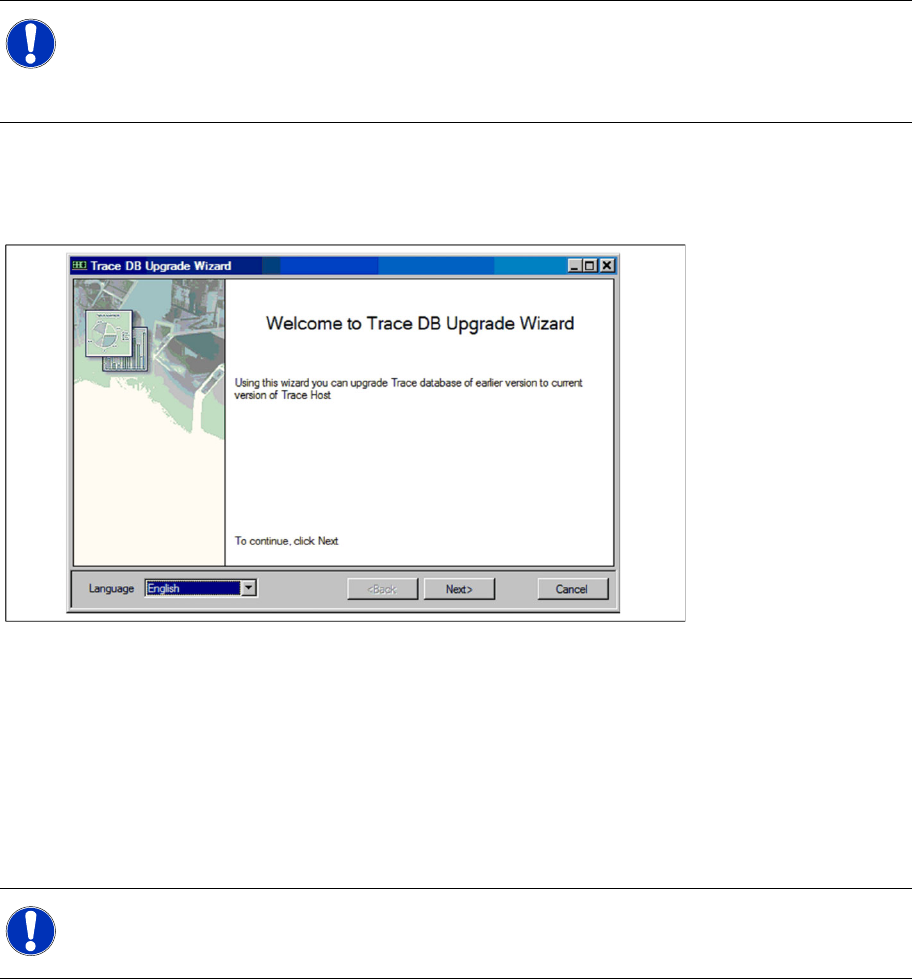
Starting the Upgrade Wizard
X Start the Upgrade Wizard via the Windows menu Programs → SIPLACE Trace Host → Upgrade
Wizard. The dialog will open:
X Language
Set the required language for the further steps in the Upgrade Wizard.
The following options are available:
English
German
The Trace database upgrade consists of a simple four-step procedure.
Step 1 of 4
NOTE:
The following requirements must be met before the Trace databases can be upgraded:
- Trace Host must be active.
- You should already know the database access parameters.
NOTE:
Please note that you must have administrator privileges for the database, in order to perform the
required tests and configuration.
Installation Trace Host and Trace Service
Trace Host Upgrade of Trace Host
44 Installation Manual SIPLACE Traceability 3.1
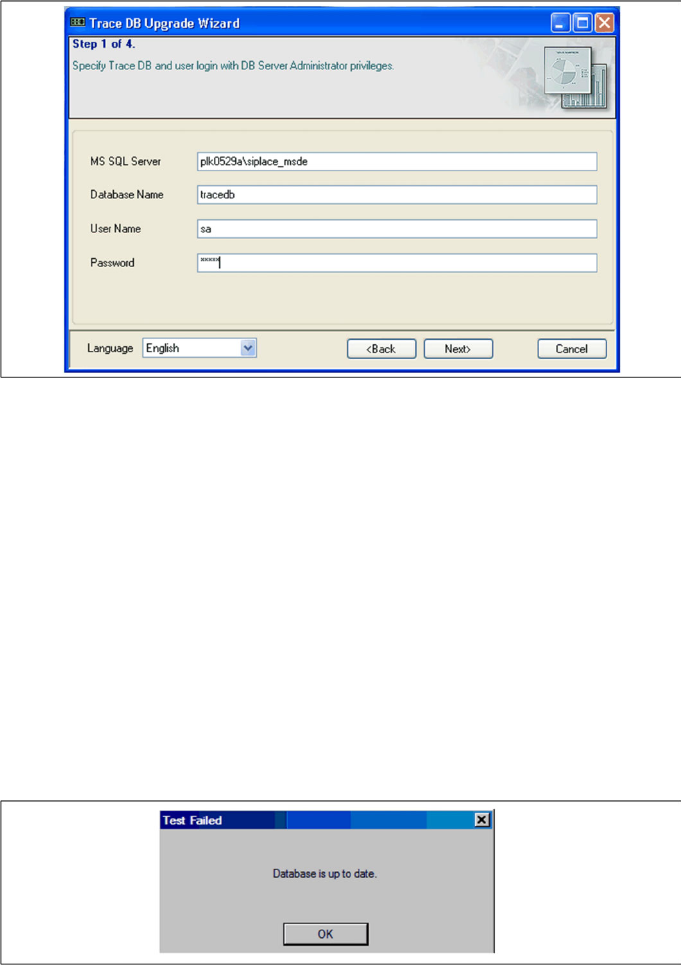
X In step 1 you need to specify the following database access parameters for the Trace database
which is to be upgraded:
MS SQL Server
The computer on which the Trace database is.
Database name
Name of the database to be upgraded.
User name
Your login for the Trace database.
Password
The password for the Trace database. This password is the same as that for the SQL server
database you are referring to here.
X Click on Next If the specified database is already upgraded, you will see a notifications window. Click
on OK to close the Upgrade Wizard.
Step 2 of 4
X Step 2 is skipped.