00196589-02 - IM Traceability 3.1_en.pdf - 第46页
Installation Trace Host and Trace Service Trace Host SIPLACE Trace Host Uninstall 46 Installation Manual SIPLACE Traceability 3.1 5.4.5 SIPLACE T race Host Uninstall X Open the Control Panel with Start ® Contr ol Panel. …
Installation Trace Host and Trace Service
Upgrade of Trace Host Trace Host
Installation Manual SIPLACE Traceability 3.1
45
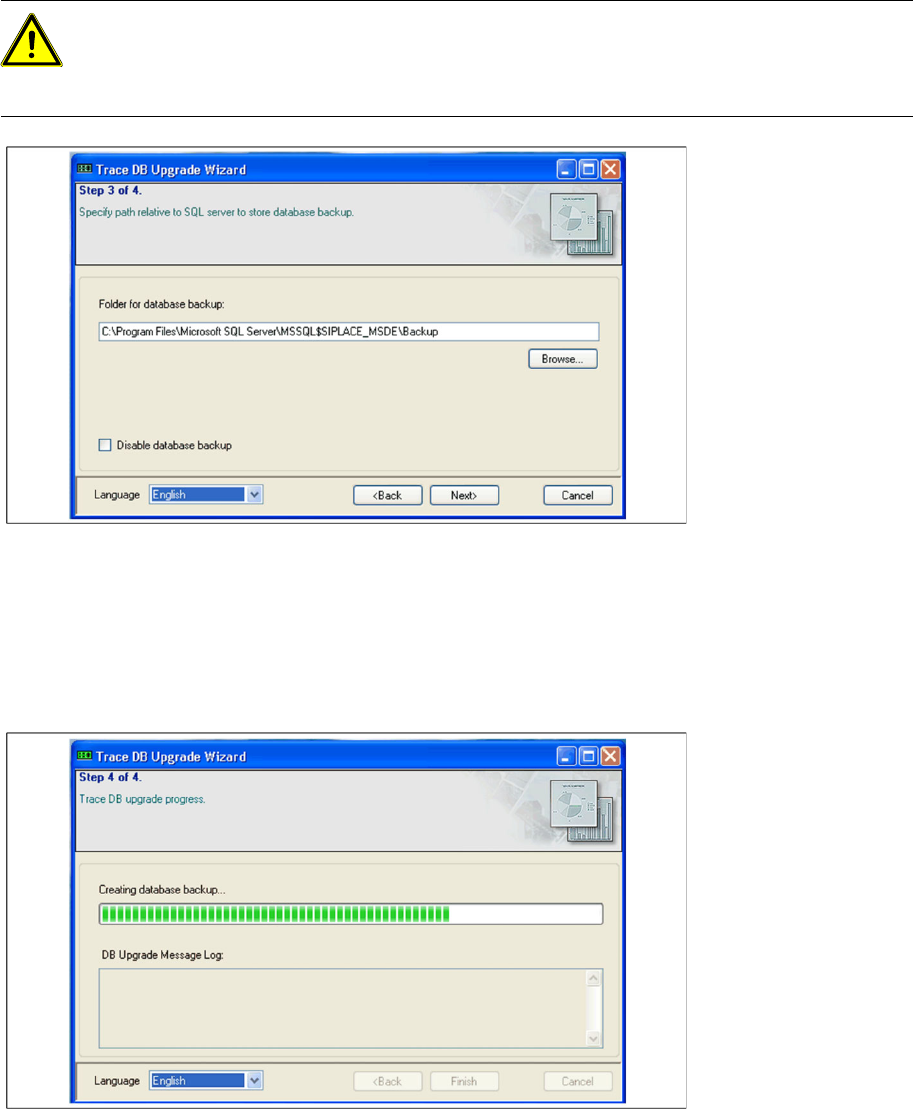
Step 3 of 4
X Specify a relative path name at which the database backups can be stored on the SQL server.Click
on the Browse button and select a database backup folder.
X Disable database backup
Activate this option if no backup of the Trace database is required.
X Click on Next
Step 4 of 4
X The upgrade process will begin. A data backup will be generated if the option "Disable database
backup" was not enabled in Step 3. After you have completed the upgrade process, you will see a
success message in the notifications window under the progress bar. Click on Finish to close the
wizard.
ATTENTION:
Only three user-defined barcode values are possible.
X Changes to the standard setting may lead to incorrect interpretation of old data! If you use the
standard setting, this assignment is already set correctly.
Installation Trace Host and Trace Service
Trace Host SIPLACE Trace Host Uninstall
46 Installation Manual SIPLACE Traceability 3.1
5.4.5 SIPLACE Trace Host Uninstall
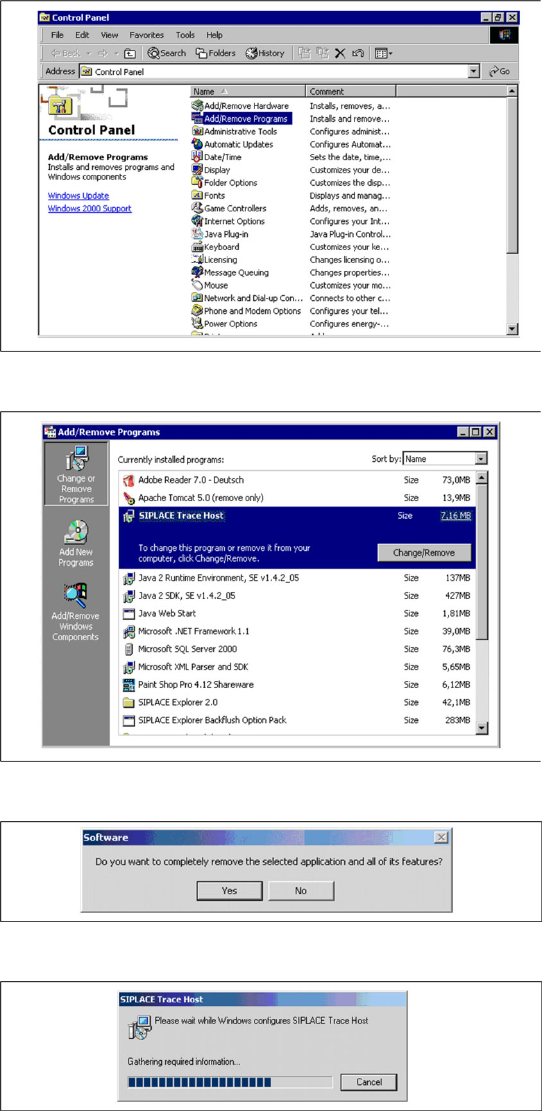
X Open the Control Panel with Start ® Control
Panel.
X Click on the category Add/Remove Programs.
X The Add/Remove Programs dialog box will
appear, showing all the programs installed on
your computer.
X Select SIPLACE Trace Host and click on the
Change/Remove button.
X The security query will appear.
X Confirm with Yes.
X The Install Shield Wizard will start and the
uninstall of SIPLACE Trace Host will be pre-
pared. SIPLACE Trace Host will be
uninstalled.
X SIPLACE Trace Host is no longer available.
Upgrade of Existing Traceability Installations
General
Installation Manual SIPLACE Traceability 3.1
47
6 Upgrade of Existing Traceability Installations
6.1 General
X This chapter is only relevant in case of an upgrade of Traceability 1.x, 2.x to 3.0 or 3.1.
In Traceability 3.x it is no longer possible to forward Traceability XML files directly from the stations to
the Trace Host because these files now are processed by the Trace Service.
In previous Traceability versions the XML file import path was configured on the stations and in Trace
Host. However in Traceability 3.x XML files are processed by Trace Service and then forwarded to Trace
Host. Therefore you have to configure XML file directories (network shares) on the stations, in Trace
Service and in Trace Host.
X Please execute the following steps to adapt the configuration of the XML file directories:
Step1:
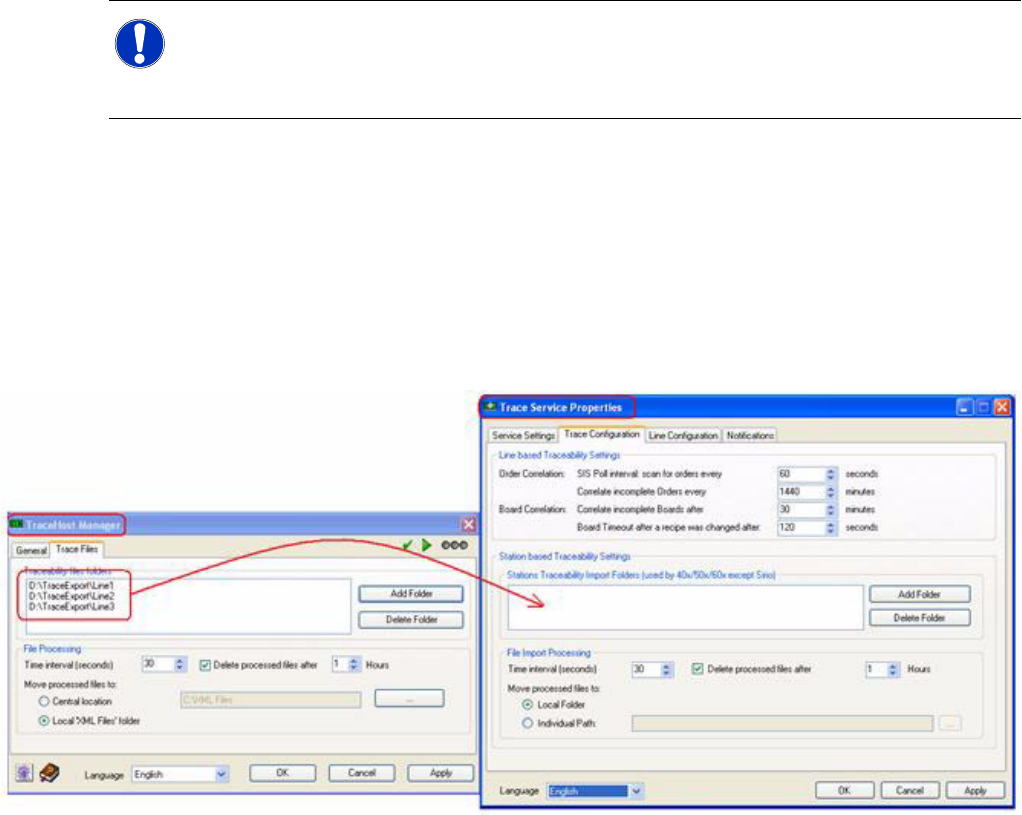
To enable the Trace Service to process XML files coming from the stations you have to configure the
network shares (formerly configured in Trace Host) now in Trace Service:
If you want to change the existing shares you have to change the path configuration in Trace Service
(see above) and on the stations (relevant for 40x, 50x, 60x station SW).
Step 2:
In step 1 we configured the handover of XML files from the stations to the Trace Service. In step 2 we
configure the handover from Trace Service to Trace Host.
Therefore you have to install a new network share. If you have more than one Trace Service applications
in your factory you may install more than one shares (e.g. one share per Trace Service).
You have to configure the share on both sides, once in Trace Service Properties and once in Trace Host
Manager.
NOTE: Configuration of Traceability XML file directories
In case of an upgrade of Traceability 1.x or 2.x installations to Traceability 3.x without
modification of the XML file directories Traceability data cannot be processed. All XML files will
be shifted to the “non-processed” folder and Trace Host will show an error status.