slau358q.pdf - 第9页
9 SLAU358Q – September 2011 – Revised October 2019 Submit Documentation Feedback Copyright © 2011–2019, Texas Instruments Incorporated Introduction Chapter 1 SLAU358Q – September 2011 – Revised October 2019 Introduction …
Related Documentation From Texas Instruments
www.ti.com
8
SLAU358Q–September 2011–Revised October 2019
Submit Documentation Feedback
Copyright © 2011–2019, Texas Instruments Incorporated
Read This First
This device complies with Part 15 of the FCC Rules. Operation is subject
to the following two conditions:
(1) this device may not cause harmful interference and
(2) this device must accept any interference received, including
interference that may cause undesired operation.
NOTE: This equipment has been tested and found to comply with the limits for a Class A digital device,
pursuant to part 15 of the FCC Rules. These limits are designed to provide reasonable protection against
harmful interference in a residential installation. This equipment generates, uses, and can radiate radio
frequency energy and, if not installed and used in accordance with the instruction manual, may cause
harmful interference to radio communications. However there is no guarantee that interference will not
occur in a particular installation. If this equipment does cause harmful interference to radio or television
reception, which can be determined by turning the equipment off and on, the user is encouraged to try to
correct the interference by one or more of the following measures:
* Reorient or relocate the receiving antenna
* Increase the separation between equipment and receiver
* Connect the equipment into an outlet on a circuit different from that to which receiver is connected
* Consult the dealer or an experienced radio/TV technician for help.
Warning: Changes or modifications not expressly approved by Texas Instruments Inc. could void
the user’s authority to operate the equipment.
NOTE: This equipment has been tested and found to comply with:
CISPR 24:1997 +A1:2001 +A2:2002 / EN 55024:1998 +A1:2001 +A2:2003 EMC Requirements
CISPR 32:2012 / EN55032:2012/AC:2013 Class A - Multimedia Equipment
CISPR 22:2008-09 / EN 55022:2006 +A1:2007, Class A - Information Technology Equipment
CISPR 22:2008-09 / EN 55022:2010+AC: 2011 , Class A - Information Technology Equipment
IEC 61000-4-4 / EN 61000-4-4 - Electromagnetic Compatibility Requirements, Part 4: Electrical Fast
Transient Requirements
IEC 1000-4-2 / EN 61000-4-2 -Electromagnetic Compatibility Requirements, Part 2: Electrostatic
Discharge Requirements
Warning: This equipment is compliant with Class A of CISPR32. In a residential environment this
equipment may cause radio interference.

9
SLAU358Q–September 2011–Revised October 2019
Submit Documentation Feedback
Copyright © 2011–2019, Texas Instruments Incorporated
Introduction
Chapter 1
SLAU358Q– September 2011 –Revised October 2019
Introduction
The MSP Gang Programmer for the MSP430 and MSP432 microcontrollers can program up to eight of the
same MSP flash or FRAM devices at one time. The MSP Gang Programmer connects to a host PC using
a standard RS-232 or USB connection and provides flexible programming options that allow the user to
fully customize the process. Figure 1-1 shows a top-level view of the MSP Gang Programmer.
The MSP Gang Programmer is not a gang programmer in the traditional sense, in that there are not eight
sockets to program target devices. Instead, the MSP Gang Programmer connects to target devices that
are mounted in the final circuit or system. The MSP Gang Programmer accesses the target devices
through connectors that use JTAG, Serial-Wire Debug (SWD), Spy-Bi-Wire (SBW), or bootloader (BSL)
signals.
The MSP Gang Programmer includes an expansion board, called the Gang Splitter, that connects the
MSP Gang Programmer to multiple target devices. Eight cables connect the Gang Splitter to eight target
devices (through JTAG, SWD, SBW, or BSL connectors). For MSP432 MCUs, an adapter kit (MSP-
GANG-432ADPTR) can convert from 14-pin JTAG connectors to 20-pin Arm connectors.
Chapter 2 describes how to use the MSP Gang Programmer to program target devices. This chapter
describes the modes of operation and how to choose the method of programming. This chapter also
describes the user interface that defines how to program the target device.
Chapter 3 describes firmware commands that give low-level control of the programming process. The
commands correspond to specific actions that the programmer can perform. The MSP Gang Programmer
connects to a host computer through a RS-232 or USB port to receive the commands. Often, you must
use the commands in groups or in a specific order to ensure proper behavior.
Chapter 4 describes Gang430.dll, MSP-GANG.dll, and the functions that are available through them.
Chapter 5 contains an I/O schematic that shows how signals from the MSP Gang Programmer go to each
target device through an MSP-standard JTAG, SWD, SBW, or BSL connector. To make a traditional gang
programmer, you can change the circuit to connect the signals to the target device pins directly through a
socket.
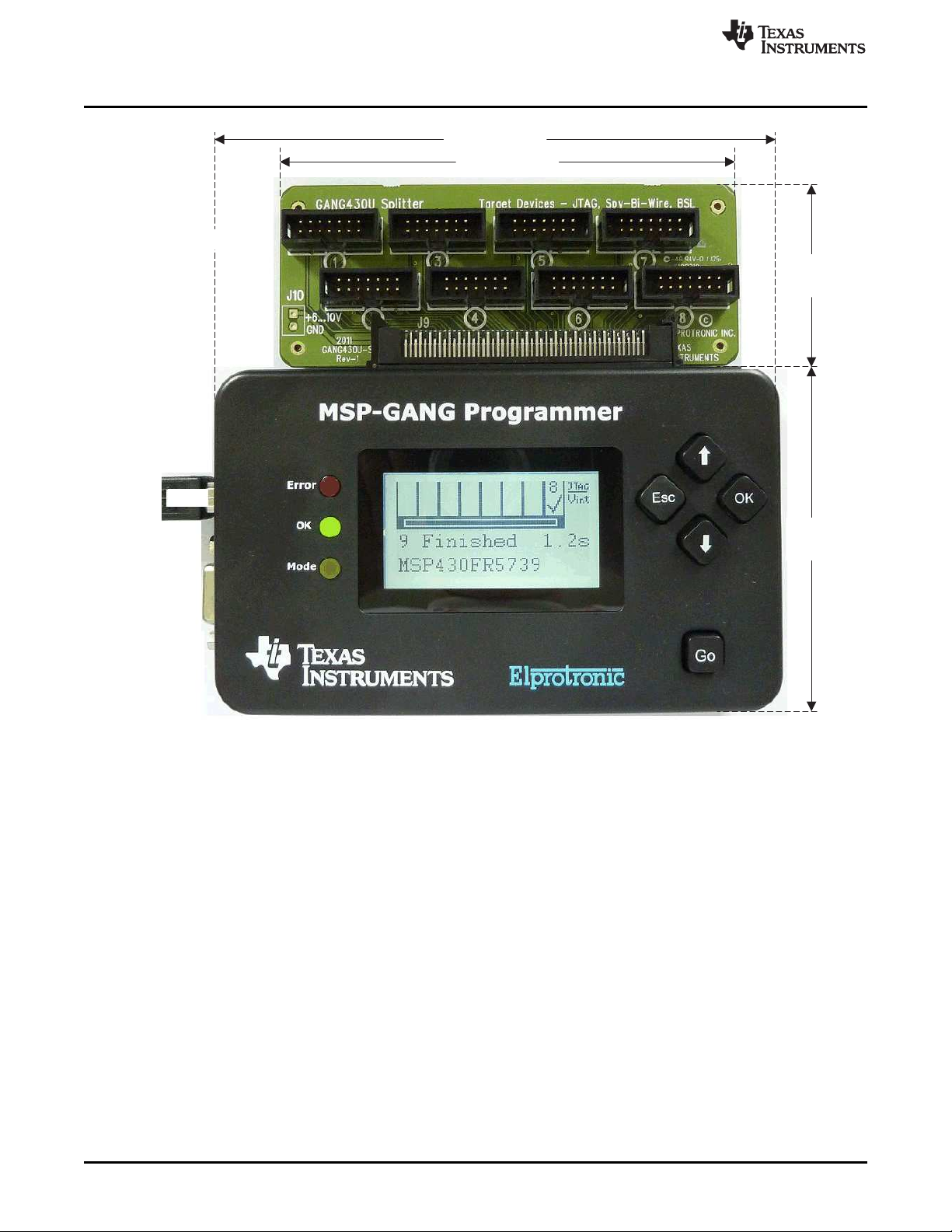
5 in (127 mm)
5.7 in (145 mm)
2 in
(51 mm)
3.5 in
(89 mm)
SD Card
RS232
USB
Height = 0.67 in (17 mm)
Height =
0.95 in (24 mm)
Software Installation
www.ti.com
10
SLAU358Q–September 2011–Revised October 2019
Submit Documentation Feedback
Copyright © 2011–2019, Texas Instruments Incorporated
Introduction
NOTE: Dimensions are approximate.
Figure 1-1. Top View of the MSP Gang Programmer
1.1 Software Installation
Use the latest software version, which can be downloaded from the MSP-GANG Production Programmer
tool folder. The MSP-GANG Programmer Software runs on Windows
®
32 bit or 64 bit: Windows XP,
Windows 7, Windows 8, and Windows 10.
To install MSP Gang Programmer software:
1. Unzip the installation package.
2. Run setup.exe in the root directory of the package.
3. Follow the instructions in the installation process.
4. When the setup program finishes, click the MSP Gang Programmer Read Me First icon to read
important information about the MSP Gang Programmer.
5. The setup program also adds a program group and icons to the Windows desktop.
6. To start the MSP Gang Programmer software, click the icon.