03238396-01-01 High Flow Vacuum (TQ).pdf - 第36页
5 TECHNICAL REFERENCE 5.4 REPLACEMENT PROCEDURES 36 STANDALONE MANUAL HIGH FLOW VACUUM (TQ) 12/2020 5.4.6 Tooling Table Surface Plate W ARNING BOARD CLAMPS. EXTREME CARE MUST BE EXERCISED WHEN WORKING IN THE TOOLING AREA…
5 TECHNICAL REFERENCE
5.4 REPLACEMENT PROCEDURES
STANDALONE MANUAL HIGH FLOW VACUUM (TQ) 12/2020 35
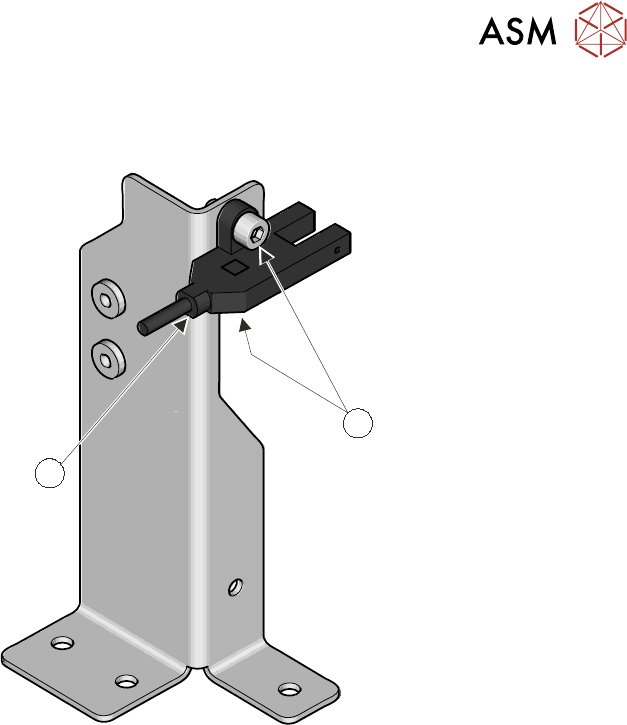
6. Remove the two M3 cap head screws (1) using a 2mm Allen key.
1
2
7. Replace the sensor (2).
8. Route (and secure) the sensor cable back to the ESIO Breakout board A.
9. Connect 1ASK13 into plug 13.
10. Refit the safety cover.
11. Power up and initialize the printer.
12. Check the function of the sensor using the diagnostic test in the
5.3.2 "High Flow Vacuum
System Present Sensor Test" [}23]
.
5 TECHNICAL REFERENCE
5.4 REPLACEMENT PROCEDURES
36 STANDALONE MANUAL HIGH FLOW VACUUM (TQ) 12/2020
5.4.6 Tooling Table Surface Plate
WARNING
BOARD CLAMPS. EXTREME CARE MUST BE EXERCISED WHEN WORKING IN
THE TOOLING AREA OF THE MACHINE TO AVOID INJURY. THE FOILS ON THE
FRONT AND REAR BOARD CLAMPS ARE VERY SHARP.
1
2
1. On the HMI select the Menu button.
2. Select Service.
3. Select Diagnostics.
4. Select Confirm.
5. Select Chase.
6. Select Unload Stencil.
7. Open the front cover.
8. Remove any non-reusable items: squeegees, material, support tooling etc.
9. Close the front cover.
10. Press the System button.
11. Select Table and Conveyor Lift.
12. Select Print Height.
13. Read the warning and select Confirm.
14. Open the front cover.
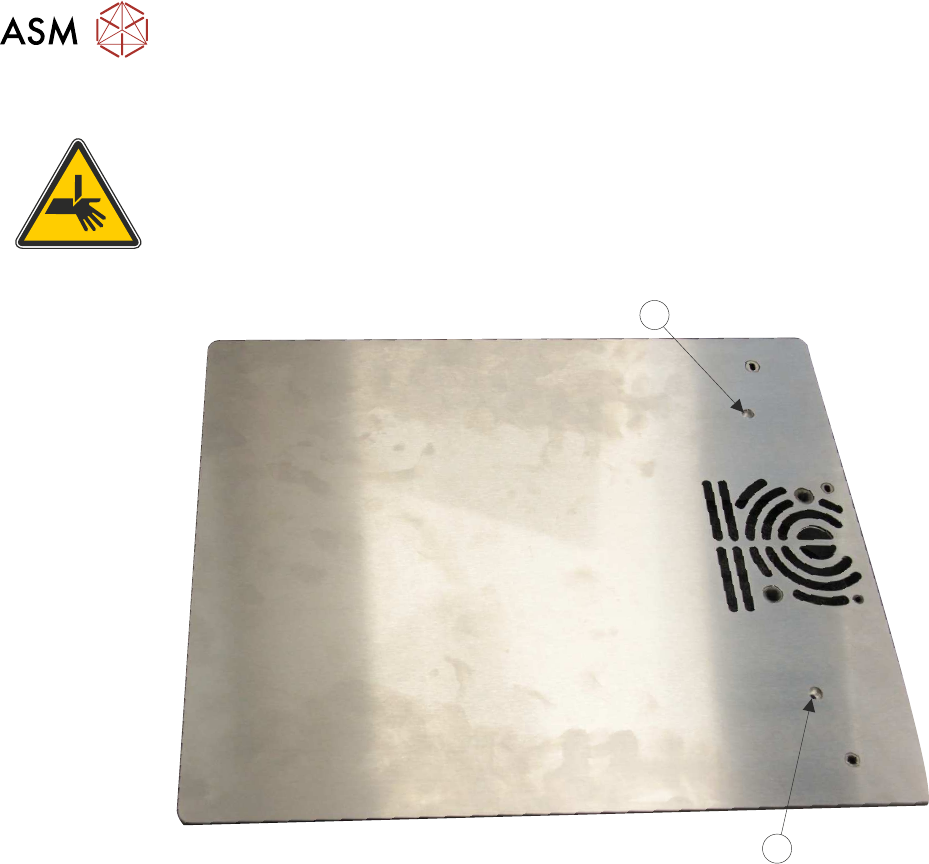
15. Remove the two 4mm x 40 cap head screws (12) with an M3 Allen key.
16. Lift the tooling tabletop off the lifting table.
17. Fit the replacement tooling tabletop using the 4mm screws.
18. Clean the top of the tooling table surface plate.
19. Fit any tooling, as required.
20. Load the stencil into the chase.

5 TECHNICAL REFERENCE
5.4 REPLACEMENT PROCEDURES
STANDALONE MANUAL HIGH FLOW VACUUM (TQ) 12/2020 37
21. Close the front cover.
22. Press the System button.
23. Select Home.
24. Select Chase.
25. Select Load Stencil.
26. Select Exit.
27. Select Accept.