PPS Pro version 8.2.pdf - 第110页
User Manual 4022 591 98247 106 PPS-Pro v8.2 05.07 Guidelines for using PPS-Pro NOTE: I f the attribute 'enableNeighborh oodRestrictions' is set TRUE and components are overlapping a warning is given. The optimi…

4022 591 98247 User Manual
05.07 PPS-Pro v8.2 105
Guidelines for using PPS-Pro
In the example shown, see SCREEN 63 the right hand reference pin has co-
ordinates (A,B) mm. Default co-ordinates are (3.5,36.0) mm. Refer to the
Multiflex Board Support manual for more information.
Use the following formula to calculate left hand reference pin’s X co-ordinate:
x co-ordinate = A - PCB pitch
y co-ordinate = B
Situation 2: Carrier Set
On the carrier set, a sticker is provided for the indication of the reference pins
values at the right end of the carrier.
Situation 3: Carrier Kit
In the example shown, see SCREEN 63 the right hand reference pin is (A,B)
mm. Default co-ordinates are (3.5, 65.5) mm.
Deviation in Y direction is not possible.
Deviation in X direction is possible only in steps of 10mm because the holes
for the pins have a 10mm pitch. Use the following formula to calculate left
hand reference pin’s X co-ordinate:
x co-ordinate = A - PCB pitch
Situation 4: Customized Carrier Kit
Refer to situation 3.
The coordinates for the default location of the right-hand reference pin from
a "customized carrier" are (3.5, 56.0).
3.3 A-Series Guidelines for PPS-Pro
For information on ALE and PSI about the A-Series use the manuals
Description ALE-file (12nc 4022 591 98715) and the Description PSI-file
(12nc 4022 591 98815)
3.3.1 Automatic precedence relations for AX machines
This function can be activated for one ore more AX machines in the same line
by setting the following machine attribute in the ALE file:
EnableNeighborhoodRestrictions “TRUE”
During optimization the optimizer will check if the placements of smaller
parts in the vicinity of large parts could cause contact between nozzle shaft
and larger part. If this is the case, then the optimizer will reorder the actions
such that the larger part will be placed after the small part(s) that are nearby.
Note that if the line ends with an AQ machine that the parts will not auto
-
matically be moved to the AQ.

User Manual 4022 591 98247
106 PPS-Pro v8.2 05.07
Guidelines for using PPS-Pro
NOTE: If the attribute 'enableNeighborhoodRestrictions' is set TRUE and
components are overlapping a warning is given. The optimizer will continue
optimizing, taking this overlapping into account. Therefore, it is important
that the package dimensions length, width and height in the PSI-file are set
to the correct values. Important is that length and width are not switched.
If these values are incorrect (and the optimizer detects falsely overlapping
of components), the cycle time can increase significantly increase and
therefore output will be lost.
3.3.2 A-Series optimizer features
3.3.2.1 Alternate Feeding AQ-1
Alternate Feeding for the A-Series AQ-1 can be used for tray feeders. Other
feeder types are not supported.
3.3.2.2 Setting of production direction
This can be done by means of the ALE file machine attribute ‘ProductionDi-
rection’ to “RIGHT_TO_LEFT” or “LEFT_TO_RIGHT”. See manual ‘Description
ALE file’ 12NC 4022 591 98715’. Setting RIGHT_TO_LEFT can only be used if
the machine has been modified accordingly.
3.3.2.3 Using PlaceLast on A-Series lines
Before PlaceLast can be used it is important to define the line order of each
machine in the flowline. This can be done in the ALE file, for each machine
the machine attribute LogicalPositionInLine must be set according to the
position the machine has in line. (Integer numbers, first machine = 1, second
= 2 and so on)
For a part that must be placed specify YES in the PSI field Philips_PlaceLast.
The optimizer will assign those parts to the machine with the highest Logical
-
PositionInLine. If this is applied to a package then this works for all parts that
relate to the package. If more than one part is classified as PlaceLast then
these will be assigned to a list of last parts that the last machine has to place.
In general PlaceLast can be used to place shields with an AQ machine.
3.3.2.4 Badmarks require fiducials selection for A-Series Lines
Initially it is required to first measure PCB fiducials before badmarks can be
checked. For some applications no PCB fiducials are available, then it is
possible to check the badmarks immediately. The user should take care that in
the badmarks are large enough to reduce the chance of missing them. The
4022 591 98247 User Manual
05.07 PPS-Pro v8.2 107
Guidelines for using PPS-Pro
setting can be done in the attributes of the machine in the ALE file, as
follows:
BadMarksRequireFiducials = “TRUE”
3.3.2.5 Pre-assignment of Feeder top-guide position
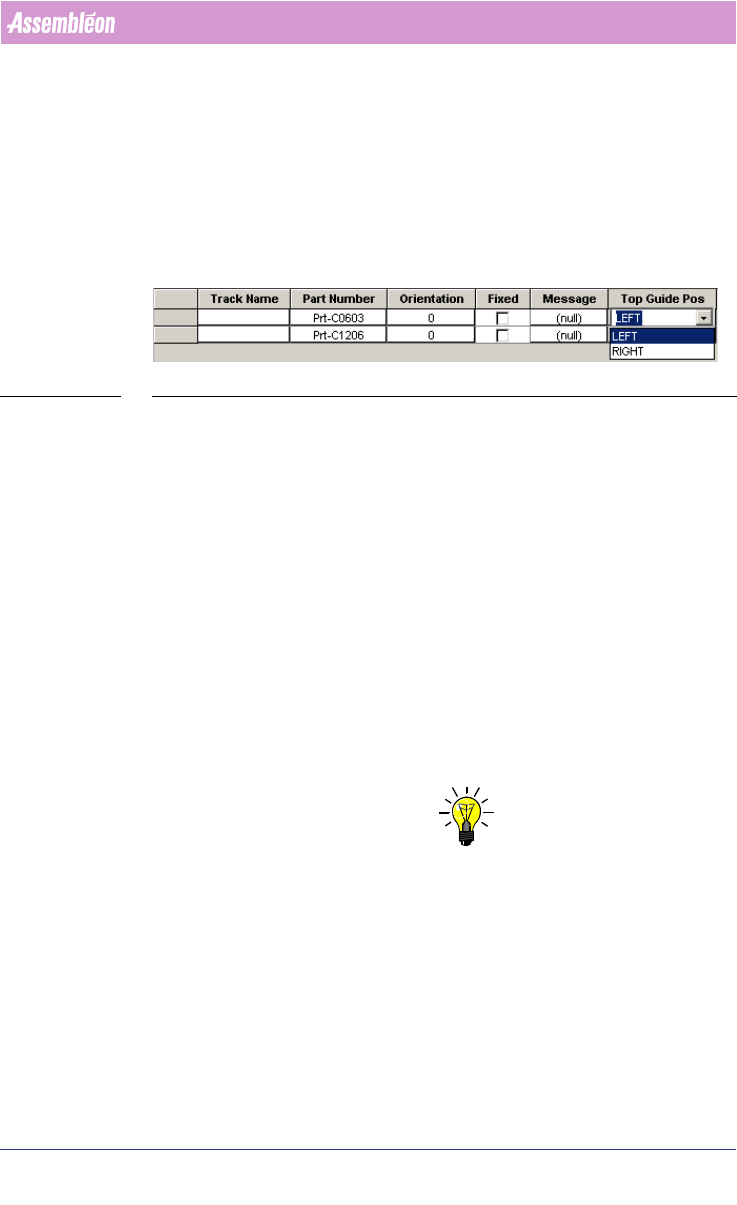
It is possible to assign or change the top-guide position in the CON file, two
values can be assigned ‘LEFT’ and ‘RIGHT’.
SCREEN 64 Top guide position
3.3.2.6 RTB/Line Balancer does not always assign components to
AQ machines
If the RTB or Line Balancer is used with the A-series (AQ) machines it can
happen that the RTB or Line Balancer does not assign components to AQ
machines. Via a work around (Fake nest) it is possible so the RTB/Line
Balancer will assign components. A workaround is described in the
Description ALE-file (12 nc 4022 591 98715)
3.3.2.7 Entering production fraction
If a combined product calculation is done (a calculation with multiple PCBs
selected) then it is possible to assign production fraction ‘weights’ to each PCB
that is a member of the combined product. PCB’s with a low fraction value
count less and get a lower priority, this means that the optimizer will allow a
longer production time, compared to PCB’s with a high fraction value.
NOTE: To set the production quantity/fraction the line optimizer should not be “No
optimizer” but to “Run Time Balancer”. For setting the line optimizer refer
to Installation Guide PPS-Pro v8.1 12NC 4022 591 98256. This does not
mean the RTB must be used.
Production fraction can be set via the “Optimize Line” tab. By selecting the
“Settings”-button a new window (Optimizer Line Settings) is opened. If the
“Products”-tab is selected it is possible to enter the quantity per Product
(see
SCREEN 65 on page 108).