PPS Pro version 8.2.pdf - 第84页
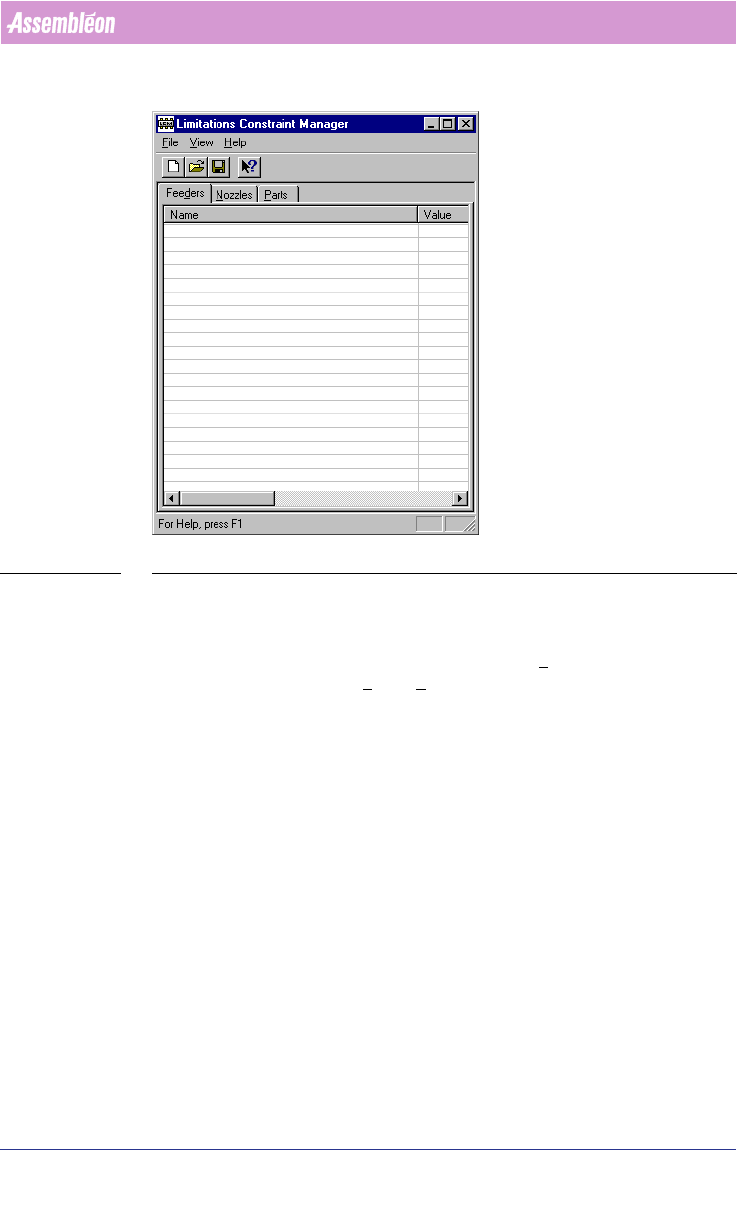
User Manual 4022 591 98247 80 PPS-Pro v8.2 05.07 PPS-Pr o GUI SCREEN 56 LCM Preferen ces • Click the B rowse button and sel ect the ALE file . • Click the B rowse button and sel ect the PSI file . • In the ALE Machin e M…
User Manual 4022 591 98247
80 PPS-Pro v8.2 05.07
PPS-Pro GUI
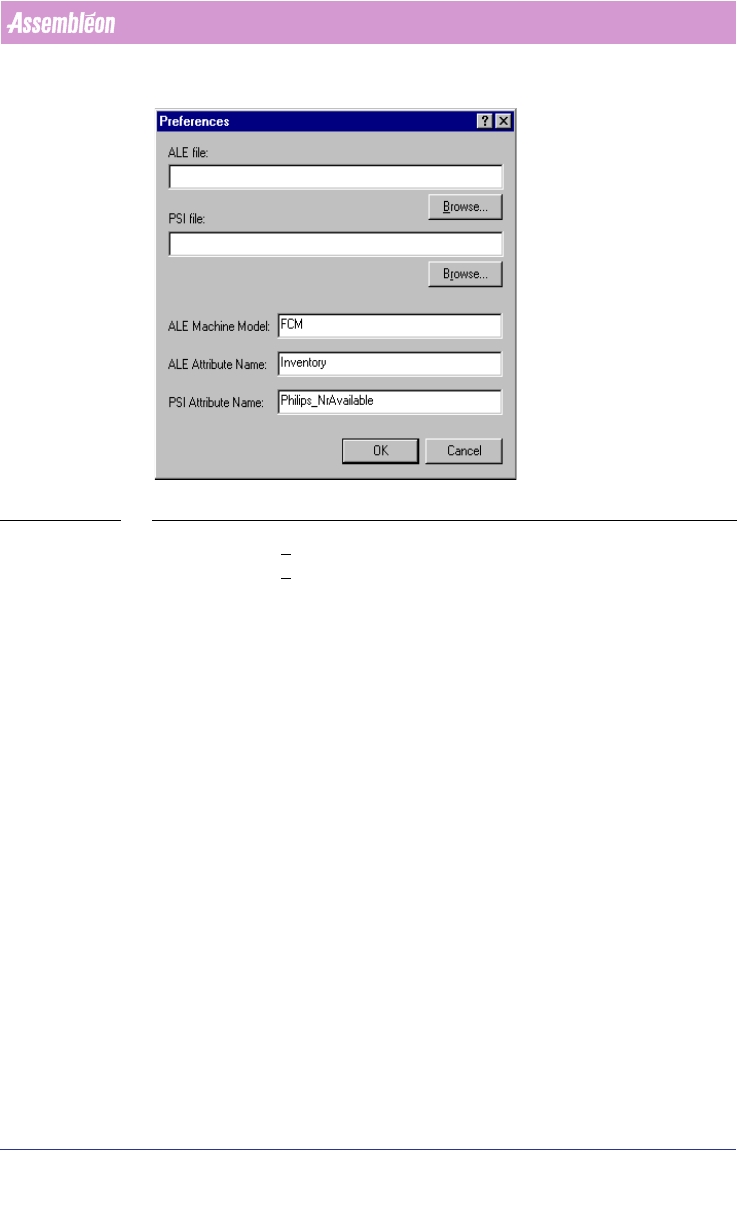
SCREEN 56 LCM Preferences
• Click the Browse button and select the ALE file.
• Click the Browse button and select the PSI file.
• In the ALE Machine Model text field, type the name(s) of the
machine(s) where the limitations apply to. These names must match
exactly the names as they appear in the ALE file. It is possible to
specify more than one machine name by separating them with
commas.
• In the ALE Attribute Name text field use the default value Inventory.
• In the PSI Attribute Name text field always use ‘Philips_NrAvailable’ for
use with Philips equipment. Press the OK button to save the settings.
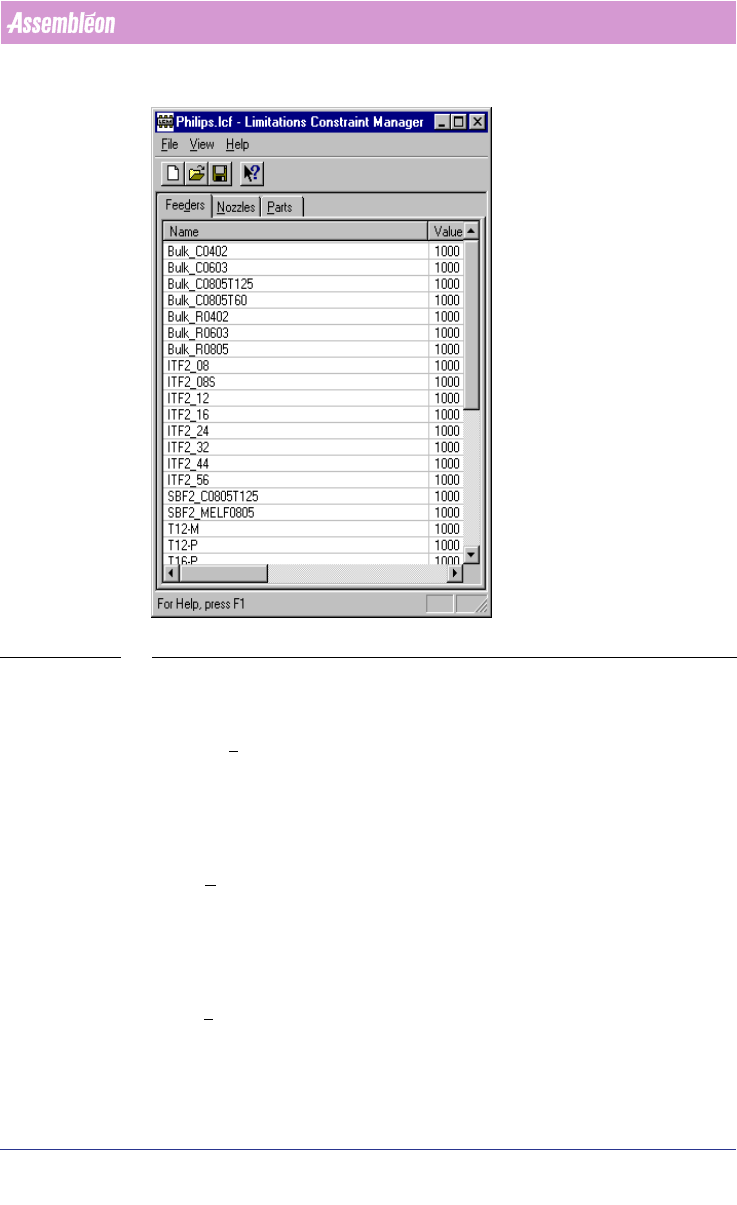
After these preferences have been saved as an *.lcf file, the name-value items
in the LCM window are filled in
(see SCREEN 57 on page 81). If this is not the
case, one of the preferences is not set correctly and must be modified.
4022 591 98247 User Manual
05.07 PPS-Pro v8.2 81
PPS-Pro GUI
SCREEN 57 LCM Set
2.34 Step 3: Set available feeders
In the Feeders tab the available amount of feeders can be set per feedertype.
Select the right row (feeder) and double-click the ‘value’ field. Now the Edit
value dialog appears and the appropriate value can be specified.
2.35 Step 4: Set available nozzles
In the Nozzles tab the available amount of nozzles can be set per nozzletype.
Select the right row (nozzle) and double-click the ‘value’ field. Now the Edit
value dialog appears and the appropriate value can be specified.
2.36 Step 5: Set available parts
In the Parts tab the available amount of reels /trays /sticks containing a part
type can be set per part type. Select the right row (part) and double-click the
‘Value’ field. Now the Edit value dialog appears and the appropriate value can
be specified.