PPS Pro version 8.2.pdf - 第134页
User Manual 4022 591 98247 130 PPS-Pro v8.2 05.07 Guidelines for using PPS-Pro NOTE: To use manual optimizati on see 3.4.14 on page 1 32 . SCREEN 79 PCB settings In screen 79, PCB sett ings th e PCB Thickness has to be s…
4022 591 98247 User Manual
05.07 PPS-Pro v8.2 129
Guidelines for using PPS-Pro
your first optimization (see 3.4.11 on page 129). After this check optimi-
zation can be started, see chapter 3.4.12 "Optimization"and further.
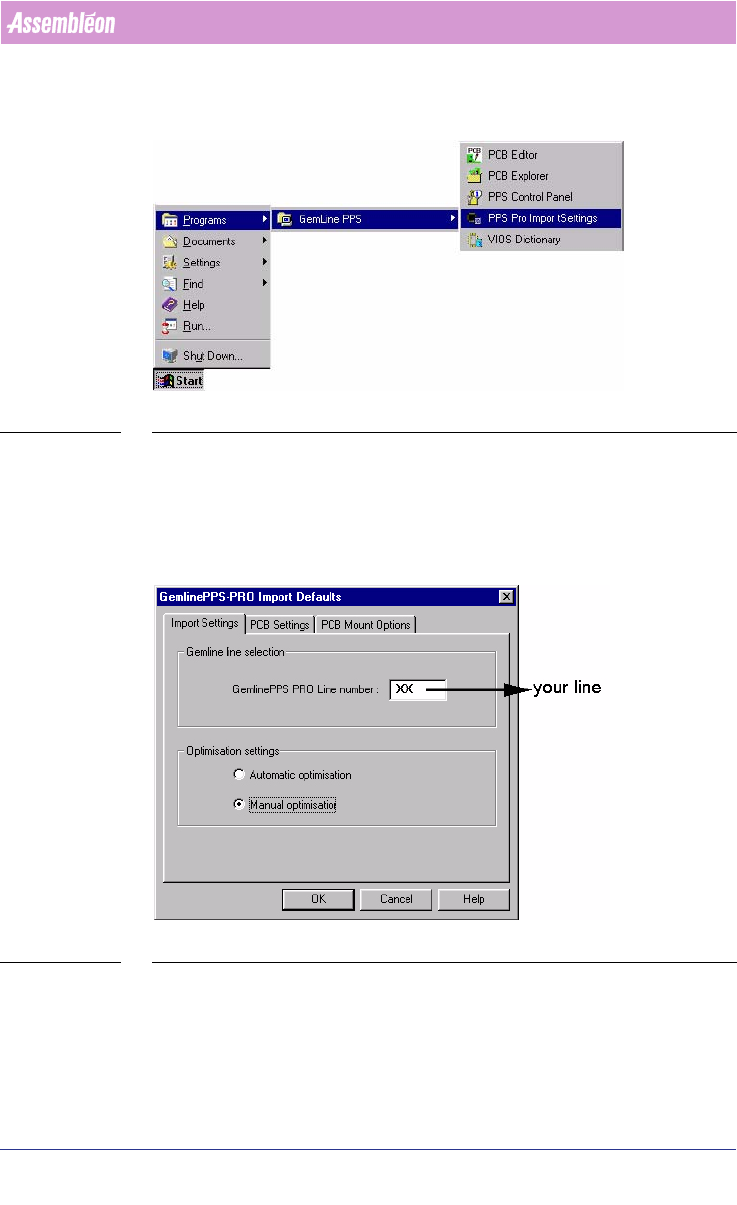
SCREEN 77 PPS-Pro Import Settings
3.4.11 GemLine PPS-Pro import default settings
Default settings can by made by screen 78, GemLine PPS-Pro Import Default
settings. Fields in 3 tabs can be set.
SCREEN 78 GemLine PPS-Pro Import Default settings
In the GemLine line selection field fill in the Line number for which an opti-
mization is required.
In the Optimization settings frame automatic or manual optimization can be
selected.
User Manual 4022 591 98247
130 PPS-Pro v8.2 05.07
Guidelines for using PPS-Pro
NOTE: To use manual optimization see 3.4.14 on page 132.
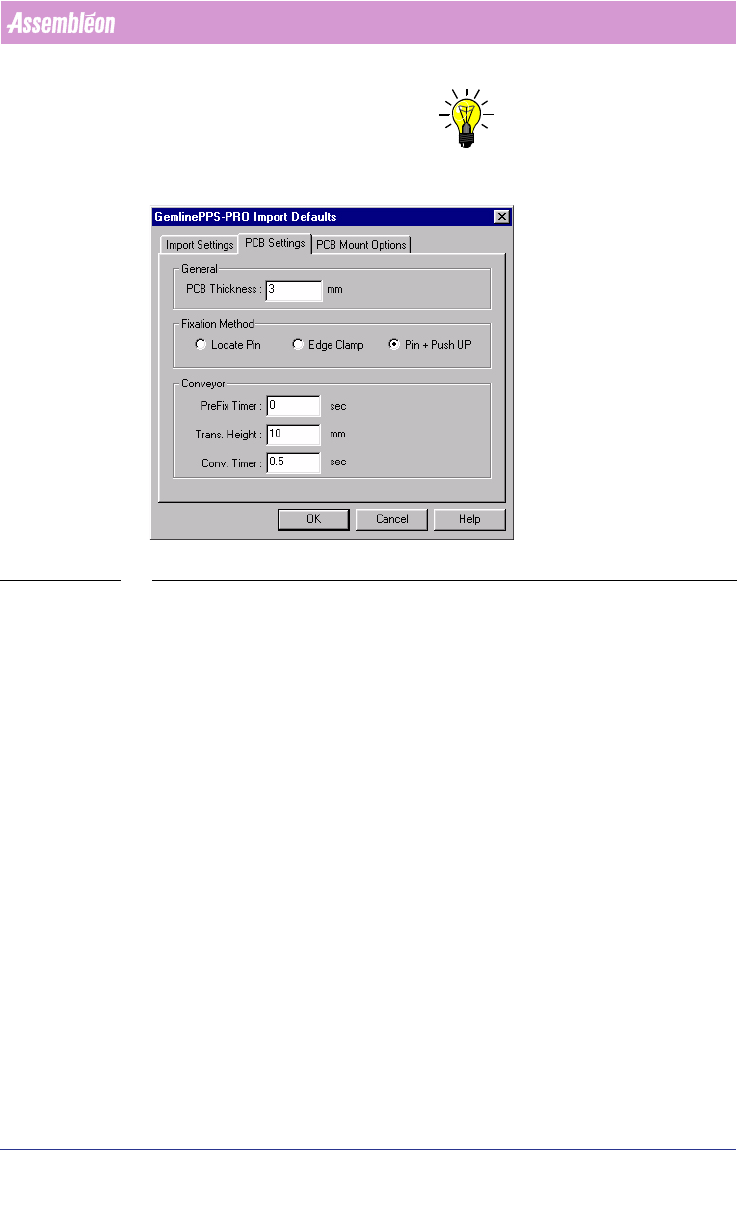
SCREEN 79 PCB settings
In screen 79, PCB settings the PCB Thickness has to be set. Default setting
for PCB thickness is 3.0 mm.
The Fixation Method of the PCB has to be set. Default fixation method is Pin
and Push-up.
The Conveyor parameters have to be set. Default settings; for PreFix Timer is
0 sec, for Trans. Height is 10 mm and for Conv. Timer is 0.5 sec.
4022 591 98247 User Manual
05.07 PPS-Pro v8.2 131
Guidelines for using PPS-Pro
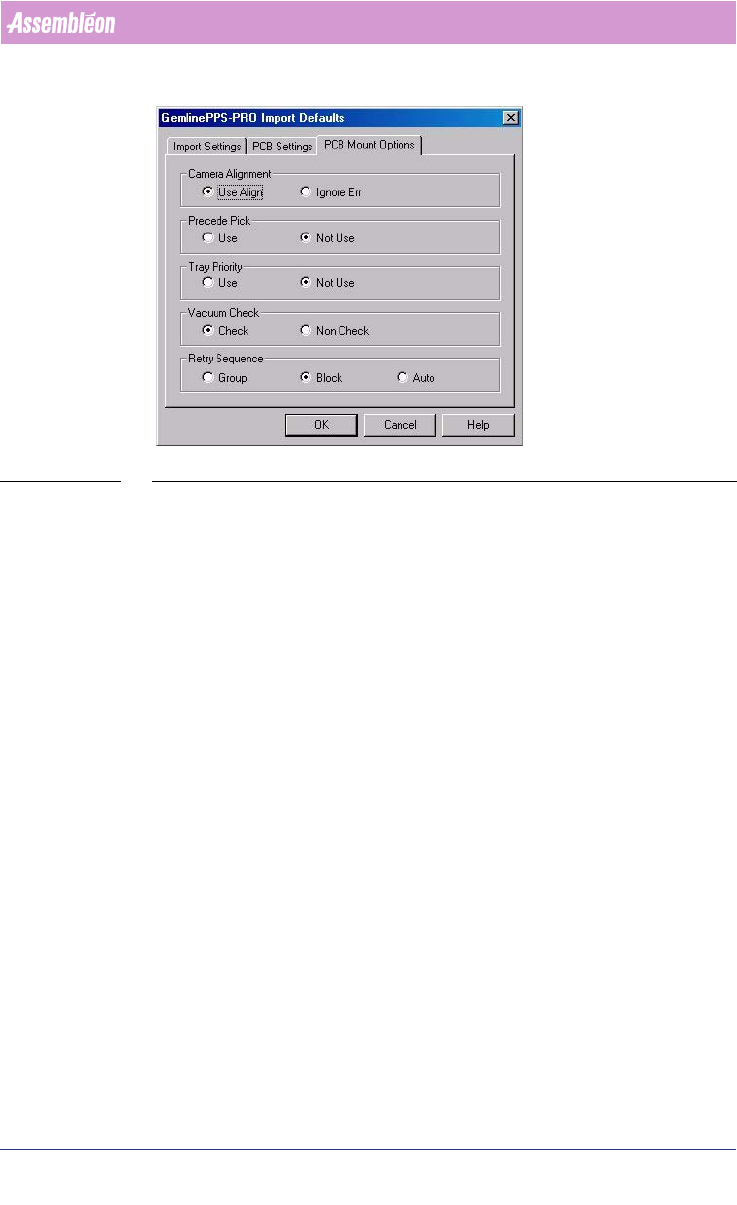
SCREEN 80 PCB Mount Options settings
In the tab, as shown in screen 80, PCB Mount Options settings: Camera
alignment is set. Default is set to Use Align.
Also Precede Pick is set in this tab, default set to Not Use.
The Vacuum check is set in the Mount Options, default set to Check.
Retry Sequence can be set to group, block or auto, default set to Block.
3.4.12 Optimization
PPS-Pro optimization for mixed lines with GemLine machines is a 3 step
process:
1. Import and verify the CAD data.
2. Distribute the components over the machines.
3. Run the GemLine program generator.
In chapter 3.4.13 "Import and verify the CAD data" and in chapter 2.23
"Verify the component data" a short introduction is given of importing and
programming data.
3.4.13 Import and verify the CAD data
■ If the CAD data is provided in FTIP format. convert the FTIP file with
Cad2cad to *.cad and *.pnl files and save the files in Gencad1.3 format.
■ Usage of the ALE file: the machine names have to be exactly the same in
GemLine PPS and in PPS-Pro. (case sensitive).
■ Define a new project in PPS-Pro, don’t use any spaces in the pathname.
■ Import the *.pnl file.
■ PPS-Pro creates the *.mdf file from the *.pnl file and the *.cad file.