PPS Pro version 8.2.pdf - 第21页
4022 591 98 247 User Manual 05.07 PPS-Pro v8.2 17 PPS-Pro GUI SCREEN 9 PPS-Pro Onlin e Help 3. Select ‘ Assembléon FCM/A CM’ The h elp pag es that describe the A ss e mbléon optimizer will be di splayed ( see SCREEN 10 o…
User Manual 4022 591 98247
16 PPS-Pro v8.2 05.07
PPS-Pro GUI
■ ECA: The Engineering Change Analyser (ECA) compares MDF files and/or
Components Parts List (CPL) files.
■ HPLG Importer: Converts HPLG data into MDF data.
■ MDF Check: Update your PSI file with parts and packages found in the MDF
file, updates the MDF file with corporate and vendor part numbers from
the Components Parts List (CPL) file, and verifies that the centre of SMT
parts is being used.
■ Part Information Manager: Editor to visualize a PSI file. It also gives the
ability to adjust the PSI file.
■ Setup Editor: Allows you to edit and validate setups (.con files).
■ Setup Changeover Estimator (SCOE) provides detailed information about
production changeovers from one product to another.
■ Setup Change Report Utility: don’t use this utility for Assembléon
machines, use the Setup Changeover Estimator instead.
2.3.2 Help
To access online help proceed with the following steps.
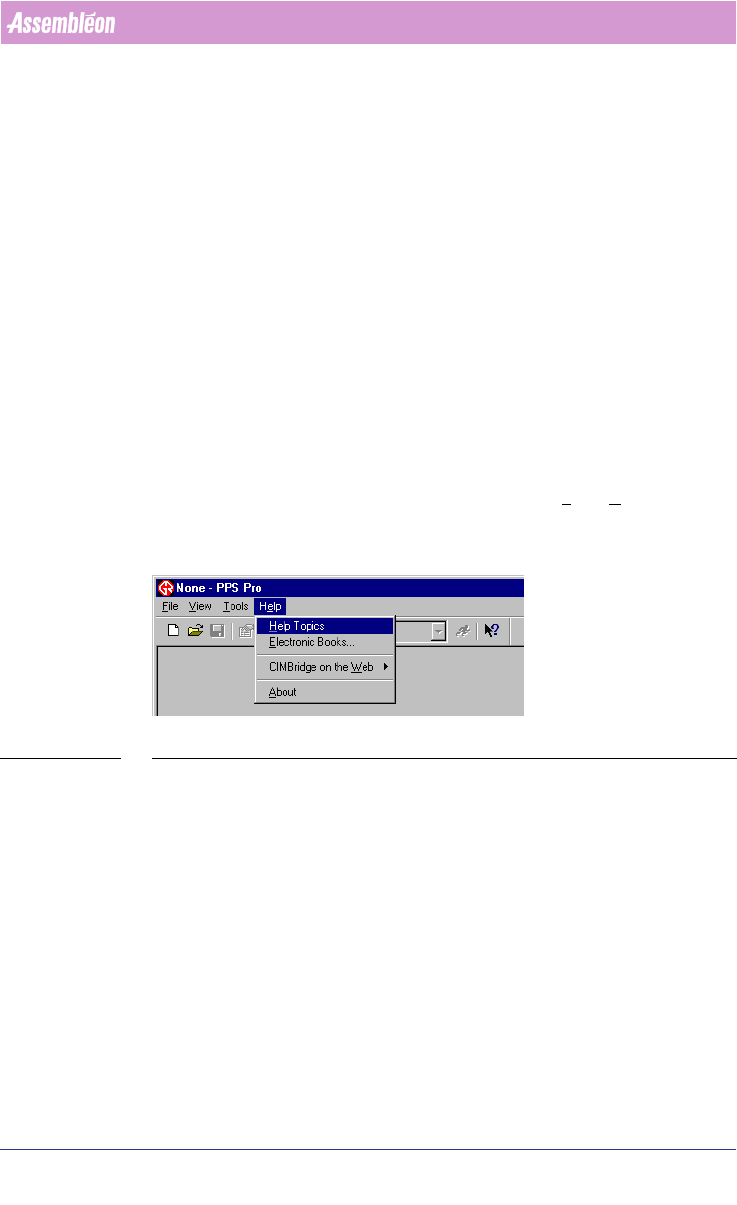
1. From the PPS-Pro graphical user interface select Help > Help Topics (see
SCREEN 8 on page 16).
SCREEN 8 PPS-Pro Help menu
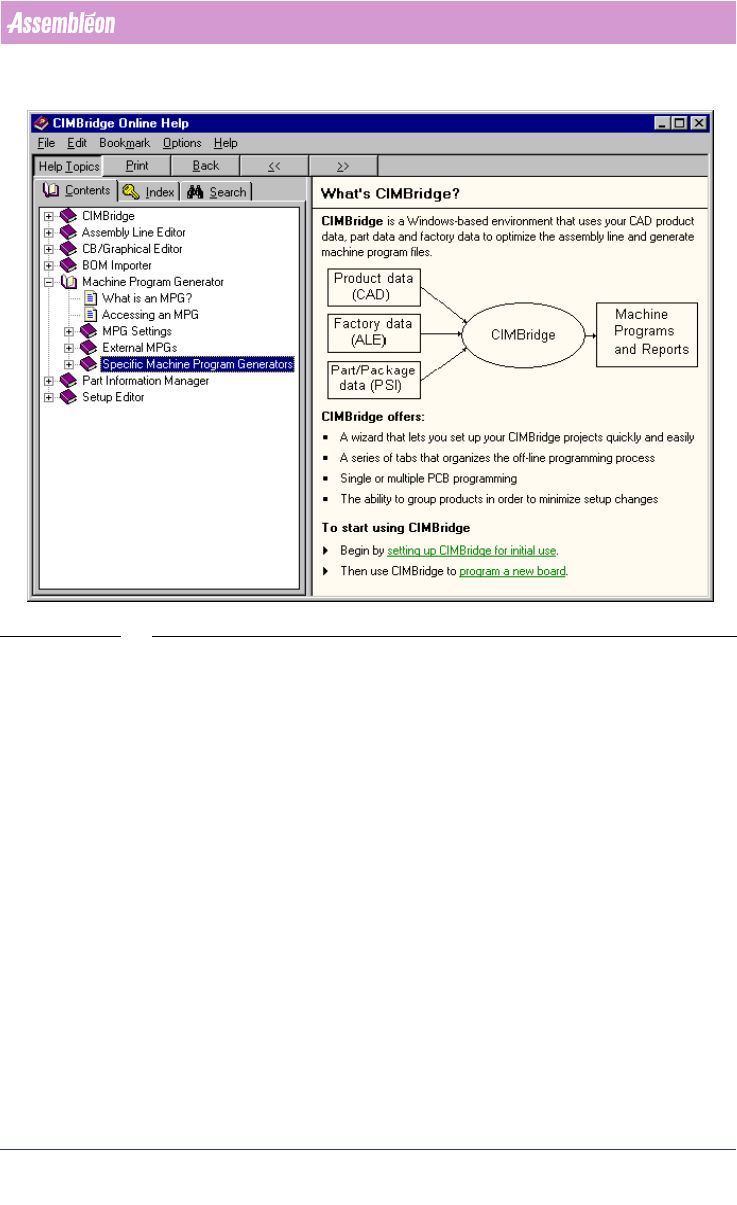
2. In the Online Help window, select the book ‘Machine Program Generator’.
After that, select the book ‘Specific Machine Program Generators’
(see
SCREEN 9 on page 17).
User Manual 4022 591 98247
18 PPS-Pro v8.2 05.07
PPS-Pro GUI
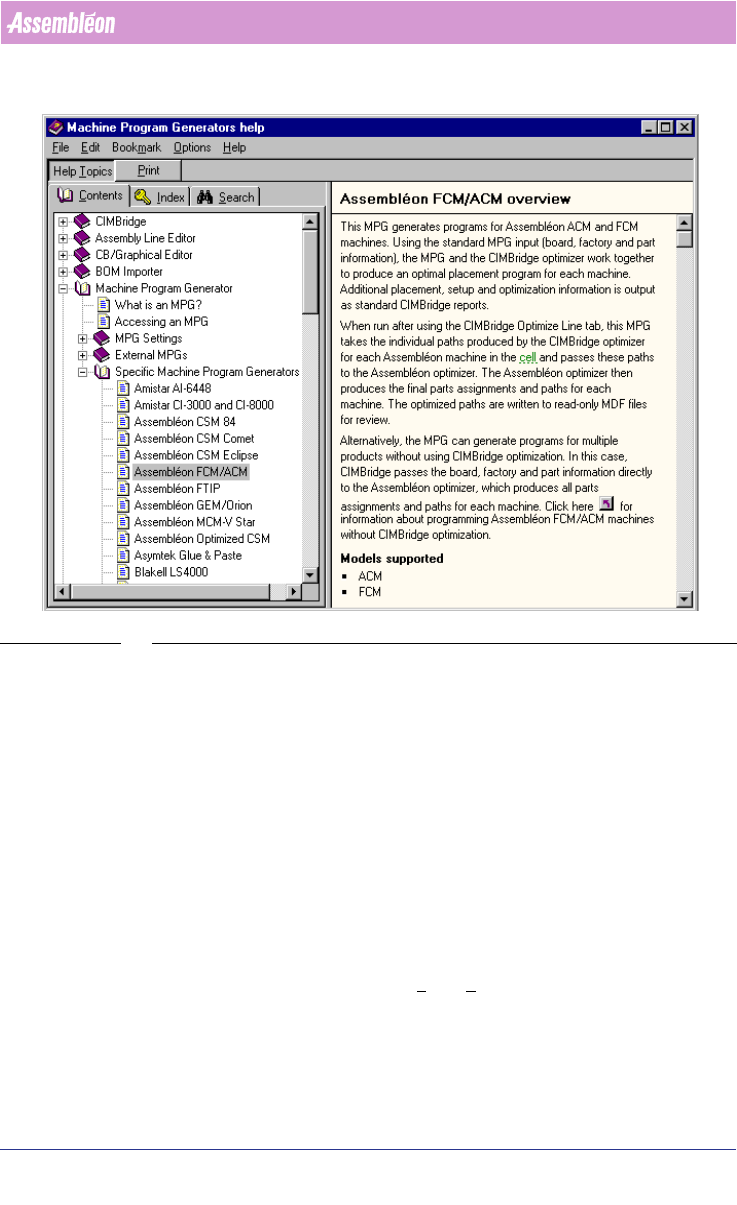
SCREEN 10 Online Help for Assembléon Optimizer
2.4 How to set preferences, project settings and create a
project
Before a calculation can be done, preferences (see 2.5 on page 18) and project
settings (see 2.6 on page 21) must be set. After these two steps, an already
created project can be opened or a new project must be created (see 2.7 on
page 23). The first two steps and the creation of a new project will be
discussed in this chapter.
2.5 Set Preferences
In principal, preferences are not project related. So the settings which are
made are going to be used for every project until they are changed. Pref
-
erences can be started by selecting File > Preferences... from the main menu.
In the next few paragraphs every setting will be discussed in more detail.