PPS Pro version 8.2.pdf - 第69页
4022 591 98 247 User Manual 05.07 PPS-Pro v8.2 65 PPS-Pro GUI 2.25.1.3 Generate the pr oduction progra m SCREEN 42 Progr am All Press th e Program A ll or P r ogram button in th e Program Machin es tab . If family or com…
User Manual 4022 591 98247
64 PPS-Pro v8.2 05.07
PPS-Pro GUI
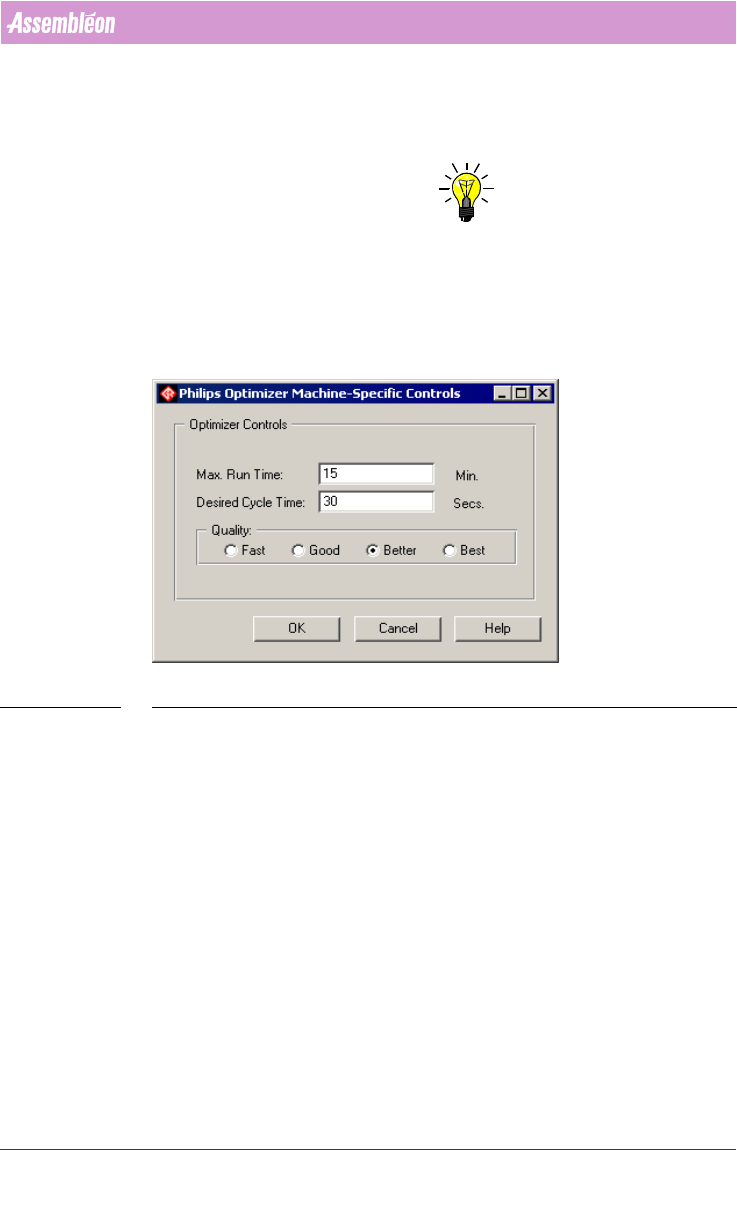
■ FCM Transport Settings: This is only relevant for cells that contain FCM
machines. This is used is for setting the transport settings of these
machines.
(see 3.2.11 on page 100)
NOTE: If not default settings are made but FCM Transport Settings are used as in
screen 40. The FCM Transport settings will overwrite the settings that are
made via the ALE file.
2.25.1.2 Optimizer Machine Specific Control for Gemline
SCREEN 41 Philips Optimizer Machine-Specific Controls Gemline
Max. Run Time and Desired Cycle Time are not used.
■ Fast: Provides a parts placement optimization in the shortest time to
produce. The Gemline optimizer will make 1 run.
■ Good: Provides more efficient optimization, but takes a longer time to
produce. The Gemline optimizer will make 4 runs.
■ Better: Provides more efficient optimization, but takes even longer to
calculate. The Gemline optimizer will make 7 runs.
■ Best: Provides the most efficient optimization, but takes the longest time
to calculate. The Gemline optimizer will make 10 runs.
4022 591 98247 User Manual
05.07 PPS-Pro v8.2 65
PPS-Pro GUI
2.25.1.3 Generate the production program
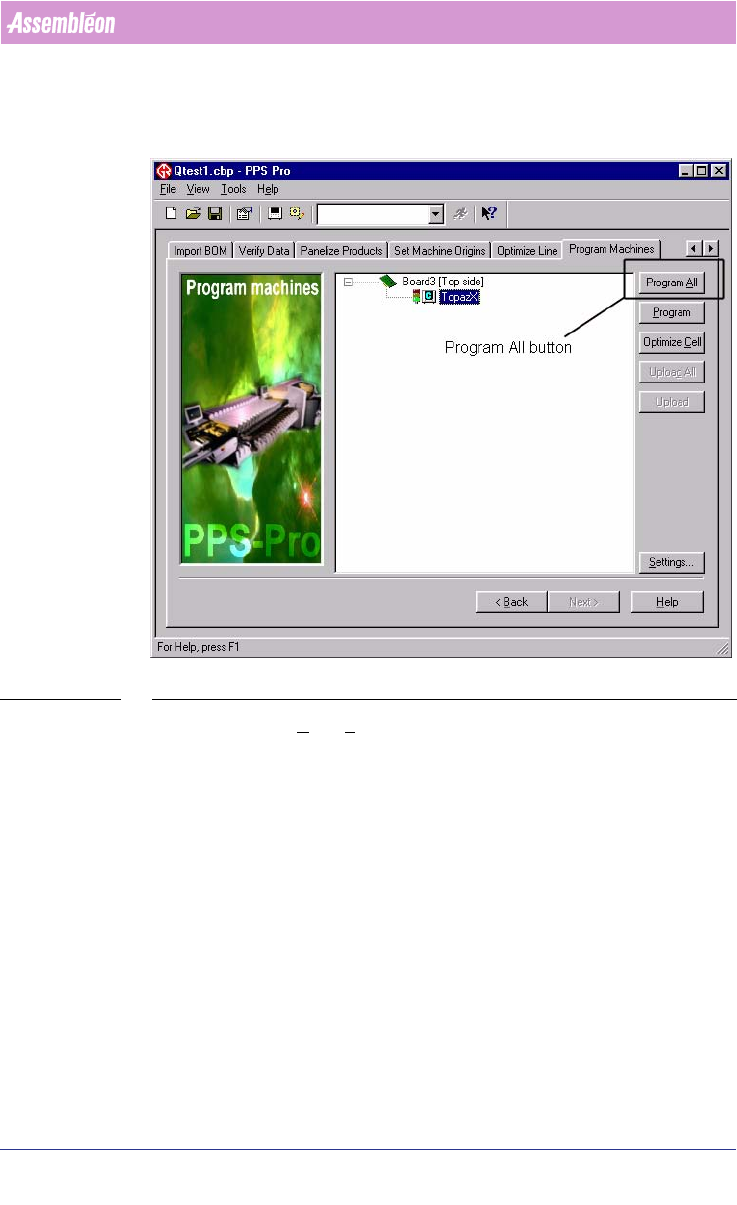
SCREEN 42 Program All
Press the Program All or Program button in the Program Machines tab.
If family or combined Product calculation is needed the Program All button
must be used.
User Manual 4022 591 98247
66 PPS-Pro v8.2 05.07
PPS-Pro GUI
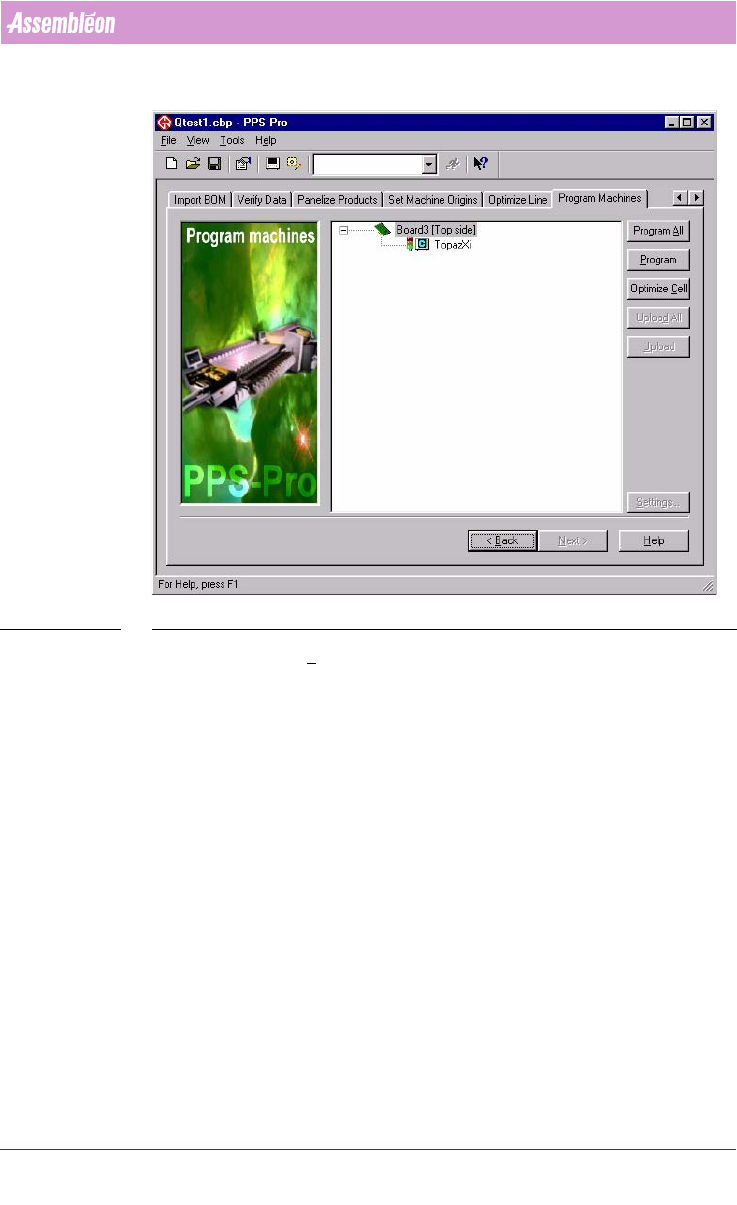
SCREEN 43 OptimizeCell
Press the Optimize Cell button to run one of the optimizers. Depending on
Machine types are in the line configuration.
Depending on the setting in PPS-Pro the optimization is started. When the
“Quality”-frame of the Machine-Specific Controls
(see SCREEN 40 "Philips
Optimizer Machine-Specific Controls Powerline and A-Series" on page 63) is
set to “Good” the Optimize Monitor is started. (see SCREEN 44 "Optimizer
Monitor" on page 67). The time estimations that are shown in the Optimizer
Monitor are based on the machine’s ideal performance.