PPS Pro version 8.2.pdf - 第70页
User Manual 4022 591 98247 66 PPS-Pro v8.2 05.07 PPS-Pr o GUI SCREEN 43 OptimizeCell Press th e Optimize C ell butt on to run one o f the optim izers . Depen ding on Machin e types are in the lin e configuration. Dependi…
4022 591 98247 User Manual
05.07 PPS-Pro v8.2 65
PPS-Pro GUI
2.25.1.3 Generate the production program
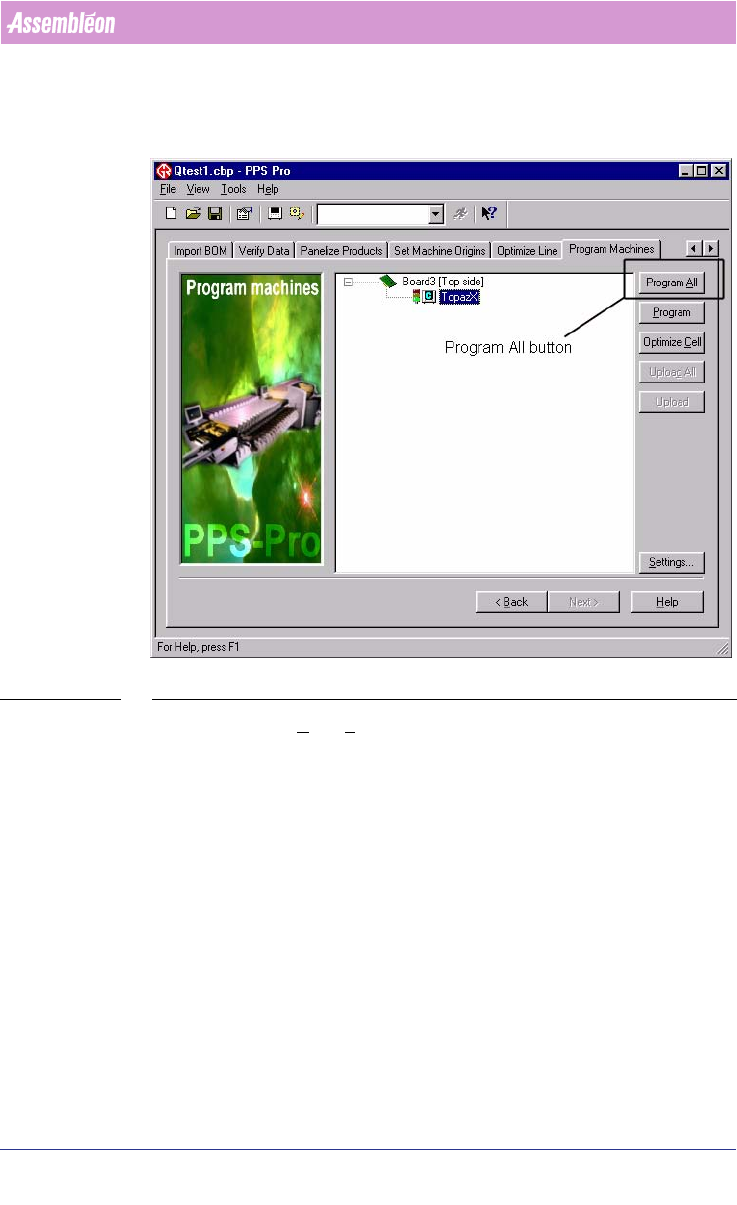
SCREEN 42 Program All
Press the Program All or Program button in the Program Machines tab.
If family or combined Product calculation is needed the Program All button
must be used.
User Manual 4022 591 98247
66 PPS-Pro v8.2 05.07
PPS-Pro GUI
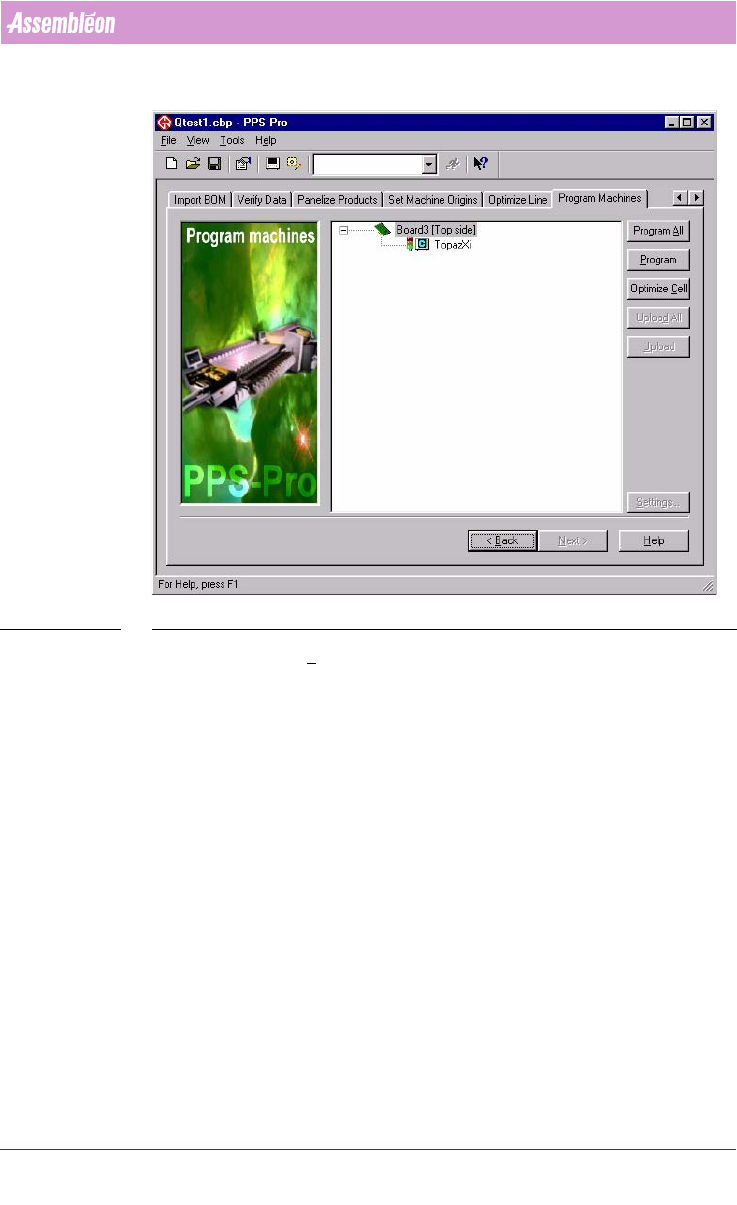
SCREEN 43 OptimizeCell
Press the Optimize Cell button to run one of the optimizers. Depending on
Machine types are in the line configuration.
Depending on the setting in PPS-Pro the optimization is started. When the
“Quality”-frame of the Machine-Specific Controls
(see SCREEN 40 "Philips
Optimizer Machine-Specific Controls Powerline and A-Series" on page 63) is
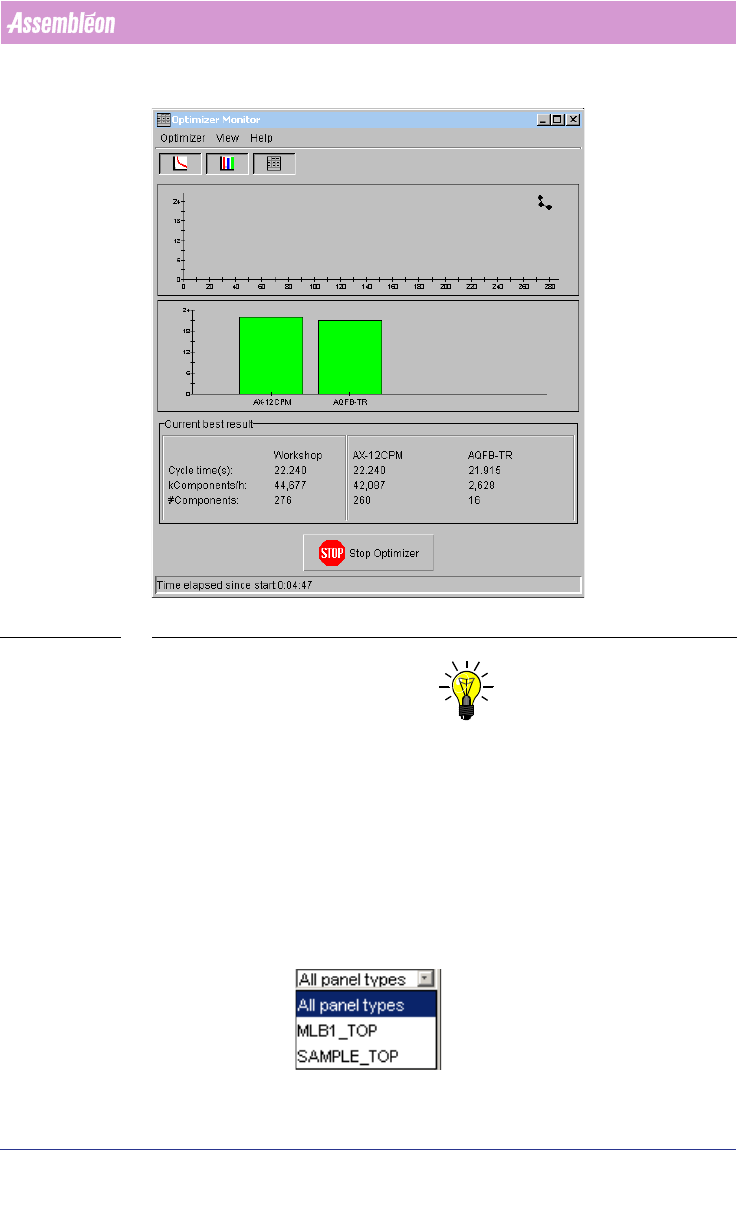
set to “Good” the Optimize Monitor is started. (see SCREEN 44 "Optimizer
Monitor" on page 67). The time estimations that are shown in the Optimizer
Monitor are based on the machine’s ideal performance.
4022 591 98247 User Manual
05.07 PPS-Pro v8.2 67
PPS-Pro GUI
SCREEN 44 Optimizer Monitor
NOTE: The Optimizer Monitor only works for the Assembléon PowerLine optimizer/
generator and the Assembléon A-series optimizer/generator. The
Assembléon Gemline Optimizer does not need the monitor because calcu
-
lations do not take that long.
When the optimization is successfully completed or stopped via the optimize
monitor “Stop Optimizer”-button, documents and Placement Programs are
created (
see SCREEN 45 on page 68).
In combined product calculations the following selection box is shown in the
optimizer monitor, it can be used to view the current results of one PCB: