00195044-22_UM_VisionTeachStation_5.x.x_DE_EN.pdf - 第152页
7 Software Vision Teach Station 5.x.x User Manual 7.4 Error report 05/2019 Edition 60 7.4 Error report 7.4.1 SIPLACE Vis ion Station The "BugReporter" is provided on the following path for repor ting errors tha…
Vision Teach Station 5.x.x User Manual 7 Software
05/2019 Edition 7.3 Licensing
59
7.3 Licensing
As of the 5.0.2 version, the SIPLACE Vision Teach Station is available as a pure licensed soft-
ware product. 7
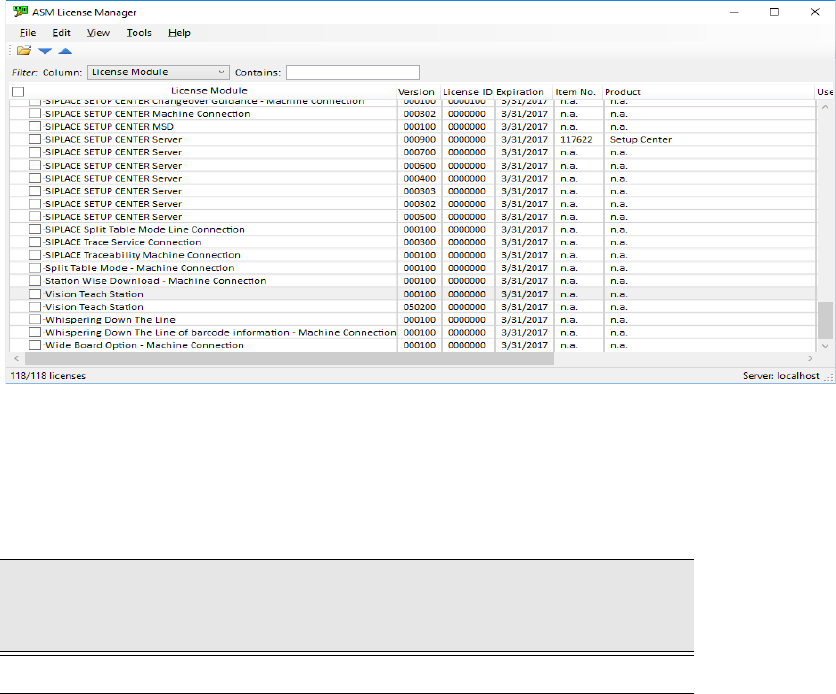
A "Vision Teach Station" license is required in the ASM License Manager for operation. The
ASM License Manager has to run on the same computer as the SIPLACE Vision Teach
Station software. 7
Fig. 7.3 - 3 License entry for the SIPLACE Vision Teach Station in the ASM License Manager
The SIPLACE Vision Teach Station can be ordered as a licensed software product with the
following data:
Tab. 7.3 - 3 Vision Teach Station with software license
Software
Vision Teach Station with
software license
Software package required
V5.x.x
SIPLACE Vision Teach Suite V5.x, item no. 00711258-xx
7 Software Vision Teach Station 5.x.x User Manual
7.4 Error report 05/2019 Edition
60
7.4 Error report
7.4.1 SIPLACE Vision Station
The "BugReporter" is provided on the following path for reporting errors that occur while the
SIPLACE vision teach station is in use to SIPLACE Service:
<Install path for SIPLACE Vision Teach Station>\BugReporter.exe 7
Alternatively, you can also run the BugReporter from the Start menu -> Programs -> TeachStation.
This allows you to save information about the SIPLACE vision teach station in a compressed file
(Zip file) and to send it to the Service for investigation, if necessary.
7.4.2 SIPLACE Pro
Errors that occur in association with SIPLACE Pro can be reported via the ASM Error Reporter
Service. This is started from Start – Programs – ASM Net – Enterprise Service – ASM Error
Reporter Service.
Vision Teach Station 5.x.x User Manual 8 Starting the vision teach station
05/2019 Edition 8.1 Switching on the vision teach station
61
8 Starting the vision teach station
Check the power cable connections before you switch on the vision teach station.
– Base module and PC see section 4
, from page 25.
– Cameras see section 5
, from page 29.
WARNING 8
NEVER remove the 26-pin ribbon cable from the Collect&Place head camera while the base
module is switched on as this could damage the LED driver board for the camera.
8.1 Switching on the vision teach station
Switch the base module on at the power switch.
The three LEDs on the back of the base module light up.
Switch the PC on and log in as Administrator (see section 7.2, page 54) or as a user.
8.2 Starting the vision teach station application
Double-click on the "Teach Station" icon to start the application. The application will detect any
cameras that are connected. The live image of the first camera is displayed on the application's
starting screen. If there are two cameras connected, you can toggle between the two.