00197728-12_IM_SE3.11_EN.pdf - 第28页
3 Installing SIPLACE Explorer Installation and Configuration Gui de SIPLACE Explorer 3.3 Installation of SIPLACE Explorer 3.11 Edition 11/2020 EN 28 The installation of SIPLACE Exp lorer will be con tinued once Jav a S…
Installation and Configuration Guide SIPLACE Explorer 3 Installing SIPLACE Explorer
Edition 11/2020 EN 3.3 Installation of SIPLACE Explorer 3.11
27
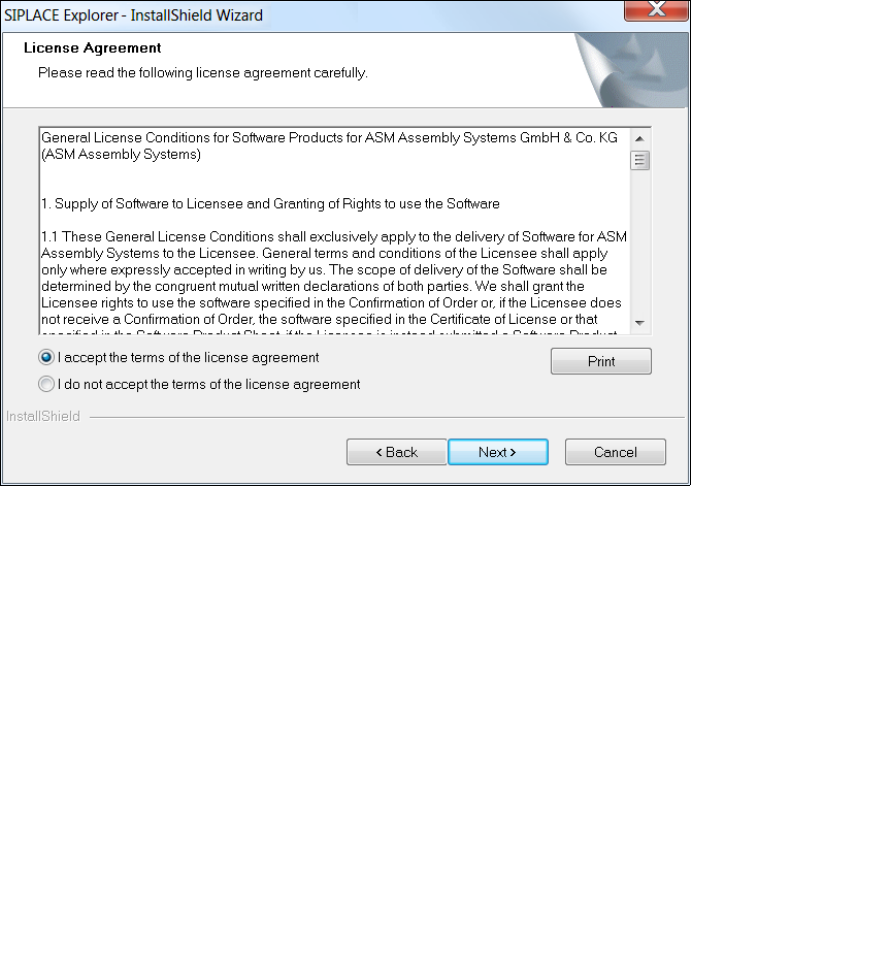
Read the license agreement. If you agree with the conditions, click I accept ..., otherwise, click
on I do not accept .... If you select I do not accept ..., the installation procedure will be
terminated.
3
Fig. 3 - 3 SIPLACE Explorer setup - license agreement
Confirm your selection with Next.
Before you can run SIPLACE Explorer, Java SE Runtime Environment must be installed on
your PC. If it is already installed on your PC, installation will begin automatically.
However, if the installation procedure is unable to find Java SE Runtime Environment, the
Locate J2SDK dialog box will appear on your screen.
In this case, you can either enter the path to the Java SE Runtime Environment folder directly
into the text field or click on the Browse button and use the Open File dialog box to find the
Java SE Runtime Environment 8u161 folder.
If you failed to correctly specify the path to the folder in which Java SE Runtime Environment
is installed, you get a message.
Click OK to return to the previous screen. SIPLACE Explorer requires Java SE Runtime
Environment to be installed prior to installation of SIPLACE Explorer.
At this point, you can either try to specify the Java SE Runtime Environment folder again, or
click Cancel to exit the installation of SIPLACE Explorer.
If you have selected Cancel, install the version of Java SE Runtime Environment included on
the Support Media and then restart the installation of SIPLACE Explorer.
3 Installing SIPLACE Explorer Installation and Configuration Guide SIPLACE Explorer
3.3 Installation of SIPLACE Explorer 3.11 Edition 11/2020 EN
28
The installation of SIPLACE Explorer will be continued once Java SE Runtime Environment
has been localized. The Customer Information dialog box will open.
3
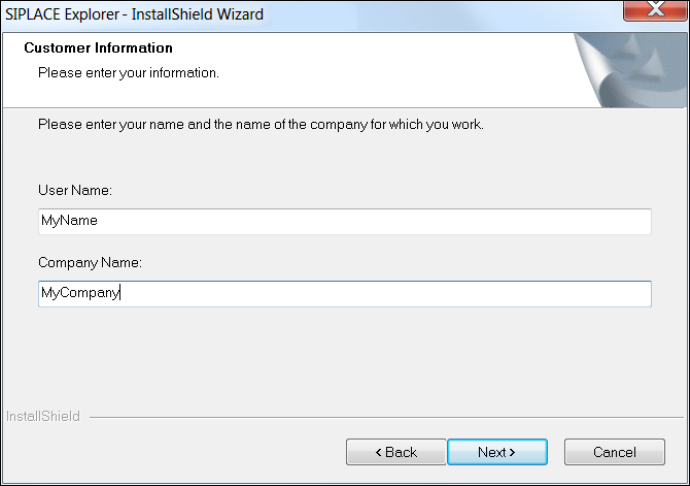
Fig. 3 - 4 SIPLACE Explorer setup - specify customer information
Enter your name in the User Name field and the name of your company in the Company
Name field. Click on Next to continue. The Choose Destination Location dialog box will
open.
Installation and Configuration Guide SIPLACE Explorer 3 Installing SIPLACE Explorer
Edition 11/2020 EN 3.3 Installation of SIPLACE Explorer 3.11
29
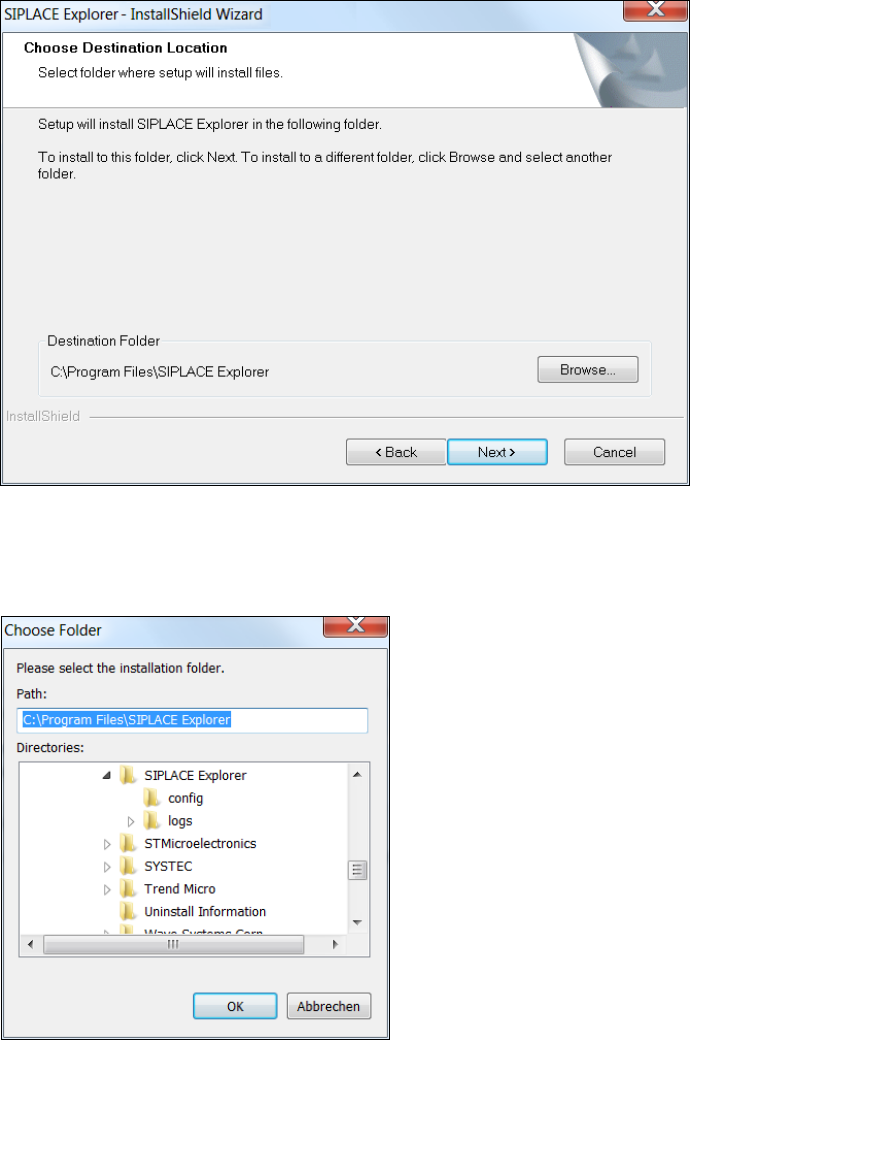
Specify the folder in which you wish to install the application. The default folder is C:\Program
Files\SIPLACE Explorer.
3
Fig. 3 - 5 SIPLACE Explorer setup - choose destination location
You can alter the default installation folder by using the Browse button.
The Choose Folder dialog box will open to locate the desired folder.
3
Fig. 3 - 6 SIPLACE Explorer Setup - 'choose folder' dialog box
Specify the required folder and click on OK, to confirm your choice. You will return to the
Choose Destination Location dialog box, where the folder will be shown.
To accept the destination folder, click on Next in the Choose Destination Location window.