00197728-12_IM_SE3.11_EN.pdf - 第32页
3 Installing SIPLACE Explorer Installation and Configuration Gui de SIPLACE Explorer 3.3 Installation of SIPLACE Explorer 3.11 Edition 11/2020 EN 32 The Choose Folder dialog box will op en to locate the des ired folder…
Installation and Configuration Guide SIPLACE Explorer 3 Installing SIPLACE Explorer
Edition 11/2020 EN 3.3 Installation of SIPLACE Explorer 3.11
31
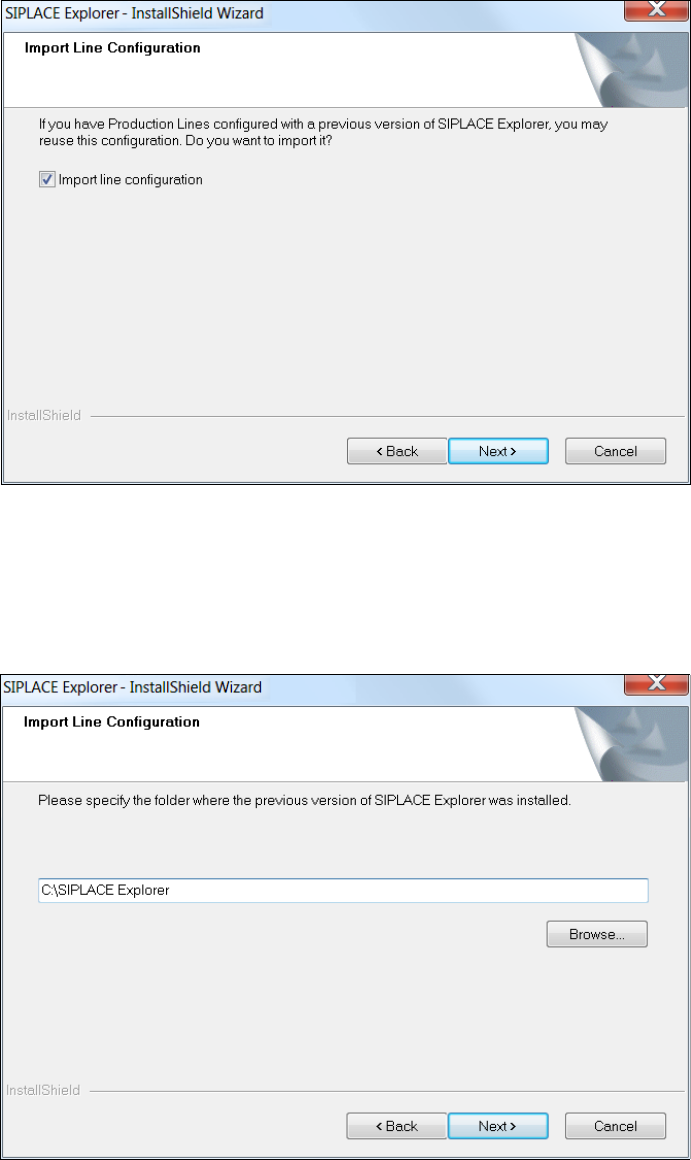
If the specified destination folder is empty, the Import Line Configuration dialog box will open.
3
Fig. 3 - 8 SIPLACE Explorer setup - import line configuration
Activate the Import Line Configuration check box, if you want to keep the existing line
configurations and other settings. The Import Line Configuration dialog box will open.
Specify the folder in which you wish to import the line configuration. The default folder is
C:\Program Files\SIPLACE Explorer.
3
Fig. 3 - 9 SIPLACE Explorer setup - import line configuration
You can alter the default installation folder by using the Browse button.
3 Installing SIPLACE Explorer Installation and Configuration Guide SIPLACE Explorer
3.3 Installation of SIPLACE Explorer 3.11 Edition 11/2020 EN
32
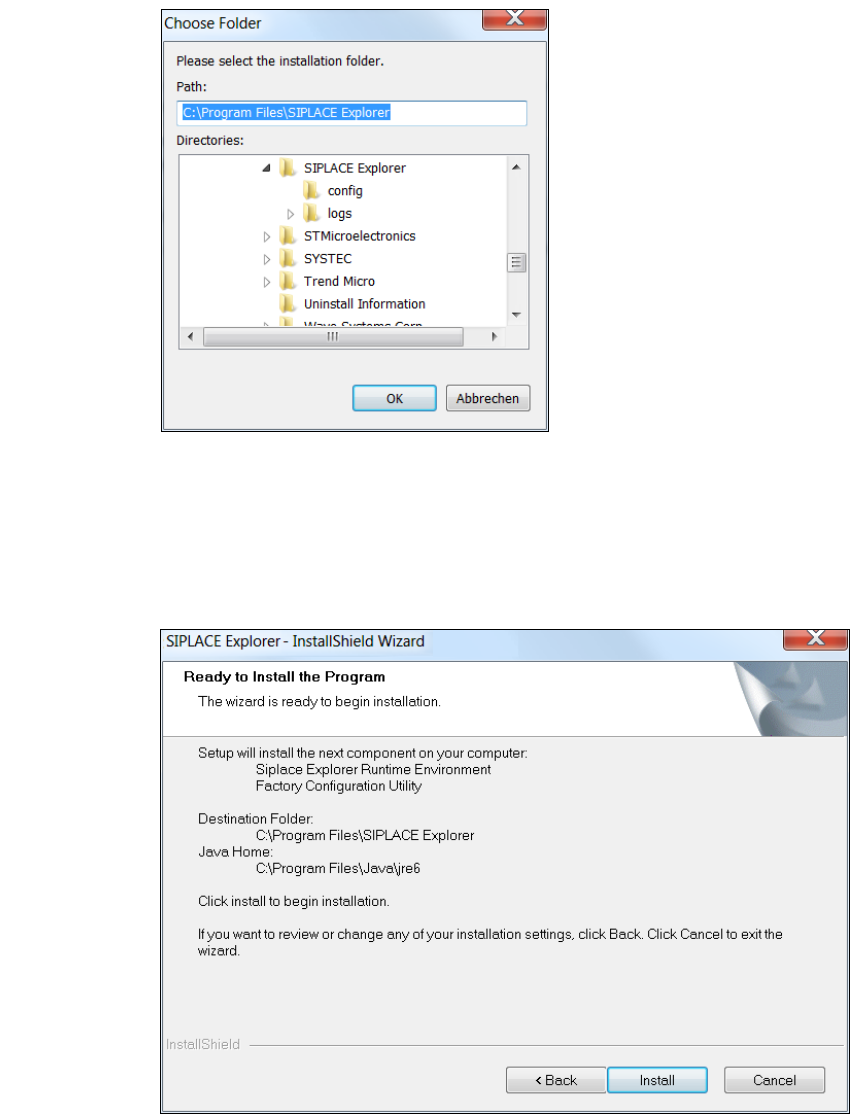
The Choose Folder dialog box will open to locate the desired folder.
3
Fig. 3 - 10 SIPLACE Explorer Setup - 'choose folder' dialog box
Specify the required folder and click on OK, to confirm your choice. You will return to the Import
Line Configuration dialog box, where the folder will be shown.
To accept the destination folder, click on Next in the Import Line Configuration window.
The Ready to Install the Program dialog box will open.
3
Fig. 3 - 11 SIPLACE Explorer setup - 'ready to install' dialog box
Click on the Install button, to begin the actual installation of SIPLACE Explorer.
Installation and Configuration Guide SIPLACE Explorer 3 Installing SIPLACE Explorer
Edition 11/2020 EN 3.3 Installation of SIPLACE Explorer 3.11
33
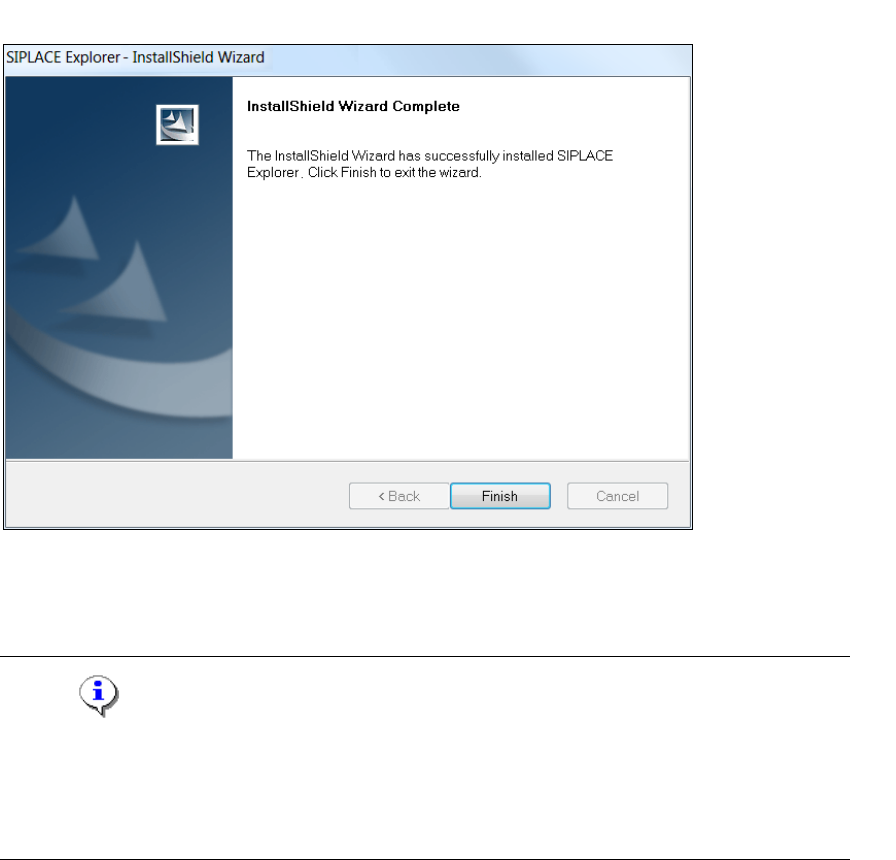
Once the installation procedure has finished, the following dialog box will open.
3
Fig. 3 - 12 SIPLACE Explorer setup - installation complete
Click on Finish. After you have rebooted your computer, SIPLACE Explorer will be available
for use. Follow the instructions at “Starting SIPLACE Explorer” on page 34.
NOTE
After installing SIPLACE Explorer, reboot your system. This ensures that port 1099 is available for
the Java Runtime Environment. In rare cases, port 1099 may be used by another application. If
you start SIPLACE Explorer after the installation, without rebooting the system, the error message
"SIPLACE Explorer runtime not found" would be shown in such cases. 3