00197728-12_IM_SE3.11_EN.pdf - 第34页
3 Installing SIPLACE Explorer Installation and Configuration Gui de SIPLACE Explorer 3.4 Starting SIPLACE Explorer Edition 11/2020 EN 34 3.4 S t arting SIPLACE Explorer SIPLACE Explorer can be sta rted by select ing Pr…
Installation and Configuration Guide SIPLACE Explorer 3 Installing SIPLACE Explorer
Edition 11/2020 EN 3.3 Installation of SIPLACE Explorer 3.11
33
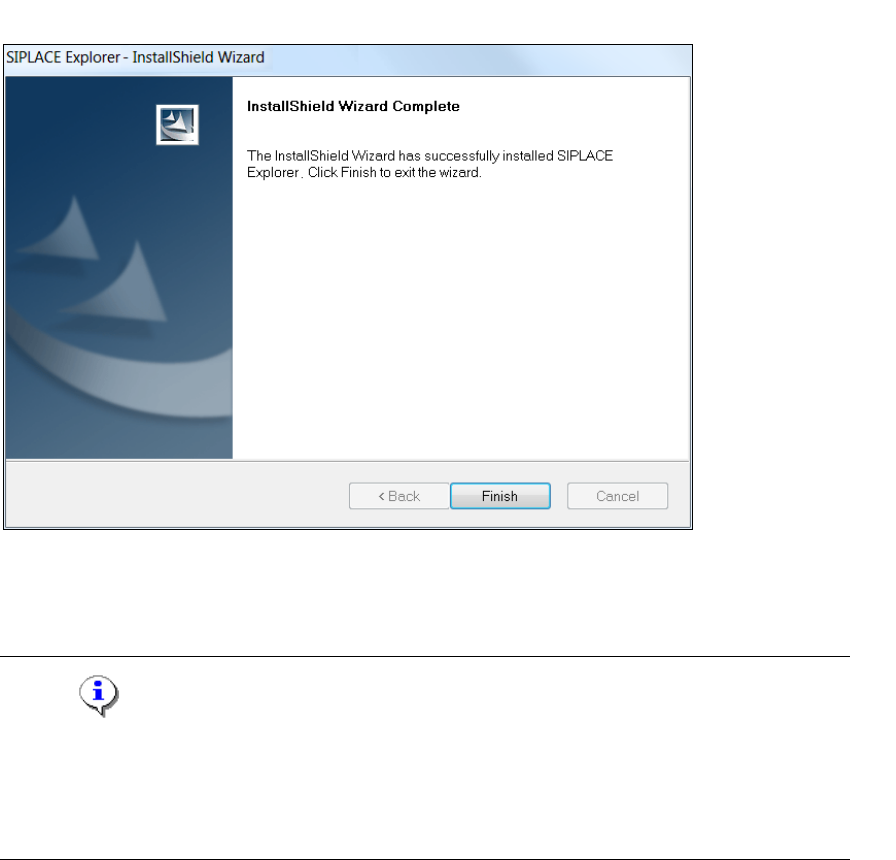
Once the installation procedure has finished, the following dialog box will open.
3
Fig. 3 - 12 SIPLACE Explorer setup - installation complete
Click on Finish. After you have rebooted your computer, SIPLACE Explorer will be available
for use. Follow the instructions at “Starting SIPLACE Explorer” on page 34.
NOTE
After installing SIPLACE Explorer, reboot your system. This ensures that port 1099 is available for
the Java Runtime Environment. In rare cases, port 1099 may be used by another application. If
you start SIPLACE Explorer after the installation, without rebooting the system, the error message
"SIPLACE Explorer runtime not found" would be shown in such cases. 3
3 Installing SIPLACE Explorer Installation and Configuration Guide SIPLACE Explorer
3.4 Starting SIPLACE Explorer Edition 11/2020 EN
34
3.4 Starting SIPLACE Explorer
SIPLACE Explorer can be started by selecting Programs SIPLACE Explorer from the
Windows menu and will be loaded to correspond with your selected installation options.
SIPLACE Explorer Runtime Environment:
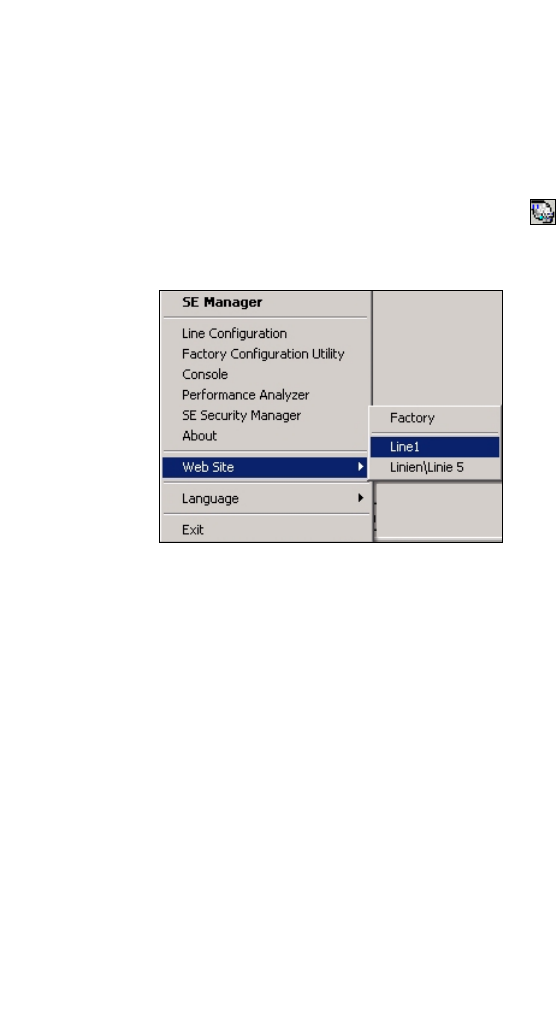
"Runtime Environment" runs as a Windows service and is automatically started whenever you
reboot your computer. You will see the icon in your console. Right-click with the mouse to
open other applications and tools. 3
3
Fig. 3 - 13 RTE Windows Start menu
The following options are available: 3
– SE Manager
– Line Configuration
– Factory Configuration Utility
–Console
– Performance Analyzer
– SE Security Manager
– About
–Website:
Wit this menu, you can open the websites as well as the factory website.
– Language
– Exit

Installation and Configuration Guide SIPLACE Explorer 3 Installing SIPLACE Explorer
Edition 11/2020 EN 3.5 Microsoft SQL Server Configuration
35
These additional applications and tools can also be started via the Programs SIPLACE
Explorer menu in Windows. 3
The following options are available: 3
– Archive Browser
–Console
– Documentation
– Error Reporting
– Factory Configuration Utility
– Line Configuration
– Modify-Uninstall
– Performance Analyzer
– SE Manager
– SE Security Manager
SIPLACE Explorer Factory Configuration Utility
Start the Factory Configuration Utility via the Programs SIPLACE Explorer Factory
Configuration Utility menu in Windows. 3
Or click on the Factory Configuration Utility icon on your desktop.
3.5 Microsoft SQL Server Configuration
You can configure the system database with the Line Configuration. See “Step 5 - Configure
System Database” on page 49. 3
If you want to configure the maintenance of the system database it is required to configure the
Microsoft SQL Server: 3
Start Microsoft SQL Server Management Studio.
Open the Server Properties dialog box. Select the server instance which contains the
SIPLACE Explorer system database. Select Properties from the context menu. The Server
Properties dialog box will open: