Nordson_EFD_RV_Series_Operating_Manual.pdf - 第54页
RV Series Automated Dispensing Systems 54 www.nordsonefd.com info@nordsonefd.com +1-401-431-7000 Sales and service of Nordson EFD dispensing systems are available worldwide. Robot Initial Setup (Step4 T ab): Setting the…
RV Series Automated Dispensing Systems
53www.nordsonefd.com info@nordsonefd.com +1-401-431-7000 Sales and service of Nordson EFD dispensing systems are available worldwide.
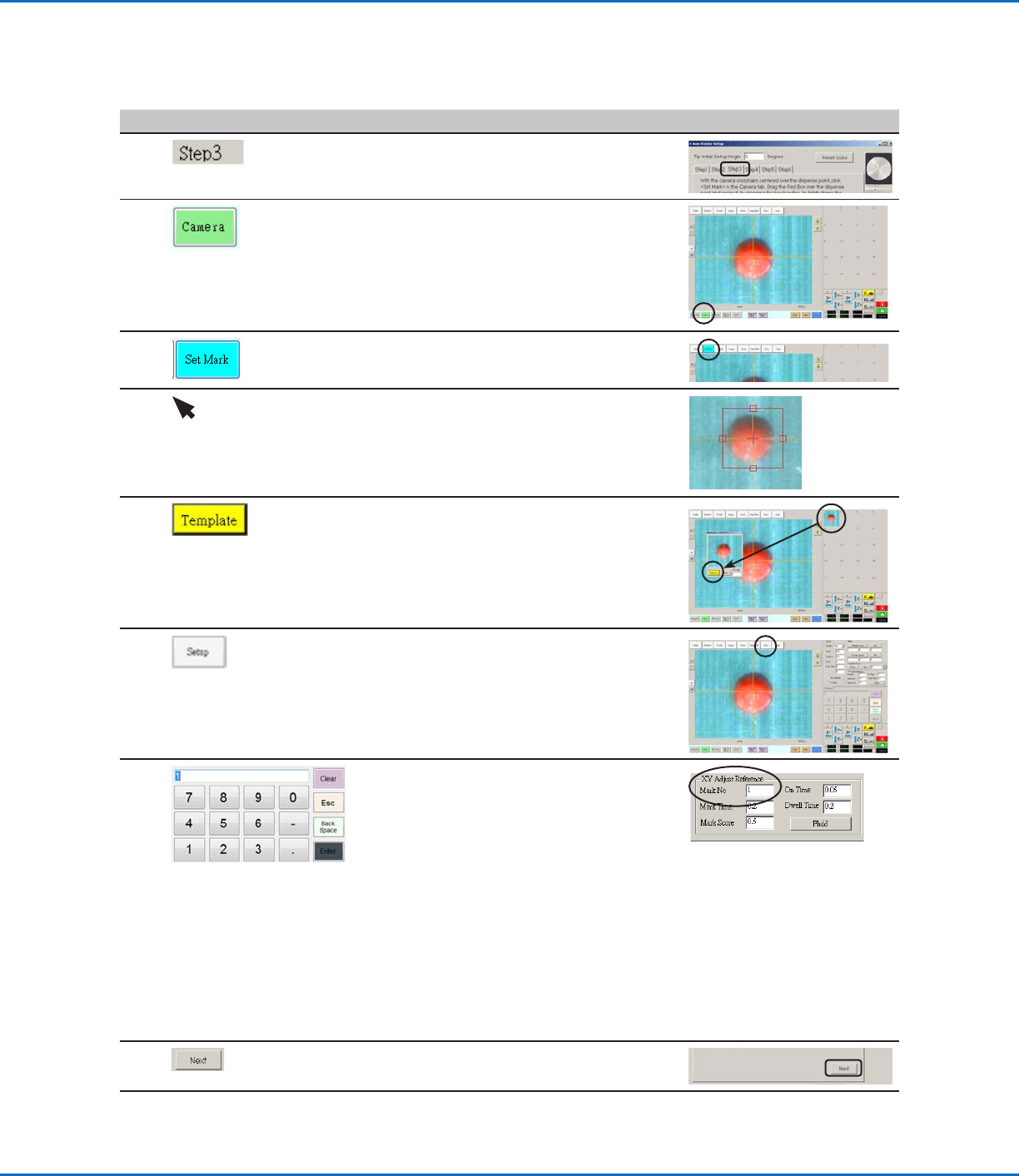
Robot Initial Setup (Step3 Tab): Setting a Mark
# Click Step Reference Image
1
• Ensure that the STEP3 tab is open.
2
• Click the CAMERA tab.
The actual camera view appears in the
Primary View screen and the Mark Library
appears in the Secondary View screen.
3 • Click SET MARK.
A red box appears.
4 • Click and hold the center of the red box,
drag it over the dispense dot, and then click
and drag the four box handles such that
they outline the dot.
5
• Click a socket in the Mark Library to save the
mark as a Mark No., then click TEMPLATE
when the Template Match window appears.
The system saves the image in the Mark
Library.
NOTE: Be sure to remember the Mark No.
6
• Click SETUP to go back to the Camera
window Offset fields.
7
• Use the keypad to enter the Mark number
in the Mark No field under XY Adjust
Reference.
NOTES:
- Make sure you click ENTER on the keypad
to enter the Mark number.
- Mark Time sets the time allowed for the
system to find the mark.
- Mark Score specifies how accurately the
camera finds a mark based on a value
from 0.1 to 1. A higher value results in
more precise matching. A lower value
results in less precise matching.
8
• Click NEXT.
9 • Continue to “Robot Initial Setup (Step4
Tab): Setting the Camera Scale” on
page54.
Setting Up the System Using the Robot Initial Setup Wizard (continued)
RV Series Automated Dispensing Systems
54 www.nordsonefd.com info@nordsonefd.com +1-401-431-7000 Sales and service of Nordson EFD dispensing systems are available worldwide.
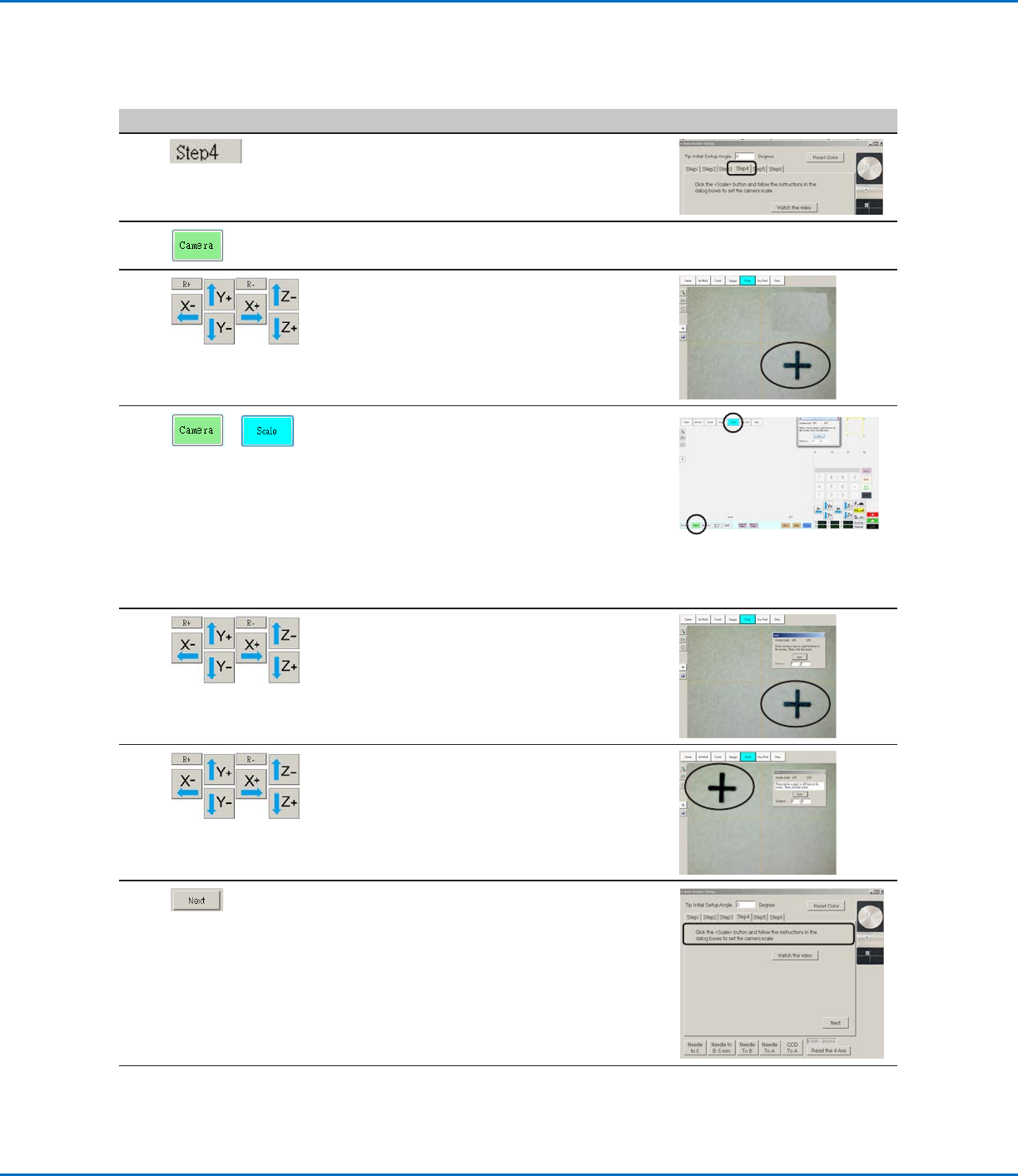
Robot Initial Setup (Step4 Tab): Setting the Camera Scale
# Click Step Reference Image
1
• Ensure that the STEP4 tab is open.
2 • Click the CAMERA tab.
3
• Jog the camera to a point of reference that
is located on the lower right corner of the
workpiece.
• Bring the reference point into focus. Refer
to “Camera” on page16 as needed for
instructions on focusing the camera.
4
>
• Click the CAMERA tab and then click
SCALE.
The Scale window opens.
NOTE: When the camera views an object, it
converts the pixels to a true measurement.
For the camera to make this conversion
accurately, you must “teach” the camera
what the size of an object is in comparison
to pixels per inch by setting the camera
scale.
5 • Choose a point of reference on the
workpiece and jog the camera so that the
reference point is located in the lower right
quadrant of the camera screen, then click
the point.
6 • Jog the camera again until the same
reference point is located in the upper left
quadrant of the camera screen, then click
the point.
The camera scale is now set.
7 • Click NEXT.
8 • Continue to “Robot Initial Setup (Step5
Tab): Setting the Tip-to-Workpiece Offset”
on page55.
Setting Up the System Using the Robot Initial Setup Wizard (continued)
RV Series Automated Dispensing Systems
55www.nordsonefd.com info@nordsonefd.com +1-401-431-7000 Sales and service of Nordson EFD dispensing systems are available worldwide.
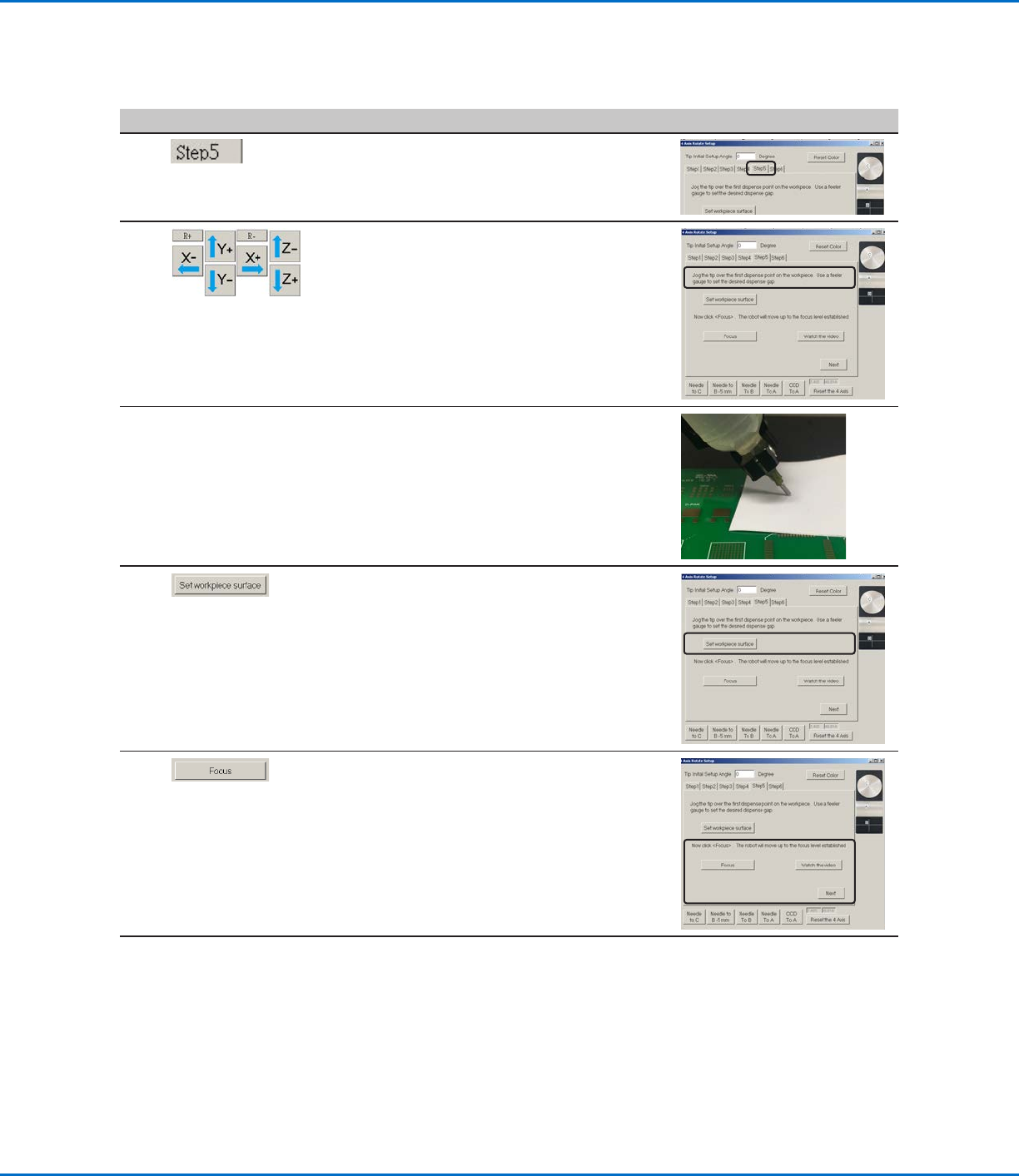
Robot Initial Setup (Step5 Tab): Setting the Tip-to-Workpiece Offset
# Click Step Reference Image
1
• Ensure that the STEP5 tab is open.
2
• Jog the tip to a good reference point on the
workpiece.
• Jog the tip down until it is as close to the
workpiece as possible without touching the
surface.
3 • Using a feeler gauge, set the desired
distance between the bottom of the tip and
the workpiece.
4 • Click SET WORKPIECE SURFACE.
5 • Click FOCUS.
The tip moves to the correct focus height.
• Click NEXT.
6 • Continue to “Robot Initial Setup (Step6
Tab): Testing the System Setup and
Calibration” on page56.
Setting Up the System Using the Robot Initial Setup Wizard (continued)