Nordson_EFD_RV_Series_Operating_Manual.pdf - 第86页
RV Series Automated Dispensing Systems 86 www.nordsonefd.com info@nordsonefd.com +1-401-431-7000 Sales and service of Nordson EFD dispensing systems are available worldwide. How to Adjust PICO Parameters Using DispenseMo…
RV Series Automated Dispensing Systems
85www.nordsonefd.com info@nordsonefd.com +1-401-431-7000 Sales and service of Nordson EFD dispensing systems are available worldwide.
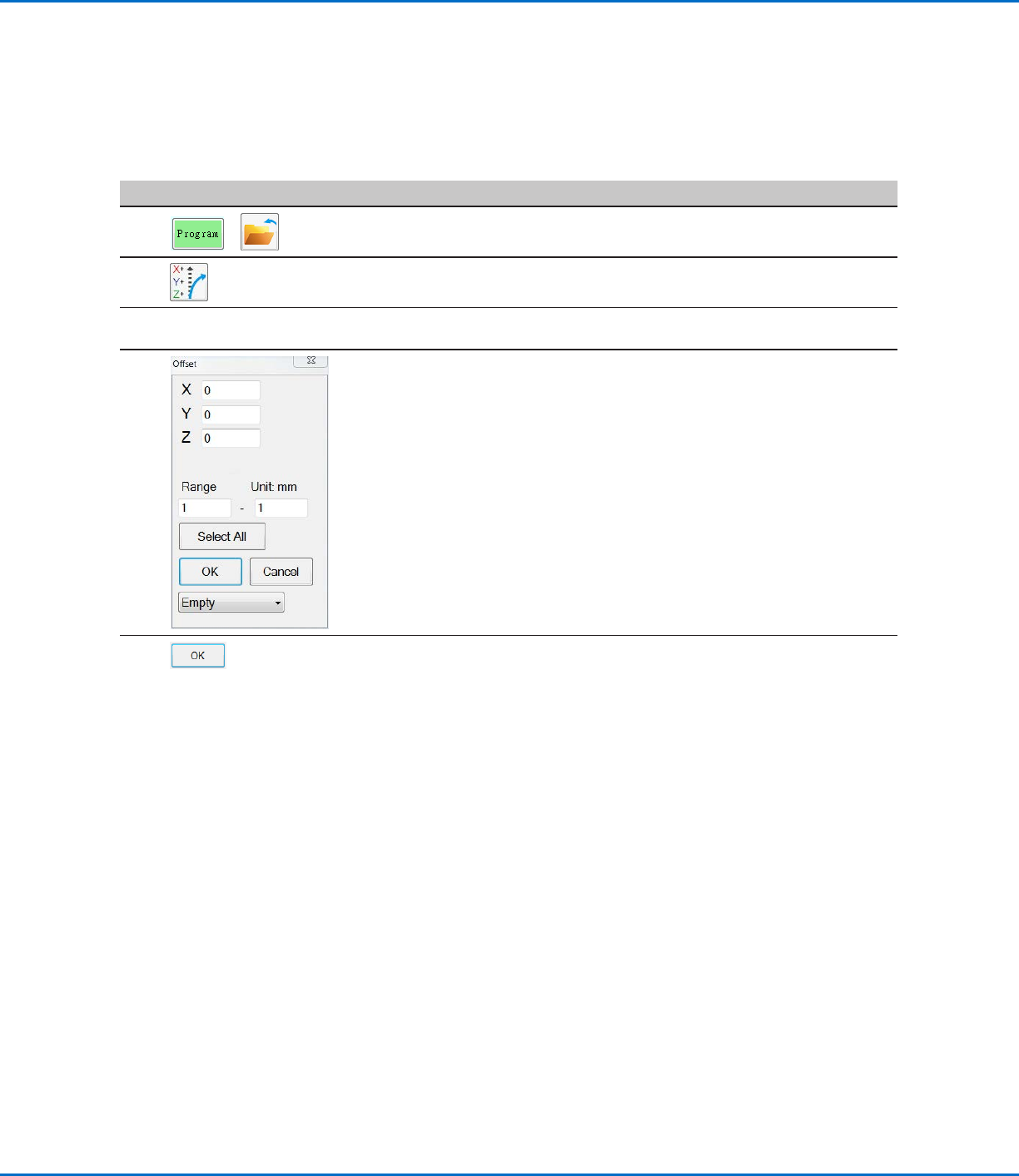
How to Use Point Offset to Adjust All Points in a Program
You can click the Point Offset icon to update all points in a program when the position of a workpiece has changed.
PREREQUISITES
The system is properly set up. Refer to “Setting Up and Calibrating the System (Required)” on page45.
The program to be updated was correct and working properly before the workpiece position was changed.
#
Click Step
1
>
• Click PROGRAM > OPEN to open the program to be updated.
2
• Click the POINT OFFSET icon.
The Offset window appears.
3
• Compare the previous XYZR position of one point in the program to its new
XYZR position and determine the amount of offset for each XYZR value.
4
• Enter the offset values in the X, Y, and Z fields of the Offset window and
update the other fields in this window as follows:
- To limit the XYZR offset changes to a specific range of addresses in the
program, enter the address number range under RANGE.
- To select all the addresses in the program, click SELECT ALL.
- To select only a specific type of command, use the drop-down menu.
Otherwise, leave this selection as EMPTY.
EXAMPLE: The XYZR coordinates of a point were 1, 2, and 3. The new XYZR
coordinates of that same point are now 6, 7, and 8. The amount of offset for
each point equals 5, so you enter “5” in the X, Y, and Z fields in the Offset
window.
NOTE: “Unit: mm” indicates the unit of measure used in commands. This
item is not editable.
5
• Click OK.
RV Series Automated Dispensing Systems
86 www.nordsonefd.com info@nordsonefd.com +1-401-431-7000 Sales and service of Nordson EFD dispensing systems are available worldwide.
How to Adjust PICO Parameters Using DispenseMotion
You can use the DispenseMotion software to remotely edit the parameters of a connected PICO Toµch Controller.
Edited parameters are stored as *.pico files on the DispenseMotion Controller. The PICOTouch Parameter Update
command is then added to a dispense program to implement the settings saved in a *.pico file.
PREREQUISITES
A PICO Pµlse
®
valve and Toµch
™
Controller system is properly installed and connected to the automated
dispensing system.
To Create a New PICO File
# Click Step Reference Image
1
>
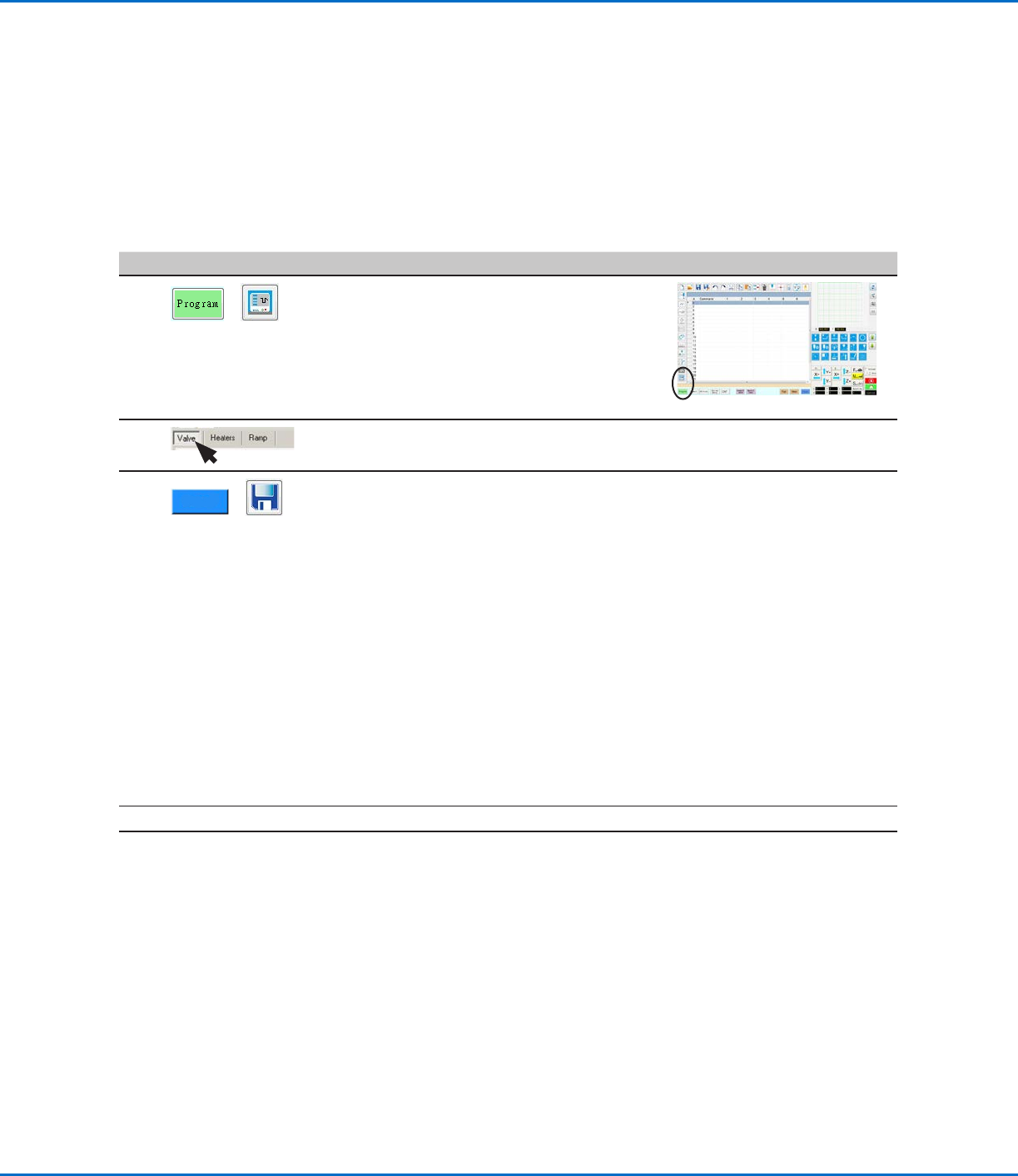
• Click PROGRAM > PICO TOUCH to open the
Pico Touch Remote Control window.
2 • Click the tab for the settings you want to edit (Valve, Heaters, or Ramp).
3
>
• Click the button for the parameter you want to edit and enter the desired setting.
Refer to the PICO Toµch Controller Operating Manual for details on settings.
• Click SAVE.
NOTES:
- The first time you save, the system prompts for a file name. PICO files are saved
on the DispenseMotion controller as *.pico files under D:\Save\PICO. You can
use any allowable file name, but Nordson EFD recommends using a numeric
name to make it easier to enter the file name in a PicoTouch Parameter Update
command.
- After you click Save, the Toµch Controller screen updates in real time (after a
slight delay).
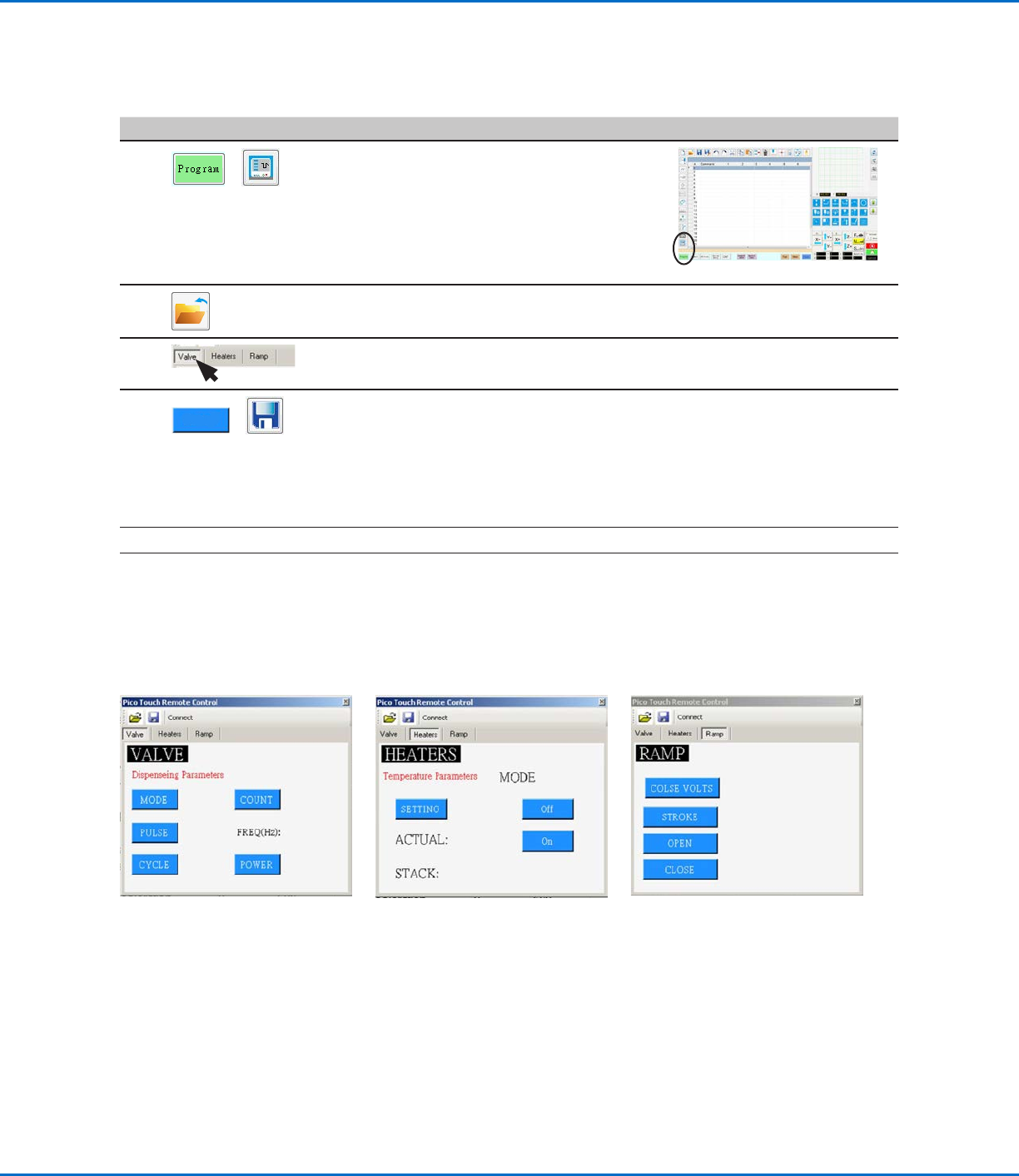
- Refer to “PICO Toµch Controller settings editable through the DispenseMotion
software” on page87 for screen captures that show the Toµch Controller
settings you can edit.
• Continue making selections and saving until all desired settings are entered.
4
X
• To exit, close the Pico Touch Remote Control window.
5
• To use the PICO Toµch settings in a program, continue to “To Use the PicoTouch
Parameter Update Command in a Program” on page88.
RV Series Automated Dispensing Systems
87www.nordsonefd.com info@nordsonefd.com +1-401-431-7000 Sales and service of Nordson EFD dispensing systems are available worldwide.
PICO Toµch Controller settings editable through the DispenseMotion software
To Edit an Existing PICO File
# Click Step Reference Image
1
>
• Click PROGRAM > PICO TOUCH to open the
Pico Touch Remote Control window.
2 • Click OPEN and then open the file you want to edit.
3
• Click the tab for the settings you want to edit (Valve, Heaters, or Ramp).
4
>
• Click the button for the parameter you want to edit and enter the desired setting.
Refer to the Toµch Controller Operating Manual for details on settings.
• Click SAVE AS.
NOTE: Every time you make a change and click SAVE AS, you will have to overwrite
the existing file or create a new file.
• Continue making selections and saving until all desired settings are entered.
5
X
• To exit, close the Pico Touch Remote Control window.
6
• To use the PICO Toµch settings in a program, continue to “To Use the PicoTouch
Parameter Update Command in a Program” on page88.
How to Adjust PICO Parameters Using DispenseMotion (continued)