Nordson_EFD_RV_Series_Operating_Manual.pdf - 第74页
RV Series Automated Dispensing Systems 74 www.nordsonefd.com info@nordsonefd.com +1-401-431-7000 Sales and service of Nordson EFD dispensing systems are available worldwide. How to Use Marks or Fiducial Marks in a Pr ogr…
RV Series Automated Dispensing Systems
73www.nordsonefd.com info@nordsonefd.com +1-401-431-7000 Sales and service of Nordson EFD dispensing systems are available worldwide.
How to Improve the Accuracy of Mark Searches
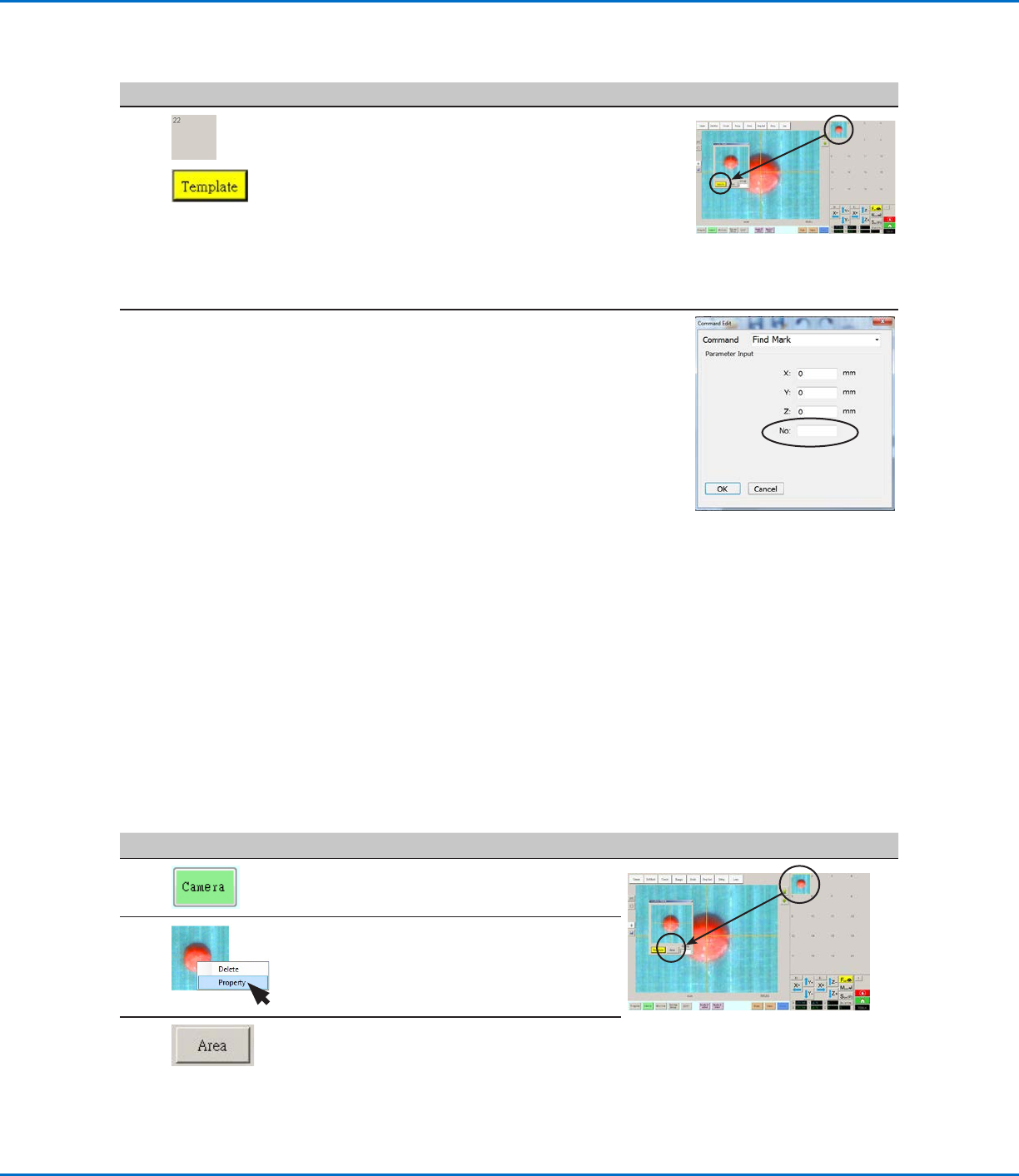
If there are many areas on a workpiece that resemble a mark you saved, you can use the Area function of the
Template Match window to fine-tune how the camera evaluates these areas against the saved mark image. Doing
so increases the find-mark accuracy of the system.
NOTE: Advanced features for manipulating saved mark images to allow the system to find them faster and more
accurately are available in the optional OptiSure software add-on. Refer to “OptiSure Software Key” on page93
for the OptiSure kit part number. Refer to the OptiSure manual for operating instructions.
PREREQUISITES
The system is in the CCD Mode.
The mark you want to fine-tune is saved in the Mark Library.
#
Click Step Reference Image
1 • Click CAMERA to go to the camera screen.
2 • Right-click any image in the Mark Library, then
select PROPERTY.
The Template Match window appears.
3
• Click AREA.
• Refer to “Template Match and Area Windows”
on page39 to use the Area window to
fine-tune how the camera searches for and
evaluates the image against other similar areas
on the workpiece.
# Click Step Reference Image
8
>
• Click a socket in the Mark Library to save the
mark, then click TEMPLATE when the Template
Match window appears.
The system saves the image in the Mark Library.
NOTE: If there are many areas on the workpiece
that resemble the mark you saved, you can fine-
tune how the camera finds and evaluates the
mark. Click AREA and refer to “How to Improve
the Accuracy of Mark Searches” below for
detailed information.
You can specify any mark in the Mark Library
within a Find Mark or Fiducial Mark command by
entering the mark number (No.) in the Parameter
Input window. Refer to “How to Use Marks or
Fiducial Marks in a Program” on page74.
How to Create a Mark (continued)
RV Series Automated Dispensing Systems
74 www.nordsonefd.com info@nordsonefd.com +1-401-431-7000 Sales and service of Nordson EFD dispensing systems are available worldwide.
How to Use Marks or Fiducial Marks in a Program
Use the Mark command in a program as follows:
• To confirm the presence or absence of a workpiece.
• To confirm that the correct workpiece is present.
• To check the XY position of a workpiece.
Use two Fiducial Marks in a program as follows:
• To move the dispensing tip to a specific target area on the workpiece.
• To check the XY orientation of a workpiece. The system automatically adjusts the program to compensate for
any changes in orientation.
PREREQUISITES
The system is properly set up. Refer to “Setting Up and Calibrating the System (Required)” on page45.
The system is in the CCD Mode.
#
Click Step
1
• Determine whether you need to create one mark or two and then create the
marks. Refer to “How to Create a Mark” on page72 for the procedure for
creating marks.
2
• Insert a Find Mark command or two Find Fiducial Mark commands near the
beginning of a program.
3
• If the program includes a Step & Repeat command, use the Mark Adjust or
Fiducial Mark Adjust commands.
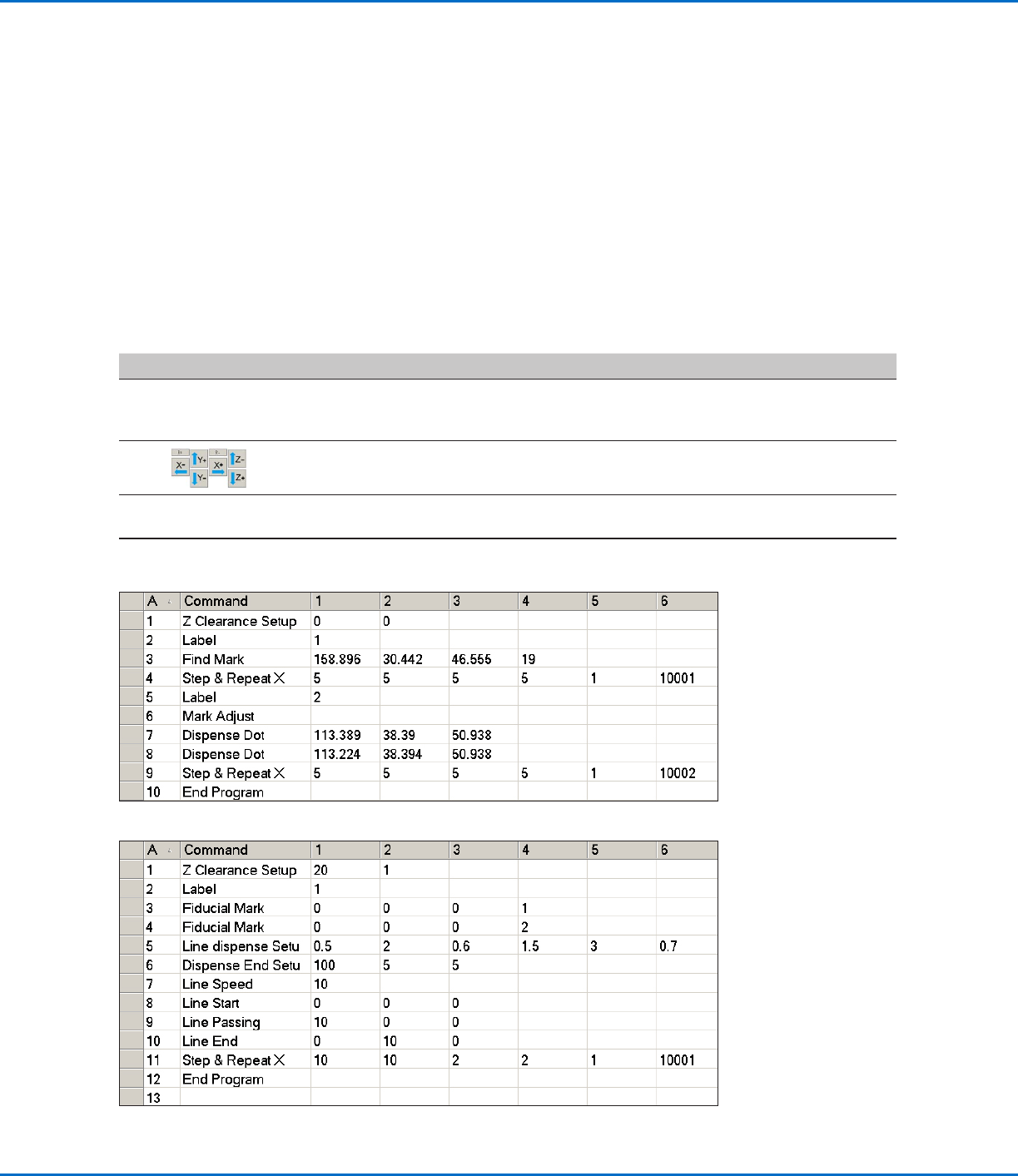
4 • Refer to the sample program below as a guideline.
RV Series Automated Dispensing Systems
75www.nordsonefd.com info@nordsonefd.com +1-401-431-7000 Sales and service of Nordson EFD dispensing systems are available worldwide.
How to Use Marks to Dispense onto a Plain Workpiece
The Edge Adjust command is needed when you must create a dispense program for a workpiece that presents one
of the following challenges:
• Very large, rounded corners
• No obvious features for creating a mark image
PREREQUISITES
The system is properly set up. Refer to “Setting Up and Calibrating the System (Required)” on page45.
The system is in the CCD Mode.
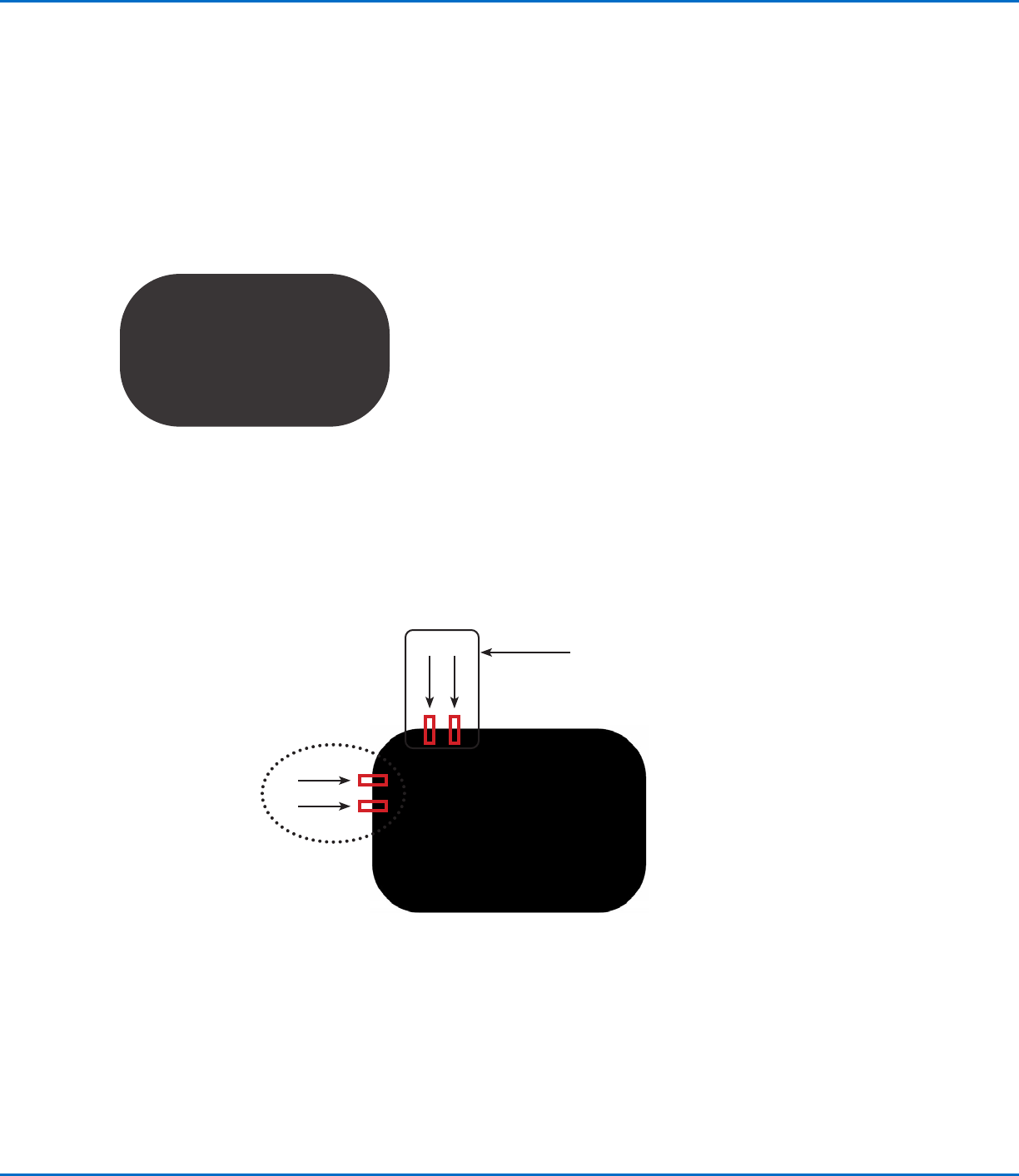
To learn how to use this feature, draw a black rectangle with very round corners on a sheet of white paper and
use it as a template.
Overview for Dispensing onto Featureless Workpieces
The following tasks are required to create a program for dispensing onto very plain workpieces:
• Creating and saving mark images on two edges of a rectangular area. For each mark, you will need to enter
Width and Height values.
• Setting up the search range for each mark.
• Correctly using the Find Mark and Edge Adjust commands in the dispense program.
Vertical marks 3 and 4
Horizontal marks 1 and 2
1 2
3
4