TT6094.ProductionHistory(YAMAHA_BRAND).pdf - 第49页
Y AMAHA Motor Co Ltd., IM Operation Mounter Soft Gr MDOC-SOFT5001 1 TT6094.Pr oductionHistory (Y AMAHA_BR AND).doc 49 / 53 The file na me format is fol lows. Mis Error Log ErrLog 20010615.csv Board Log PcbLog20010…
YAMAHA Motor Co Ltd.,
IM Operation
Mounter Soft Gr
MDOC-SOFT50011
TT6094.ProductionHistory(YAMAHA_BRAND).doc
48 / 53
14. Saving of Production History (auto saving to network folder)
1)Setting for the auto saving folder
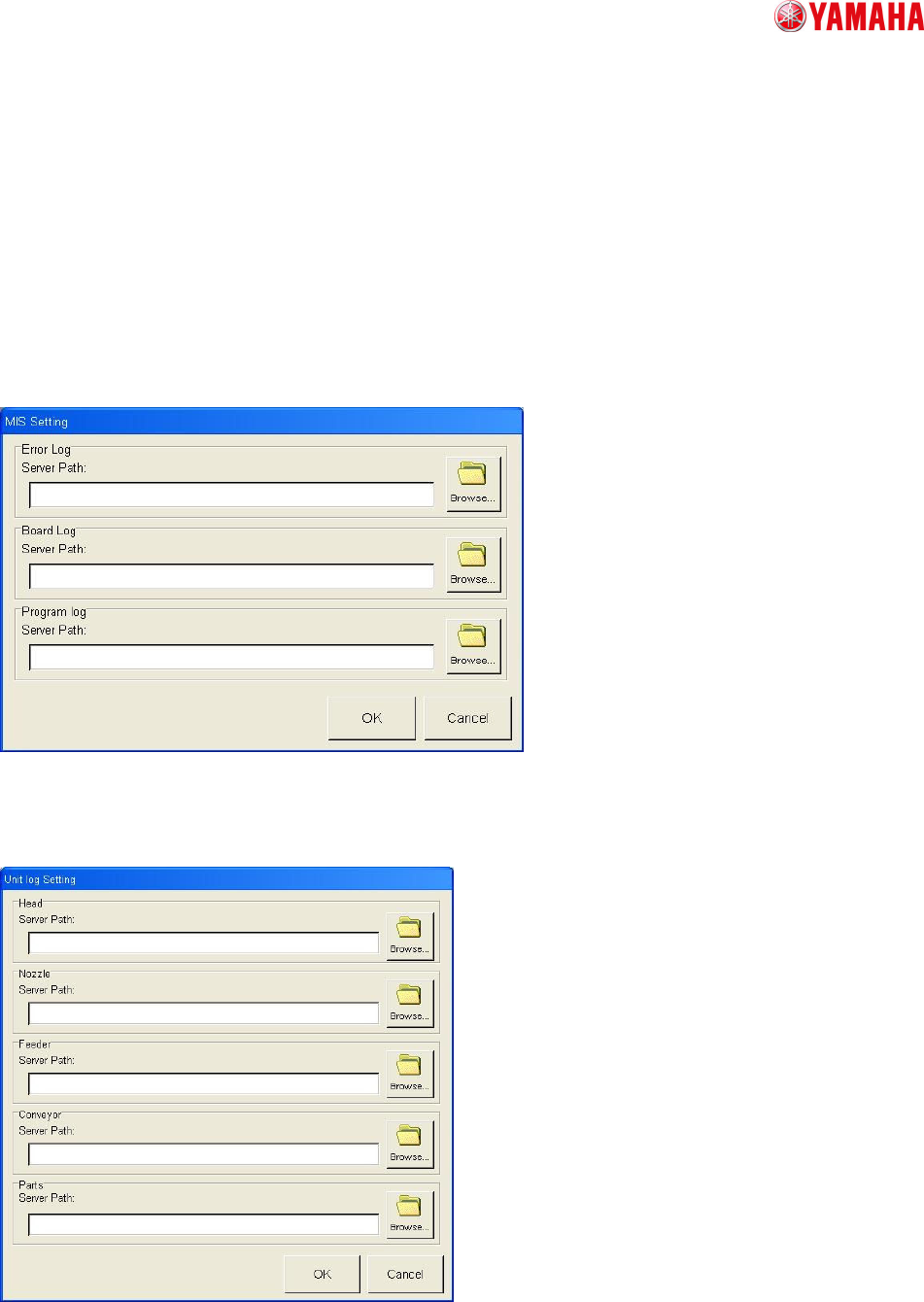
There are two kinds of buttons, [MIS] and [Unit log] on [Software Setting]-[History] of the Setup
screen. Press the each button to display a dialog to select a saving folder for each History.
Select a saving folder and press OK, and you can save history data into the selected folder
automatically.
Mis Setting
Fig. 14-1
Unit Log setting
Fig. 14-2

YAMAHA Motor Co Ltd.,
IM Operation
Mounter Soft Gr
MDOC-SOFT50011
TT6094.ProductionHistory(YAMAHA_BRAND).doc
49 / 53
The file name format is follows.
Mis
Error Log ErrLog20010615.csv
Board Log PcbLog20010615.csv
Program Log LotLog20010615.csv
Unit Log
Head Head20010615.csv
Nozzle Nozl20010615.csv
Feeder Feeder20010615.csv
Conveyor Conv20010615.csv
Parts Part20010615.csv
The words which include in file name (ex. “ErrLog”, “PcbLog”, “Part”, “Feeder”) are according to each
Tab name. The numbers which include in file name (ex. 20010615) are indicated saving date. Every
time a day changes, a file is made newly.
(2) Saving in machine
Production History data will be saved in the local file on follows timing.
: When the memory buffer for Production History become over flow. (Each data in Mis and
Parts data in Unit Log)
: When the machine power off.
Except above case, the data will be buffering in memory.
YAMAHA Motor Co Ltd.,
IM Operation
Mounter Soft Gr
MDOC-SOFT50011
TT6094.ProductionHistory(YAMAHA_BRAND).doc
50 / 53
15. Display item Selection / Clear / Sort
(1) About selection of Display item
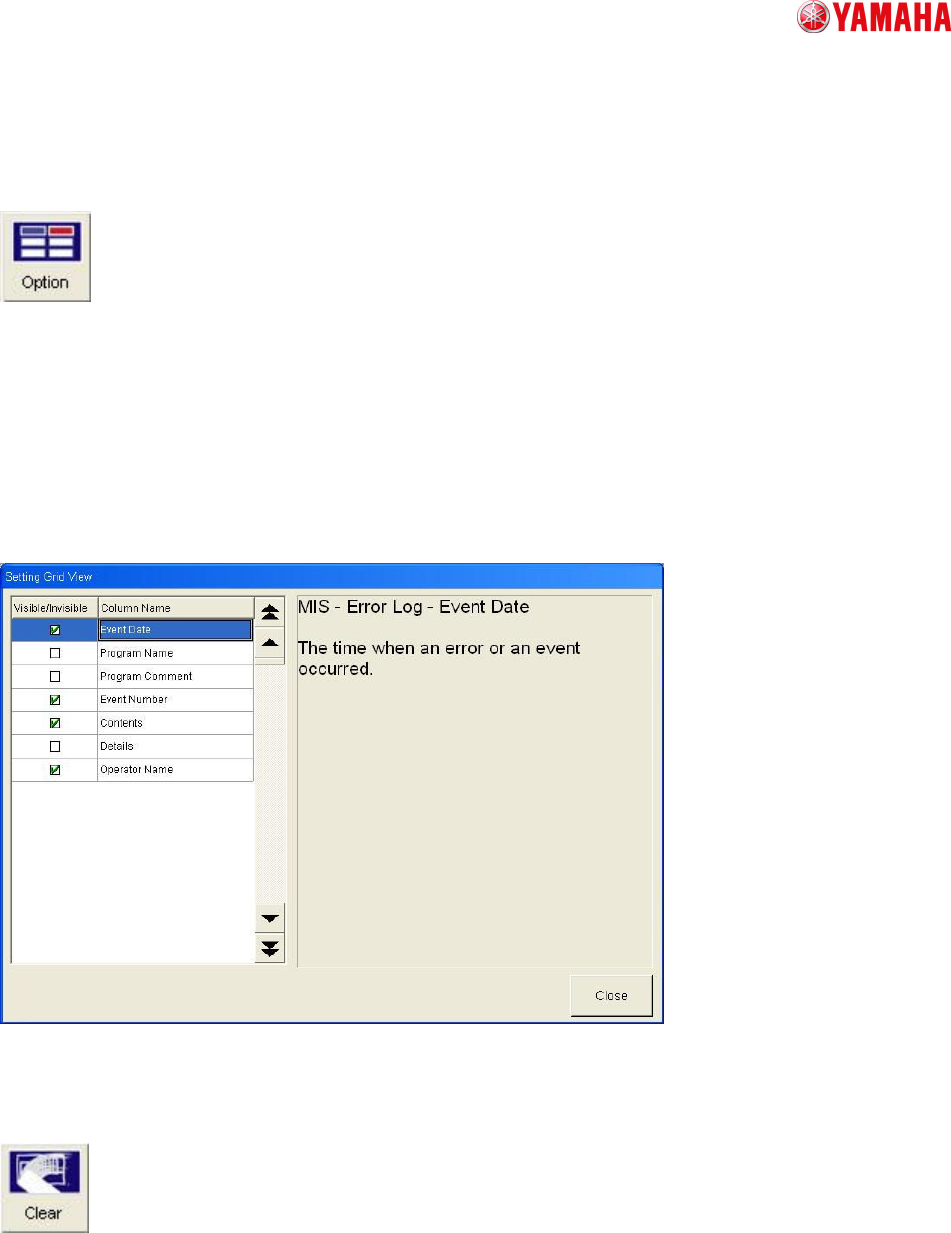
The items which display as Production History can select by Option button on each Production history
window.
(ex.)
In [Mis / Error Log], if you need information of Event Date then you can check it on Visible/Invisible
monitor. If you don’t need information of Program Name then you can delete check.
(refer to follows figure)
Chart. 15-1
(2) Clear Production History
If you push the Clear button in each Production History window then all history of this window will be
clear.
(3) Saving Production History