User Manual SIPLACE MeasuringFeeder X.pdf - 第31页
4 Operation 4.4 Measuring Components User Manual SIPLACE MeasuringFeeder X 03/2020 31 4.4.2 Measuring Components manually Besides the automatic measurement, that follows the rules that were defined during production plan…
4 Operation
4.4 Measuring Components
30 User Manual SIPLACE MeasuringFeeder X 03/2020
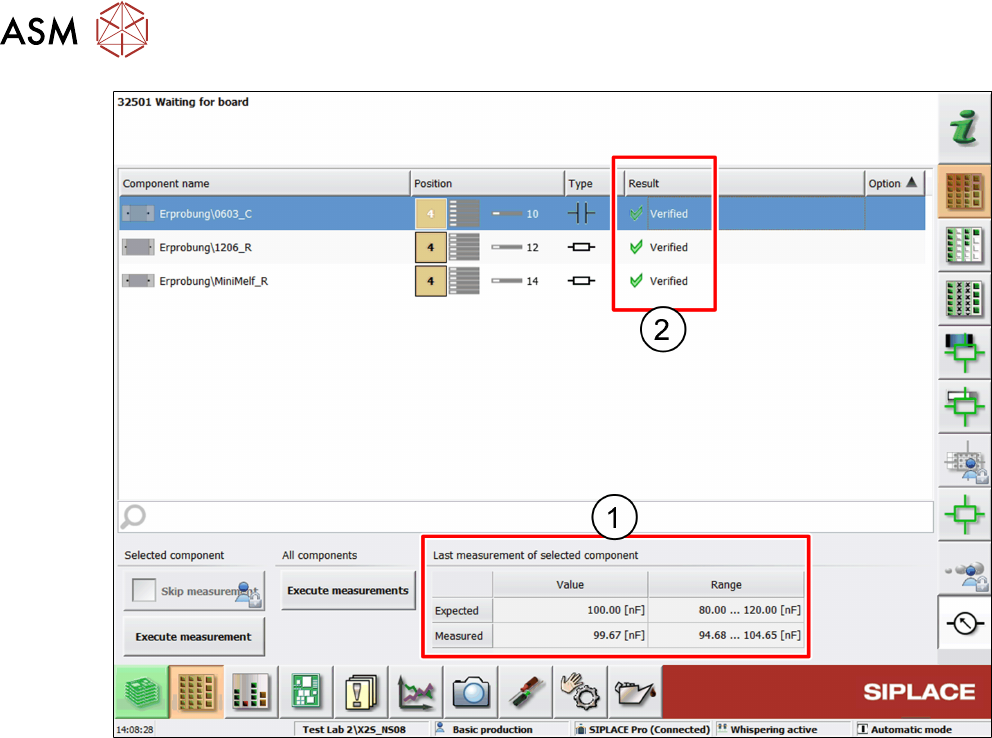
If a component was measured, the values of the measurement are displayed in the Last measure-
ment of selected component table (1):
●
Expected value and range
●
Measured value and range
The units in this table are the units that were defined in SIPLACE Pro.
► Select a component from the components list to display its measurement results in the table.
The Result column (2) of the components list displays the particular results of the last measure-
ments of the listed components:
●
Verified: the measurement result is within the expected range
●
Out of tolerance (too low): the measurement result is below the expected range
●
Out of tolerance (too high): the measurement is above the expected range
4 Operation
4.4 Measuring Components
User Manual SIPLACE MeasuringFeeder X 03/2020 31
4.4.2 Measuring Components manually
Besides the automatic measurement, that follows the rules that were defined during production
planning, components can also be measured manually anytime during production. It is possible to
measure single components or all components that are listed in the components list.
NOTICE
Placement needs to be stopped before manually measuring a component.
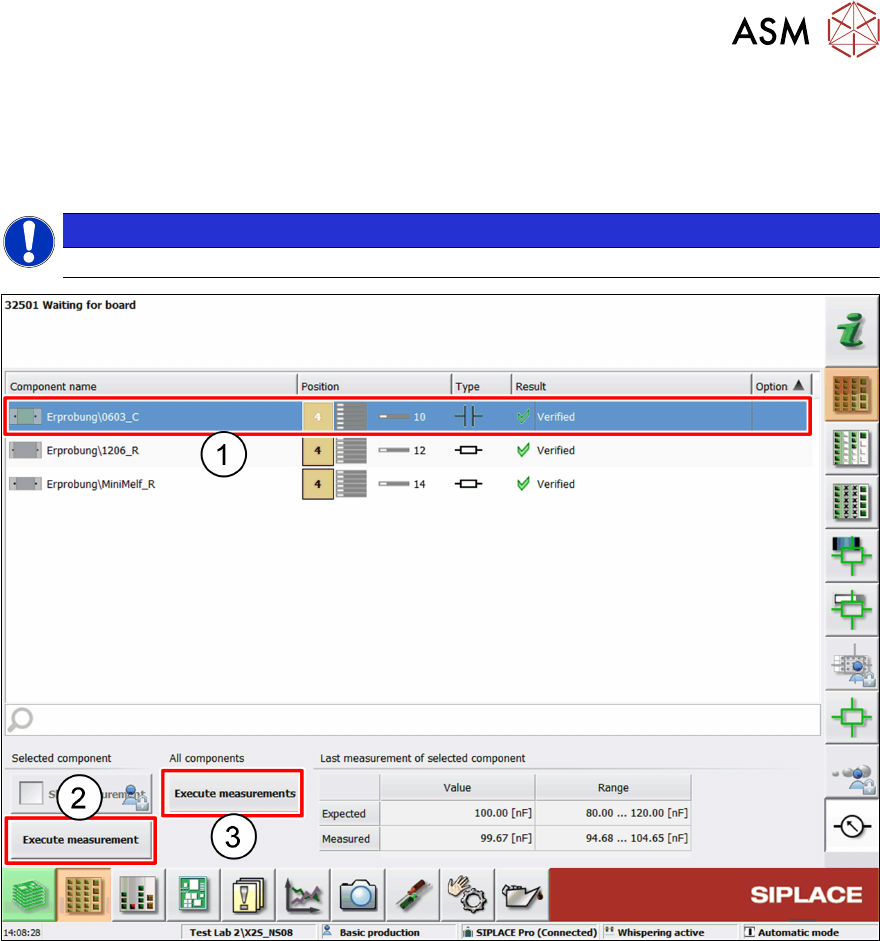
Manually measuring a single component
► Select the component to be measured from the components list (1).
► Click on Execute measurement (2).
Manually measuring all components
► Click on Execute measurements (3).
4 Operation
4.4 Measuring Components
32 User Manual SIPLACE MeasuringFeeder X 03/2020
4.4.3 Skipping the Measurement of Components
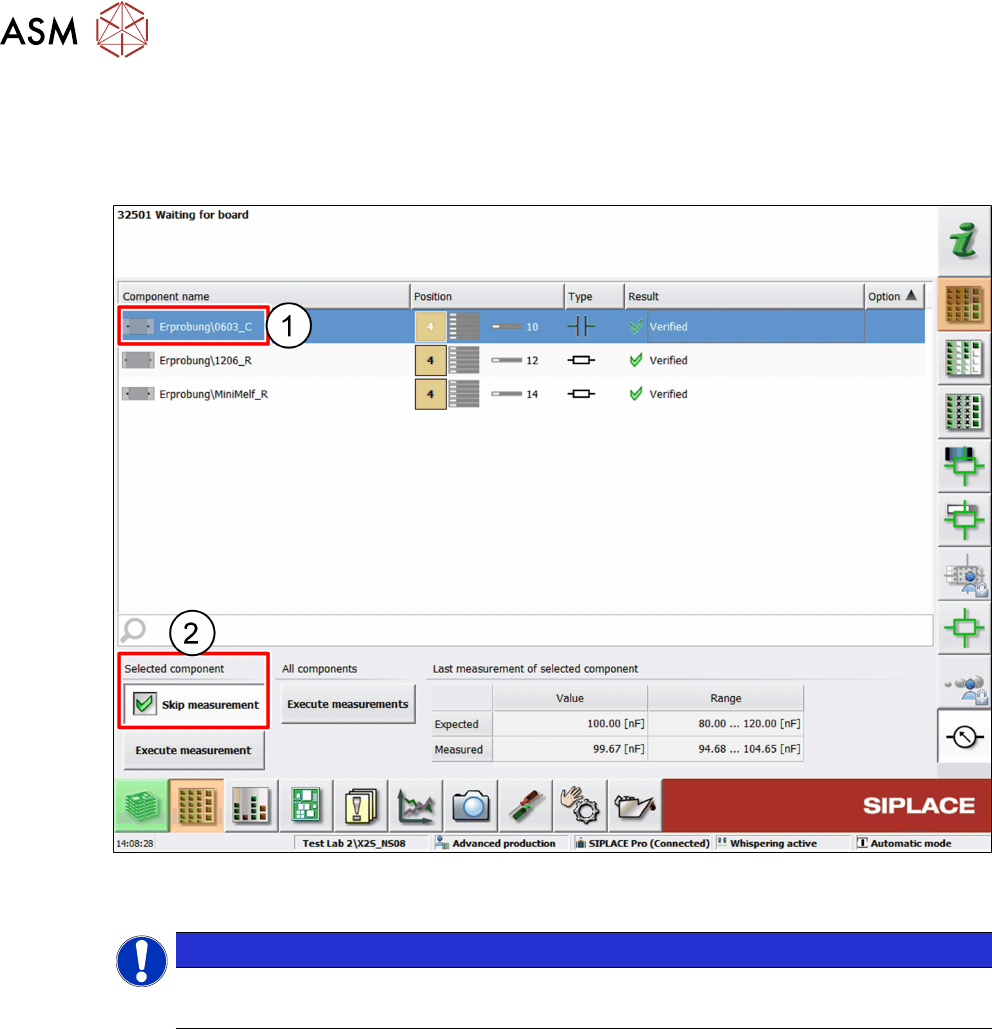
It is possible to manually omit the measurement of single components although they were marked
for measurement during production planning. If a measurement is skipped, that component will be
placed on the board regardless of its electrical qualification.
► Select the component from the components list (1).
► Activate the Skip measurement option (2).
NOTICE
This function is not available in the basic production user level.
► Change the user level to advanced production to use this function.