00196771-04_IM_SSW_705_04_SP2_DE_EN.pdf - 第32页
Station Software 705.04 SP2 / Installation Manual Ausgabe 06/2012 Edition ► Click the Next button. 5.4.4 Selecting the machine type Figure 5-9: Selecting the machine type ► Select the option for the machine type for whic…
Station Software 705.04 SP2 / Installation Manual Ausgabe 06/2012 Edition
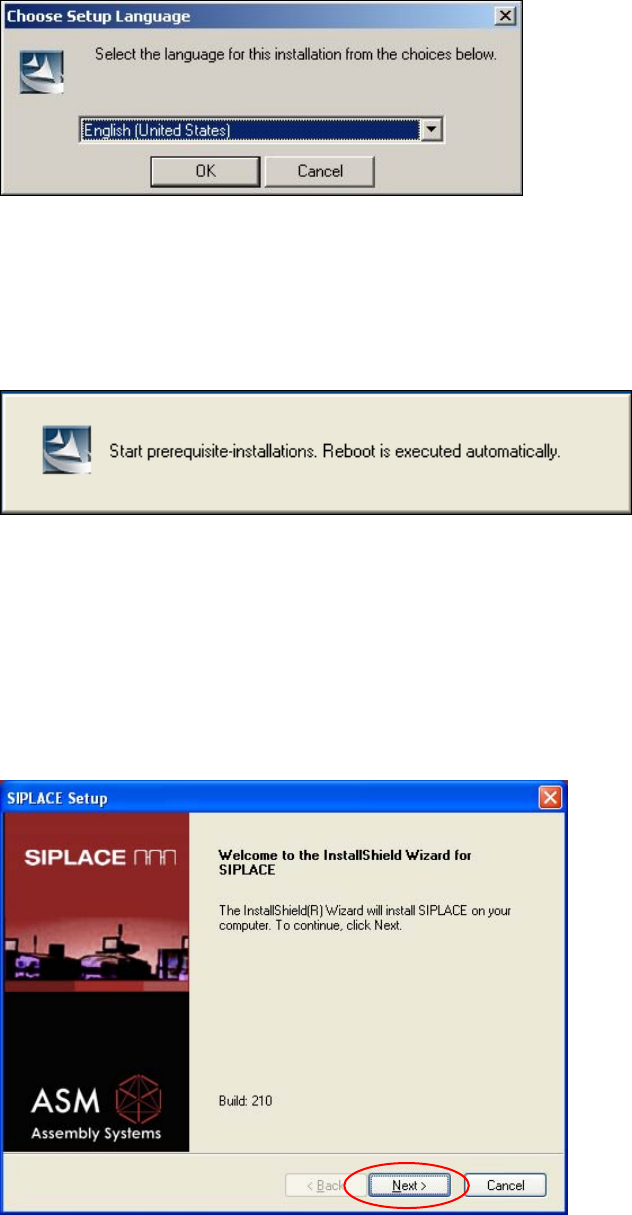
5.4.1 Language selection
► Select the language to be used during installation.
You can choose between German (Germany) and English (United States).
Figure 5-6: Language selection
► Click the OK button.
5.4.2 Installing the system files
Figure 5-7: Installing the system files
The necessary system files are installed if they are not already on the machine computer. The
machine computer is rebooted automatically after installation. You are automatically logged in as
administrator.
Installation of the station software continues with the welcome screen.
5.4.3 Welcome screen
Figure 5-8: Welcome screen
31
Station Software 705.04 SP2 / Installation Manual Ausgabe 06/2012 Edition
► Click the Next button.
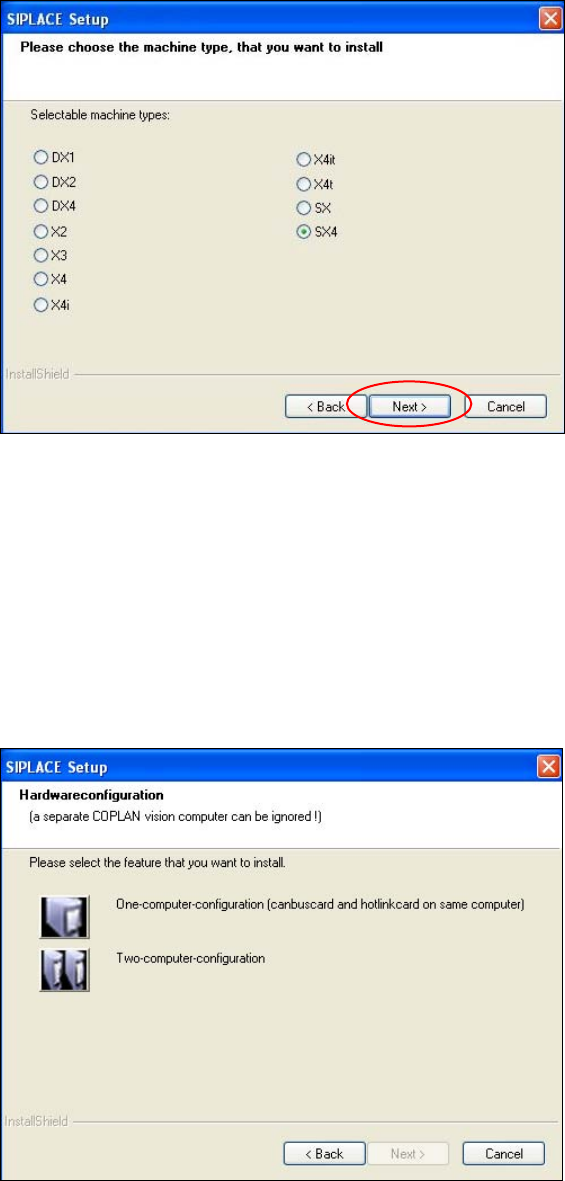
5.4.4 Selecting the machine type
Figure 5-9: Selecting the machine type
► Select the option for the machine type for which the software is to be configured.
► Click the Next button.
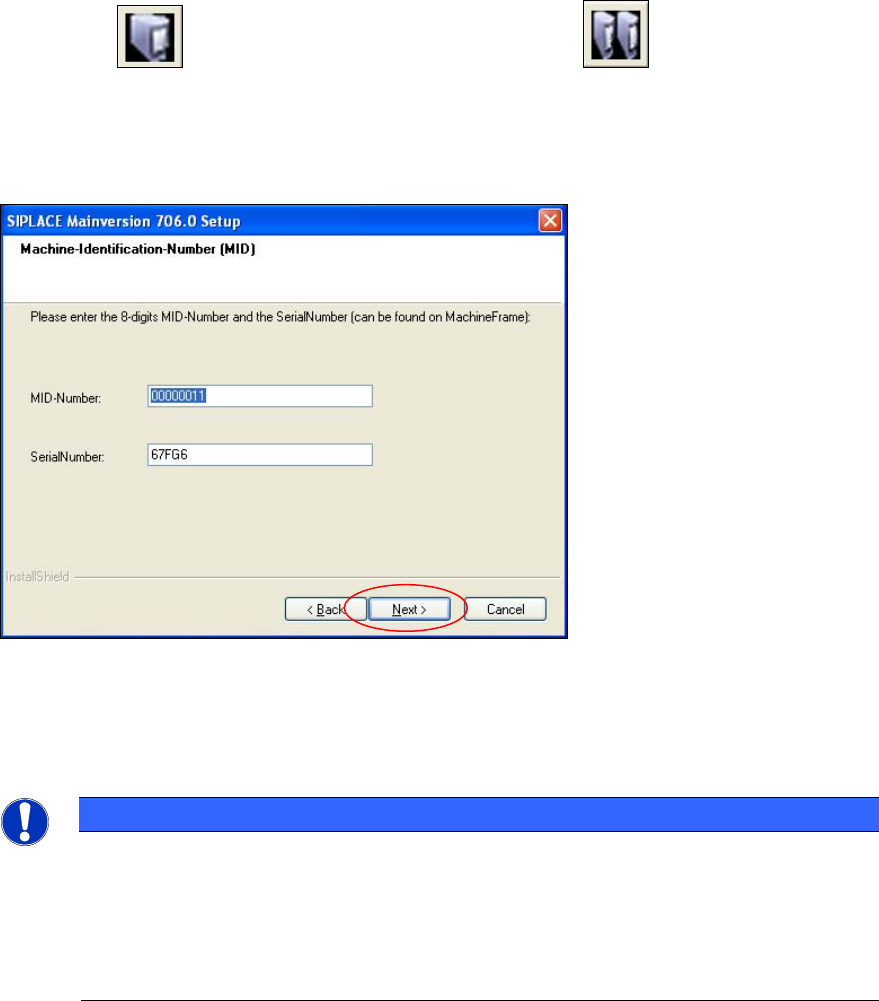
5.4.5 Selecting the hardware configuration
The Hardwareconfiguration dialog box is opened, in which you configure the hardware for one-
computer or two-computer operation. One-computer operation is default for the SX and DX
placement machines.
Figure 5-10: "SIPLACE Setup" dialog box
32
Station Software 705.04 SP2 / Installation Manual Ausgabe 06/2012 Edition
► Click the
One-computer-configuration button or the Two-computer-
configuration button for X-series placement machines with two computers.
5.4.6 Entering the Machine Identification Number (MID) and serial number
Figure 5-11: Entering the Machine Identification Number (MID)
► In the text box beside MID-Number, enter the 8-digit machine identification number.
► In the text box beside SerialNumber, enter the serial number
NOTICE
You will find the MID and the serial number on an adhesive label on the side of the
protective covers directly below the label for the number of the relevant location. The
number following the dash after the MID specifies the location and is not entered here
(e.g. 00000001-2 stands for location 2).
After upgrading (from 60x and 70x) the correct MID and serial number are already
inserted.
► Click the Next button.
33