00193688-03.pdf - 第115页
Installation and Configuration Guide SIPLACE Explorer 4 Configuration Edition 02/2005 EN 4.3 Database Settings 115 → Check your entries and confirm with OK . Factory website generation will begin. The factor website is t…
4 Configuration Installation and Configuration Guide SIPLACE Explorer
4.2 Configuring the Factory Configuration Utility Edition 02/2005 EN
114
NOTE
Remember to regular perform a database backup for the factory database. This can be carried
out with the database tool on your computer e.g. with the Enterprise Manager for the MS SQL
server. 4
4.2.8 How to Generate a Website
NOTE
To generate a factory website, you require web server manager privileges (Tomcat administrator)
and the corresponding password. 4
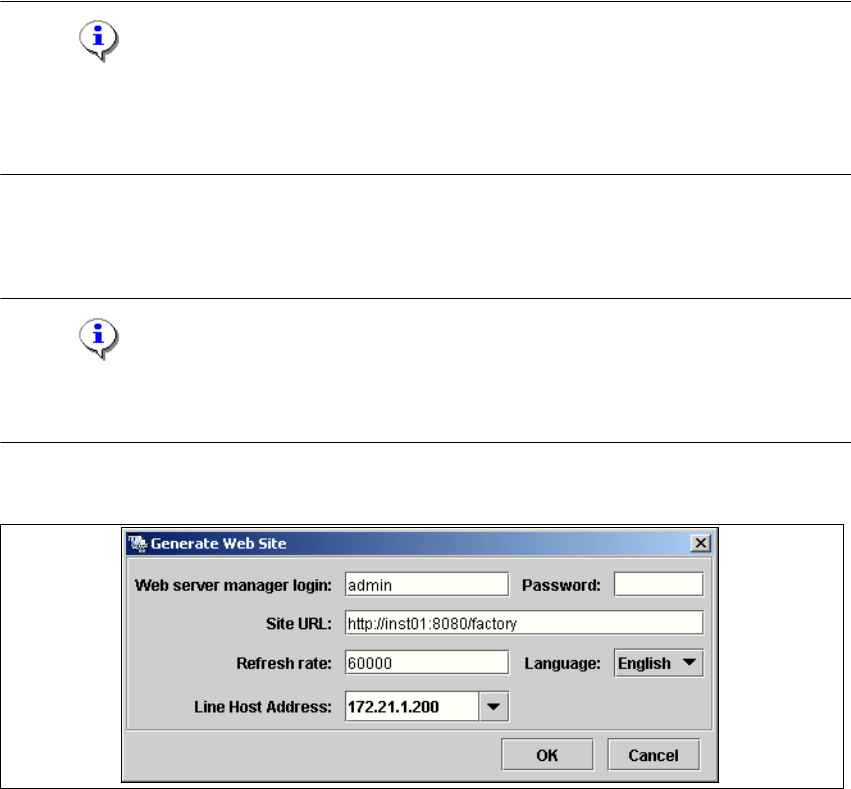
→ Select the function Generate Web Site ... from the File menu.
4
Fig. 4 - 55 Factory Configuration Utility - generate website
→ Specify the access data for the Tomcat administrator. If you entered admin and an empty
password during Tomcat configuration, this data will be automatically used as a default login.
If this is not the case, use the data you specified during Tomcat configuration.
→ Please specify the following information:
– URL site
This URL contains a port number, which applies to the web server (Tomcat 5.0) e.g. "8080".
If you change the port number here, you will also need to update the port number of the web
serversiehe “Port Configuration after Changing Tomcat Port Number” auf Seite 60.
–Refresh rate
For capacity purposes, we recommend a refresh rate of at least one minute (60000 ms).
– Factory website language
– Line host address
Installation and Configuration Guide SIPLACE Explorer 4 Configuration
Edition 02/2005 EN 4.3 Database Settings
115
→ Check your entries and confirm with OK. Factory website generation will begin.
The factor website is the so-called "single entry point" for all production line websites. This
means that you can navigate directly from the factory website to all other production line
websites which have been configured with the Factory Configuration Utility. 4
→ Start the Microsoft Internet Explorer. Enter the HTTP address of the factory website in the
Address field.
→ The login page will open. For a detailed description of the factory website, please see the
Getting Started manual.
4.3 Database Settings
4.3.1 Open Project Without System Database Configuration
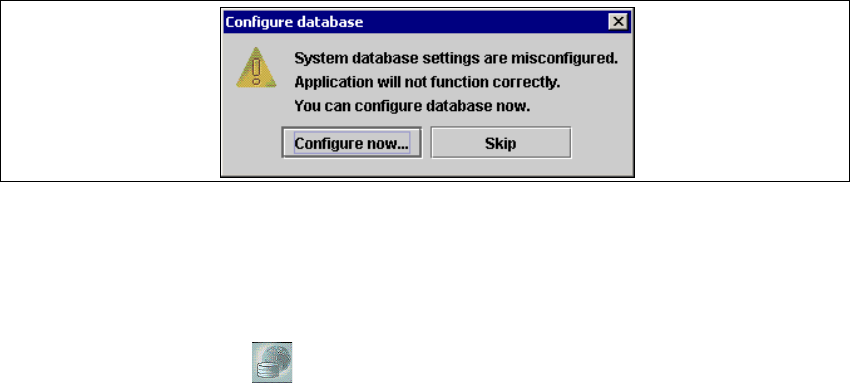
→ Should you open a project file where the database settings are not valid or have not yet been
configured, you will see a message like this:
4
Fig. 4 - 56 Configuring the database
→ Click on Configure now....
The DB Settings configuration dialog box will pop up.
→ If you click Skip, you will need to specify the System Database configuration later. To do this,
start System Database using one of these methods:
– In the Navigator, click .
– In the Navigator Tools menu, click System DB.
– In the Navigator, type Alt + T, then S.
4 Configuration Installation and Configuration Guide SIPLACE Explorer
4.3 Database Settings Edition 02/2005 EN
116
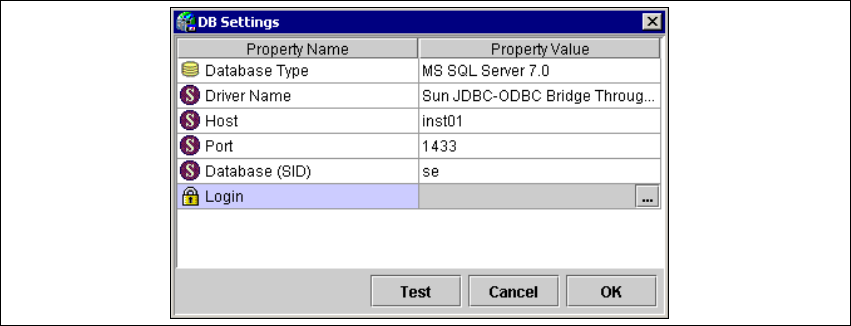
→ The System Database Editor will appear. Select File → DB Settings… from the menu and the
DB Settings configuration dialog box will pop up.
4
Fig. 4 - 57 DB settings dialog box
It contains the following settings: 4
– Database Type:
Currently, MS SQL Server 2000 is supported.
– Driver Name
– Host:
Name of the computer where the database is installed.
– Port:
Port number on the computer where database is installed (default port for MS SQL Server
is 1433).
– Login:
Double-click on the column Property Value and specify the user name and password for the
database, in the dialog box shown.
– Database (SID):
Name of the database that will be used as the SIPLACE Explorer System DB. Make sure
you press the Enter key after typing in the DSN.
→ Select the version of the MS SQL Server from the drop down list of database types.