00193688-03.pdf - 第32页
3 Installing SIPLACE Explorer Installation and Configuration Guide SIPLACE Explorer 3.2 Java 2 SDK 1.4 Installation Procedure Edition 02/2005 EN 32 → Y ou will see the Browser Regist ration dialog box. Sele ct the defaul…
Installation and Configuration Guide SIPLACE Explorer 3 Installing SIPLACE Explorer
Edition 02/2005 EN 3.2 Java 2 SDK 1.4 Installation Procedure
31
→ Click on Next, to continue the installation procedure.
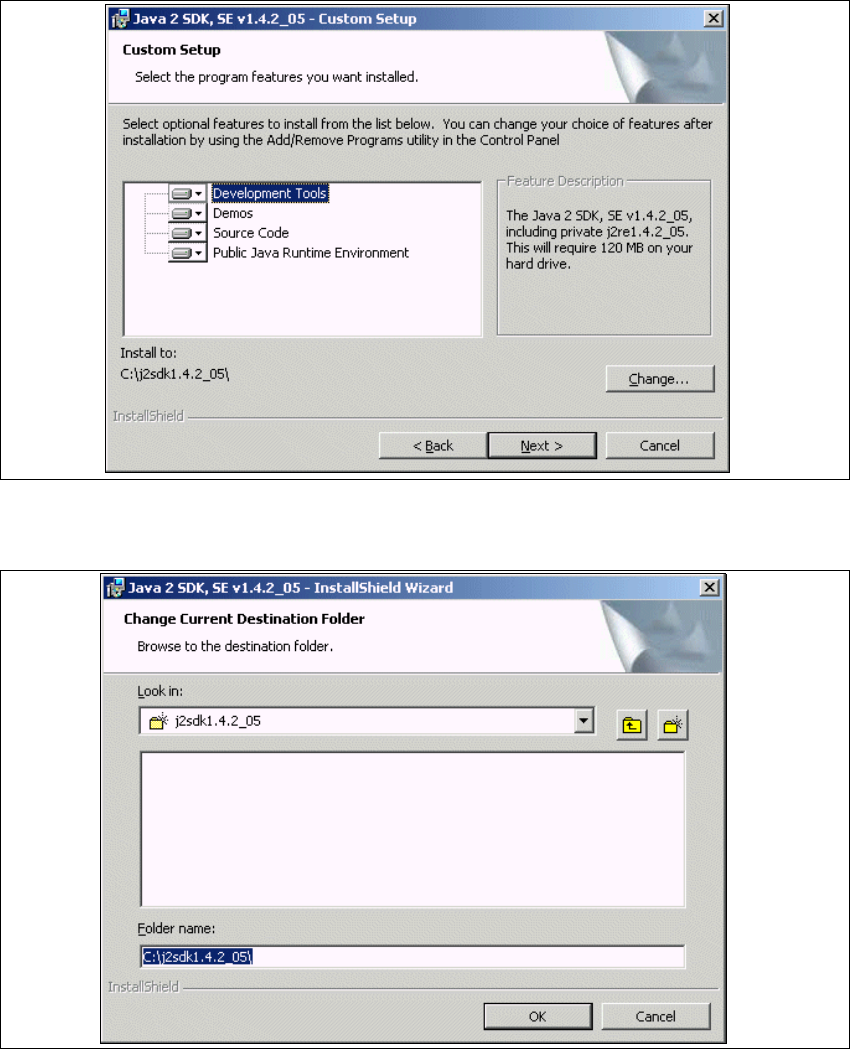
→ Now select the required installation option and specify the folder in which you wish to install the
application. The default folder is C:\j2sdk1.4.2_05\. This can be altered if necessary.
3
Fig. 3 - 8 Java 2 SDK setup - user-defined installation
→ You can alter the default installation folder by using the Change button.
. 3
Fig. 3 - 9 Java 2 SDK setup - selecting destination folder
→ Specify path and click OK to select another folder.
→ To accept the destination folder, click on Next in the Custom Setup dialog box.
3 Installing SIPLACE Explorer Installation and Configuration Guide SIPLACE Explorer
3.2 Java 2 SDK 1.4 Installation Procedure Edition 02/2005 EN
32
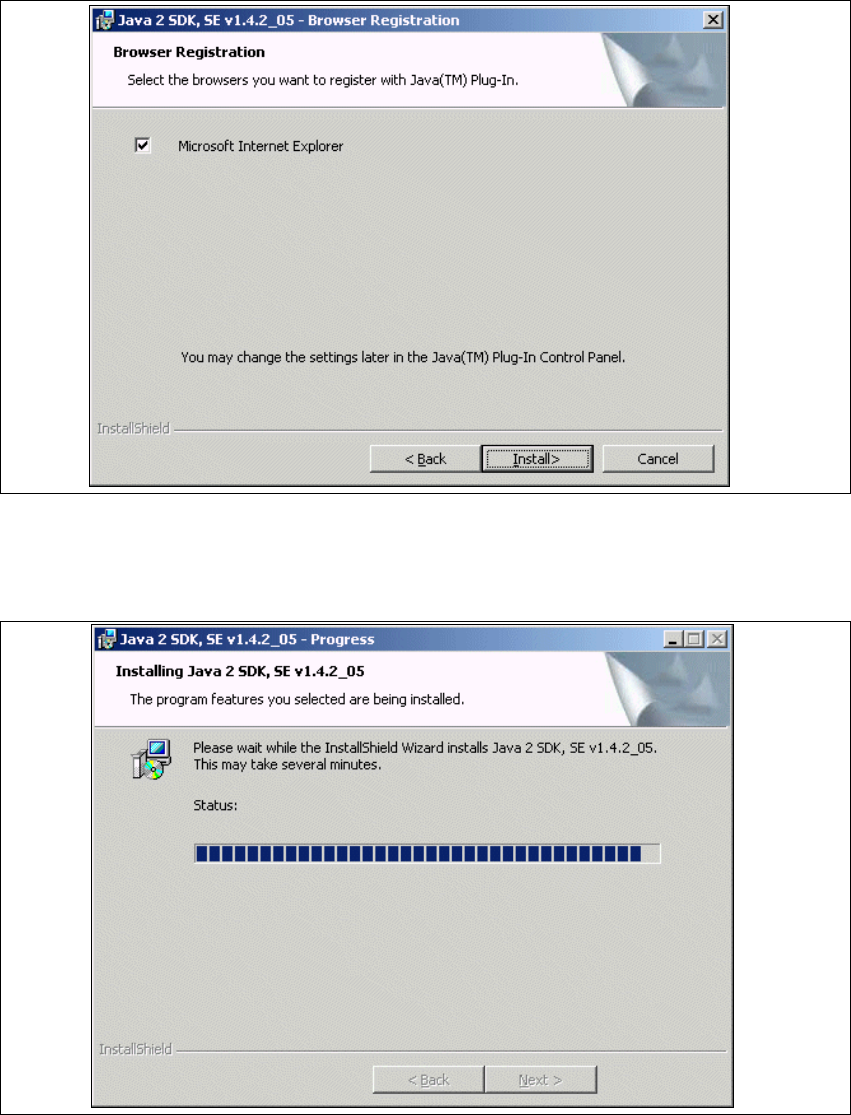
→ You will see the Browser Registration dialog box. Select the default browser for the
application, here.
3
Fig. 3 - 10 Java 2 SDK setup - 'browser registration' dialog box
→ Select the required browser by enabling the relevant checkbox.
→ Click on Install to begin the actual installation of Java 2 SDK.
3
Fig. 3 - 11 Java 2 SDK setup - installation
→ The selected installation options will be installed in the correct order.
Installation and Configuration Guide SIPLACE Explorer 3 Installing SIPLACE Explorer
Edition 02/2005 EN 3.2 Java 2 SDK 1.4 Installation Procedure
33
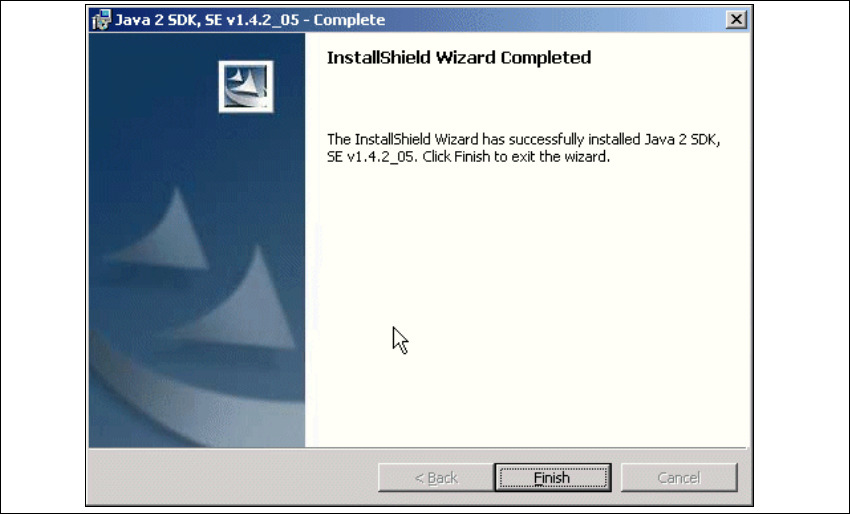
→ Once the installation procedure has finished, the following dialog box will appear.
3
Fig. 3 - 12 Java 2 SDK setup - installation complete
→ Click on Finish.