00193688-03.pdf - 第43页
Installation and Configuration Guide SIPLAC E Explorer 3 Installing SIPLACE Explorer Edition 02/2005 EN 3.3 SIPLACE Explorer 2 .0 Installation 43 → SIP LACE Explorer V .2.0 Fa ctory Configuration Utility S tart the Facto…
3 Installing SIPLACE Explorer Installation and Configuration Guide SIPLACE Explorer
3.3 SIPLACE Explorer 2.0 Installation Edition 02/2005 EN
42
The following options are available: 3
– Archive Browser
–Console
– Line Configuration
– Performance Analyzer
– SE Manager
– SE Security Manager
– Modify-Uninstall
– Documentation
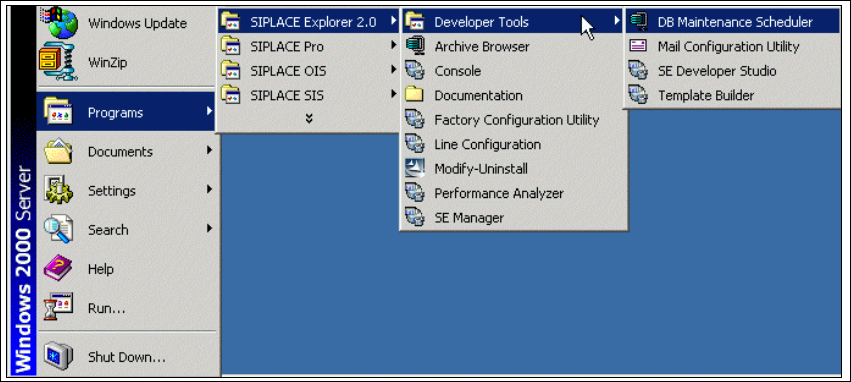
→ SIPLACE Explorer V.2.0 Development Environment
Start the Development Environment via the Programs → SIPLACE Explorer 2.0 →
Developer Tools menu in Windows. 3
3
Fig. 3 - 26 DE Windows Start menu
The following applications and tools are available: 3
– DB Maintenance Scheduler
– Mail Configuration Utility
– SE Developer Studio
– Template Builder
Installation and Configuration Guide SIPLACE Explorer 3 Installing SIPLACE Explorer
Edition 02/2005 EN 3.3 SIPLACE Explorer 2.0 Installation
43
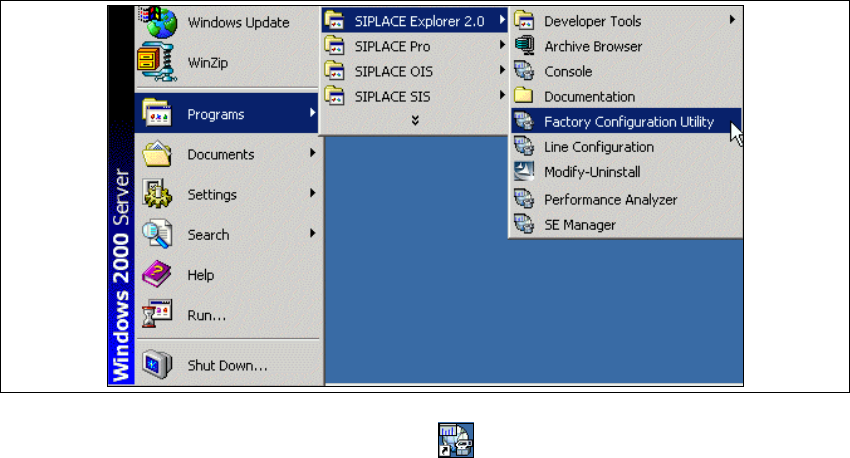
→ SIPLACE Explorer V.2.0 Factory Configuration Utility
Start the Factory Configuration Utility via the Programs → SIPLACE Explorer 2.0 → Factory
Configuration Utility menu in Windows. 3
3
Fig. 3 - 27 Factory Configuration Utility Windows Start menu
→ Or click on the Factory Configuration Utility icon on your desktop.
3 Installing SIPLACE Explorer Installation and Configuration Guide SIPLACE Explorer
3.4 Tomcat 5.0 Installation Procedure Edition 02/2005 EN
44
3.4 Tomcat 5.0 Installation Procedure
NOTE
You must have Windows 2000 administrator privileges to perform installation. 3
NOTE
Before installing Tomcat 5.0, make sure that all versions of Tomcat < 5.0 have been deinstalled.3
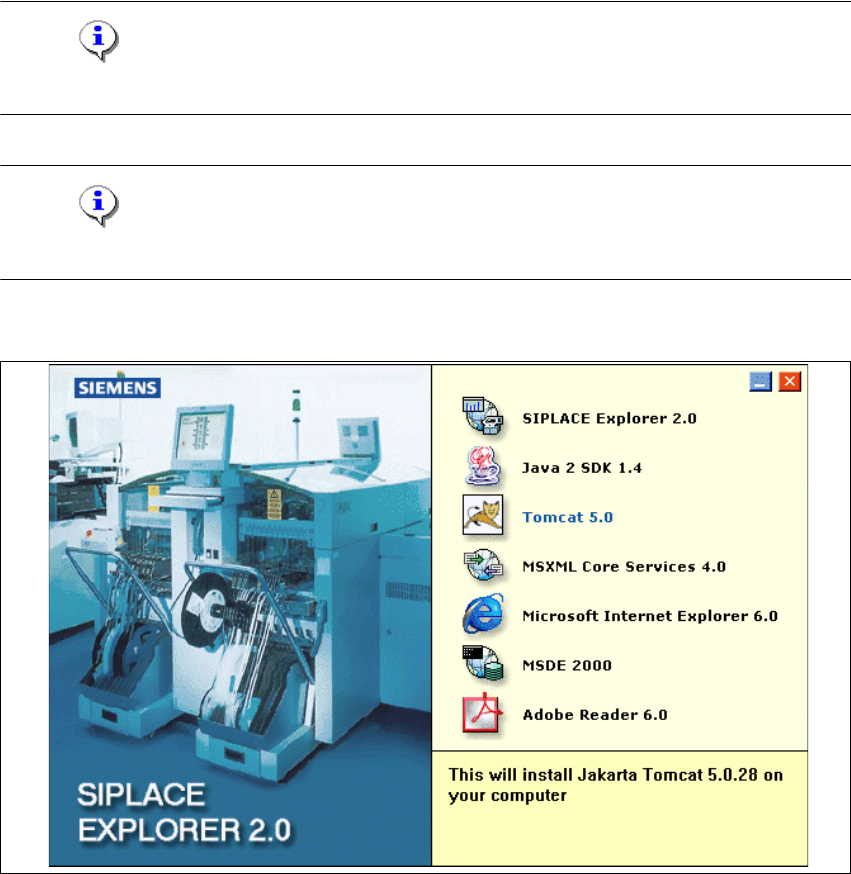
→ Place the SIPLACE Explorer CD in your CD-ROM drive. The Start screen will appear.
3
Fig. 3 - 28 SIPLACE Explorer setup - Start screen
→ Select Tomcat 5.0.