00193688-03.pdf - 第122页
5 Deinstallation Installation and Configuration Guide SIPLACE Explorer 5.2 Modify Edition 02/2005 EN 122 → Now select the features you wish to remove, by disabling the relevant checkb ox next to the feature(s). The check…
Installation and Configuration Guide SIPLACE Explorer 5 Deinstallation
Edition 02/2005 EN 5.2 Modify
121
5.2 Modify
5
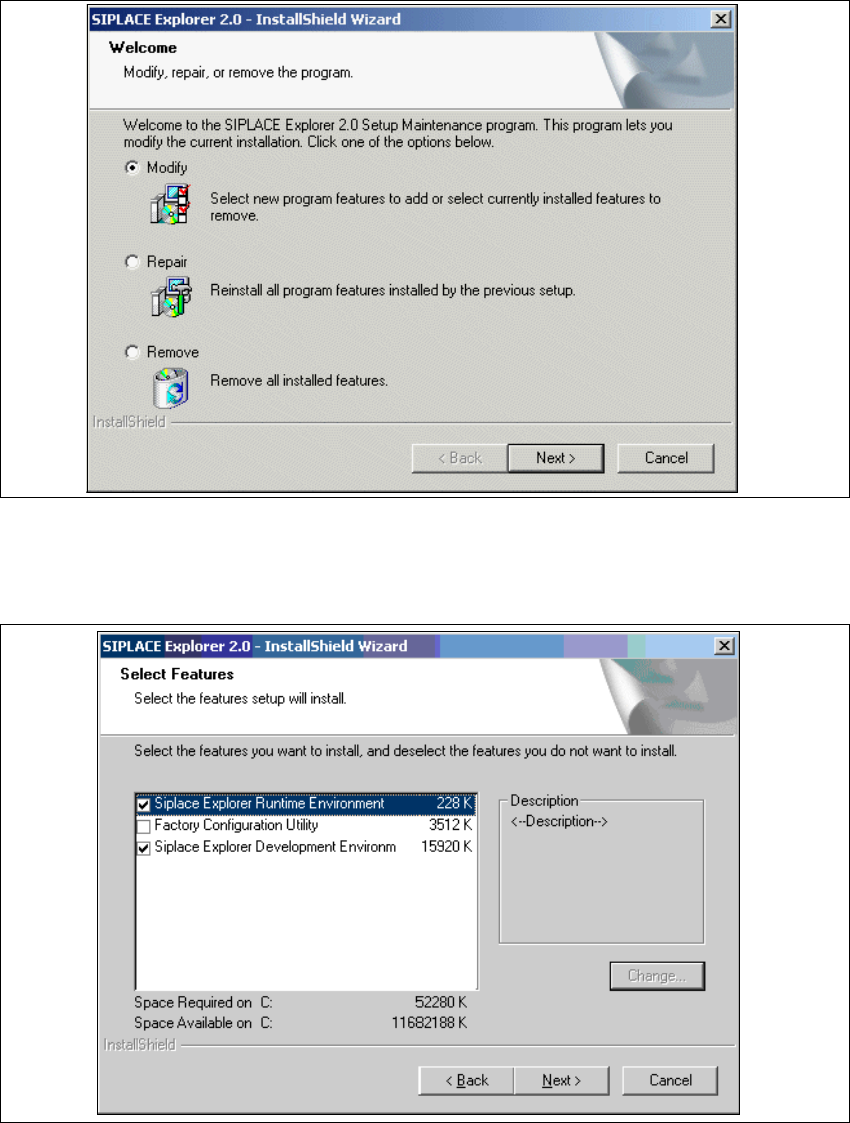
Fig. 5 - 2 SIPLACE Explorer 2.0 - install shield wizard
→ Click on Modify and then on Next to continue.
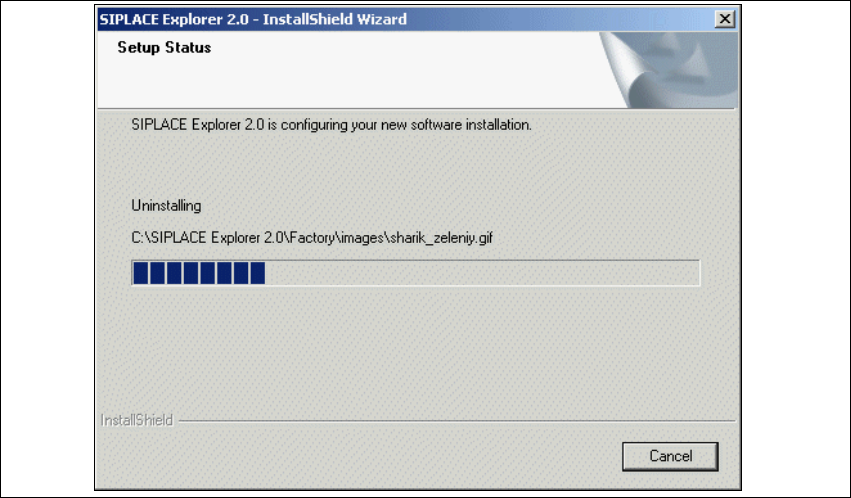
→ You will see the Select Features (installation options) dialog box.
5
Fig. 5 - 3 SIPLACE Explorer 2.0 - install shield wizard
5 Deinstallation Installation and Configuration Guide SIPLACE Explorer
5.2 Modify Edition 02/2005 EN
122
→ Now select the features you wish to remove, by disabling the relevant checkbox next to the
feature(s). The checkbox must be enabled if you wish to install the feature.
→ Once you have selected the required installation option, click on the Next button to continue.
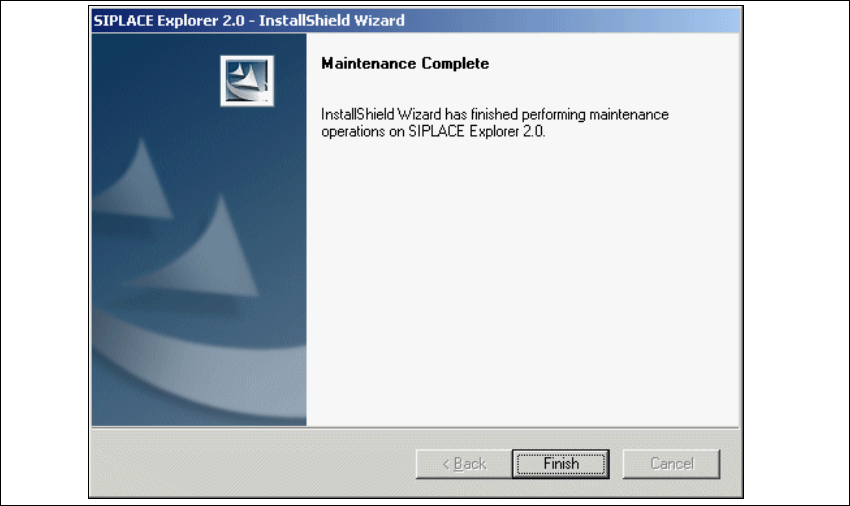
→ Deinstallation will be performed. The Setup Status dialog box shows you which features will
be deinstalled or installed.
5
Fig. 5 - 4 SIPLACE Explorer 2.0 - install shield wizard
→ SIPLACE Explorer 2.0 deinstallation/installation has been completed.
Installation and Configuration Guide SIPLACE Explorer 5 Deinstallation
Edition 02/2005 EN 5.2 Modify
123
5
Fig. 5 - 5 Modify complete
→ Click on Finish to close the SIPLACE Explorer 2.0 - InstallShield Wizard.