00193688-03.pdf - 第87页
Installation and Configuration Guide SIPLACE Explorer 4 Configuration Edition 02/2005 EN 4.1 Standard Monitoring Application (SMA) 87 4.1.2.4 Step 3 - Application Features Loadi ng → The selected target application will …
4 Configuration Installation and Configuration Guide SIPLACE Explorer
4.1 Standard Monitoring Application (SMA) Edition 02/2005 EN
86
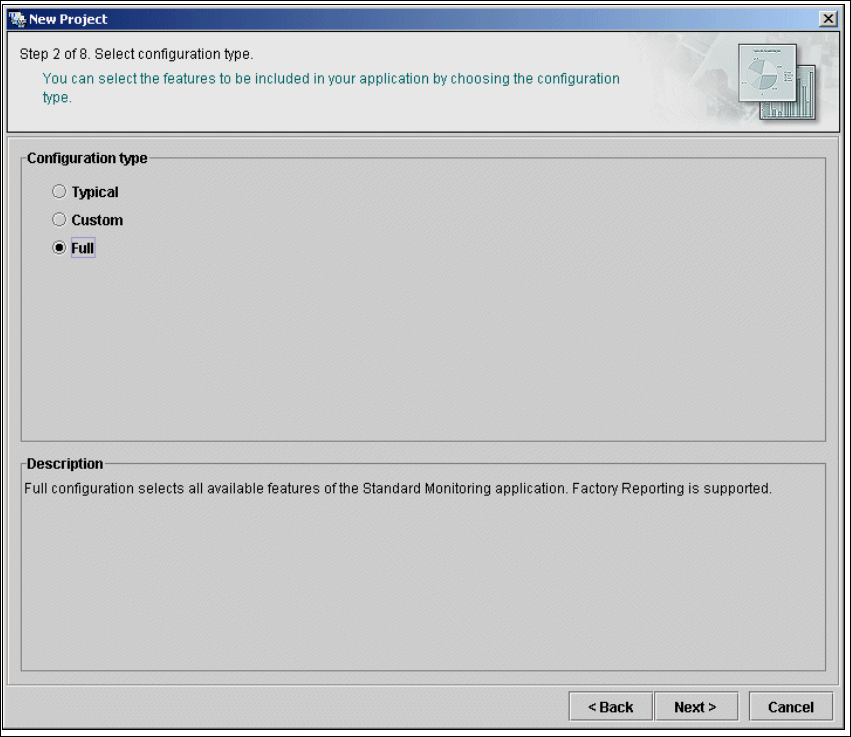
4.1.2.3 Step 2 - Select Configuration Type
→ You can select one of the following configuration types for the application to be created:
–Typical
the new application will include features required for Factory Reporting.
–Custom:
allows the user to choose the features to be included in the new application. All features
valid for the equipment in the production line are available for selection (see below).
– Full:
all features valid for the equipment in the production line will be included in the new
application.
4
Fig. 4 - 25 Step 2: Select configuration type
→ Select the required configuration type and click on the Next button to continue with the next
step.
Installation and Configuration Guide SIPLACE Explorer 4 Configuration
Edition 02/2005 EN 4.1 Standard Monitoring Application (SMA)
87
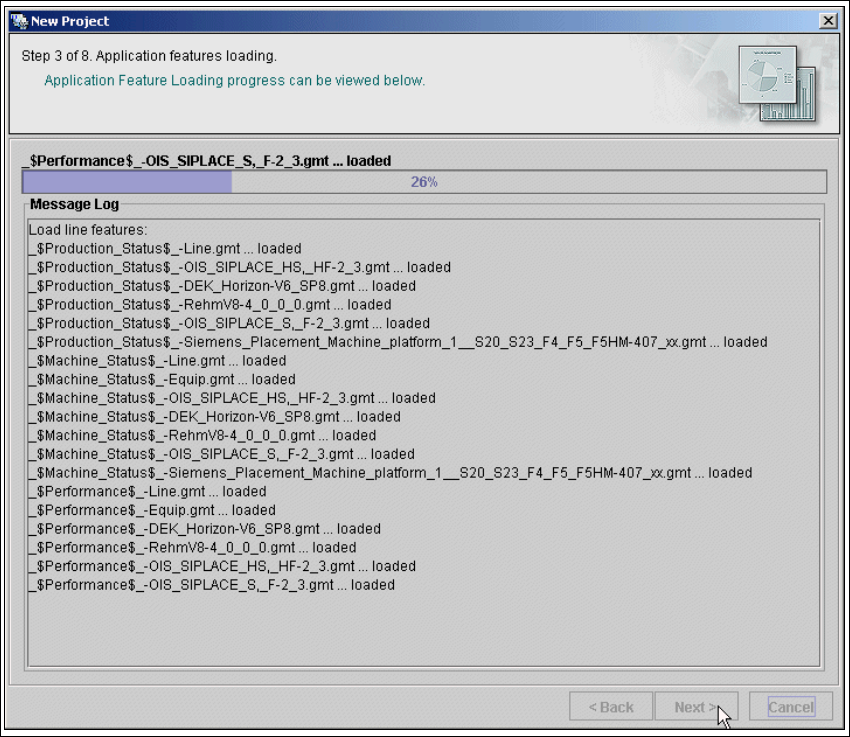
4.1.2.4 Step 3 - Application Features Loading
→ The selected target application will be loaded with all features.
4
Fig. 4 - 26 Step 3: Application features loading
→ Click on Next to continue with the next step.
4 Configuration Installation and Configuration Guide SIPLACE Explorer
4.1 Standard Monitoring Application (SMA) Edition 02/2005 EN
88
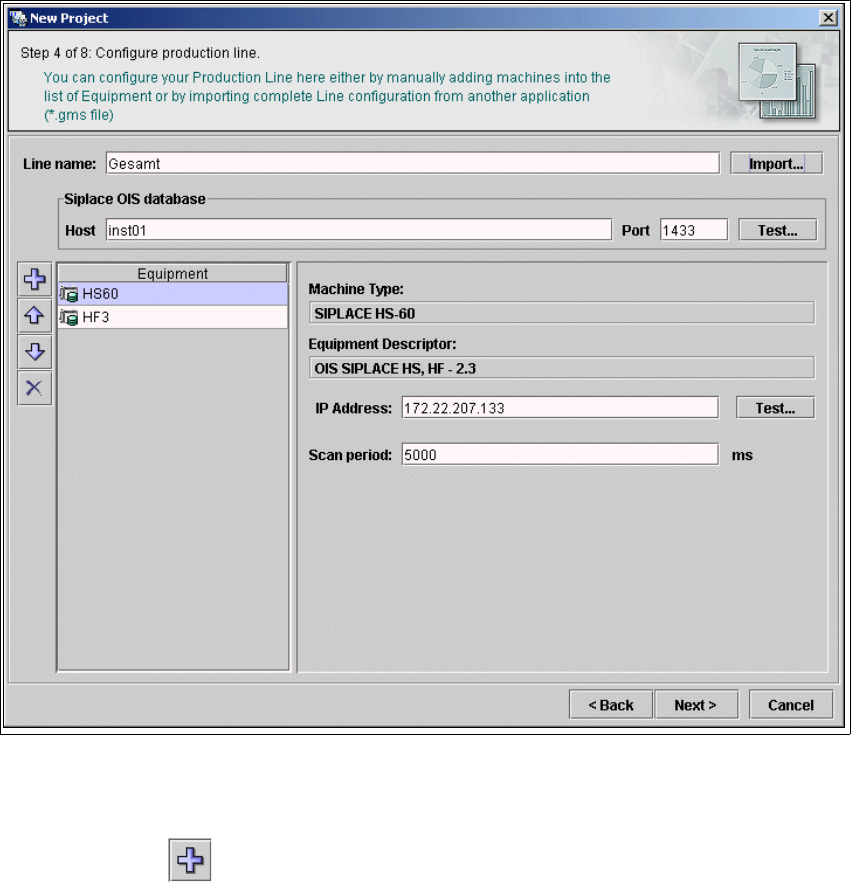
4.1.2.5 Step 4 - Configure Production Line
→ This is where you can configure your production line. Enter the line name and specify
parameters to access the SIPLACE OIS database (if available).
→ If you have another application which has been configured for your production line, you can
import the line configuration from that existing application (.gms file). The equipment
information will be populated from this imported data.
4
Fig. 4 - 27 Step 4: Configuring the production Line
→ To manually specify all the machines in your production line, you need to repeat the procedure
for each machine in the line:
– Click on the icon. The Select Equipment Descriptor and Name dialog box will
appear.
– Select the equipment description and edit the name for the selected machine.