FLX500-maintenance.pdf - 第29页
—25— For troubleshooting items not found here, see the FLX on-screen Diagnostics Help for a thorough troubleshooting tree. This Help is only av ailable when in the d iagnostics ar…

Data I/O
FLX500 Chptr 2
—24—
blank page
—25—
For troubleshooting items not found here, see the
FLX on-screen Diagnostics Help for a thorough
troubleshooting tree. This Help is only available
when in the diagnostics area of the software
interface (opened with the Tools button). The
Diagnostics Windows require a PIN (Personal
Identification Number) for access.
3 …
Troubleshooting
Data I/O
FLX500 Chptr 3
—26—
Rerunning the PV-Kit
If you suspect a problem with the FLX500, you
can check to see if the problem is the FLX500 and
not a device, algorithm, or power source, by
rerunning the PV-Kit job. All hardware required
to run the PV-Kit job, including 16 devices, came
with the FLX500. Contact Data I/O for informa-
tion about ordering replacement parts for the
PV-Kit.
NOTE: Be sure the Socket Adapters are
clean before running the PV-Kit job.
1. Rerun the PV-Kit job. For instructions see
Run PV-Kit on page 5.
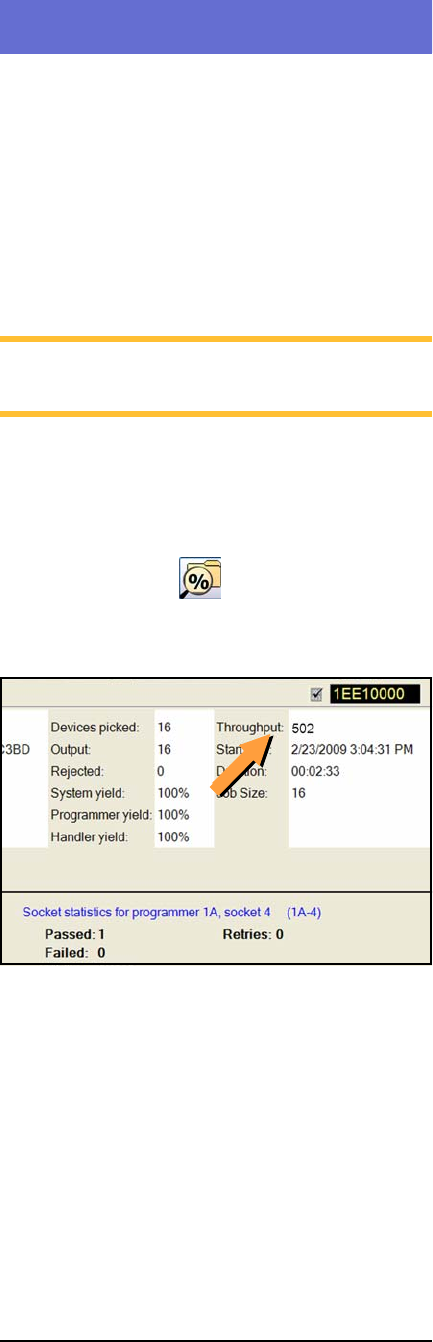
2. Read the Throughput displayed on the sta-
tistics screen on the monitor by tapping the
Statistics button on the Run Window.
Record the PPH in the PV-Kit Performance
chart on page 47.
Figure 14—The Statistics Window displays
Throughput, often abbreviated as PPH.
If the PPH is the same as when the machine was
new (approximately 500 PPH) then you can
eliminate many of the possible error causes.