FLX500-maintenance.pdf - 第7页
1 … Tools and Materials Log Fil e —3— Figure 2—Power Switch on the right side of the FLX500 is a spring-loaded r ocker switch. Connecting a USB Keyboard and Mouse: Plug in the keyboard and mouse using either USB port…
Data I/O
FLX500 Chptr 1
—2—
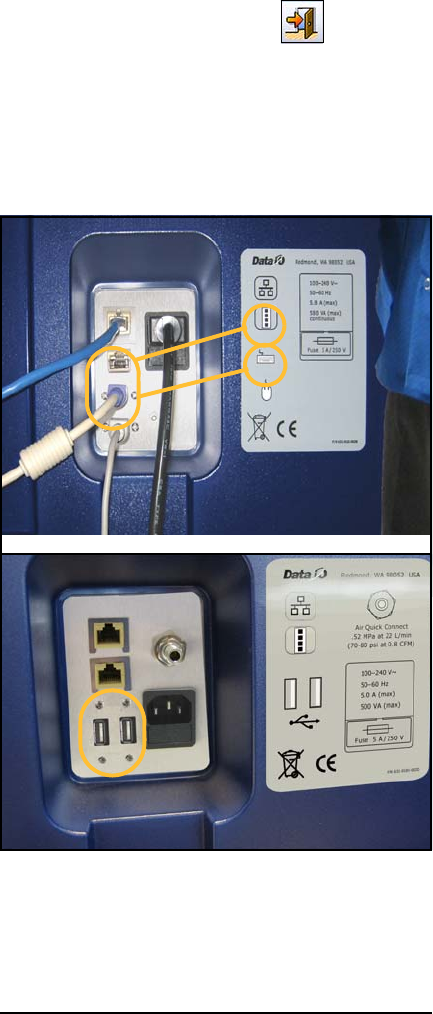
On early models using PS/2 ports, the system
power must be recycled after connecting a key-
board and mouse.
Connecting a keyboard and mouse depends on
your model. See the configuration in Figure 1
that matches your model.
Connecting a PS/2 Keyboard and
Mouse:
1. End a job if one is running.
2. Exit the FLX500 application–
3. Plug in the keyboard and mouse according
to the label. See Figure 1.
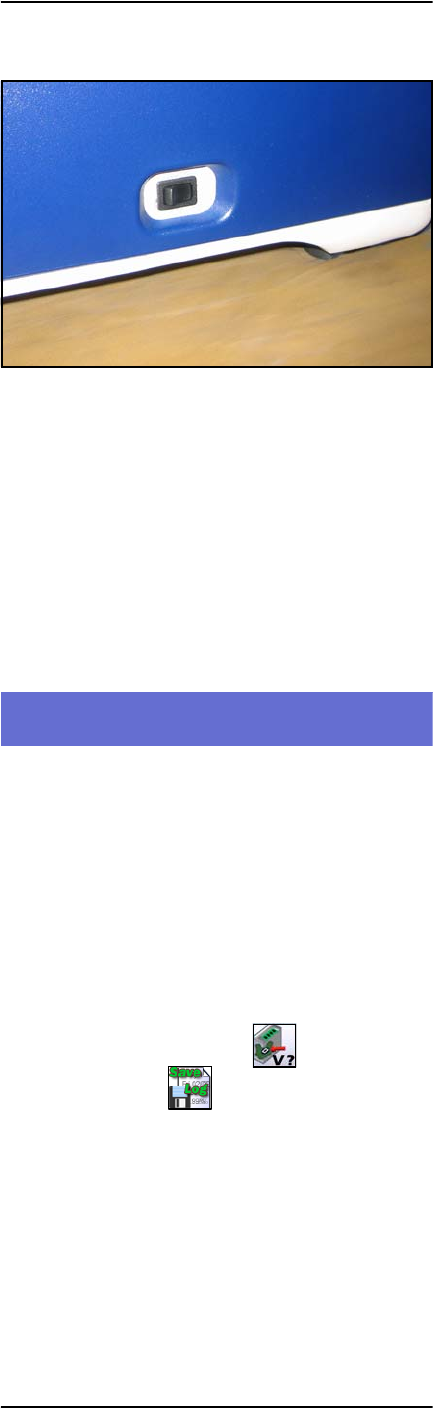
4. Switch off the power by pressing the power
switch (right side) once and releasing. Then
push it and release once more to turn the
power back on again.
Figure 1—Keyboard and Mouse Connections on the
back of the
FLX500
. Early models require PS/2 con-
nections (A). Later models require USB
connections (B).
PS/2
USB
A.
B.
1 … Tools and Materials Log File
—3—
Figure 2—Power Switch on the right side of the
FLX500
is a spring-loaded rocker switch.
Connecting a USB Keyboard and
Mouse:
Plug in the keyboard and mouse using either
USB port first. See Figure 1. (Power does not
need to be cycled.)
Log File
The FLX500 provides a log file that helps when
diagnosing problems. The file name has the date
and time the log was created and ends with .txt.
For example: FLX_20070607_162818.txt.
Log files are typically saved to the C: drive of the
FLX500 —C:\Flx_500\Log.
You can also save a log file to a different location:
1. Tap the Version button –
2. Tap Save Log –
3. Select a drive and path where you want the
FLXLog.zip file written, or insert a USB
memory stick and select (tap) the USB drive
listed.
4. Tap OK [], then OK, and close the dialog.

Data I/O
FLX500 Chptr 1
—4—
Two good ways to view the log files are:
• In the diagnostics—Tap Tools > Enter PIN
(Personal Identification Number) > Tap OK >
and View Log at bottom.
• Connecting a keyboard and mouse— see
previous headings. Then navigate to the Log
folder listed above.
Adding Antivirus Software
The FLX contains a CPU that runs Windows® XP
operating system.
Tools Required:
• Keyboard and Mouse
CAUTION: Possible virus hazard. The FLX
has no antivirus software installed from the
factory.
It is highly recommend that customers install
their own antivirus software. The software
should be set to run virus scans manually rather
than at a scheduled time unless you are sure that
the FLX will not be running jobs at that time. A
mouse and keyboard may be required for instal-
lation; see Installing a Keyboard and Mouse on
page 1.
NOTE: An antivirus program may affect
performance.