FLX500-maintenance.pdf - 第35页
3 … Troubleshooting PIN —31— PIN The FLX500 uses a PIN (P ersonal Identification Number) to access tools that offer fine adjust- ments, diagnostics, or other special functions. PIN is used synonymously with password …

Data I/O
FLX500 Chptr 3
—30—
Insufficient Vacuum
If you notice insufficient vacuum on the probe
tips (e.g., devices are dropped), perform the Vac-
uum Check: see Check Vacuum on page 19. If
some of the checks fail (red Xs on report when
the details check box is checked) then check that:
• all hose fittings are tight and hoses are not
pinched or clogged.
Perform the probe blowout procedure; see
Maintaining Air Flow on page 16.
• the air filters are not dirty. Replace air filters
if necessary. See Checking Air Filters on page
20.
• the input air to the FLX is at .48-.55 MPa
(70-80 PSI).
If you can’t find the source of the problem, save
the detailed Check Vacuum report and send it to
support@dataio.com.
Failures Picking and Placing
If probes drop devices or fail to pick and place
devices accurately, check the following:
• check for insufficient vacuum; see previous
heading.
• check the Z-Offset; see Calibrating Probe-
Offset on page 15.
• check the module alignment; see Gantry
Movement and Alignment on page 10.

3 … Troubleshooting PIN
—31—
PIN
The FLX500 uses a PIN (Personal Identification
Number) to access tools that offer fine adjust-
ments, diagnostics, or other special functions.
PIN is used synonymously with password.
When the FLX500 left the factory, the default PIN
was 2468. If you have reset and forgotten your
PIN, contact Data I/O or your local representa-
tive for assistance. For contact information see
Customer Support on page 35.
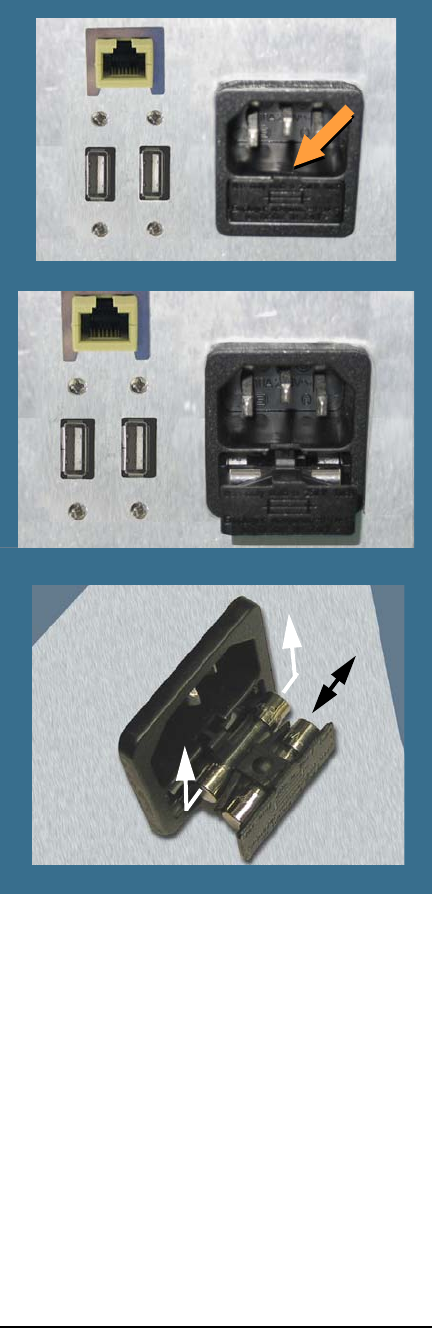
Electrical Fuse
The FLX500 uses one fuse that is located at the
back of the machine below the power connec-
tion. If you suspect the fuse has failed, replace it
with another 5 Amp, 250 Volt fuse—5 x 20 mm.
To replace the fuse:
1. Exit the FLX500 Application.
2. Turn off the power by pressing the power
switch once and releasing, and tapping OK
to close the FLX Application if it was open.
3. Unplug the power cord from the FLX.
4. With a small, flat screwdriver, placed at the
small tab, pry the fuse block straight out like
a drawer. See Figure 17.
Data I/O
FLX500 Chptr 3
—32—
Figure 17—Fuse Access is in the Back. Closed (top)
and open. The nearest fuse is a spare. The spare fuse
slides out left/right unlike the main fuse.
5. To remove the active fuse (farthest in), press
down lightly on the drawer while pushing
up on the fuse.
6. If the fuse is burnt, replace it with the spare,
which slides out left or right.
7. Close the drawer.
8. Plug the power cord back into the FLX.