00198001-02_IM_709.1_DE_EN.pdf - 第38页
Station Software 709.1 / Installation Manual Ausgabe 05/2016 E dition 38 6.2 Installing th e Software on th e Vision Co mputer via a Remo te Connection The respectiv e software can be i nstalled on the V ision computer v…
Station Software 709.1 / Installation Manual Ausgabe 05/2016 Edition
37
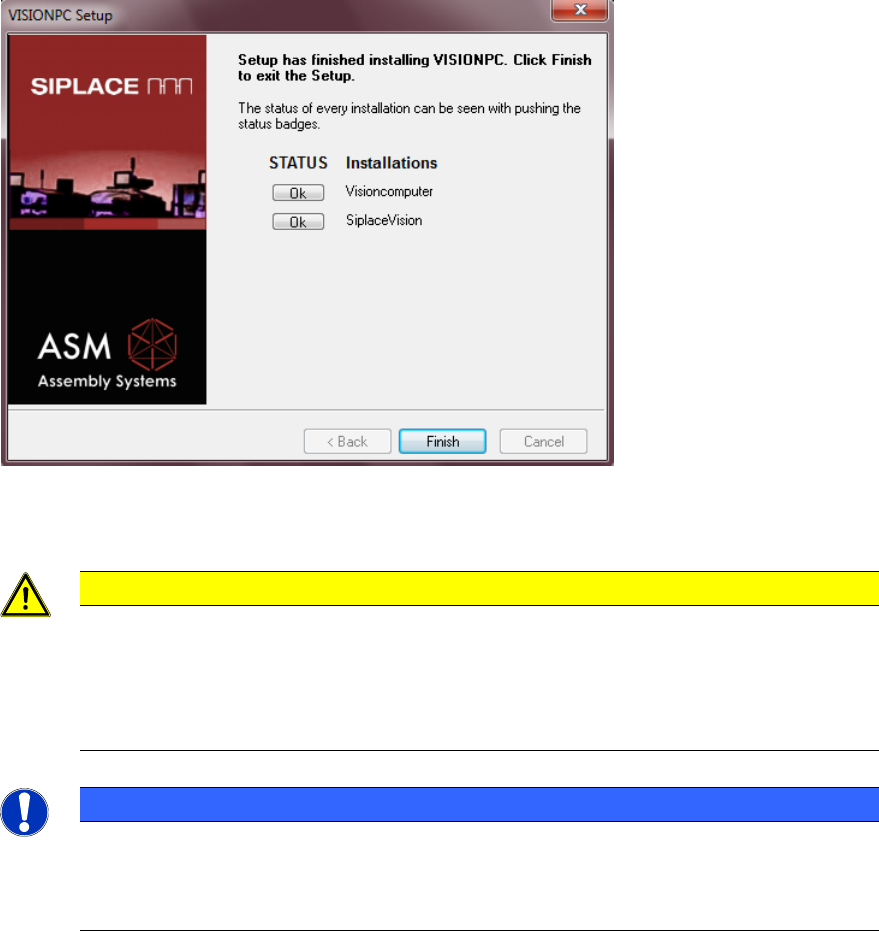
Figure 6-4: Finalizing the installation
► Click on the Finish button.
CAUTION
► Wait a few seconds after you have clicked the Finish button, before you shut down
and switch off the computer / the machine!
As some installation steps are not performed until the end of the installation by the
InstallShield, the installation might otherwise be incomplete what may cause
problems during further installations.
NOTICE
To establish the connection between the SIPLACE Coplan computer software or feeder
computer software and the SIPLACE station software after the installation has been
completed, the Vision computer and the station computer must first be shut down and
the machine then switched off completely.
► To do this, open the Start menu on the station computer and select All Programs – SIPLACE
– Shutdown Vision_SR (all).
► Switch the machine off when the computer systems have shut down.
► Then, switch the machine on again. This reboots the Vision computer and the station computer.
Station Software 709.1 / Installation Manual Ausgabe 05/2016 Edition
38
6.2 Installing the Software on the Vision Computer via a Remote
Connection
The respective software can be installed on the Vision computer via a remote connection from the
station computer. In the following, the necessary requirements and steps are described.
6.2.1 Requirements
– The Microsoft Windows Embedded Standard 7 operating system must be installed on the
Vision computer, see separate Installation Manual, item no. [00197737-xx].
– The "SIPLACE Windows Embedded Standard 7 Configurator" as of version 2.3.1 must have
been run directly on the Vision computer. On this computer, the Configurator creates the
D:\VisionShare directory that is shared for the ASM_Admin user. Thereafter, this directory on
the Vision computer can be accessed from the station computer.
– The station computer and Vision computer have to be interconnected in the SIPLACE LAN by a
LAN cable or a switch via the following connections:
Connection to machine LAN (at the station computer)
Connection to SR (at the Vision computer)
Please also refer to section 4.3.
– The installation files for installing the Vision computer software, i.e. the contents of the
installation DVD or installation ISO image, have to be locally available on the Vision computer.
– The station software must not run on the station computer during installation of the respective
software on the Vision computer!
6.2.2 Establishing a Connection to the Vision Computer
► Log in to the station computer under the ASM_Admin user account.
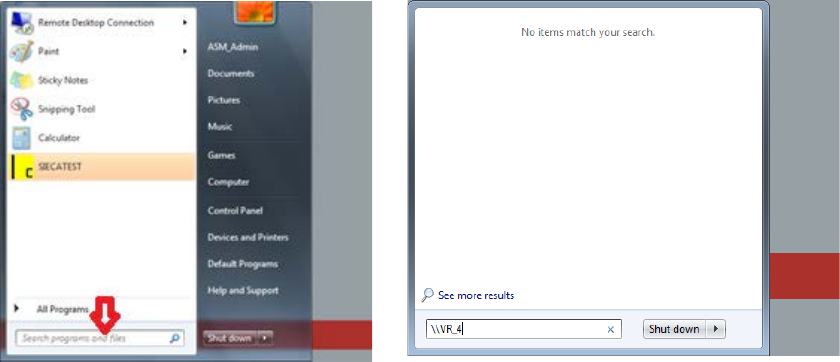
Figure 6-5: Establishing connection
► Enter the current Vision computer or the respective IP address in the input box of the Windows
Start menu:
\\VR_3 or IP address 192.168.255.253 (for Coplan computer)
\\VR_4 or IP address 192.168.255.251 (for feeder computer)
Station Software 709.1 / Installation Manual Ausgabe 05/2016 Edition
39
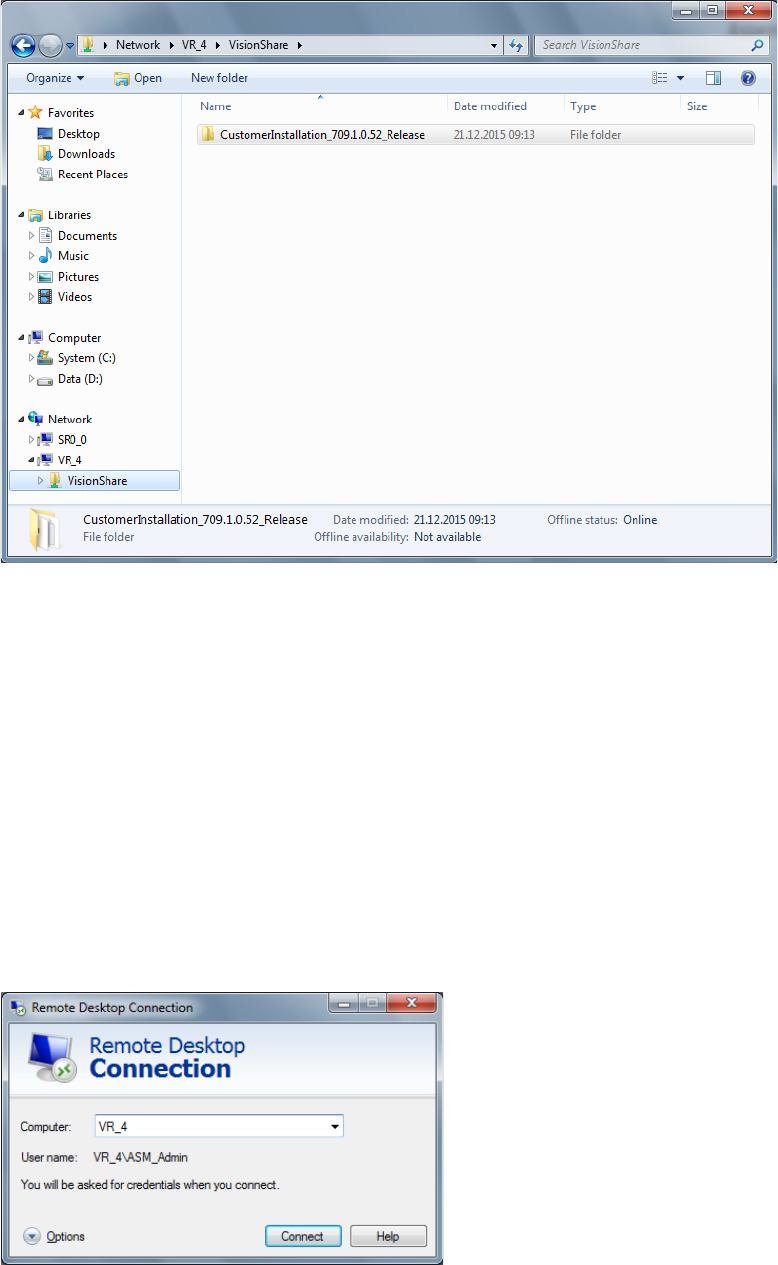
A Windows Explorer dialog box with access to the VisionShare directory opens on the Vision
computer.
Figure 6-6: VisionShare directory on the Vision computer
► Copy the installation files to the shared D:\VisionShare directory on the Vision computer.
(Called CustomerInstallation_709.1.0.52_Release in the example above).
Thus, the installation files are locally available on the Vision computer (required for successful
installation). The actual installation then has to be performed via a remote desktop connection.
If the disk space on the D: drive on the Vision computer is insufficient, this problem can be solved
by using the Remote Desktop Connection Windows feature. With this feature, the installation files
can also be copied to the Vision computer as described in the following section.
6.2.3 Opening the Remote Desktop of the Vision Computer
► Select Start – All programs – Accessories – Remote Desktop Connection to open a remote
connection.
The following dialog box opens.
Figure 6-7: Remote Desktop Connection dialog box