JAKA Zu 3及JAKA Zu 3 pro-电控柜V2.1-硬件手册( 英文版).pdf - 第18页
JAKA Zu 3 v 1. 1 13 2.4 Elect rical C abinet and Con trol St ick The cab inet of JAKA Zu Ro bots cont ains severa l kinds of interfaces which are desc ribed in ch apter 4. Along wit h the cab inet a stic k is provide d, …
12
JAKA Zu 3 v1.1
Fig 2-2 Ring Indicator and Pause Button
Color Robot Status
Blue Power on
Green Enabled
Red Falut
Yellow Drag Mode
Flashing
Yellow
Pause Mode
Table 2-2 Indicator Meanings
Warnings:
The risks related to using ofpause button should be evaluated carefully, the contact of robot and
personnel could cause server injury of personnel or damage of equipment.
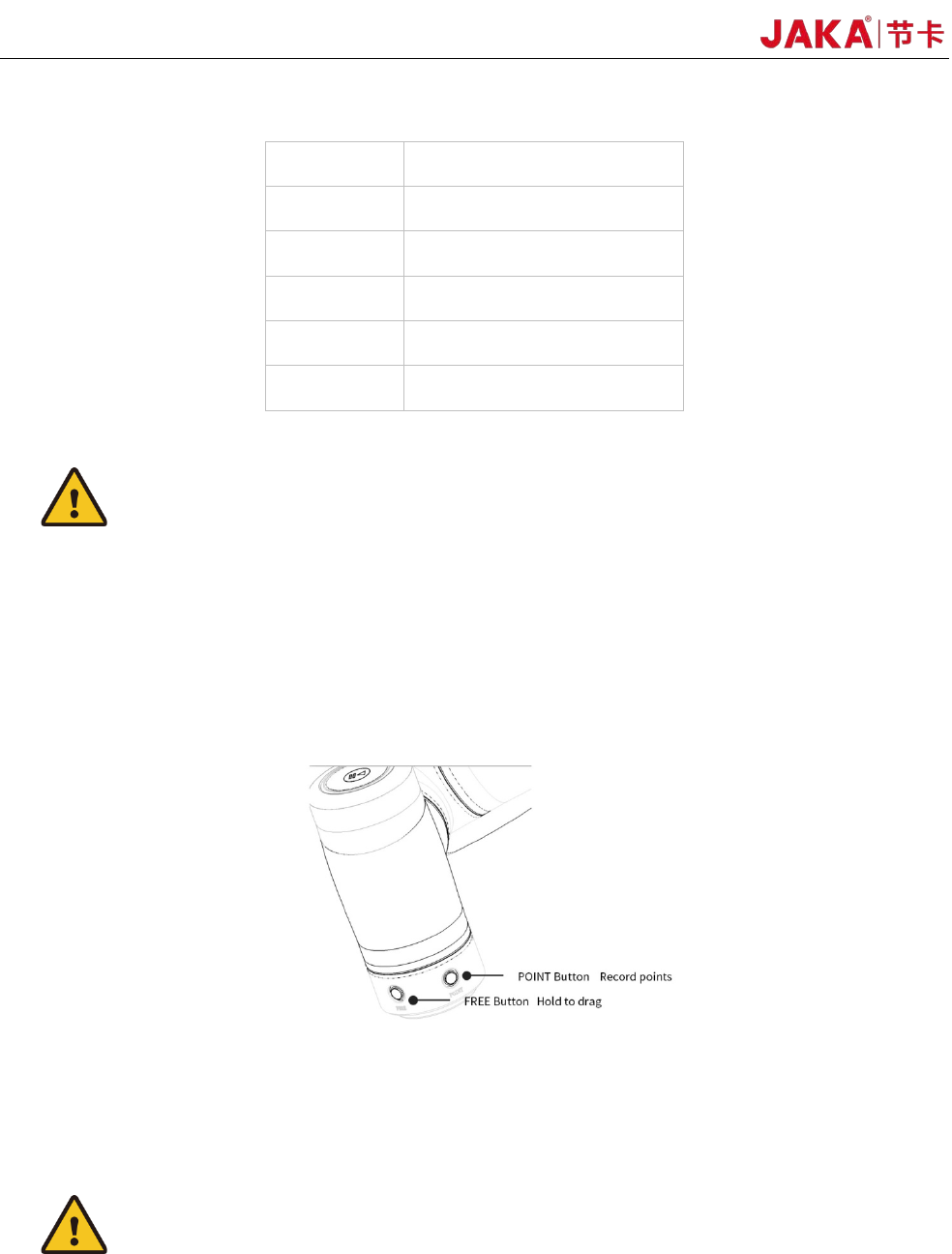
2.3.2 Flange Buttons and interfaces
On the side of flange located two buttons and TIO interface.The buttons are FREE button and POINT
button Respectively, shown as below:
The de
tailed description of TIO is in chapter 4.
When the free button is pressed, the robot would enter free-drive mode.
The point button could be used with the robot APP, and when this button is pressed the robot positon
would be recorded in the APP.
Warnings:
The risks related to using of pause button should be evaluated carefully, the playload、TCP setting
should be set properly, otherwise the contact of robot and personnel could cause server injury of personnel
or damage of equipment.
JAKA Zu
3 v1.1
13
2.4 Electrical Cabinet and Control Stick
The cabinet of JAKA Zu Robots contains several kinds of interfaces which are described in chapter 4.
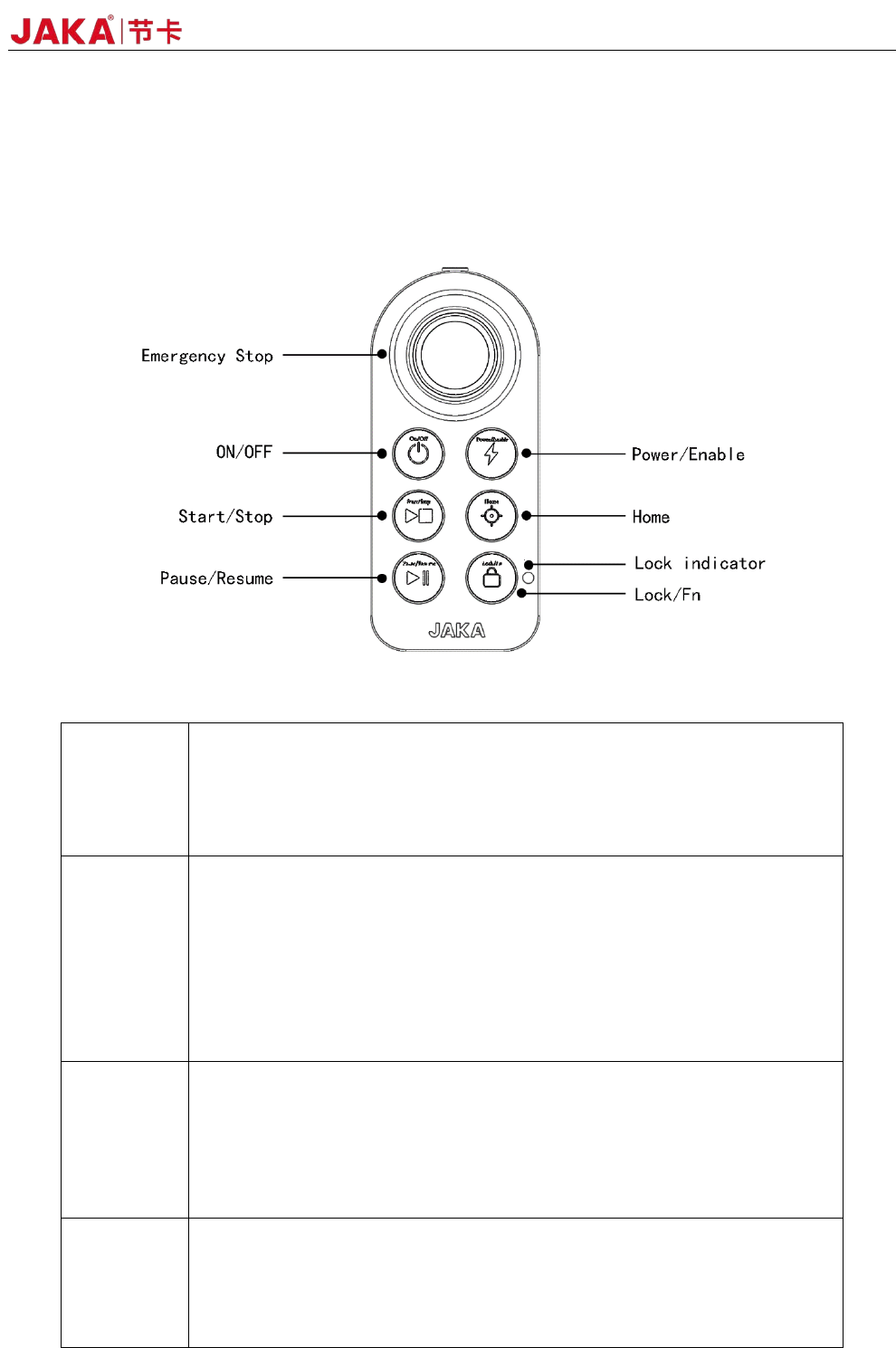
Along with the cabinet a stick is provided, and when the programming job is finished , the stick could be
sued to control the robot.
Commands can be sent to the robot using buttons on thestick, and are described as follows:
Table 2-3 Stick Function Description
ON/OFF
ON:Press the power button for 1 second and release it, The buzzer will
ring and the electric control cabinet will start up.
OFF:Press and hold the power button for more than 3s, the handle
buzzers 6~7 times, and the electric control cabinet is turned off.
Power/
Enable
Turn on robot:When robot turned off, short press the button to turn on
the robot.
Turn off robot:When robot turned on, short press the button to turn off
the robot.
Enable robot
:When robot turned on, short press the lock button a nd
enable button.
Disable robot
:When robot enabled, short press the lock button + enable
button
Start/Stop
Start program: press the terminate button to start the default loaded
program. After robot moves to the initial position of the program, execute the
default program .
Stop program: When program operating, short press the button to
terminate the program.
Home
Home:After robot enabled, when no program is operating, press
continuously to control the robot to run to the set default position. When robot
moves to the default position, press continuously and the lock indicator light is
blue.

14
JAKA Zu 3 v1.1
Pause/
Resume
Pause: When the robot moving automatically, press to pause the program.
Recovery: When robot paused, press to recover the program running.
Lock/Fn
Locking handle: Press and hold the lock button for 3 seconds, and the
lock indicator light will be orange.
Unlock handle: Press and hold the lock button for 3 seconds, and the
lock indicator light will go out.
Combination function: Other buttons and lock button can be pressed in
combination.
Lock
indicator
Locked state: When locked, the indicator is orange. Except for the unlock
and on/off button, other buttons are invalid. APP can control the robot.
Unlocked state: When unlocked, the indicator is off and the handle can
be used. The APP interface is gray and you can not control the robot.
Emergency
Stop
For emergency stop.
Note: The emergency stop button is only used in emergency situations
and cannot be used as a general power-off device.
Note:
After powering on, press any button and the handle will beep at a frequency of 2 times per second.
When using the handle to operate the robot, please ensure that the robot under operating is within the
line of sight, and follow the relevant safety rules to prevent injury to the people or equipment around the robot.