OM-1241-005_w.pdf - 第100页
2-36 AIX-ML T-ID 0806-001 3.4 T eaching Operation (4) When the [T each Pick-Up Pos] button is pressed, the "Manual Alignment Operation Guide" window appears. Fig. B29 "Manual Alignment Operation Guide"…
2-35
AIX-MLT-ID
0806-001
3.4 Teaching Operation
[3] Operation Buttons
[Teach Pick-Up Pos] Button
When pressed, this button performs a teaching operation on the pickup
position.
When the [START] button on the operation panel is pressed in 10
seconds after this button, the "Manual Alignment Operation Guide"
window appears.
[All Beam Heads Zero] Button
When pressed, this button zeroes the stage on which a teaching
operation is performed.
[Beam XY zero move] Button
When pressed, this button returns the beams to their X and Y origins.
[4]
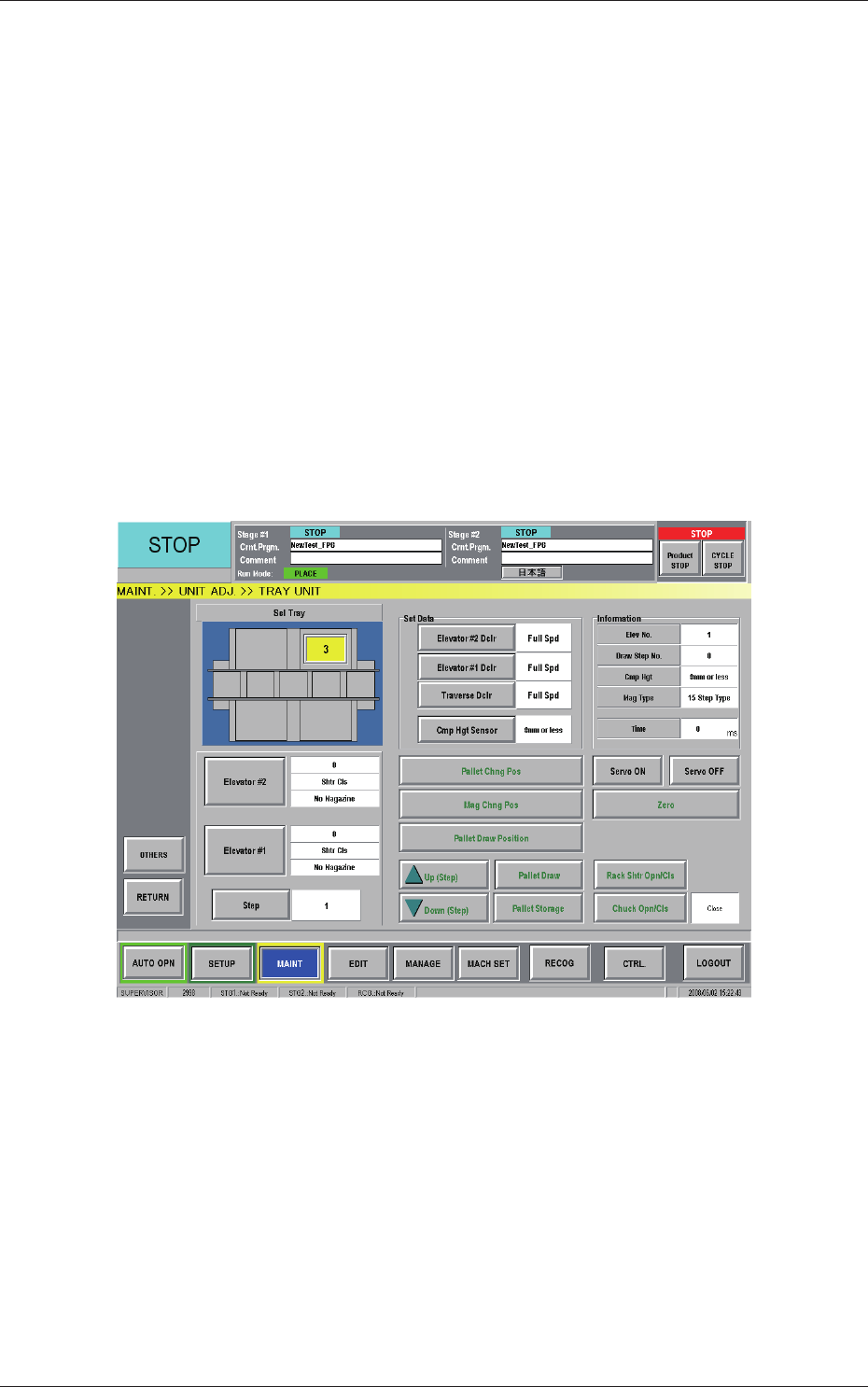
[Tray Unit Adj.] Button
When pressed, this button opens the "TRAY UNIT" window.
Fig. B28 "TRAY UNIT" Window
·
Procedure for T
eaching Operation
(1) Select the feeder base for which the teaching operation should be
performed.
(2) Press the [Fdr No.] button and enter the required feed
er No.
(3) Press the [All Beam Heads Zero] button to zero the stage on the
teaching side.
2-36
AIX-MLT-ID
0806-001
3.4 Teaching Operation
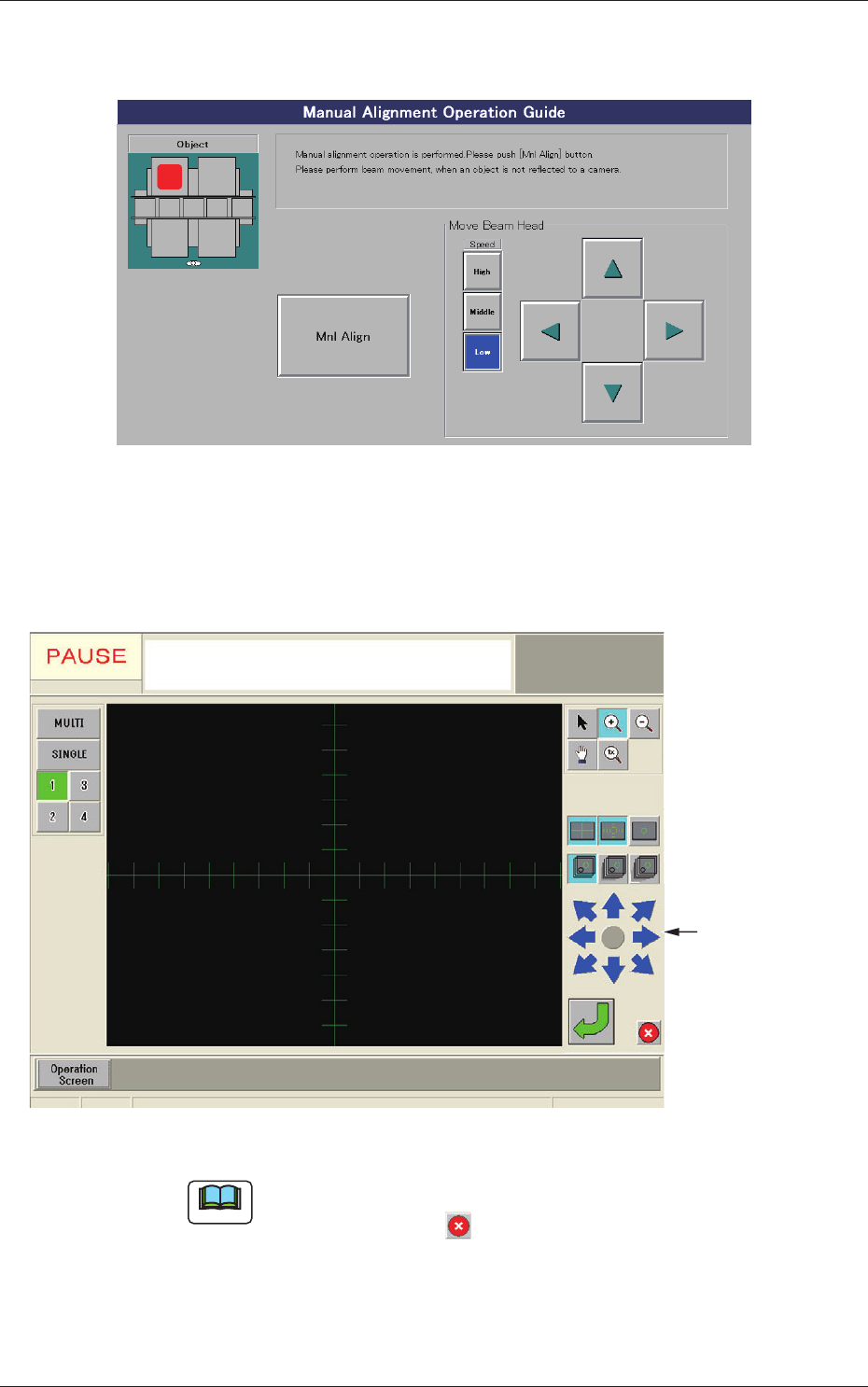
(4) When the [Teach Pick-Up Pos] button is pressed, the "Manual
Alignment Operation Guide" window appears.
Fig. B29 "Manual Alignment Operation Guide" Window
(5) When the [Mnl Align] button is pressed, a recognition window
appears, making it possible to perform the manual alignment
operation.
Image Movement
Buttons
Fig. B30 Recognition Window
Note
When an image of the object for the manual alignment cannot be captured
by the camera, press the button in the recognition window. The "Manual
Alignment Operation Guide" window resumes. Perform a beam movement
operation for the adjustment.

2-37
AIX-MLT-ID
0806-001
3.4 Teaching Operation
(6) Move the object pickup position of the feeder (B) offset for the
manual alignment operation with the image movement buttons until
it is located at the center of the crosshair.
(7) Press the
button in the recognition window to determine the
position.
The recognition window closes and the "T
each Pick-Up Pos"
window resumes.
(8) The results of the teaching operation appear in the tex
t boxes
entitled "Adj" in the "Teach Pick-Up Pos" window.
(9)
Whenthe[End]buttonispressed,the"ConrmationtoSaving"
dialog box opens, asking you to answer if the data should be saved
or not.
Whenthe[Y
es]buttonispressed,thedataisreectedonthe
component library data is written over the previous one.
Pressing the [No] button cancels the data save operation.
[5] [Feeder No. Tray Set] Button
This button enables you to set the feeder No., the magazine, and the
step for the components to be picked up.
When this button is pressed, a feeder selection becomes possible.
[6]
Comp ID
Displayed is the component library data related to the component on
which a teaching operation is performed.
[7]
Teaching Method
The following two types of teaching methods are provided and should
be selected according to the component size.
T
eaching Operation with the [Center 1-Pt.] Button
In normal cases, a teaching operation is performed, regarding one point
on the component as a component center.
T
eaching Operation with the [1Point] and [2Point] Buttons
When a component is large in size, these keys are used to align two
points on the component and a teaching operation is performed based
on the alignment.